Share VPS Access with Subusers and Teammates
Invite your team to manage your VPS with their own account and only the permissions you choose, without sharing the root password. Roles and revoking.
To share your VPS with a teammate, open the server in the panel, go to the Access tab, click Invite someone, enter the email of their SolumeCore account, choose a role and send the invitation. They accept it from their email and the server shows up in their own panel, with only the permissions you gave them. Nobody ever needs your root password, and you can change or remove their access at any time.
SolumeCore calls these subusers "people with access". The same feature exists for web hosting; this guide covers VPS and VDS servers.
What stays with you
Anyone you invite gets their own login and only the access you grant. The following always stay with the owner of the server: changing or upgrading the plan, adding disk or IPs, pausing and cancelling the service, and managing your billing details. A person with access can pay the server's invoices only if you give them that specific permission.
Choose a role
When you invite someone, you pick the role that fits them. You can fine-tune the permissions afterwards.
| Role | What they can do |
|---|---|
| Just watch | See the status, charts, history, backups and IPs. Can't change anything. |
| Operator | Everything above, plus start, stop and restart the server and rename it. |
| Technician | Plus the web consoles (SSH and Screen), create backups and schedule automatic ones, rescue mode and reverse DNS. For whoever fixes things. |
| Administrator | Everything except giving access to other people and paying. |
Some permissions are marked Sensitive because they are almost the same as having root: the consoles, seeing or changing the access password, installing SSH keys, using rescue mode, restoring backups and reinstalling the system. Reinstalling erases the disk, so only grant it to someone you fully trust.
Invite someone
- Open your VPS in the panel and go to the Access tab.
- Click Invite someone. Under People with access you will also see how many seats you use ("1 of 25").
- In Their email, enter the email of their SolumeCore account. They must already have an account with that address; we never tell you whether it has one. If they don't, ask them to sign up and verify their email first, then send the invitation.
- Under What can they do?, choose a role. Open Fine-tune each permission to tick or untick individual items. The window lists what they will be able to use.
- Click Send invitation.
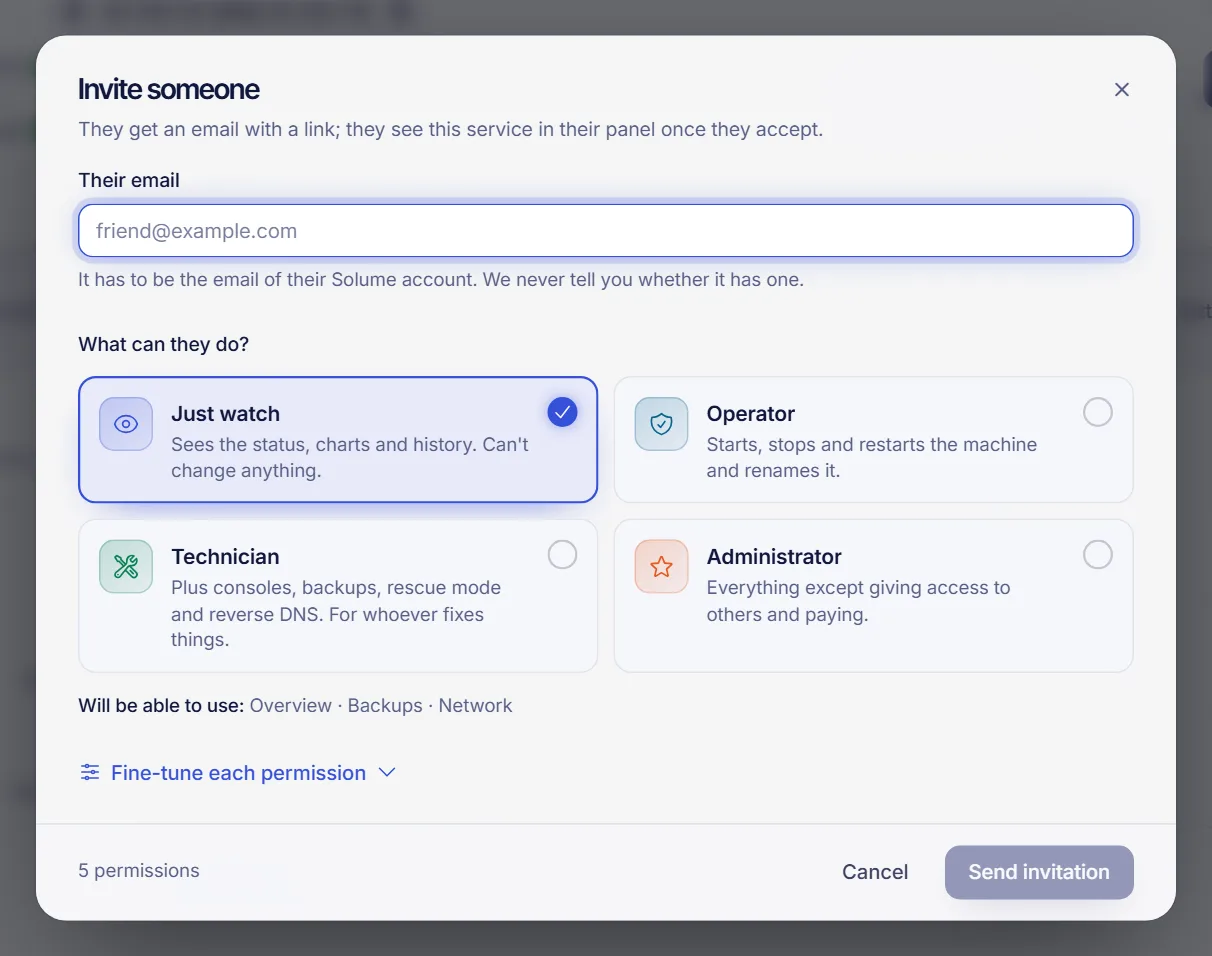
You can invite up to 25 people per server (pending invitations count). Inviting the same email again renews the link and the old one stops working.
What the other person does
- They receive an email with a link, valid for 7 days. The email is only sent when an account with that address exists, so a person without an account gets nothing until they sign up (with that same email, verified) and you invite them again.
- They sign in and click Accept invitation. The page shows what they will be able to do.
- The server appears in their panel with a "Shared with you" tag and a banner that says you shared it and that plans, billing, upgrades and cancelling stay with you. They only see the tabs their permissions allow.
Until they accept, the person has no access at all. While it is waiting, the Access tab lists them as Pending, with the date the invitation expires, and you can use Cancel invitation.
Change permissions or remove access
- To change a role, open the person's menu and click Edit permissions, adjust, and click Save permissions.
- To remove them, open More options, click Remove access and confirm. They stop seeing the server immediately and any console they have open is cut. Their account isn't deleted, and you can invite them again.
If the person could see or change the access password, change it right after removing them (see change the root password of your VPS). SSH keys that they installed from their own account are taken off the server automatically, but a key they had already deleted from their account can't be recognized, so review the authorized keys yourself too.
Everything is recorded in the Activity tab: "Access offered", "Access accepted", "Permissions changed" and "Access removed", and each action a person performs shows who did it.
Good practices
- Give the lowest role that does the job. Start with Just watch or Operator and raise it when needed.
- Ask technicians to use their own SSH key instead of a shared password.
- Be careful with the permission to give access to others: that person can pass on any permission they have.
- Remove access when a project or a contract ends, and review the Access tab from time to time.
- Turn on two-factor authentication on your own account.
Troubleshooting
- They didn't get the email. The most common cause is that no account exists yet with that address: ask them to sign up and verify it, then invite them again. Also check the address, ask them to look in spam, and resend by inviting again. If it still doesn't arrive, open a ticket.
- "This invitation is not available." It expired, was already used, was cancelled, or it is meant for another account. They must be signed in with the email that received it, and that email must be verified.
- "You've reached the limit of 25 people." Remove someone or cancel a pending invitation.
- They can't see a tab. Their permissions don't include it. Edit their permissions.
- The Access tab is missing for me. If you are a shared user, you need the permission to see who has access.
FAQ
Do subusers need their own SolumeCore account?
Yes. Each person signs in with their own account and accepts the invitation from their email. That's what keeps your root password private.
Can a subuser see my billing information?
No. They can only see whether the server is paid up if you allow it, and they never see your billing details.
Can I limit someone to restarting the server?
Yes. The Operator role starts, stops and restarts the server and nothing deeper. You can also tick only the power permissions.
Does it cost extra to add people?
The panel doesn't list a price for access. You can have up to 25 people per server.
What happens to their access if I reinstall or upgrade?
Access belongs to the service, so it stays. Removing it is always a manual step you do from the Access tab.
Related articles
- Change the root password of your VPS
- Add an SSH key to your VPS
- Secure your new VPS
- Enable two-factor authentication
Working with a team? Pick a VPS plan and give each person only the access they need.