Monitor Your VPS CPU, RAM, Disk and Traffic Usage
Check CPU, memory, disk and traffic usage of your VPS in the panel, understand the charts and spot early when you need more resources.
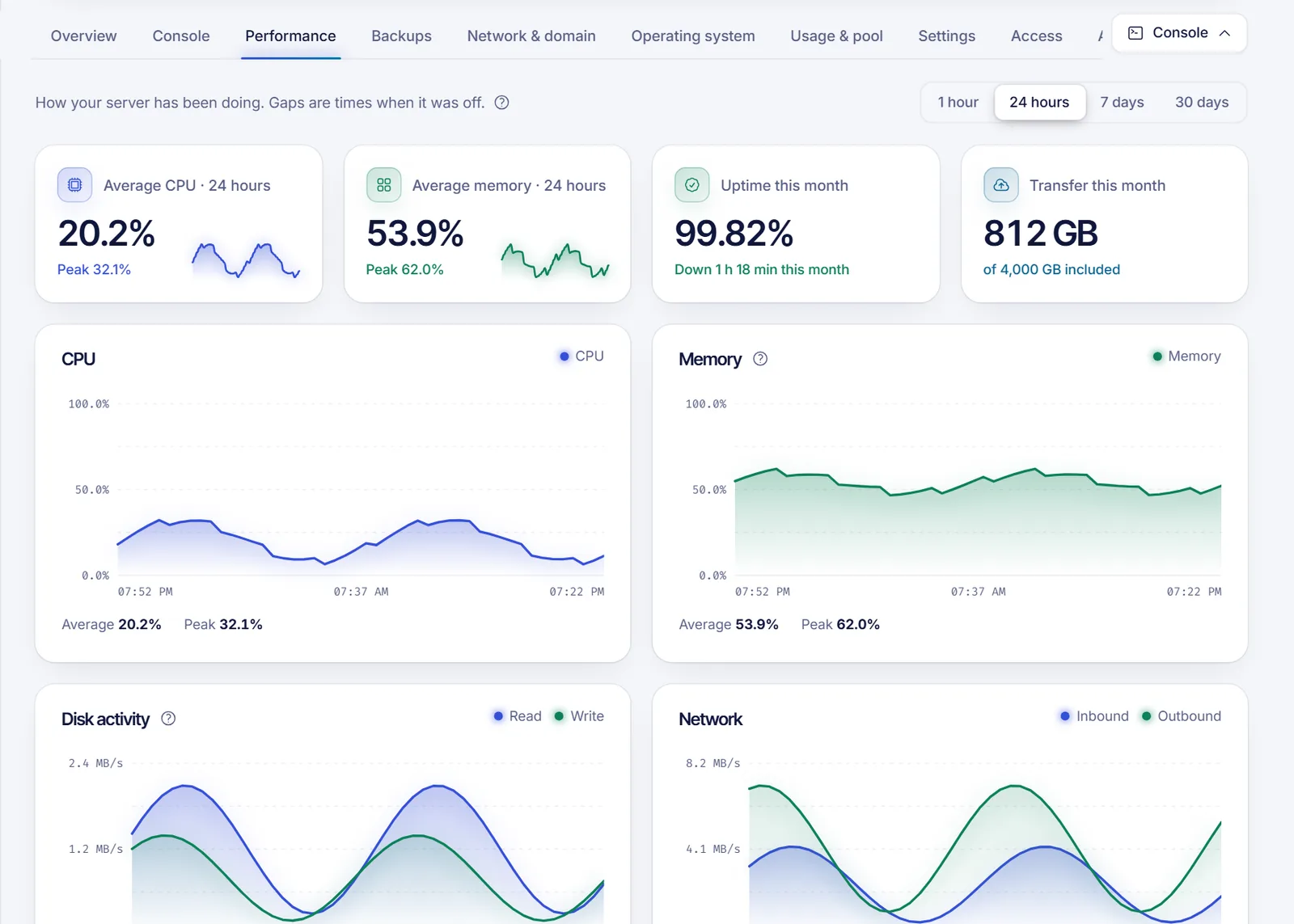
You can monitor your VPS from the Performance tab of your server in the panel: it charts CPU, memory, disk activity and network traffic for the last hour, day, week or month, and shows your uptime and monthly transfer. For what is happening right now, the Overview tab shows live CPU, memory, disk and transfer cards.
Where to look
| Where | What you see |
|---|---|
| Overview tab | Live CPU, memory, disk and transfer for this month, plus the last backup |
| Performance tab | Charts and averages over time, uptime and transfer |
| Network & domain tab | Detailed traffic for the month, in and out |
| Activity tab | Power events, reinstalls, backups and other actions |
Read the Performance tab
- Open your VPS in the panel and go to the Performance tab.
- Choose a range at the top: 1 hour, 24 hours, 7 days or 30 days. The detail changes with the range: 1-minute points for the last hour, 30 minutes for a day, 3 hours for a week and 12 hours for a month.
- Read the four summary cards:
- Average CPU and Average memory for the range you chose, with the peak underneath.
- Uptime this month, with how long the server was down, or "No downtime this month".
- Transfer this month, out of the amount included in your plan (or "No transfer limit").
- Scroll to the charts: CPU, Memory, Disk activity (read and write) and Network (inbound and outbound). Each one shows its average and its peak. Gaps in a chart are times when the server was off.
The memory history also counts the system's cache, so it usually looks higher than the live number on the Overview tab. That's normal: Linux uses free memory as cache and gives it back when programs need it.
Disk space used
The Disk space used card shows how much of the disk is really taken by your files, next to the size allocated to your plan. To read it, the panel needs the server's guest agent to answer from inside the system. If the card says it can't see inside the disk, make sure the server is on and that the guest agent installed with your system is running; if it is not, ask support for help. Meanwhile you only see the allocated size.
Check traffic and your transfer limit
- On the Performance tab, click See details in the transfer card, or open the Network & domain tab.
- The Traffic this month card shows inbound and outbound traffic, how much of your included transfer you have used and your port speed.
- Switch between Per day and Per hour (last 24 h). The hourly view is estimated from averages; the monthly total is the exact counter.
By default, the panel emails you once per month when you pass 80% of your included transfer. If your plan has no transfer limit, the card says so.
Check from inside the server
The panel shows the big picture. To find which program uses the resources, log in over SSH (connect to your VPS) and run:
# Memory and swap
free -h

# Disk space per file system
df -h

# Biggest folders in the current directory
du -sh * | sort -h | tail

# Live processes (press q to quit)
top
On a Windows server, use Task Manager or Resource Monitor over Remote Desktop.
Know when to upgrade
- CPU averages near the top for hours, or memory that is always full and the server uses swap, mean the plan is too small.
- Disk space above roughly 85-90% can break services. Free space or add more disk.
- Transfer close to the limit means you will hit it before renewal. Reduce traffic or upgrade your plan.
If the Settings tab offers Discord alerts, you can also get a message in your Discord channel when the server starts, stops or goes down.
Troubleshooting
- The charts say "No data yet". History starts once your server is delivered and running. If it was off, you will see gaps.
- "History isn't available for this server yet." Wait a few minutes or open a ticket if it stays that way.
- I can't see the Performance tab. On a shared server you need the monitoring permission. See sharing VPS access.
- The numbers differ from
top. The panel measures from outside the server, and the memory chart includes cache. Small differences are expected.
FAQ
How often is the data updated?
The charts use 1-minute points for the last hour, and coarser points for longer ranges. The Overview tab shows the live values.
How do I see how much bandwidth my VPS used?
Open the Network & domain tab and look at Traffic this month, or the transfer card on the Performance tab.
Why does my RAM look full?
Mostly because Linux fills free memory with cache. Look at the "available" column in free -h; if that is low as well, you need more memory.
Does the panel alert me when the server goes down?
The panel shows downtime in the uptime card and logs events in Activity. If your server offers Discord alerts under Settings, they notify you when it stops or goes down.
Related articles
- Upgrade your VPS plan
- Add an extra IP or more disk to your VPS
- Restart, stop and force stop your VPS
- Secure your new VPS
If your usage keeps growing, compare our VPS plans and move up without reinstalling.