How to Secure a New VPS: First Steps Checklist
Secure a fresh Linux VPS: update the system, create a sudo user, harden SSH, turn on ufw and fail2ban and use the panel firewall. Step-by-step checklist.
A new VPS is reachable from the internet within minutes, and bots start trying passwords on port 22 almost immediately. To secure it, update the system, create a regular user with sudo, log in with an SSH key, turn off root and password login over SSH, enable a firewall and add fail2ban. This checklist takes about 20 minutes and works on Ubuntu, Debian, AlmaLinux and Rocky Linux.
Before you start
- You need to be connected to your server over SSH. If not, read How to connect to your VPS via SSH.
- Commands below assume you are
root, which is how a new server starts. Once you create your own user, addsudobefore them. - Do the steps in order. Several of them can lock you out if you skip ahead, so keep one SSH session open while you test the next one.
- If you ever lock yourself out, the Screen console of the panel still gets you in. See VPS VNC console.
Never share your root password, and never paste it in chats or tickets. If you think it leaked, change it right away from the panel: How to change your VPS root password.
1. Update the system
Updates fix known vulnerabilities. Do this first:
apt update && apt upgrade -ydnf upgrade -yIf the update installed a new kernel, restart the server with reboot (or use Restart in the panel) and connect again.
2. Create a regular user with sudo
Working as root all the time is risky. Create your own user:
adduser deploy
usermod -aG sudo deployadduser deploy
passwd deploy
usermod -aG wheel deployReplace deploy with the name you want and set a strong password when asked. To test, run su - deploy and then sudo whoami: it should print root. Type exit to go back.
3. Log in with an SSH key
Keys are far safer than passwords. On your own computer, create a key if you do not have one (see How to add an SSH key to your VPS) and copy it to your new user:
ssh-copy-id [email protected]type $env:USERPROFILE\.ssh\id_ed25519.pub | ssh deploy@203.0.113.10 "mkdir -p ~/.ssh && chmod 700 ~/.ssh && cat >> ~/.ssh/authorized_keys && chmod 600 ~/.ssh/authorized_keys"Now open a new terminal and check that ssh [email protected] logs in without asking for the server password (it may ask for your key passphrase).
4. Harden SSH
Only continue when step 3 works. Create a small configuration file that turns off root login and password login:
cat > /etc/ssh/sshd_config.d/00-hardening.conf <<'EOF'
PermitRootLogin no
PasswordAuthentication no
EOF
sshd -t
The name starts with 00 on purpose: SSH uses the first value it reads, and some images ship other files in this folder that could override yours. sshd -t checks the syntax; if it prints nothing, it is valid. Then reload the service:
systemctl reload sshsystemctl reload sshdConfirm what is active with sshd -T | grep -E "permitrootlogin|passwordauthentication". If it does not show no for both, your image does not read that folder: put the same two lines in /etc/ssh/sshd_config instead and reload again. Do not close your current session until a brand-new terminal can log in as deploy with the key.
The panel's web console and the Connect panel assume you log in as root with the saved password. After this step that no longer works. Before closing your session, open your server, go to the Console tab and, under How the console logs in, click Change, set User to deploy, choose Panel key and click Create and install. Then click Save. Details are in VPS web SSH console.
If you changed the SSH port, remember to allow the new port in the firewall steps below.
5. Turn on the firewall inside the server
A firewall closes every port you do not use. Allow SSH first, then enable the firewall, or you will cut your own connection.
apt install ufw -y
ufw default deny incoming
ufw default allow outgoing
ufw allow 22/tcp
ufw enable
ufw status verbosesystemctl enable --now firewalld
firewall-cmd --permanent --add-service=ssh
firewall-cmd --reload
firewall-cmd --list-allWhen you install a website or a game server, open its ports as well, for example ufw allow 80,443/tcp. This firewall is separate from the one in the panel; read How to open a port in your VPS firewall to understand how they work together.
6. Install fail2ban
fail2ban watches your logs and temporarily bans addresses that fail to log in too many times.
apt install fail2ban -ydnf install epel-release -y
dnf install fail2ban -yCreate /etc/fail2ban/jail.local:
[sshd]
enabled = true
maxretry = 5
findtime = 10m
bantime = 1h
Start it and check that it works:
systemctl enable --now fail2ban
fail2ban-client status sshd
On images that keep logs only in the journal and have no /var/log/auth.log, add backend = systemd under [sshd].
7. Install security updates automatically
apt install unattended-upgrades -y
dpkg-reconfigure --priority=low unattended-upgradesdnf install dnf-automatic -y
systemctl enable --now dnf-automatic-install.timer8. Use the protections in the panel
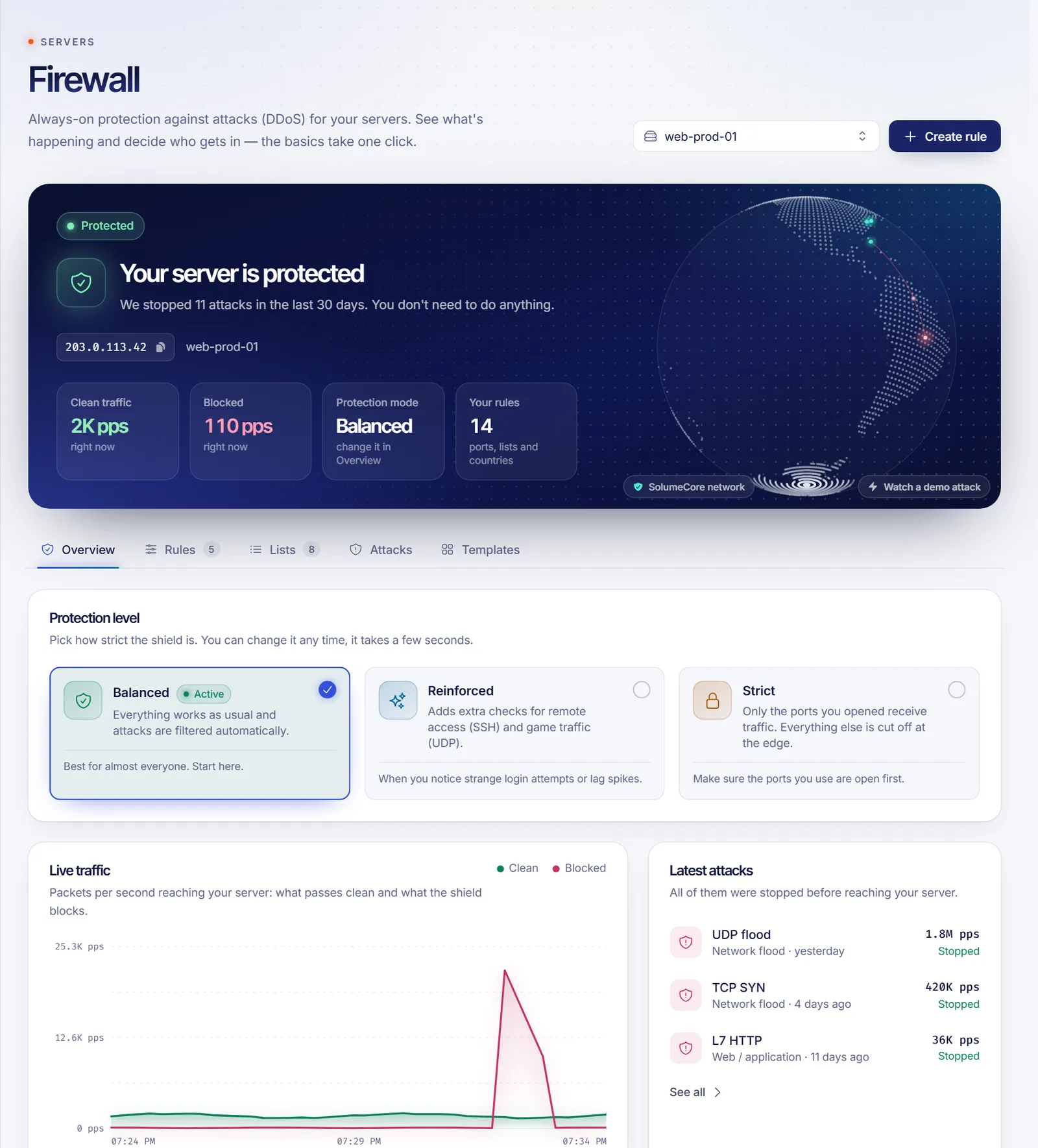
- Firewall page: every server with a dedicated IP has DDoS protection from the start. Open Firewall in the left menu, choose your server and, in the Overview tab, look at Automatic protections. Turn on SSH guard to stop bots that try thousands of passwords. The Reinforced protection level adds extra checks for remote access.
- Always allowed list: in the Lists tab, add your own IP to Always allowed so the filters never block you by mistake.
- Backups: if your plan includes backups, create one before you make big changes. See VPS backups and snapshots.
- Your account: turn on two-factor authentication (How to enable two-factor authentication), because anyone who enters your account can open your server console.
Quick checklist
- System updated.
- Regular user with sudo.
- SSH key login works.
- Root and password login turned off.
- Firewall inside the server on.
- fail2ban running.
- Automatic security updates on.
- SSH guard on in the panel.
- Two-factor authentication on for your account.
Troubleshooting
- You cannot log in after step 4: use the Screen console, log in with your regular user's password and fix
/etc/ssh/sshd_config.d/00-hardening.conf, or remove the file and run the reload command again. - The web console fails after hardening SSH: set the user and credential in How the console logs in as described above.
- You enabled ufw and lost the connection: open the Screen console and run
ufw allow 22/tcp, orufw disableto start over. - You banned yourself with fail2ban: from the Screen console run
fail2ban-client set sshd unbanip YOUR_IP.
FAQ
What is the first thing I should do on a new VPS?
Update the system. Then create a regular user, set up an SSH key and turn off password login.
Is it safe to disable root login?
Yes, as long as you first have another user with sudo and a working key. Always test in a second terminal before closing your session.
Do I need a firewall if the panel already has one?
Yes, both help. The panel firewall protects against attacks at the network edge. The one inside the server controls which services listen to the outside.
Should I change the SSH port?
It reduces noise in the logs but it is not real security. Keys and fail2ban matter more. If you change it, update the firewalls and the port in the web console settings.
How do I know if someone is trying to break in?
Run fail2ban-client status sshd to see banned addresses, and journalctl -u ssh (Ubuntu and Debian) to read the login attempts.
Related articles
- How to add an SSH key to your VPS
- How to open a port in your VPS firewall
- VPS web SSH console
- How to enable two-factor authentication
- VPS backups and snapshots
Want a VPS to apply all this on? Take a look at our VPS plans.