VPS VNC Console: See Your Server's Screen in the Browser
Use the VNC console in the panel to see your VPS screen, even with no network or when it will not boot. Learn to open it, type text and send Ctrl+Alt+Del.
The VNC console shows your VPS screen right in your browser, as if you had plugged a monitor and keyboard into the machine. Open your server in the panel, go to Console and choose Screen. It works even when the server has no network or the system does not boot properly, which makes it the tool to use when SSH is not an option.
When to use the screen console
- SSH does not connect and you want to see what the server is doing.
- The system hangs while booting, or shows an error before reaching the login prompt.
- You locked yourself out with a firewall rule or a wrong network setting.
- You use a Windows server and need to reach the login screen.
- You are in rescue mode (when it is available for your server) and need to repair the disk (see VPS rescue mode).
If SSH works, the web SSH console is usually more comfortable: it is a plain terminal with copy and paste.
Open the screen console
- Sign in at dashboard.solumecore.com, open VPS & VDS and click your server.
- Make sure the server is Online. If it is off, click Start server.
- Open the Console tab. On Linux servers with both consoles available, select Screen. On Windows servers the screen opens directly, because it is the only console.
- Wait a few seconds while it shows Turning on the screen…. When the status changes to Connected, the screen of your server appears.
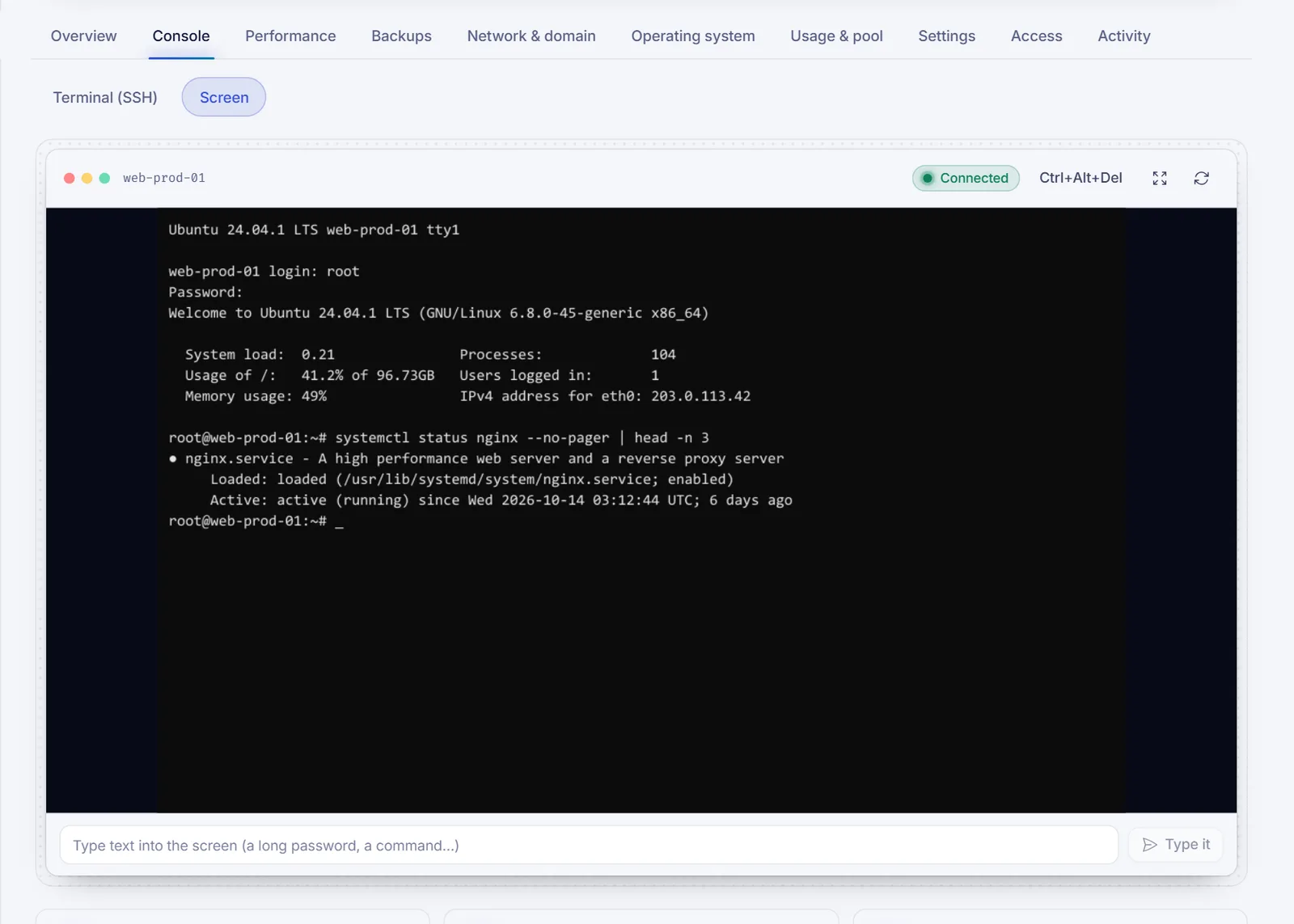
Click inside the screen to give it keyboard focus, then type as you would on a physical machine. On Linux, log in at the prompt with the same user and password you see under Connect.
If you do not see the Screen option, the graphical console is not available for your server at the moment. Open a ticket from the panel and we will check it.
Buttons and tools
| Control | What it does |
|---|---|
| Ctrl+Alt+Del | Sends that key combination to the server. On Windows, press it to reach the login screen. |
| Full screen | Expands the screen to your whole monitor. Press Esc to leave. |
| Reconnect | Opens a new screen session. Use it if the screen goes blank or disconnects. |
| Text bar at the bottom | Types text into the server for you (see below). |
Type or paste long text
The screen cannot paste from your computer's clipboard. To enter a long password or a command, type it in the bar at the bottom of the console (placeholder: "Type text into the screen") and click Type it. The text is sent to the server key by key, and a new line is sent as Enter. It supports standard keyboard characters (letters, numbers and common symbols).
If some symbols come out wrong when you type directly on the screen, the keyboard layout configured inside the server is probably different from yours. The text bar helps in that case.
Good to know
- A screen session closes by itself after about 4 hours. Click Reconnect to open a new one.
- Each session is recorded in the Activity tab as a screen session.
- You can open up to 10 consoles per minute (by default) from the same address.
- The screen console only works while the server is on.
Troubleshooting
- "Your server is off": click Start server and the console connects by itself.
- "The server rejected the screen session": click Reconnect to request a new session.
- "The connection to the screen dropped": check your internet connection and click Reconnect.
- "We couldn't open the screen": try again in a moment. If it persists, open a ticket.
- The screen stays black: click inside it and press a key; many systems blank the display after a while. If it stays black after a restart, the system may not be booting. If rescue mode is available for your server, try rescue mode.
FAQ
What is the VNC console?
It is a remote view of your server's screen and keyboard, available in the browser. It shows what you would see on a monitor connected to the machine.
Can I use it if my VPS has no network?
Yes. It does not depend on your server's network, so it is the way in when you broke a network setting or a firewall rule.
How do I send Ctrl+Alt+Del to my VPS?
Click the Ctrl+Alt+Del button at the top of the console. Your own computer would intercept the real key combination.
Why can't I paste into the VNC console?
The screen does not receive your clipboard. Use the text bar below the screen and click Type it.
Do I need a VNC client like RealVNC?
No. The console runs in your browser and you do not need to install anything.
Related articles
- VPS web SSH console
- What to do if you can't connect to your VPS
- VPS rescue mode
- Restart, stop and force stop your VPS
Want full control over your own server? See our VPS plans.