How to Reinstall Your VPS Operating System
Reinstall your VPS or switch to another system (Ubuntu, Debian, Windows) from the panel in 1 to 2 minutes. See what gets erased before you start.
To reinstall the operating system of your VPS, open your server in the panel, go to the Operating system tab and click Reinstall or change system. A short wizard lets you pick the system, optionally an app and your SSH keys, and asks you to type the server name before it wipes the disk. It usually takes 1 to 2 minutes.
A reinstall erases the whole disk: files, databases and settings. Backups are kept, snapshots are lost, and there is no undo. Copy anything you need first.
Before you start
- Your server must be active. While it is being delivered or is suspended, the button stays disabled.
- Download the files and database dumps you want to keep (for example with
scpor SFTP), or create a backup first. Backups and snapshots may not be part of your plan; see VPS backups and snapshots. - Your IP address, panel name and plan resources stay the same, and so do any extra IPs you bought. The root (or Administrator) password changes.
- The person doing the reinstall needs the "Reinstall the operating system" permission if the server is shared with them.
Reinstall step by step
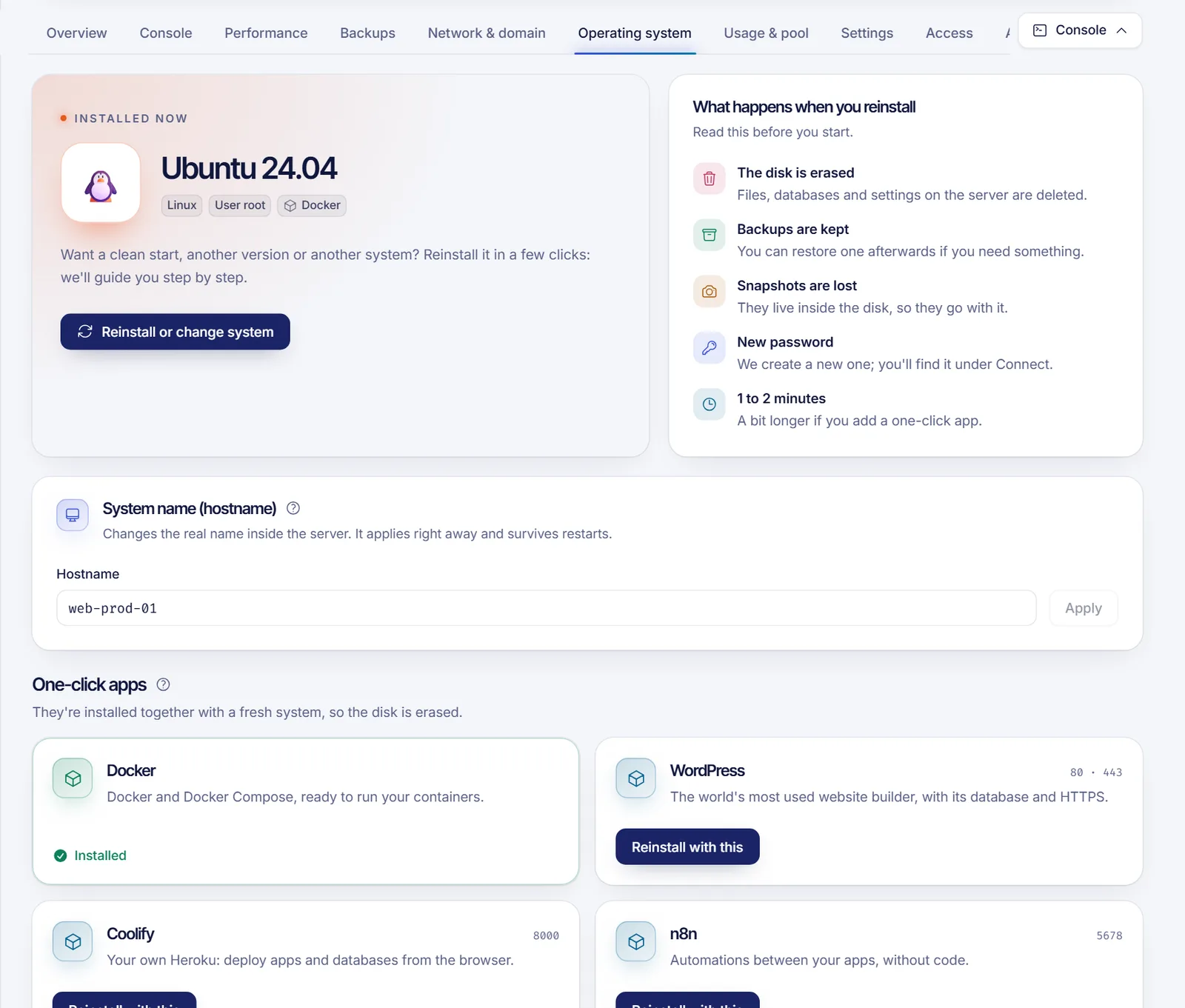
- Sign in to dashboard.solumecore.com and open your VPS.
- Open the Operating system tab. You will see the system installed now and a card that explains what happens when you reinstall.
- Click Reinstall or change system. The wizard has up to four steps.
- System: pick the new system. Systems are grouped (for example, one Ubuntu entry with its versions), and each one shows the minimum RAM it needs. If your plan has less RAM than that, the option is disabled; you would have to upgrade your plan first. Not sure which one? Ubuntu LTS is the most popular and the easiest to find help for.
- App: this step only appears when one-click apps are enabled for your server, and they need a Linux system. You can skip it with "Just the system", or choose an app that installs itself on first boot (see one-click apps).
- Access: on Linux you can tick the SSH keys from your account to install them, so you can log in without a password. This step is optional. On Windows there are no SSH keys: you log in as
Administratorover Remote Desktop. - Confirm: review the summary. Type the exact name of your server (the one shown in the panel) to unlock the final button, then click Reinstall now.
The panel shows "Reinstalling" and you can leave the page. When it finishes you get a notification, and the server is back online with a new password.
After the reinstall
- Open the Overview tab and look at the connection card. It shows the IP address, the user and the new password.
- Connect with the new password or your SSH key. If you use a terminal, the old host key no longer matches and SSH will warn you. Remove the stale entry and try again:
ssh-keygen -R YOUR_SERVER_IP
ssh root@YOUR_SERVER_IP- Update the system and put your firewall and keys back in place. Secure your new VPS has a short checklist.
- Restore your files, or restore a backup if you kept one (see below).
Reinstall or restore a backup?
Both bring a server back, but they do different things. A reinstall gives you a clean system with nothing of yours on it. Restoring a backup returns the whole disk to how it was on the date of the copy, including the system that was installed then. If your goal is to undo a mistake, a backup or snapshot is usually the better tool.
Troubleshooting
- The reinstall button is disabled. The server has to be active. If it is still being delivered, suspended or under maintenance, wait until it is back to normal.
- A system is greyed out. It needs more RAM than your plan includes. Pick another version or upgrade the plan.
- The wizard says it could not start. Try again in a moment. If it keeps failing, open a ticket from the panel and mention the time and the system you chose.
- It takes longer than 2 minutes. A one-click app needs extra time on first boot. The panel keeps checking by itself; look again after a few minutes. If it ends with an error, your backups are intact and you can try again.
- I can't log in with my old password. The password is new after every reinstall. Read it on the Overview tab.
FAQ
How long does a VPS reinstall take?
Usually 1 to 2 minutes. It can take a little longer if you add a one-click app.
Will I keep my IP address after reinstalling?
Yes. The server keeps its IP, its name in the panel and its plan resources. Extra IPs you already have are attached again.
Can I switch from Ubuntu to Windows, or the other way around?
Yes, the wizard lets you choose any system available for your plan, as long as your RAM meets its minimum. The disk is erased in every case.
Do I lose my backups when I reinstall?
No. Backups are stored apart from your server and survive a reinstall. Snapshots, on the other hand, live inside the disk and are lost.
Can someone I shared the VPS with reinstall it?
Only if you gave them that permission. The reinstall permission is marked as sensitive because it erases the disk. See sharing VPS access.
Related articles
- VPS backups and snapshots
- Restore your VPS from a backup
- Install apps on your VPS in one click
- Secure your new VPS
Need a clean server for a new project? You can pick a VPS plan and reinstall it whenever you want from the panel.