VPS Backups and Snapshots: Create and Schedule
Learn how to create backups, schedule automatic copies and take snapshots of your VPS from the panel, and when to use each one to protect your data.
You create VPS backups and snapshots from the Backups tab of your server in the panel. A backup is a full copy of the disk that is stored apart from your server and survives a reinstall, while a snapshot is an instant restore point kept inside the disk, perfect before an update but lost if you reinstall.
Backups, automatic backups and snapshots are optional features. If your service includes them, the Backups tab shows them; if the tab is missing or a section is hidden, they are not available on your server yet. You can ask for them in a ticket.
Backup or snapshot: which one?
| Backup | Snapshot | |
|---|---|---|
| What it is | A full copy of the disk | A frozen point inside the same disk |
| Speed | Takes minutes (bigger disks take longer) | Almost instant |
| Survives a reinstall | Yes | No |
| Best for | Safety net, long term, before big changes | Right before an update or risky change |
| Keeps the server on | Yes, nothing is shut down | Yes |
By default each server can keep 2 manual backups and 2 snapshots, although your plan can set other limits. The counter on each section (for example "1 of 2") shows how many you are using.
Create a backup
- Open your VPS in the panel and go to the Backups tab.
- Choose the Backups section.
- Click Create backup. If this is your first one, the button reads Create the first one.
- Give it a name so you recognize it later, for example "Before updating". The name is optional.
- Confirm with Create backup. The panel copies the whole disk without shutting your server down, and tells you when it is ready.
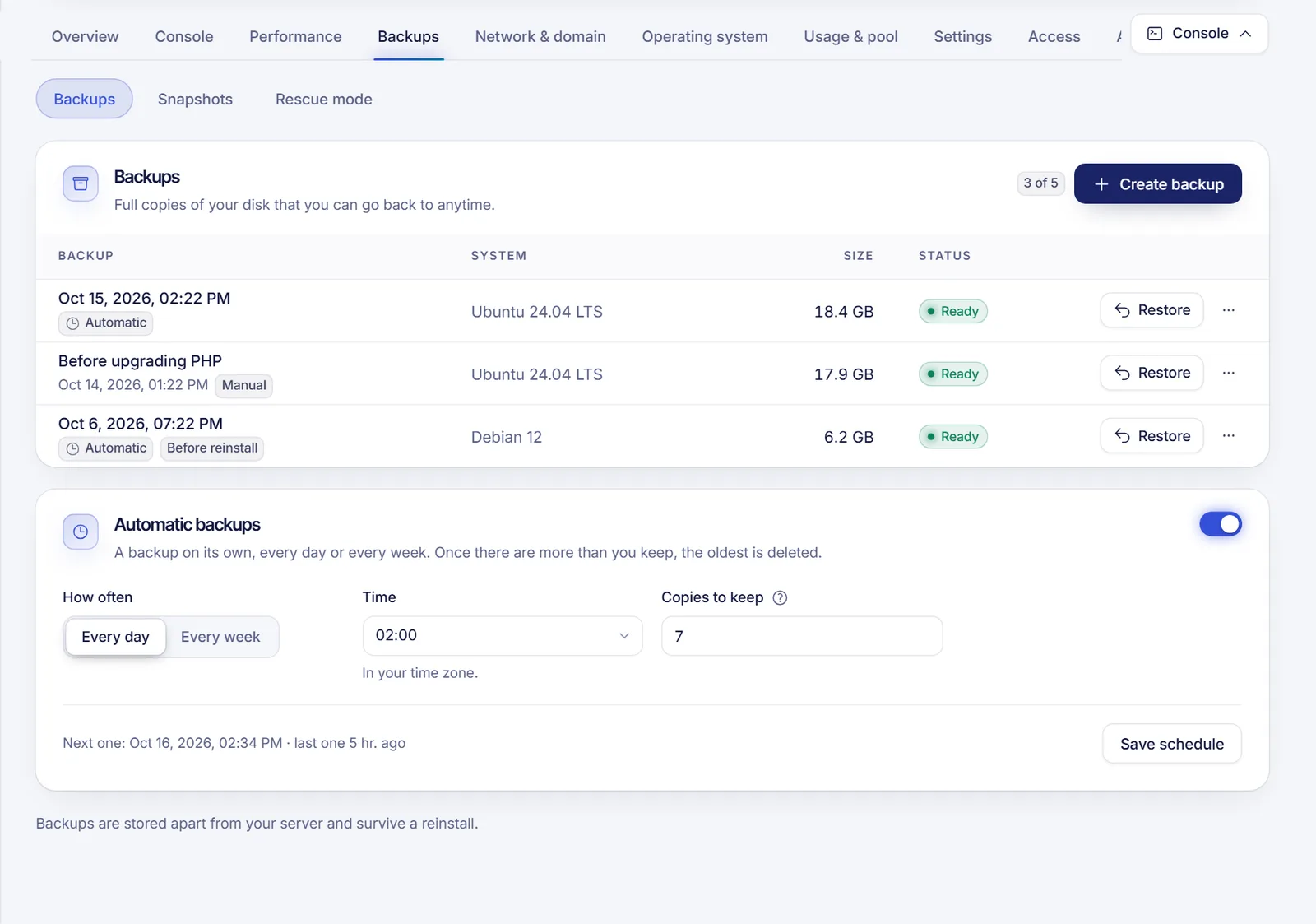
The list shows each backup with its date, whether it is Automatic or Manual, the system that was installed, the size and the status (Ready, In progress or Failed). A backup tagged Before reinstall was taken before the last reinstall of the server.
If a database is writing while the backup runs, dump it first (mysqldump or pg_dump) and keep that file too. It is the safest way to have a consistent copy of your data.
When you reach the limit, the Create backup button is disabled with the message "You reached your backup limit". Delete an old backup from the More menu (Delete) to make room. Deleted backups are gone for good.
Schedule automatic backups
If automatic backups are available on your service, the Backups section also has an Automatic backups card with a switch.
- Turn the switch on.
- Under How often, pick Every day or Every week. For weekly backups, also choose the Day.
- Choose the Time, shown in your time zone.
- Set Copies to keep. The maximum is 7 by default. When a new automatic backup is made and you already have that many, the oldest one is deleted.
- Click Save schedule. The card shows when the next one will run.
In some accounts automatic backups are an add-on: the card says "Automatic backups are an add-on" and offers a button to ask support for them.
Take a snapshot
- In the Backups tab, open the Snapshots section.
- Click Take a snapshot.
- Enter a Name: 2 to 40 characters, starting with a letter, using only letters, numbers, hyphens and underscores (for example
before-upgrade). Add a Description if you like. - Tick Also save the memory only if you want the server to come back with everything open as it was. It takes longer and uses more space.
- Confirm. It is almost instant and the server stays on.
To go back, click Roll back next to the snapshot and confirm: everything that changed afterwards is lost. Delete removes the snapshot and leaves your server as it is.
Restore a backup
Restoring shuts the server down, puts the disk back to how it was on the date of the copy, and starts it again. The password also goes back to the one from that day. The full walkthrough, with the confirmation step, is in Restore your VPS from a backup.
Good habits
- Take a snapshot before every system update or configuration change, and delete it when you are sure everything works.
- Keep at least one backup that is not tied to your latest change.
- Test a restore at some point, so you know how long it takes.
- If you are about to reinstall the operating system, remember: backups stay, snapshots go.
- The panel does not offer downloading a backup. For your own offline copy of the data, use
scporrsync.
Troubleshooting
- I don't see the Backups tab. Backups, snapshots and rescue mode are optional. If none of them is enabled for your server, the tab doesn't appear.
- Create backup is greyed out. The server must be active, no other operation can be running, and you must be under the limit. A box titled "Working on it" tells you what is in progress.
- The last operation failed. A red message appears at the top of the tab. Try again, and open a ticket if it keeps failing.
- A shared user can't see backups. They need the right permissions; see sharing VPS access.
FAQ
Do backups cost extra?
It depends on your plan and on whether automatic backups are an add-on for your server. The panel tells you when something is an add-on; check your plan details or ask support.
How many backups can I keep?
By default 2 manual backups per server, and up to 7 automatic copies, unless your plan sets a different limit.
Can I take a snapshot while the server is running?
Yes. A snapshot is almost instant and the server stays on.
Are backups kept if I reinstall or delete files?
Backups survive a reinstall. They are not kept if you delete them yourself, and when you cancel a server immediately, its backups and snapshots are deleted too.
Related articles
- Restore your VPS from a backup
- Reinstall your VPS operating system
- VPS rescue mode
- Secure your new VPS
Looking for a server with room for your own safety net? See our VPS plans.