How to Restart, Stop and Force Stop Your VPS
Restart, shut down or force stop your VPS from the panel. Learn the difference between a normal stop, a force stop and a hard reset, and when to use each.
You can restart, stop or force stop your VPS from the panel in one click. Open your server and use the power buttons at the top right: Restart and Stop shut things down cleanly, while Force stop and Hard reset, inside the More power options menu, cut the power like pulling a plug and should only be used when the server is frozen.
The power options at a glance
| Action | Where | What happens | Use it when |
|---|---|---|---|
| Start | Main button, when the server is off | Powers the server on. | The server is Off. |
| Restart | Main button, when the server is on | Asks the system to reboot properly. Services close cleanly. | After updates, config changes or a normal reboot. |
| Stop | Button next to Restart | Asks the system to shut down properly. | You want it off without risking your data. |
| Force stop | More power options menu | Cuts the power immediately. Anything not saved is lost. | A normal stop does not work. |
| Hard reset | More power options menu | Restarts instantly without shutting the system down. Unsaved data can be lost. | The server is frozen and will not restart normally. |
Restart your VPS
- Sign in at dashboard.solumecore.com, open VPS & VDS and click your server.
- Click Restart at the top right.
- The status changes to Restarting and then back to Online when the server is up. It usually takes a short time, depending on your system and services.
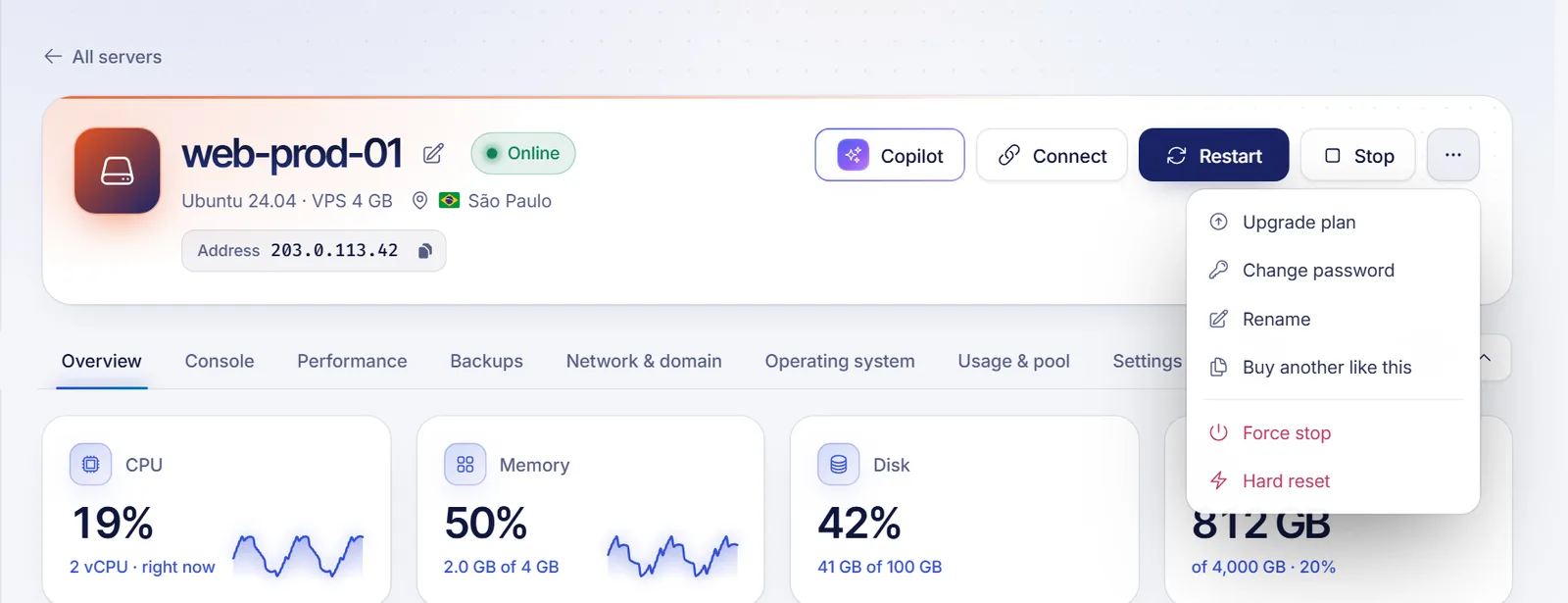
Restart is the right choice after installing updates or changing network or service settings. It is a clean reboot: the system closes programs and files before restarting.
Stop your VPS
- Open your server and click Stop.
- The status shows Stopping and then Off. A message confirms Shutting down properly….
- To turn it on again, click Start.
Stop is a normal shutdown, the same as pressing "Shut down" in the operating system. If the system is busy, it can take a little while to finish closing services.
Switching a server off does not cancel it and does not change its renewal date. To stop being billed, cancel the service from the Settings tab. If your server is pay-as-you-go, the Usage & pool tab shows whether hours are counted while it runs or while it exists.
Force stop your VPS
Use force stop only when Stop and Restart do not respond, for example when the system hangs.
- Open your server and click the three dots (More power options) at the top right.
- Choose Force stop.
- Read the warning Force stop the server? It says it is like pulling the plug and that anything not saved is lost.
- Click Force stop to confirm.
The server turns off at once: Power cut. The server is off. Start it again with Start.
Force stop and Hard reset can corrupt files, databases or a running installation. Use them only if the normal options fail. If you can, give a normal Stop a few minutes first.
Hard reset your VPS
A hard reset is like pressing the physical reset button: the server restarts immediately without closing the system properly.
- Open More power options and choose Hard reset.
- Confirm in the Hard reset the server? window.
The message Hard reset sent. appears and the status goes to Restarting.
Power commands from inside the server
You can also control power from the operating system. On Linux, connect over SSH and run:
sudo rebootsudo shutdown -h nowIf you shut the server down from inside, the panel shows it as Off and you start it again with Start.
Troubleshooting
- The power buttons are disabled: the server may still be installing, suspended for an unpaid invoice, or in a maintenance window. The page shows a notice explaining which. If it is suspended, pay the invoice and the server comes back within minutes.
- "We couldn't send that to your server": try again in a moment. You can send a limited number of power actions per minute (6 by default), so avoid clicking repeatedly.
- A restore or boot change is in progress: if you restored a backup or switched rescue mode, wait for the operation to finish before using power actions.
- The server will not start after a force stop: open the Screen console to see what the system shows (VPS VNC console). A filesystem check may be running; give it time.
- Pay-as-you-go server will not start: you may be out of credit. Top up your balance and start it again; nothing was deleted.
FAQ
What is the difference between Stop and Force stop?
Stop asks the operating system to shut down properly, so it closes files and services first. Force stop cuts the power immediately, like pulling the plug, and can lose unsaved data.
Is it safe to restart my VPS?
Yes. Restart is a clean reboot. Just remember that services that do not start automatically after a boot will not come back on their own.
What is a hard reset?
It restarts the server instantly without a clean shutdown. Use it only when the system is frozen and Restart does nothing.
My VPS is frozen. What should I do?
Check the Screen console first. If the system does not respond, try Restart, then Force stop and Start, or Hard reset as a last resort.
Will I lose my data if I force stop?
Not your whole disk, but files that were being written can be damaged. Make backups regularly so you can recover.
Related articles
- VPS VNC console
- What to do if you can't connect to your VPS
- How to connect to your VPS via SSH
- VPS backups and snapshots
Need a server you can restart whenever you want? See our VPS plans.