How to Enable Two-Factor Authentication (2FA)
Protect your SolumeCore account with 2FA: install an authenticator app, scan the QR code and save your backup codes. A step-by-step guide, about a minute.
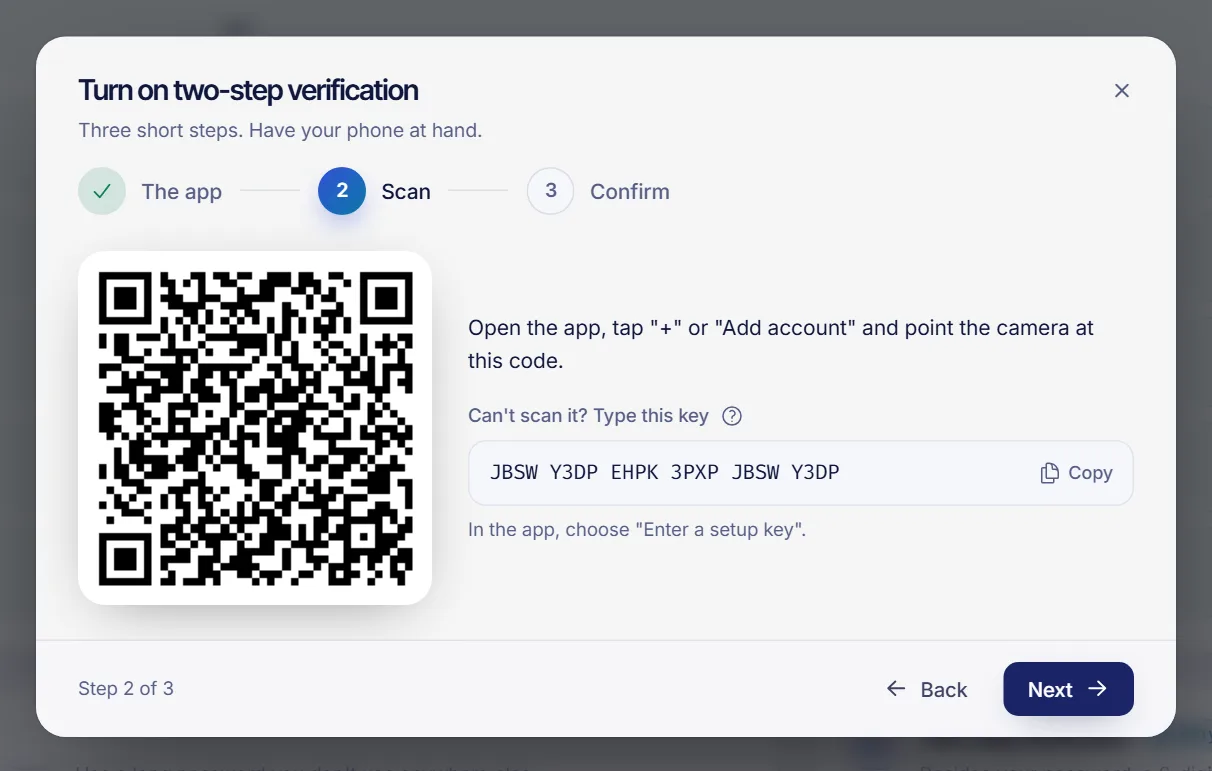
To enable two-factor authentication (2FA), open Profile & security, go to the Security tab and click Turn on two-step verification. You install an authenticator app, scan a QR code, type the 6-digit code it shows and save your backup codes. From then on, logging in needs your password plus a code from your phone.
Before you start
- A phone (or tablet) with an authenticator app. Google Authenticator, Microsoft Authenticator, Authy, 1Password and Bitwarden all work. The app is free and keeps working without internet.
- Your password handy. The panel asks you to confirm it is really you before it turns 2FA on. If you only log in with Discord or Google and have no password, you confirm with a code we email you instead.
- About a minute, and a safe place to keep your backup codes.
Turn on two-step verification
- Log in at dashboard.solumecore.com.
- In the menu, under Account, open Profile & security and select the Security tab.
- In the Two-step verification card, click Turn on two-step verification. A three-step window opens.
- The app: install an authenticator app if you don't have one, then click next.
- Scan: in the app tap + or Add account and point the camera at the QR code. If you can't scan it, choose "Enter a setup key" in the app and type the key shown under the QR code. Spaces don't matter.
- Confirm: type the 6 numbers your app shows for SolumeCore and confirm it is you with your password. Click Turn on.
The card now shows On and a message that your account asks for a code when signing in.
Save your backup codes
Right after you turn 2FA on, the window Your backup codes appears with 10 one-time codes. They are your way back in if you lose your phone, and we won't show them again.
- Click Copy all or Download .txt, and keep them somewhere safe: a password manager or a printed sheet in a safe place.
- Tick I saved them somewhere safe and click Done.
Never share your backup codes, your 6-digit codes or the setup key with anyone, including people who say they are from support. We will never ask for them.
More details in how to use your 2FA backup codes.
How logging in works afterwards
- Enter your email and password as usual.
- Type the 6-digit code from your app, or choose the option to use a backup code if you lost your phone.
- Optionally tick Trust this device to skip the code on that browser for 30 days by default. Don't do it on a shared or public computer. You can undo it any time in the Devices and sessions tab, see how to manage sessions and devices.
2FA also applies when you log in with Discord or Google, so your account stays protected whichever way you enter.
Turn two-step verification off
- Go to Profile & security > Security.
- In the Two-step verification card click Turn off.
- Enter your password and a code from your app (or a backup code), then click Turn off again.
Turning it off also deletes your backup codes and stops trusting your devices. If you turn it on again later you start from scratch with new codes. Accounts without a password must create one first.
Troubleshooting
"That code didn't work"
- Codes change every 30 seconds, so type the current one.
- Check the clock on your phone is set to automatic time. A wrong clock is the most common cause.
- Make sure you are using the SolumeCore entry in the app and not an old one.
I closed the window before finishing
Open Turn on two-step verification again. Each attempt creates a new QR code, so scan the new one and delete any half-created SolumeCore entry from your app.
I lost my phone
Log in with a backup code. If you have none, follow what to do if you lose your 2FA device.
FAQ
Is 2FA mandatory on SolumeCore?
No, it is optional for customers, but we strongly recommend it. Even if someone steals your password they can't get in without your phone.
Which authenticator app should I use?
Any app that supports standard time-based codes works. Google Authenticator, Microsoft Authenticator, Authy, 1Password and Bitwarden are the ones we list in the setup window.
Can I use a passkey instead of an app?
Yes. A passkey (fingerprint, face, device PIN or security key) can act as your second step. See how to set up passkey login.
Does 2FA protect my servers too?
It protects access to your account and panel, where you manage your services. It doesn't change the passwords or keys you use inside a server, such as SSH or SFTP.
Related articles
- How to use your 2FA backup codes
- What to do if you lose your 2FA device
- How to set up passkey login
- How to manage sessions and devices
Want servers that you can protect and manage from one panel? See our plans.