How to Change Your VPS Root Password
Change your VPS root password from the panel in seconds, no restart needed, or with passwd over SSH. It also works if you forgot it. Learn how.
The fastest way to change your VPS root password is from the panel: open your server, go to Settings, and click Change password. The new password applies right away, with no restart, and it works even if you forgot the old one. You can also run passwd over SSH, but then the panel no longer knows your password.
Before you start
- Your server must be Online so the change can be applied inside the system.
- On Linux servers the account is
root. On Windows servers it isAdministrator. The panel shows the correct one in the dialog. - Choose a password you do not use anywhere else. Panel passwords must have at least 8 characters, with a lowercase letter, an uppercase letter, a number and a symbol.
Change the password from the panel (recommended)
- Sign in at dashboard.solumecore.com, open VPS & VDS in the left menu and click your server.
- Open the Settings tab. Under General, find Access password.
- Click Change password.
- Type your new password in New password, or click Generate to create a strong random one.
- Watch the checklist below the field: it turns green as you meet each rule (at least 8 characters, a lowercase letter, an uppercase letter, a number and a symbol).
- Click Change password to confirm.
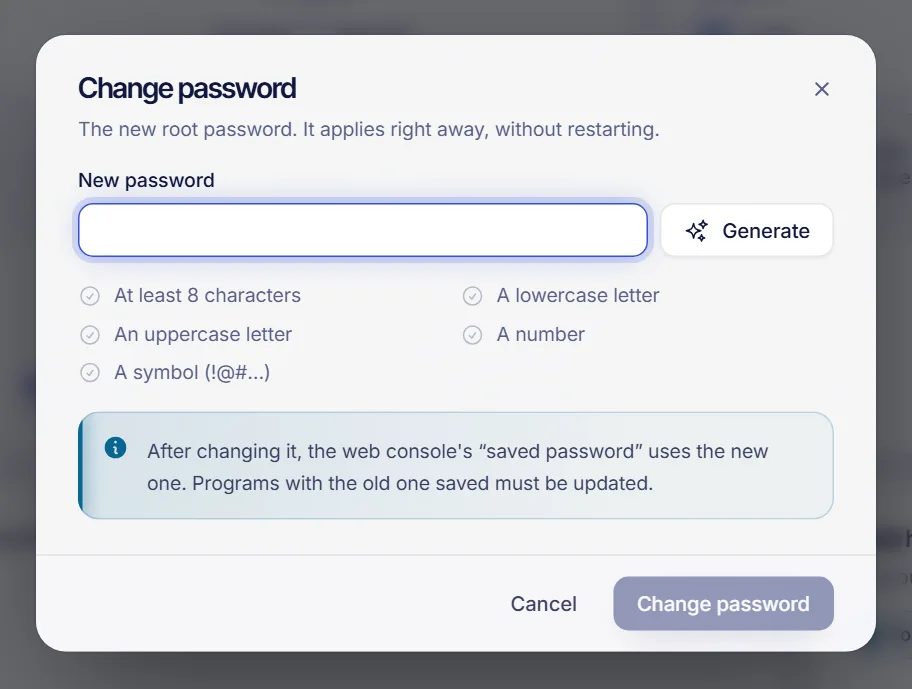
You will see the message Password changed. Find it under Connect. The change is applied immediately, without restarting your server. Open sessions stay connected; the new password is used for the next login.
You can open the same dialog from other places: the Change password button in the connection card of the Overview tab, or the More power options menu (the three dots) at the top of your server.
Where to see the new password later
Click Connect at the top of your server, then click the eye icon (Show) next to Password. The panel remembers the password you set from the panel, so you do not have to memorize it. Showing it is recorded in the Activity tab.
Change the password from SSH
If you prefer the command line, connect to your server (see How to connect to your VPS via SSH) and run:
passwdType the new password twice. Nothing is displayed while you type.
A password changed with passwd is not synced with the panel. The Connect panel keeps showing the old password, and the web console's Saved password method stops working. Either change the password from the panel instead, or in the Console tab, under How the console logs in, switch the credential to Panel key or Ask me every time.
On a Windows server, use the panel, or run net user Administrator * in a command prompt and type the new password when asked.
I forgot my password
You do not need the old password to set a new one. Use the panel method above: it sets the new password without asking for the old one. If you only changed it from the panel, you can also just click Show in the Connect panel to read it.
If the panel cannot apply the change (the system is not responding, or the service that applies changes inside the server is stopped), try this:
- Make sure the server is Online. If it is off, start it and try again.
- Open the Console tab, Screen, and check that the system finished booting. See VPS VNC console.
- If the system will not start properly, use rescue mode if it is available for your server or, as a last resort, reinstall the operating system. A reinstall erases the disk.
- Still stuck? Open a ticket from the panel and our team will help.
Troubleshooting
- The panel says it couldn't change the password: the system rejected it or did not respond. Check that the server is on, that the password meets all rules, and try again in a minute.
- The web console no longer logs in: it was using the old saved password. Change the password from the panel, or choose another credential in How the console logs in.
- Your password went back to an old one: if you restore a backup (when your plan includes them), the password goes back to the one from the day of that backup. Change it again afterwards.
- A reinstall created a new password: after you reinstall the operating system, a new password is generated. Find it in Connect.
FAQ
How do I change the root password on my VPS?
Open your server in the panel, go to Settings, click Change password, enter a new password and confirm. It applies instantly. Alternatively, connect via SSH and run passwd.
Do I need to restart my VPS after changing the password?
No. The change is applied while the server is running and is used the next time someone logs in.
Can I reset the root password if I lost it?
Yes. Set a new one from the panel (Settings, then Change password). You do not need to know the current password.
Why does the panel reject my new password?
It must have at least 8 characters, including a lowercase letter, an uppercase letter, a number and a symbol, and it cannot contain line breaks. The checklist in the dialog shows what is missing.
Is an SSH key better than a password?
For most people, yes. A key cannot be guessed by bots and you do not have to type anything. See How to add an SSH key to your VPS.
Related articles
- How to connect to your VPS via SSH
- How to add an SSH key to your VPS
- VPS web SSH console
- Secure your new VPS
Looking for a server where you control everything? See our VPS plans.