One-Click Apps for Your VPS: Docker, n8n, WordPress
Install Docker, n8n, WordPress, WireGuard and more on your VPS while you reinstall the system from the panel. Requirements, ports and how to open each app.
You install one-click apps on a VPS while you reinstall its operating system: in the panel, open the Operating system tab, pick an app card such as Docker + Portainer, n8n or WordPress, and the wizard installs the system and the app together on the first boot. There are no commands to type. Because the disk is rebuilt, you can't add an app to a server that already holds data.
Installing an app means reinstalling the system, and a reinstall erases the whole disk. Back up what you need first. See reinstall your VPS operating system.
One-click apps are available only when they are enabled for your service, and only on Linux. If the Operating system tab has no One-click apps section and the wizard has no App step, they are not available on your server.
Apps you can choose
The list can grow over time. These are the apps at the time of writing, with the minimum RAM each one needs:
| App | What it is for | Minimum RAM | Port it listens on |
|---|---|---|---|
| Docker + Portainer | Docker ready to use and a web panel for containers | 1 GB | 9443 |
| Coolify | Deploy apps, databases and sites from Git | 2 GB | 8000 (plus 80 and 443) |
| n8n | Automations and workflows | 1 GB | 5678 |
| Nextcloud | Private cloud for files, calendar and contacts | 2 GB | 80 |
| WordPress (LEMP) | WordPress on Nginx, MariaDB and PHP-FPM | 1 GB | 80 and 443 |
| WireGuard VPN | Your own VPN, with a QR code for your phone | 512 MB | 51820 (UDP) |
| Uptime Kuma | Monitor your sites with alerts and a status page | 512 MB | 3001 |
| Gitea | Lightweight Git hosting | 1 GB | 3000 (Git over SSH on 2222) |
| Plausible Analytics | Privacy-friendly web analytics | 2 GB | 8000 |
| Minecraft Java | Paper server in Docker, with RAM tuned to your VPS | 2 GB | 25565 |
WordPress and WireGuard run on Ubuntu and Debian. The Docker-based apps also run on AlmaLinux, Rocky Linux, CentOS and Fedora. If your plan has less RAM than an app needs, the card is disabled and tells you how much RAM it requires; upgrade your plan to use it. Minecraft Java is installed with the EULA accepted, so choosing it means you accept the Minecraft EULA.
Install an app step by step
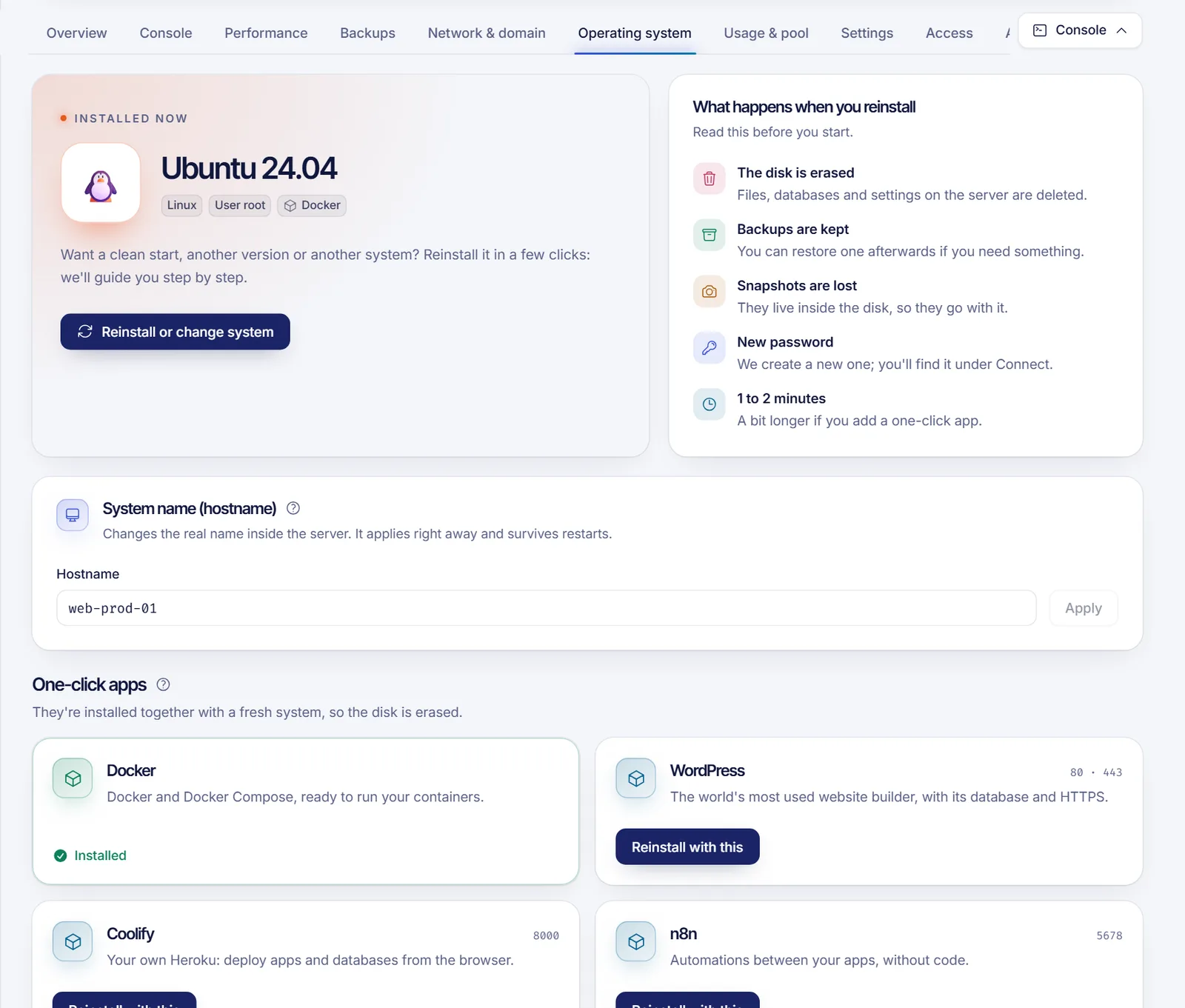
- Open your VPS in the panel and go to the Operating system tab.
- In One-click apps, find the app and click Reinstall with this. You can also click Reinstall or change system and choose the app in the wizard.
- System: choose a Linux system. Ubuntu LTS is the most popular and works with every app. Apps that don't support your selection show "Not available for this system".
- App: select the app. Each card shows its RAM requirement and the ports it opens. "Just the system" gives you a clean install.
- (Optional) Open Your own startup script to run extra commands once at first boot. It runs as root after the app. Without a
#!first line it runs with bash. It can be up to 16 KB, and its output goes to/var/log/solume-inicio.log. - Access: pick SSH keys if you want to log in without a password.
- Confirm: type the server name and click Reinstall now.
The reinstall takes 1 to 2 minutes, and a bit longer when an app has to be installed.
Open your app
- When the reinstall ends, open the Overview tab. An Installed card shows the app, the date and an Open button.
- Use the address on the card. Most apps are reached at
http://YOUR_IP:PORTand ask you to create the administrator account the first time. Create it right away: until you do, anyone who reaches the page could.- Portainer asks for the admin user within the first minutes, at
https://YOUR_IP:9443. - WordPress finishes its setup wizard at
http://YOUR_IP. The database password is saved in/root/wordpress-credenciales.txt. - WireGuard has no web page: over SSH run
cat /root/wireguard-cliente.conf, orcat /root/wireguard-cliente-qr.txtand scan the QR with the WireGuard app.
- Portainer asks for the admin user within the first minutes, at
- If the page doesn't open, wait a few minutes: the app is still installing. Read the install log over SSH:
tail -n 50 /var/log/solume-app.logMost of these apps start over plain HTTP. Before you store anything sensitive, put them behind a domain with HTTPS, and keep the port closed to the public if you only need it for yourself. You can control ports from the panel: see open a port in the VPS firewall.
Troubleshooting
- I don't see the apps. They are available only for Linux systems and only when enabled for your service. Pick Ubuntu or Debian in the first step to see them.
- The app card says it needs more RAM. Choose a lighter app or upgrade the plan.
- The page doesn't load after a few minutes. Check
/var/log/solume-app.log, check that the port is allowed by your firewall rules, and confirm the server is on. - I want a different app later. Reinstall again and choose the new app. The disk is erased each time, so keep backups.
- I only want a normal server. Choose "Just the system" in the App step.
FAQ
Can I install an app on a VPS that is already running?
Not from this feature. One-click apps are installed together with a fresh system, which erases the disk. To add software to a running server, log in over SSH and install it yourself.
Do I need to know Linux to use them?
No. You choose the app and the panel does the install. You still need to open the address and create the admin account.
Which Linux should I pick?
Ubuntu LTS is the safe default. WordPress and WireGuard need Ubuntu or Debian.
Does it work on Windows?
No. One-click apps need a Linux system.
Can I run two apps on the same VPS?
The wizard installs one app. You can add more yourself afterwards, for example with Docker, using your own startup script or over SSH.
Related articles
- Reinstall your VPS operating system
- Open a port in the VPS firewall
- Secure your new VPS
- Upgrade your VPS plan
Want to try an app without worrying about setup? Pick a VPS plan and install it in one click.