VPS Web SSH Console: Open a Terminal in Your Browser
Open an SSH terminal for your VPS right in your browser, with nothing to install. Learn how to use it, pick the user, port and credential, and fix errors.
The web SSH console is a terminal that runs inside your browser, so you can manage your Linux VPS without installing PuTTY or any other program. Open your server in the panel, go to the Console tab and pick Terminal (SSH): it logs in for you and you are ready to type commands. Under the hood it opens a real SSH session, so everything you do is the same as connecting from your own computer.
Before you start
- Your server must be Online. If it is off, the console shows Your server is off with a Start server button.
- The web terminal is for Linux servers. On Windows servers the Console tab offers the Screen instead (see VPS VNC console).
- The SSH service of your server must be running and reachable on the port the console uses (22 by default).
Open the web console
- Sign in at dashboard.solumecore.com, open VPS & VDS and click your server.
- Open the Console tab.
- If you see two options, choose Terminal (SSH). The other one, Screen, is the graphical console.
- Wait for the status next to the title bar to change to Connected. The bar shows
user@your-serverand the IP.
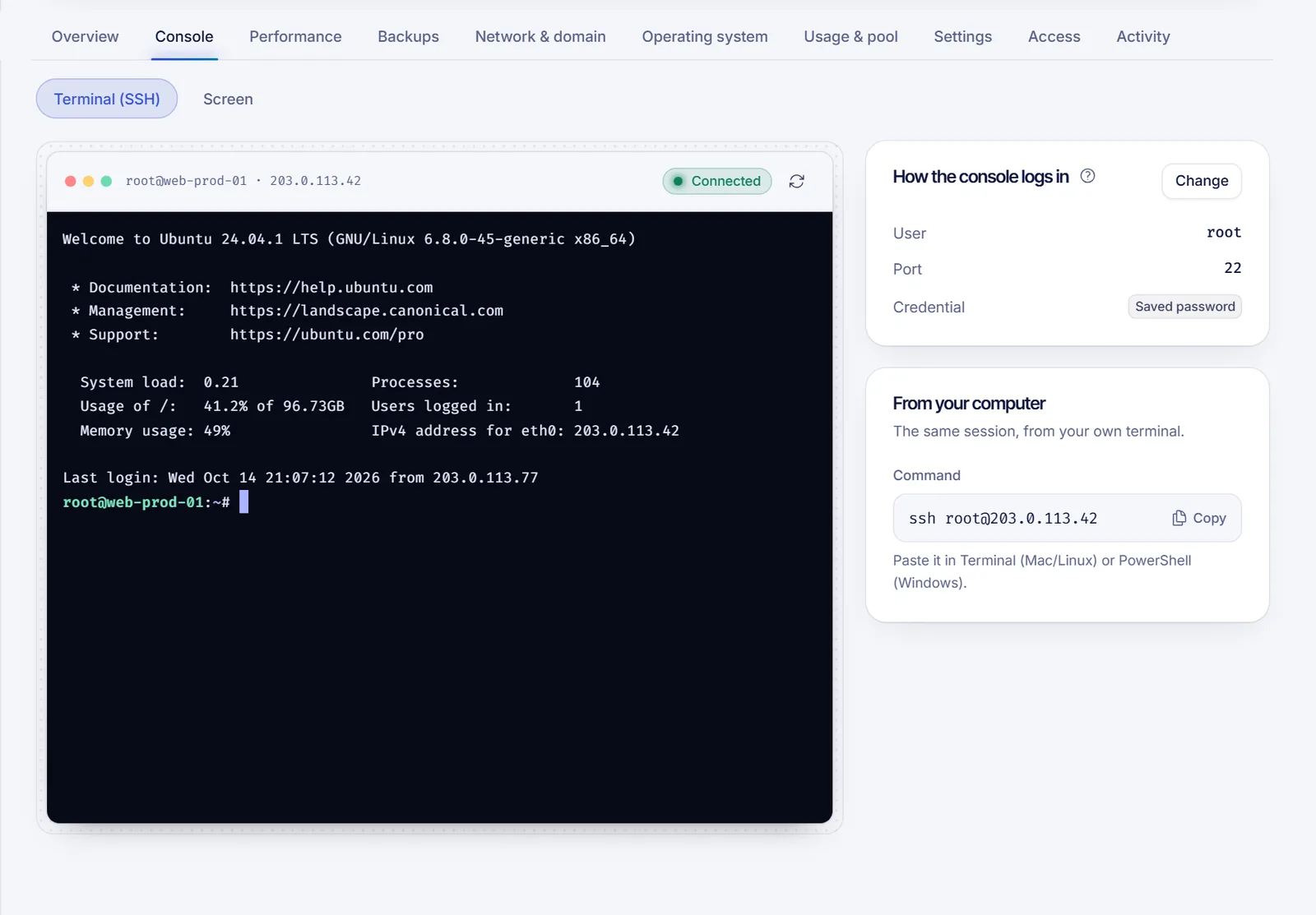
You can now type commands as if you were on a normal terminal. Use exit to close the session, and the Reconnect button (circular arrow) in the title bar to open a new one.
Open the console from any tab
You do not have to leave the page you are on. Click the Console button next to the tabs, or press the backtick key (`) when you are not typing in a text field. A console slides up from the bottom of the screen; press the key again, or click the close button, to hide it.
Choose how the console logs in
On the right of the terminal, the How the console logs in card shows the User, the Port and the Credential the console uses. Click Change to edit them, and Save when you are done. The next connection uses the new settings.
| Credential | What it does | When to use it |
|---|---|---|
| Saved password | Uses the password shown in the panel. | Default. Stops working if you change the password from inside the server. |
| Panel key | A key made just for this server and installed for the user you chose. | You changed the password inside the server, or you turned off password login. |
| Ask me every time | You type the password or paste your private key when connecting. It is never stored. | You want full control over the secret. |
To use the Panel key, select it and click Create and install. If you removed the key from the server or changed the user, click Regenerate.
With Ask me every time, a form titled Log in as your user appears. Choose Password or Private key (add the Key passphrase if your key has one) and click Connect. The data is only used for that session.
Only the owner of the server can change these settings. If someone else has delegated access to the server, they use the console with the settings the owner chose.
Use the same session from your own computer
Below the settings, the From your computer card shows the exact ssh command for the same user and port. Paste it into Terminal (Mac and Linux) or PowerShell (Windows). Details are in How to connect to your VPS via SSH.
Good to know
- Each session is recorded in the Activity tab as a web console session.
- You can open up to 10 consoles per minute (by default) from the same address. If you hit the limit, wait a minute.
- Use your browser's usual shortcuts to copy and paste inside the terminal (on most systems
Ctrl+Shift+CandCtrl+Shift+V, orCmd+CandCmd+Von a Mac). - Closing the browser tab ends the session. For long-running jobs, run them inside
screenortmuxso they survive a disconnect.
Troubleshooting
- The console shows an error or "Couldn't connect": read the message. If it says the server rejected the access, the user or credential is wrong: check How the console logs in. If it says it could not connect to the port, SSH is not listening there; check the port or use the Screen console to see what is going on.
- It worked before and now it asks for credentials: you probably changed the password inside the server, so Saved password is out of date. Change the password from the panel (see How to change your VPS root password) or switch to Panel key.
- "Session closed": the session ended. Click Reconnect.
- You moved SSH to another port: set the same number in the Port field of the card.
- Nothing works and you cannot reach the server: see What to do if you can't connect to your VPS.
FAQ
Is the web console safe?
The browser talks only to the SolumeCore panel, which opens the SSH session for you. Your password or key is only used when you connect and, with Ask me every time, it is never stored. Close the console when you finish.
Can I use the web console on a Windows VPS?
Not the SSH terminal. Windows servers use the Screen console or Remote Desktop.
Why does the console log in as root?
Because root is the default user of Linux servers. You can pick another user in How the console logs in as long as it exists on your server.
Do I need to install anything to use it?
No. A modern browser is enough.
Related articles
- How to connect to your VPS via SSH
- VPS VNC console
- How to add an SSH key to your VPS
- What to do if you can't connect to your VPS
Want a server you can manage from anywhere? Check out our VPS plans.