How to Connect to a Windows VPS with Remote Desktop (RDP)
Connect to your Windows VPS with Remote Desktop (RDP) from Windows, Mac, Linux or your phone. Copy the address and password from the panel and fix errors.
To connect to a Windows VPS, use Remote Desktop (RDP): copy the address, user and password from the Connect panel, open Remote Desktop Connection on your PC, paste the address (it ends in :3389) and sign in as Administrator. Windows servers do not use SSH. This guide covers Windows, macOS, Linux and mobile devices.
Get your connection details
- Sign in at dashboard.solumecore.com, open VPS & VDS and click your Windows server.
- Make sure its status is Online. If it is off, click Start.
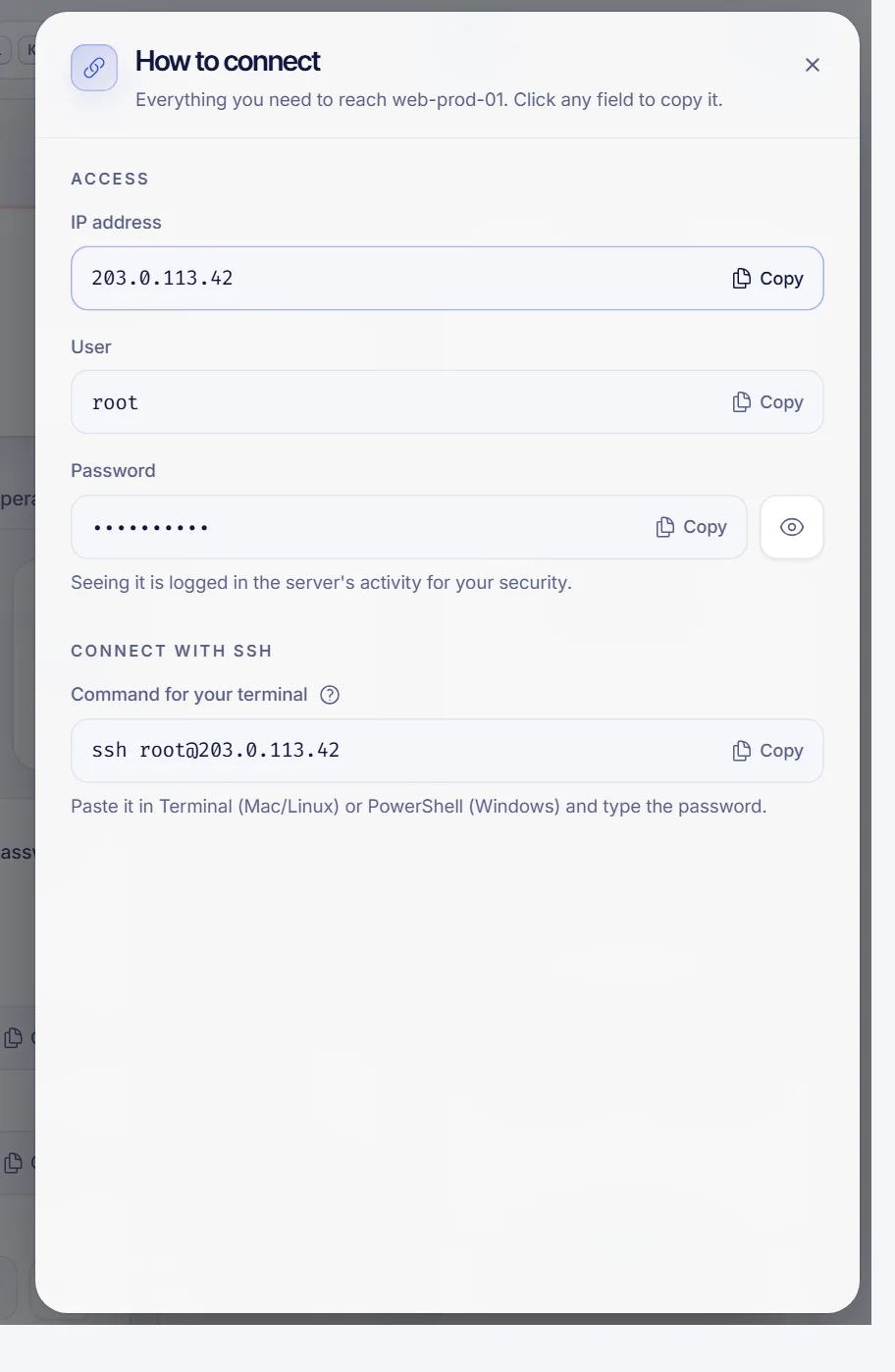
- Click Connect at the top of the page.
- Copy the IP address, the User (
Administrator) and the Password (click the eye icon, Show). Under Remote desktop, the Address for Remote Desktop field gives you the IP with the port, like203.0.113.10:3389.
Connect from Windows
- Press
Win + R, typemstscand press Enter. Or search the Start menu for Remote Desktop Connection. - In Computer, paste the address from the panel (
203.0.113.10:3389). - Click Show Options and type
Administratoras the user name if you want Windows to remember it. - Click Connect, enter the password and click OK.
- A certificate warning may appear the first time. This is expected for a new server; click Yes to continue.
The first time you sign in, run Windows Update and install the pending updates.
Connect from macOS
Install Windows App (previously called Microsoft Remote Desktop) from the Mac App Store. Add a PC with the server's IP, enter Administrator and the password as the user account, and double-click the entry to connect.
Connect from Linux
You can use Remmina, or the command line with FreeRDP:
xfreerdp /v:203.0.113.10 /u:Administrator /cert:ignoreIt asks for the password. For a trusted connection, remove /cert:ignore after accepting the certificate once.
Connect from Android or iOS
Install Microsoft's remote desktop app (Windows App or Remote Desktop), add a PC with the server's IP, and use Administrator and the password from the panel.
If you can't connect
- The status is not Online: start the server and wait a minute. See Restart, stop and force stop your VPS.
- "Your credentials did not work": the user is
Administratorand the password is the one in Connect. If you changed it inside Windows, the panel no longer shows the right one: set a new one from the panel (see How to change your VPS root password, which also covers Windows). - "Remote Desktop can't connect to the remote computer": port 3389 is blocked somewhere. If you use the panel's Strict protection level, open TCP 3389 in Firewall (the Remote Desktop (Windows) template does it). Check Windows Firewall inside the server too. See How to open a port in your VPS firewall.
- Repeated failed logins: the Remote Desktop guard in Firewall, under Automatic protections, blocks brute-force attempts and may block you if you fail many times in a row. Add your IP to Always allowed in the Lists tab.
- Your network blocks port 3389: some offices and schools do. Try from another network.
- Nothing works, but you need to get in: open the Console tab, which for Windows shows the Screen. It works even without network. Use the Ctrl+Alt+Del button to reach the login screen. See VPS VNC console.
Apply the Remote Desktop (Windows) template from the Templates tab of the Firewall page. It opens port 3389 and turns on the brute-force filter.
Keep your Windows VPS safe
- Use a long, unique password for
Administratorand change it if it is ever exposed. - Keep Windows updated.
- Turn on the Remote Desktop guard in Firewall.
- Do not share the password. If someone needs access, invite them from the Access tab of your server.
FAQ
What is the username for my Windows VPS?
Administrator. It appears in the Connect panel next to the password.
What port does Remote Desktop use?
TCP 3389 by default. The Connect panel shows the address already with the port.
Can I connect to a Windows VPS with SSH?
No. Windows servers use Remote Desktop. SSH keys and the web SSH terminal are only for Linux servers.
Can I use the panel instead of Remote Desktop?
Yes, in an emergency. The Screen console in the Console tab shows the Windows screen in your browser.
How do I change the Administrator password?
Open your server, go to Settings and click Change password. The password must have at least 8 characters, with a lowercase letter, an uppercase letter, a number and a symbol.
Related articles
- VPS VNC console
- How to change your VPS root password
- How to open a port in your VPS firewall
- What to do if you can't connect to your VPS
Need a server of your own? See our VPS plans.