How to Add an SSH Key to Your VPS
Create an SSH key, save it in your account and add it to your running VPS to log in without a password. Step-by-step for Windows, Mac, Linux and PuTTY.
To add an SSH key to your VPS, create a key pair on your computer, save the public key in your SolumeCore account, and then add it to your server from the Settings tab. From then on you can log in without typing the server password, and your connection is much safer. You do not need to restart the server.
How SSH keys work
An SSH key is a pair of two files. The private key stays on your computer and you never share it. The public key (the file ending in .pub) is the one you install on the server. When you connect, your computer proves it owns the private key, and the server lets you in.
Only paste the public key (.pub). If you paste a private key, the panel detects it, refuses to save it and warns you. If you ever shared a private key by mistake, create a new pair and stop using the old one.
Step 1: Create a key on your computer
If you already have a key, skip to step 2. Otherwise, open a terminal (PowerShell on Windows, Terminal on macOS or Linux) and run:
ssh-keygen -t ed25519 -C "you@laptop"Press Enter to accept the default location. When it asks for a passphrase, we recommend setting one: it protects your key if someone gets hold of the file.
Now display your public key and copy the whole line, which starts with ssh-ed25519:
cat ~/.ssh/id_ed25519.pubtype $env:USERPROFILE\.ssh\id_ed25519.pubUsing PuTTY? Open PuTTYgen, click Generate and move the mouse as asked. Copy the text in the box Public key for pasting into OpenSSH authorized_keys file, then click Save private key to keep your .ppk file safe.
Step 2: Save the public key in your account
- Sign in at dashboard.solumecore.com.
- Open Profile & security in the left menu, then the Security tab.
- Scroll down to the SSH keys card and click Add your first key (or Add key).
- Paste the line into Public key. The panel checks it: you should see something like Valid Ed25519 key and its fingerprint.
- Give it a Name so you recognize it later, such as "Work laptop", and click Save key.
Supported types are ed25519, ECDSA and RSA (2048 bits or more). We recommend ed25519. You can save up to 30 keys in your account.
Step 3: Add the key to your VPS
- Open VPS & VDS and click your server. Make sure it is Online.
- Open the Settings tab and find SSH keys.
- Tick the key or keys you want to install.
- Click Add 1 key to the server (the number changes with your selection).
- If the panel asks you to Confirm to continue, confirm it is you with your password, a code from your authenticator app, a passkey or an email code. This protects your server in case someone uses your session without permission.
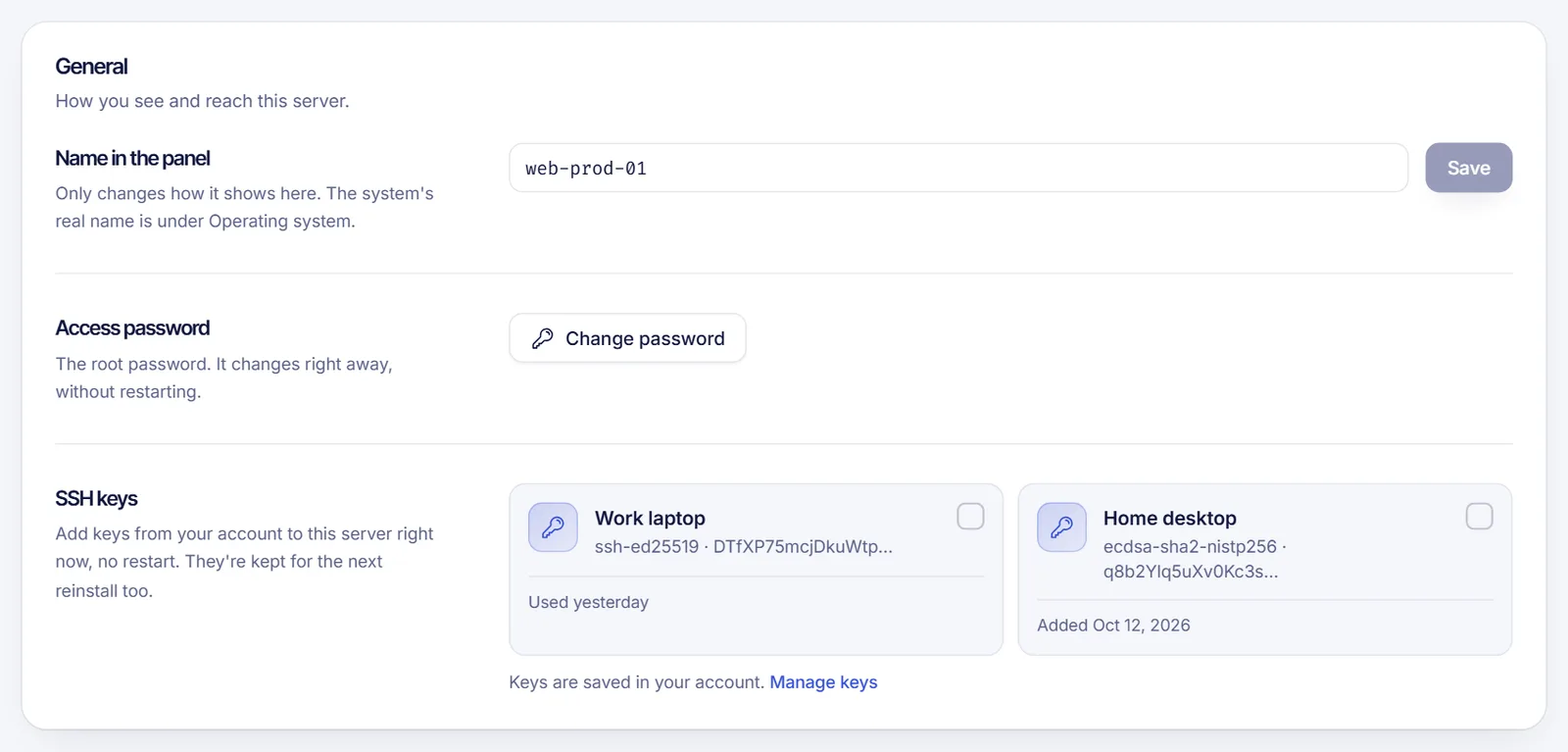
When it finishes you will see a message such as 1 key added for root. The key is installed for the user the web console uses, which is root by default. Keys you add this way are also kept for the next time you reinstall the server.
Step 4: Log in with your key
From a terminal, connect as usual:
ssh [email protected]If your key has a passphrase, you will be asked for it (not the server password). If you saved your key in a different file, point to it:
ssh -i ~/.ssh/my_key [email protected]With PuTTY: in the configuration tree open Connection, then Data, and type root in Auto-login username. Then go to Connection, SSH, Auth, Credentials, and under Private key file for authentication click Browse and choose your .ppk file. Go back to Session, enter the IP and click Open.
Other places to choose a key
- When ordering a VPS: the checkout has an SSH key (optional) field where you can pick one of your saved keys.
- When reinstalling the operating system: the reinstall wizard has an Access step where you can select keys to install.
Remove a key
Deleting a key from your account (trash icon in the SSH keys card) does not remove it from servers where it is already installed. To revoke access, connect to the server and delete its line from ~/.ssh/authorized_keys.
Optional: turn off password login
Once your key works, you can disable password login so bots cannot guess it. This is covered in Secure your new VPS. Do it with care: keep your current session open until you confirm the key works, and remember that the web console's Saved password method will stop working (switch it to Panel key first).
Troubleshooting
- The "Add key to the server" button is disabled or fails: the server must be on and running its management agent. Start it, wait a minute and try again. If it persists, open a ticket.
Permission denied (publickey): the key you use does not match the one installed, or you are logging in as a different user than the one the key was installed for. Check the user in the Console tab, under How the console logs in.- The panel says the key is invalid: copy the whole line again, as one line, starting with
ssh-ed25519orssh-rsa. - The panel says SSH keys do not apply: SSH keys only work on Linux servers. Windows servers use Remote Desktop.
FAQ
Do I need to restart my VPS after adding a key?
No. The key is installed while the server is running.
Can I use the same SSH key on several servers?
Yes. Save it once in your account and add it to as many servers as you like.
Which key type should I use?
ed25519. It is short, fast and secure. RSA works if it has at least 2048 bits.
Where do I find my public key on Windows?
In PowerShell run type $env:USERPROFILE\.ssh\id_ed25519.pub. The panel's Add an SSH key dialog also includes a How do I get my public key? section.
Is it safe to keep password login on?
It works, but bots try passwords on every public server. A key plus a passphrase is far safer.
Related articles
- How to connect to your VPS via SSH
- Secure your new VPS
- How to change your VPS root password
- VPS web SSH console
Ready to try it on a server of your own? See our VPS plans.