How to Connect to Your VPS via SSH (Windows, Mac, Linux)
Connect to your SolumeCore VPS over SSH from Windows, macOS or Linux. Copy your IP and password from the panel, then use PuTTY or a terminal.
To connect to your VPS over SSH, you need three things from the panel: the server's IP address, the username (root on Linux) and the password. Then run ssh root@YOUR_IP in a terminal, or enter the same details in PuTTY on Windows. This guide covers Windows, macOS and Linux.
Before you start
- Your server must be Online (powered on) and already delivered. If it was just purchased, wait until its status stops showing Installing.
- You need the SSH details from the panel. Everything is in one place, as shown below.
- This guide is for Linux servers. Windows servers are not reached over SSH: they use Remote Desktop (see Connect to a Windows VPS with Remote Desktop).
Step 1: Get your IP, username and password
- Sign in to the panel at dashboard.solumecore.com.
- Open VPS & VDS in the left menu and click your server.
- Click the Connect button at the top of the page. A How to connect panel opens.
- Copy the IP address and the User (it is
rooton Linux). - Click the eye icon (Show) next to Password and copy it.
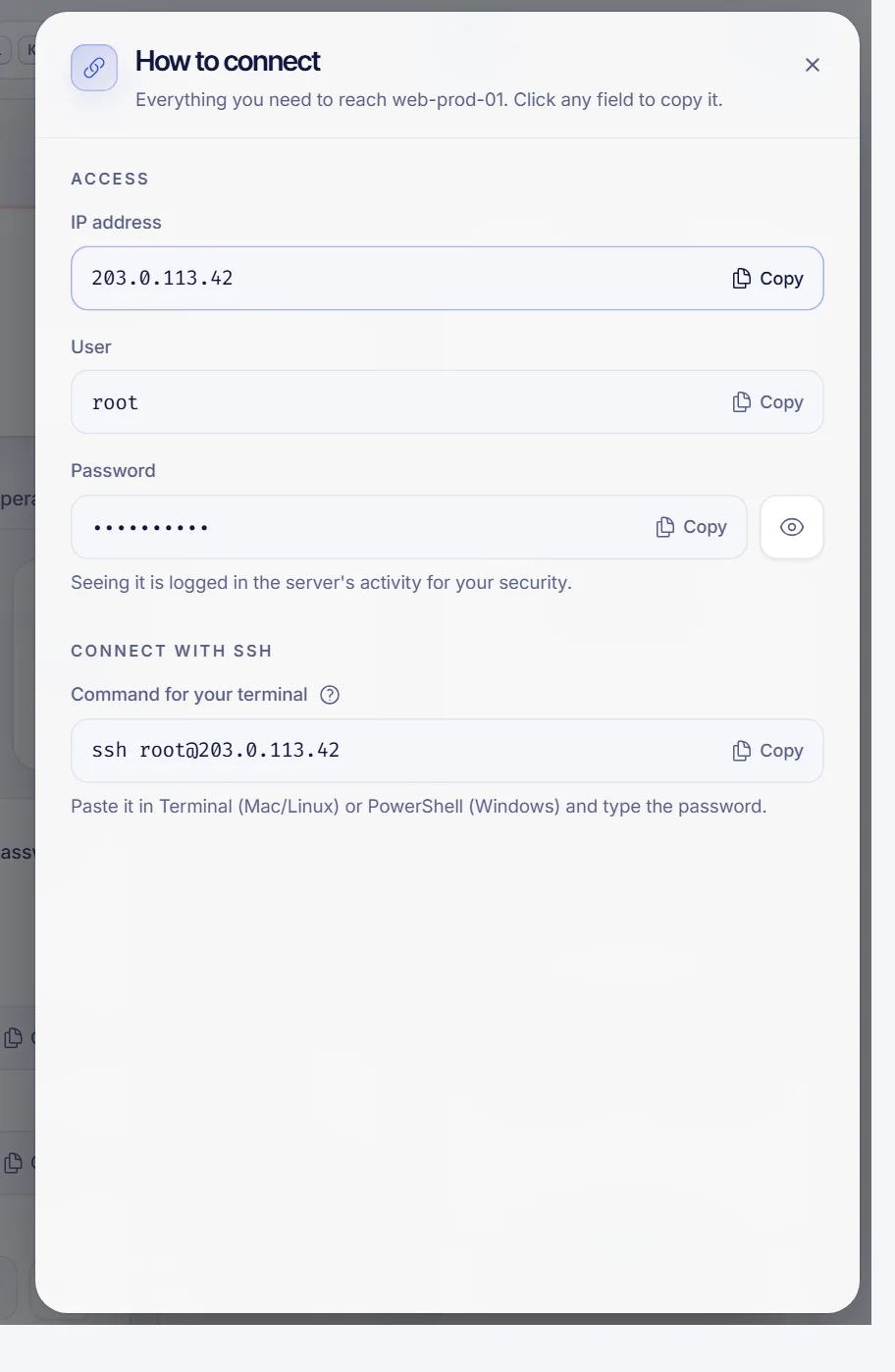
The same panel shows a ready-made Command for your terminal, such as ssh [email protected], with a copy button.
Each time you reveal the password, the action is recorded in your server's Activity tab. That is normal and it is there for your security.
Connect from Linux or macOS
Linux and macOS already include an SSH client, so you do not need to install anything.
- Open a terminal. On macOS, open Terminal (Applications, then Utilities). On Linux, use any terminal.
- Paste the command from the panel, replacing the IP with yours:
ssh [email protected]- The first time, SSH asks you to confirm the server's fingerprint. Type
yesand press Enter:
The authenticity of host '203.0.113.10' can't be established.
Are you sure you want to continue connecting (yes/no)? yes- Enter the password. Nothing appears on screen while you type or paste it: that is normal. Press Enter.
When you see a prompt like root@your-server:~#, you are in.
Connect from Windows
Option A: PowerShell (nothing to install)
Windows 10 and 11 include an SSH client. Open PowerShell or Windows Terminal and run the same command:
ssh root@203.0.113.10Accept the fingerprint with yes, then type the password. As on any terminal, the password is not shown while you type it.
Option B: PuTTY
- Download and install PuTTY from its official website.
- Open PuTTY. In the Session category, fill in:
- Host Name (or IP address): your server's IP.
- Port:
22. - Connection type: SSH.
- Optional: type a name under Saved Sessions and click Save so you do not have to enter the IP again.
- Click Open.
- On the first connection a PuTTY Security Alert appears. Click Accept to trust the server.
- At
login as:typerootand press Enter, then enter the password. To paste in PuTTY, right-click in the window.
If you changed the SSH port or user
By default SSH listens on port 22. If you moved it to another port, add -p:
ssh -p 2222 [email protected]In PuTTY, change the Port field instead. If you changed the user or port used by the panel's web console, the Console tab of your server shows the matching command under From your computer.
Troubleshooting
Connection timed out: the server is off, the IP is wrong, or something between you and the server is blocking port 22 (a firewall inside the server, the panel's Firewall in Strict mode, or your own network). Follow What to do if you can't connect to your VPS.Connection refused: the server answers but nothing is listening on that port. Check the port you are using, or open the web console to see whether the SSH service is running.Permission denied: wrong password or user. Copy the password again from Connect, and check that nobody changed it from inside the server. If you want to set a new one, see How to change your VPS root password.WARNING: REMOTE HOST IDENTIFICATION HAS CHANGED!: this appears after you reinstall the operating system, because the server has a new fingerprint. If you know you reinstalled it, remove the old entry withssh-keygen -R 203.0.113.10and connect again.
Do not want to install anything? The panel includes a terminal that runs in your browser. See VPS web SSH console.
FAQ
What is the default username to log in to my VPS?
On Linux servers it is root. You can see it in the Connect panel next to the password.
What port does SSH use?
Port 22 by default. If you changed it in your server's SSH configuration, use that port with -p in a terminal or in the Port field in PuTTY.
Why can't I see the password when I type it?
SSH does not echo anything while you type a password, not even asterisks. Type or paste it and press Enter.
Can I log in without a password?
Yes. With an SSH key you skip the password and your connection is safer. See How to add an SSH key to your VPS.
Is it safe to share the root password?
No. Anyone with the password has full control of the server. If you need to give someone access, invite them from the Access tab of your server instead of sending the password.
Related articles
- VPS web SSH console
- How to add an SSH key to your VPS
- How to change your VPS root password
- What to do if you can't connect to your VPS
- Secure your new VPS
Need a server of your own to practice on? Take a look at our VPS plans.