VPS Rescue Mode: Fix a Server That Won't Boot
Boot your VPS from a repair system, mount its disk and fix what broke without losing your files. Step-by-step guide to using rescue mode from the panel.
Rescue mode starts your VPS from a small repair system instead of its own disk, so you can mount that disk and fix what is broken without erasing anything. You turn it on from the Backups tab in the panel, work through the Screen console, and then exit rescue mode so the server boots from its own disk again.
Rescue mode only appears if it is enabled for your service. If you don't see Rescue mode inside the Backups tab, use the alternatives at the end of this guide or open a ticket.
When to use rescue mode
- The server doesn't boot after an update, a kernel change or a broken
/etc/fstab. - You locked yourself out with a firewall rule or an SSH setting, and neither SSH nor the web console works.
- The file system needs a repair (
fsck) and cannot be checked while mounted. - You need to copy files out of a disk whose system no longer starts.
If the server simply isn't answering, try the basics first: restart it from the panel and check the Screen console to see what it prints while booting.
Enter rescue mode
- Open your VPS in the panel.
- Go to the Backups tab and open the Rescue mode section.
- Click Enter rescue mode and confirm. Your server shuts down and starts from the repair system. Your files are not touched.
- Wait for the badge to show Active and for the header of the server to say Rescue mode.
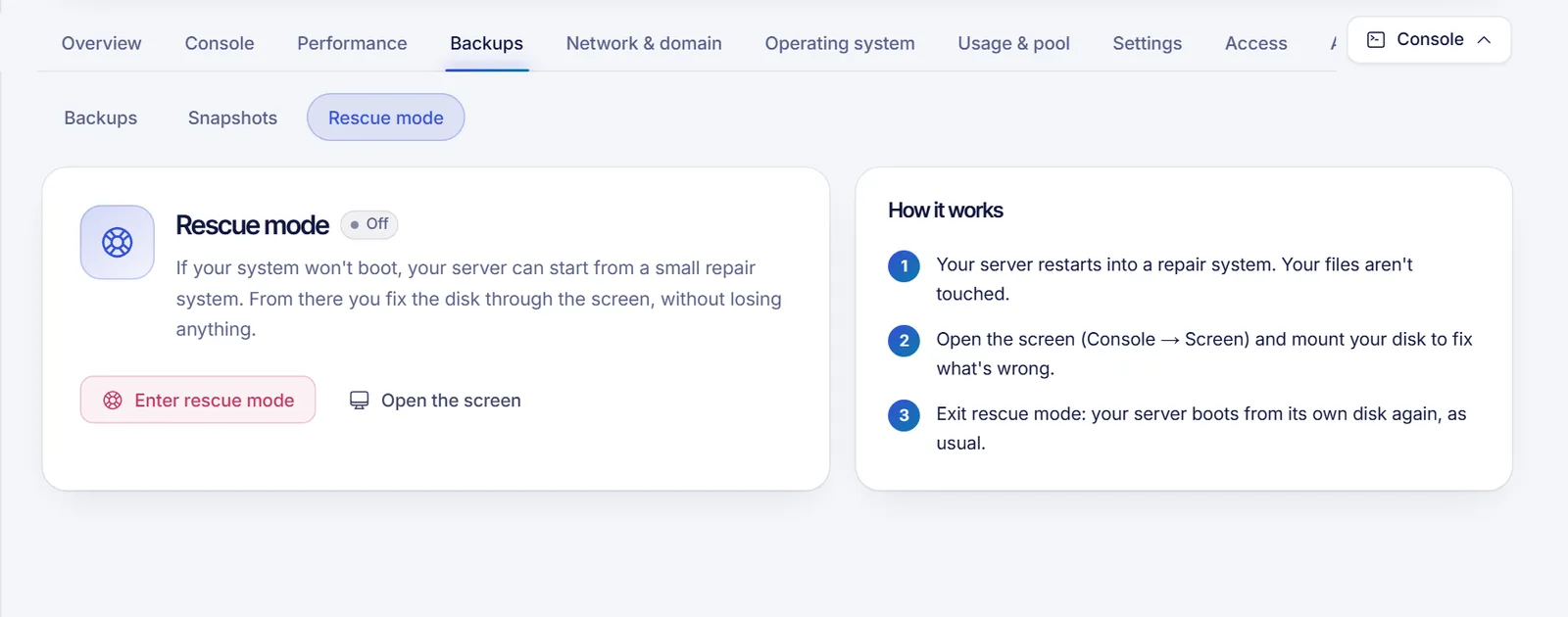
The panel also shows a banner while the server is in rescue mode, with a shortcut back to this page. The action is logged in the Activity tab as "Rescue mode".
Fix the disk from the Screen console
- In the Rescue mode section, click Open the screen. It opens Console, Screen: a window that works like a monitor plugged into the server and doesn't need the network.
- Log in to the repair system if it asks you to, and open a terminal.
- List the disks and find your system partition:
lsblk -f- Mount it. Device names vary (
sda1,vda1,nvme0n1p1), so replace/dev/sda1with the one that holds your root file system:
mount /dev/sda1 /mnt
ls /mnt- For deeper repairs, enter your installed system with
chroot:
mount --bind /dev /mnt/dev
mount --bind /proc /mnt/proc
mount --bind /sys /mnt/sys
chroot /mnt- Fix the problem. Common repairs:
# Reset the root password
passwd root

# Turn off a firewall that locked you out (Ubuntu/Debian)
ufw disable

# Review a broken mount line, then save and exit
nano /etc/fstab

# Reinstall the boot loader after a failed update (Debian/Ubuntu)
update-grub- Leave the
chrootwithexit, unmount withumount -R /mnt, and close the terminal.
Never run fsck on a mounted partition. Unmount it first: umount /dev/sda1, then fsck -f /dev/sda1.
Exit rescue mode
- Go back to the Rescue mode section, click Exit rescue mode and confirm.
- Your server shuts down and starts again from its own disk. The badge changes to Off and the header goes back to Online.
- Connect as usual. If you reset the password inside the repair system, use that one; otherwise the panel keeps showing the access password you already had.
If rescue mode isn't available
- Open the Screen console. It works even when the system doesn't boot properly, and it lets you see boot errors or reach the emergency prompt.
- Restore a snapshot or a backup if your plan includes them (see VPS backups and snapshots).
- Reinstall the system as a last resort: reinstall your VPS. It erases the disk.
- Open a ticket from the panel and explain what you changed before it stopped booting.
Troubleshooting
- The button is disabled. The server has to be active, and no other operation (a backup, a restore) can be running. Wait for it to finish.
- I can't tell which partition is mine.
lsblk -fshows file system types and labels. The root partition is usually the biggest one withext4orxfs. - The screen is black. Click inside it and press a key. If it stays empty, close it and click Open the screen again.
- The server still doesn't boot after exiting. Enter rescue mode again and check the boot loader and
/etc/fstab, or fall back to a backup.
FAQ
Does rescue mode delete my files?
No. The repair system runs apart from your disk, which stays untouched and can be mounted. Only what you change yourself is modified.
How long can the server stay in rescue mode?
The panel doesn't set a time limit, but your normal services aren't running while you are in rescue mode. Exit as soon as you are done.
Can I use rescue mode on a Windows VPS?
This guide is written for Linux servers. For a Windows server that won't start, the Screen console is the first thing to try, and support can help through a ticket.
Can a teammate enter rescue mode?
Yes, if you gave them the rescue permission. The Technician role includes it. See sharing VPS access.
Related articles
- VPS VNC console (Screen)
- VPS backups and snapshots
- Restart, stop and force stop your VPS
- I can't connect to my VPS
Want a server you can recover from the browser? Take a look at our VPS plans.