Move Your Minecraft Server to SolumeCore From Another Host
Migrate your Minecraft server from Aternos, exaroton or another host: world, plugins and settings. Steps, what to check afterwards and how to tell players.
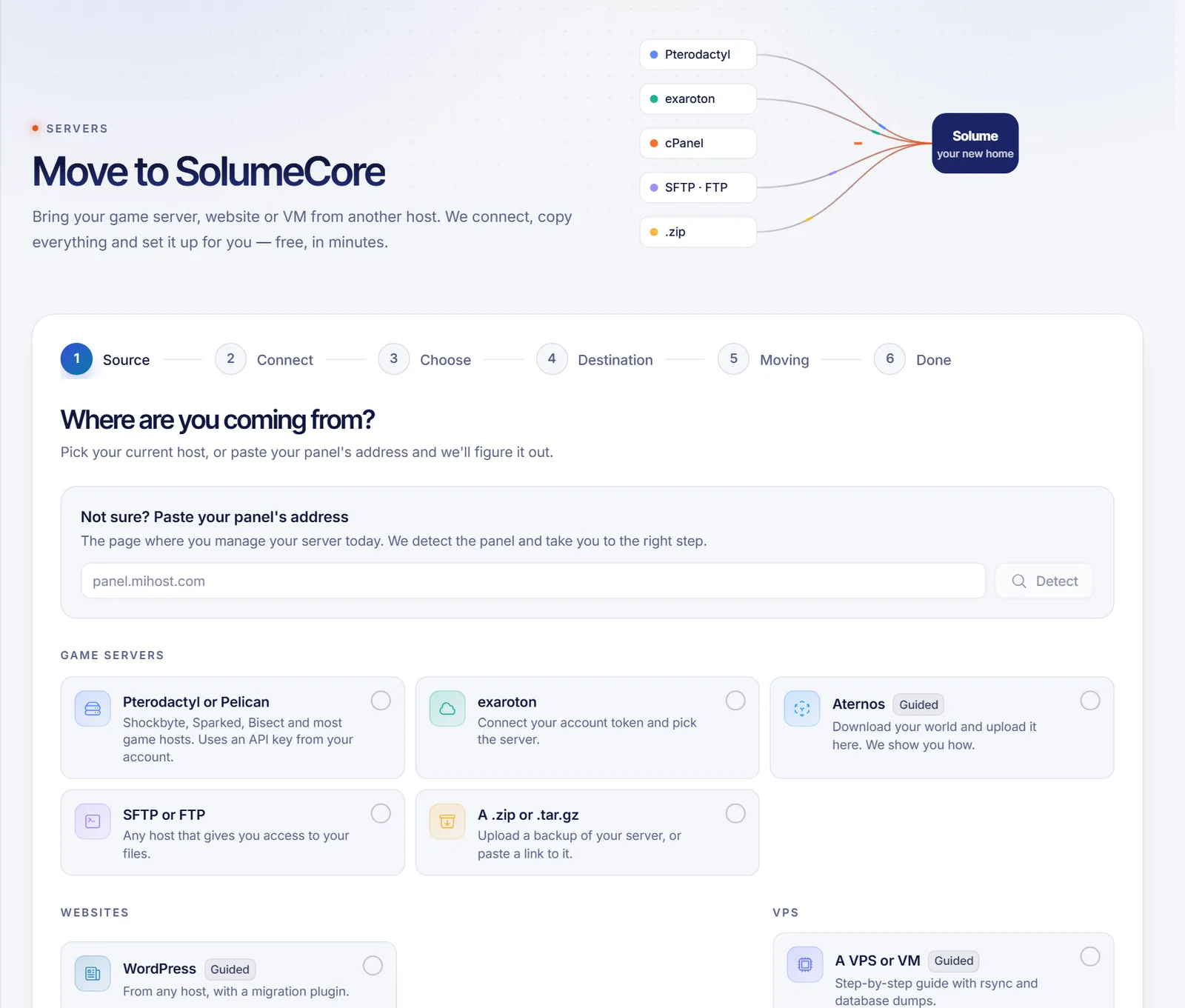
To move a Minecraft server to SolumeCore from another host, open Bring from another host in the dashboard and choose where you are coming from: Aternos, exaroton, a game host that gives you an API key, SFTP or FTP, or a .zip of the server folder. The assistant copies your world, plugins and settings to a SolumeCore server, detects the game and version, and updates the port for you. The move is free according to the page, and your old server is left as it was.
Choose the right route
| Where your server is now | Route | What comes along |
|---|---|---|
| Aternos | Guided: download the world and upload it | Only the world. Install plugins and mods again |
| exaroton | Automatic, with an account token | Server files and settings |
| A game host with a panel and API keys | Automatic, with a client API key | Server files and settings |
| Any host with file access | SFTP or FTP | Everything your user can see in the folder you choose |
| You already have a backup | A .zip or .tar.gz |
Everything in the file, up to 40 GB |
If you only want the world, you can also use Upload a Minecraft world to your server.
Before you start
- Have a SolumeCore Minecraft server, or let the assistant suggest a plan based on what you bring. The move starts on its own once the new server is ready.
- Stop your server at the old host before copying. Copying a world while the server is running can corrupt it. exaroton asks for this explicitly.
- Tell your players there will be a short pause, and do not let them join the old server once you start.
Step 1: Open the move assistant
- Sign in to the SolumeCore dashboard.
- Under Servers, open Bring from another host. The page is called Move to SolumeCore.
- In Where are you coming from?, choose your source. If you are not sure, paste the address of the panel you use now and click Detect.
Step 2: Connect your old server
Aternos
Aternos does not let other hosts export servers, so the assistant gives you a guide:
- On aternos.org, open your server and go to Worlds.
- Click the download icon next to your world. You get a
.zip. - Back in the assistant, choose the SolumeCore server where it should go and click Upload my world.
- Choose the
.zip, give it a name and check Use this world. Restart your server.
Plugins and mods are not included in the world. Install them afterwards from the content tab of your server.
exaroton
- On exaroton, open Account, then API, and create a token.
- Stop your server on exaroton.
- In the assistant, paste the token and choose the server.
A game host with API keys
- In your old panel, open Account, then API Credentials, and create a key. Leave Allowed IPs empty.
- Copy the key. A client key starts with
ptlc_orpacc_; an admin key is rejected. - In the assistant, type the panel address and the key, then click Connect and choose the server.
SFTP, FTP or a .zip
For SFTP or FTP, enter server, port, username, password and the folder (. brings everything), then click Test connection. For a .zip or .tar.gz, choose From my computer or From a link: it can hold the whole server folder, up to 40 GB, and large files go faster from a link.
Step 3: Choose what to bring and where
- In Choose, check what the assistant found. It shows the game it recognized, the size and whether your host has backups.
- In Destination, use the suggested plan or choose a server you already have. If you pick an existing one, files with the same name are replaced and the server is stopped while copying.
- Click Start the move.
- Follow the phases in Moving. You can close the page: it keeps going on our side. If something goes wrong, you can ask for help and a person on our team will finish the move for you.
Step 4: Check the new server
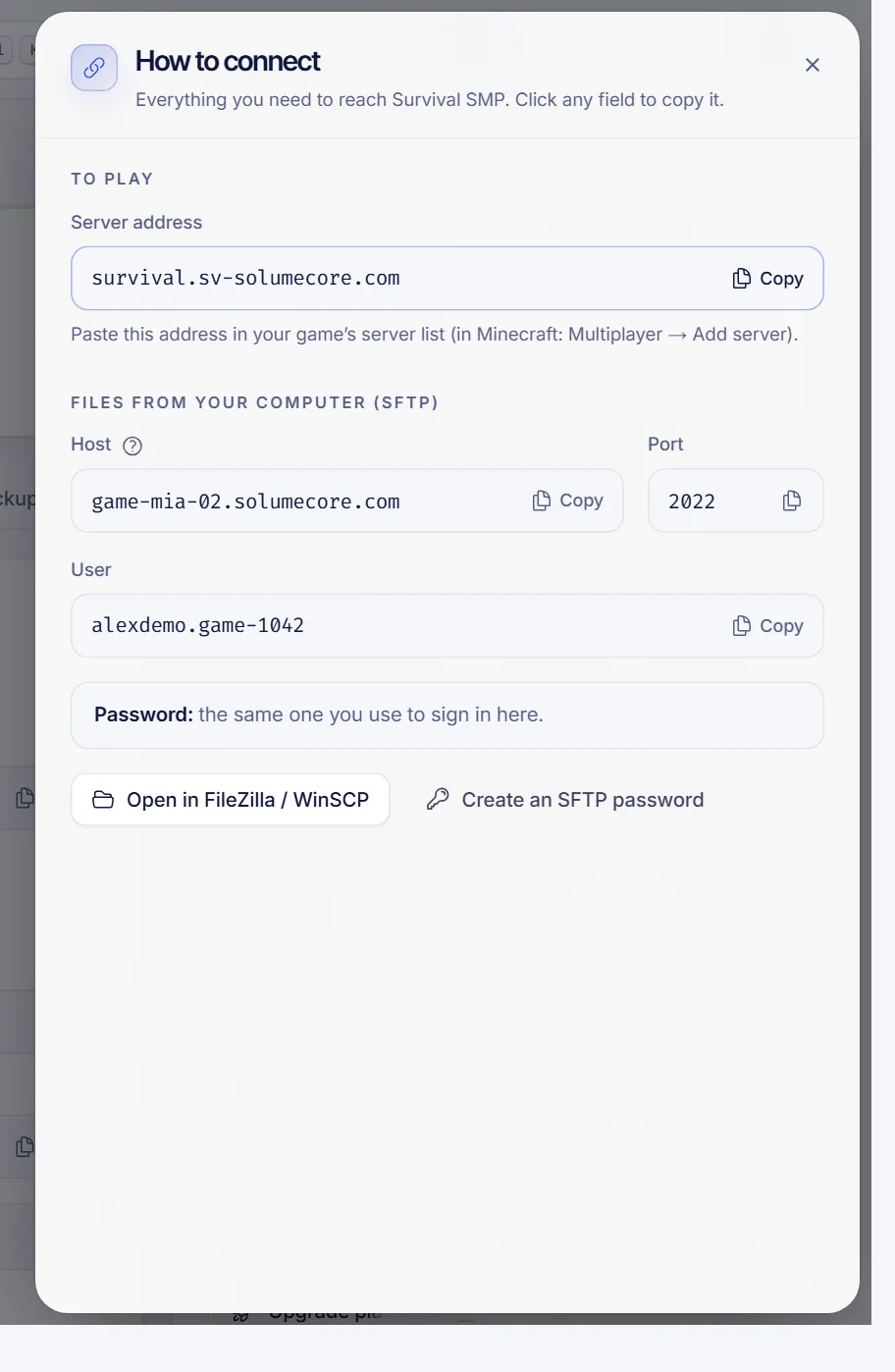
When the move ends, the page shows Welcome to SolumeCore! with a message such as that your game is ready and running as the type it detected, and the Address to join.
- Click Go to my server and start it from the console.
- Join with the address shown. If you need help, see How to join your game server.
Then review these points:
- Version and type. The assistant detects the game and the server type from your files. Confirm it is what you expect. To change it, see Change the version or type of your Minecraft server.
- Java version and memory. Old versions of Minecraft may need another Java version, and a modded server may need more RAM. See Change the Java version and Set the RAM and Java flags.
- Port. The assistant updates the port in
server.propertiesfor you, so do not copy your old value back. - Whitelist and operators. They travel with your files. Check them as explained in Minecraft whitelist and operators.
- Your domain. If players use a domain, point it to the new server. See Use your own domain for a game server.
Troubleshooting
The assistant cannot connect to my old host
Check the address, the key or the SFTP details. If the host does not allow API keys, use SFTP. If the problem persists, download a backup from the old host and use the .zip route.
The server does not start after the move
Read the console. The usual causes are a Java version that does not match the Minecraft version, too little RAM, or a plugin that does not support the detected version. If you still cannot find the cause, open a ticket.
My plugins are missing
You came from Aternos, which only exports the world. Install the plugins from the content tab of your server, or upload their files.
The world loads in a different state
The old server was not stopped when it was copied. Stop it at the old host, run the move again and replace the files.
FAQ
Is moving a Minecraft server to SolumeCore free?
The page says that the move is free. You only need the SolumeCore server that will receive it.
Will I lose my world?
No. The assistant only reads from your old server, which stays as it was. It may create a temporary backup there to copy faster and then deletes it.
Can I move a modded server?
If you bring the whole server folder, with SFTP, an API key or a .zip, the files go along. Check afterwards the Java version and the RAM that your modpack needs.
How long will my server be offline?
For the length of the move, since your old server must be stopped. It depends on the size of the server and the speed of the old host.
Related articles
- Move a service from another host
- Upload a Minecraft world to your server
- How to join your game server
- Connect to your game server with SFTP
Ready to host your Minecraft server? See Minecraft hosting at SolumeCore.