Game Server Backups: Create, Restore and Download
Learn how to create, restore and download backups of your Minecraft or other game server from the panel, or bring back just one world, area or file.
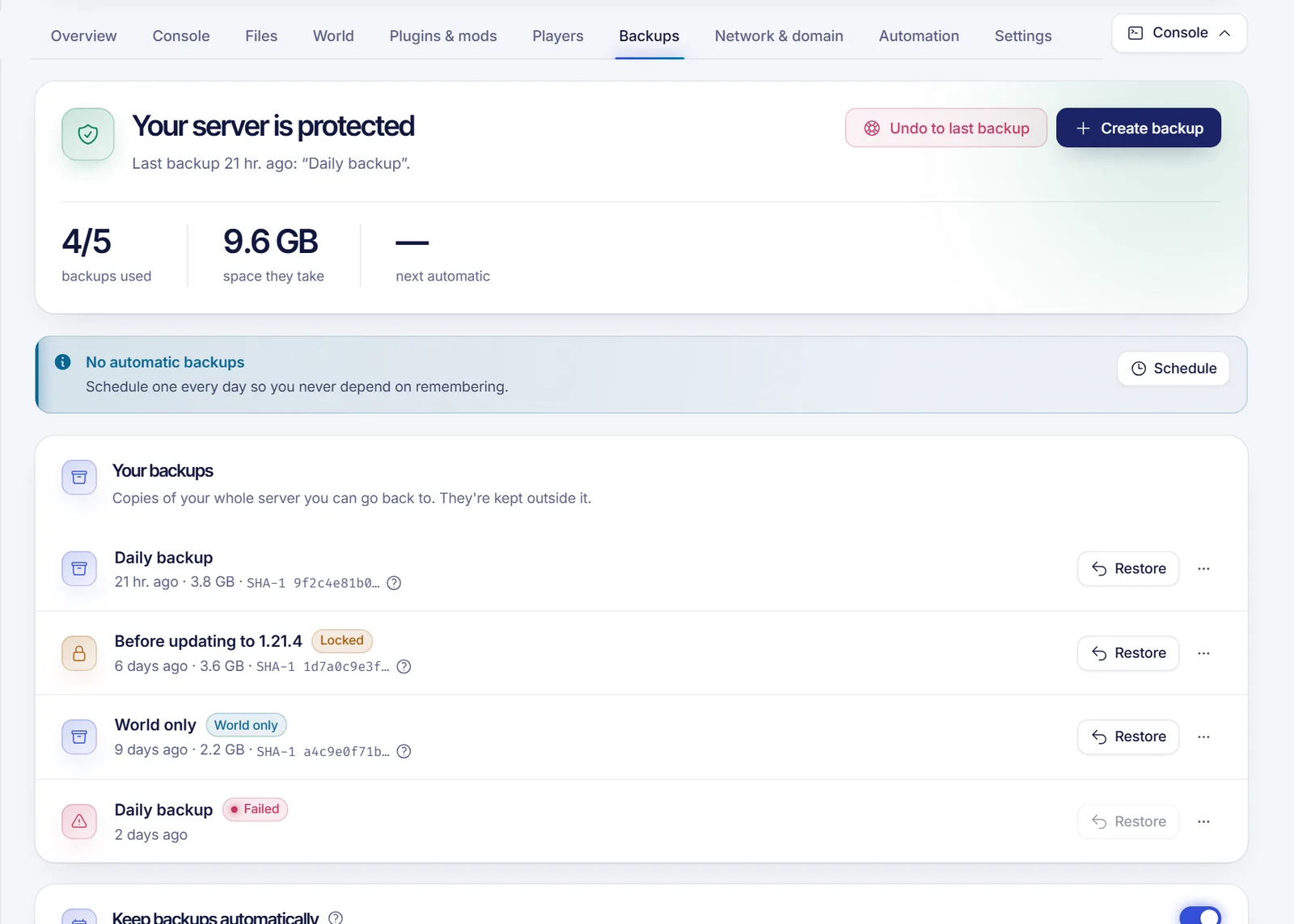
You can create, restore and download backups of your game server from the Backups tab of your SolumeCore panel. A backup is a compressed copy of all your server's files, so you can go back to it if a world gets damaged, a mod breaks the server or you delete something by mistake. Backups are included according to your plan, and the panel shows how many you have used.
Before you start
- Open dashboard.solumecore.com, go to Game servers and open your server.
- Your plan sets how many backups you can keep. The Backups tab shows it as "backups used". If it says Backups aren't included in your plan, you can only use them after upgrading.
- Anyone you share the server with needs the right permissions: View backups, Create backups, Delete backups, Download backups and Restore backups are separate.
Create a backup
- Open the Backups tab and press Create backup.
- In Name, type something you will recognize later, such as "Before installing the mods". If you leave it empty, the date is used.
- Turn on Lock this backup if you want to protect it. A locked backup cannot be deleted by accident and automatic backups will not replace it.
- Turn on Leave some files out if you want a smaller, faster backup. Pick folders such as logs or cache, or add rules one per line in Patterns, for example
logs/*or*.tmp. - Press Create backup. The backup shows Creating… and usually takes a few minutes depending on the size. You can keep using the panel meanwhile.
Make a backup before any big change: installing mods or plugins, changing the Minecraft version, uploading a world or reinstalling the server.
Back up only one world
On Minecraft servers you can also back up a single world. Open the World tab, go to Worlds & map, open More actions on the world and choose Back up only this world. It appears in your list marked World only and counts as one more backup.
Restore a backup
Restoring replaces what is on the server now. If you may need the current files, make a backup of them first. If the server is on, it is stopped while the restore runs.
- In the backups list, press Restore next to the backup you want.
- In What, choose The whole server to bring everything back as it was, or Only some files to pick files or folders and leave the rest alone.
- In How, keep Delete what's there first (recommended) on if you want the result to be exactly the backup. If you turn it off, files created after the backup stay and the result will not match the backup exactly.
- In Confirm, tick I understand the current files will be replaced and press Restore.
While it restores, the panel shows Restoring a backup and the server cannot be used. It usually takes a few minutes. When it finishes, start the server again.
Restore only some files
If you only need a config file or one world, press the three dots next to the backup and choose Restore some files. Browse the backup like folders, tick what you want and pick how to restore it:
- Restore into a separate folder puts the files in a new
restaurado-folder with the date, so you can compare before replacing anything. - Without it, the files go back to where they were and replace the current files with the same name.
You can also open a single file to read it or download it from inside the backup.
Undo a griefing in one area
On Minecraft servers, Restore area (in the World tab) lets you pick a backup from before the damage, mark the area on the map and bring back only that part. The rest of the world stays as it is now.
Go back to the last good backup
If something broke and you do not know what, press Undo to last backup at the top of the tab. It goes back to the most recent successful backup and replaces what is there now, so everything created after it is lost. You have to confirm it.
Download a backup
Press the three dots next to a backup and choose Download. A download link opens in a new tab and it only works for a short time (15 minutes) and for one download, so start it right away. Keep a copy of important backups on your own computer.
Automatic backups and keeping the list tidy
- Schedule one every day. Go to the Automation tab and create a task that makes a backup. See schedule tasks on your game server. If you are at your plan's limit, scheduled backups replace the oldest backup that is not locked.
- Keep backups automatically. When your server offers it, the Keep backups automatically card lets you choose how many daily, weekly and monthly backups to keep. The rest are deleted every hour. Locked backups and the last good one are never deleted.
Troubleshooting
- "You've reached the limit of backups". Delete one you no longer need, or upgrade your plan. Locked backups must be unlocked first (three dots, then Unlock).
- The backup shows Failed. Delete it and create a new one. If it keeps failing, open a ticket from the panel and tell us the backup name.
- I cannot press Restore. Another backup may be being created or restored. Wait for it to finish. A suspended server cannot be restored either.
- My plan has no backups. Upgrade it. See upgrade your game server plan.
FAQ
How do I restore a Minecraft backup?
Open the Backups tab, press Restore next to the backup, choose The whole server, keep Delete what's there first on, confirm and wait a few minutes. Then start the server.
How many backups can I keep?
It depends on your plan. The Backups tab shows how many you have used and your limit.
Does restoring a backup delete my current world?
If you keep Delete what's there first on, yes: the server ends up exactly like the backup. If you only need part of it, use Restore some files or Restore area so the rest stays untouched.
Can I download my Minecraft world from a backup?
Yes. Download the whole backup from the three-dot menu. For just the world folder, use Restore some files, restore it into a separate folder and download it from Files.
Related articles
- Schedule tasks on your game server
- Reinstall or reset your game server
- Upload a Minecraft world
- Invite subusers to your game server
Looking for a server with automatic protection built in? Compare the options on our plans page.