Change the Java Version of Your Minecraft Server
Change your Minecraft server's Java version from the panel (Java 8, 17, 21), see which one each version needs and fix the unsupported class file error.
To change the Java version of your Minecraft server, open Settings > Version & installer, choose a version in the Java card, click Apply and restart the server. The card tells you whether the Java you picked fits your Minecraft version, so you do not have to guess.
Why Java matters
Minecraft servers run on Java, and each Minecraft version needs a specific range of it. Too old and the server will not start. Too new and some mods fail. If your server stopped starting after you updated Minecraft, a wrong Java version is the first thing to check.
The panel checks the following rules for you:
| Minecraft version | Minimum Java |
|---|---|
| 1.16 and older | Java 8 |
| 1.17 | Java 16 |
| 1.18 to 1.20.4 | Java 17 |
| 1.20.5 and newer | Java 21 |
| 26.1 and newer | Java 25 |
Some older setups also have a ceiling. Minecraft 1.12 and older run on Java 8 only. From 1.13 to 1.16 the panel has been tested up to Java 16 (Java 11 on Forge-type loaders such as Forge, NeoForge and hybrids), and Forge-type loaders from 1.17 to 1.20.4 up to Java 17. When a Java is above that, the panel warns that it may be too new for your version.
Change the Java version
- Sign in to the SolumeCore panel and open your server.
- Go to Settings and open Version & installer.
- Find the Java card next to the Minecraft version card. It shows the version in use (for example "Java 21") and a status line:
- "Right for your version" means it is fine.
- "Too old: your version needs Java N or newer" means the server will not start.
- "Too new: some mods need Java N or older" means some mods may fail. It is a warning, not a block.
- In the Java version list, pick the one you want. Each option is labeled with its compatibility: compatible, too old, too new or unknown. The one in use shows current.
- Click Apply.
- Restart the server. The change loads the next time it starts.
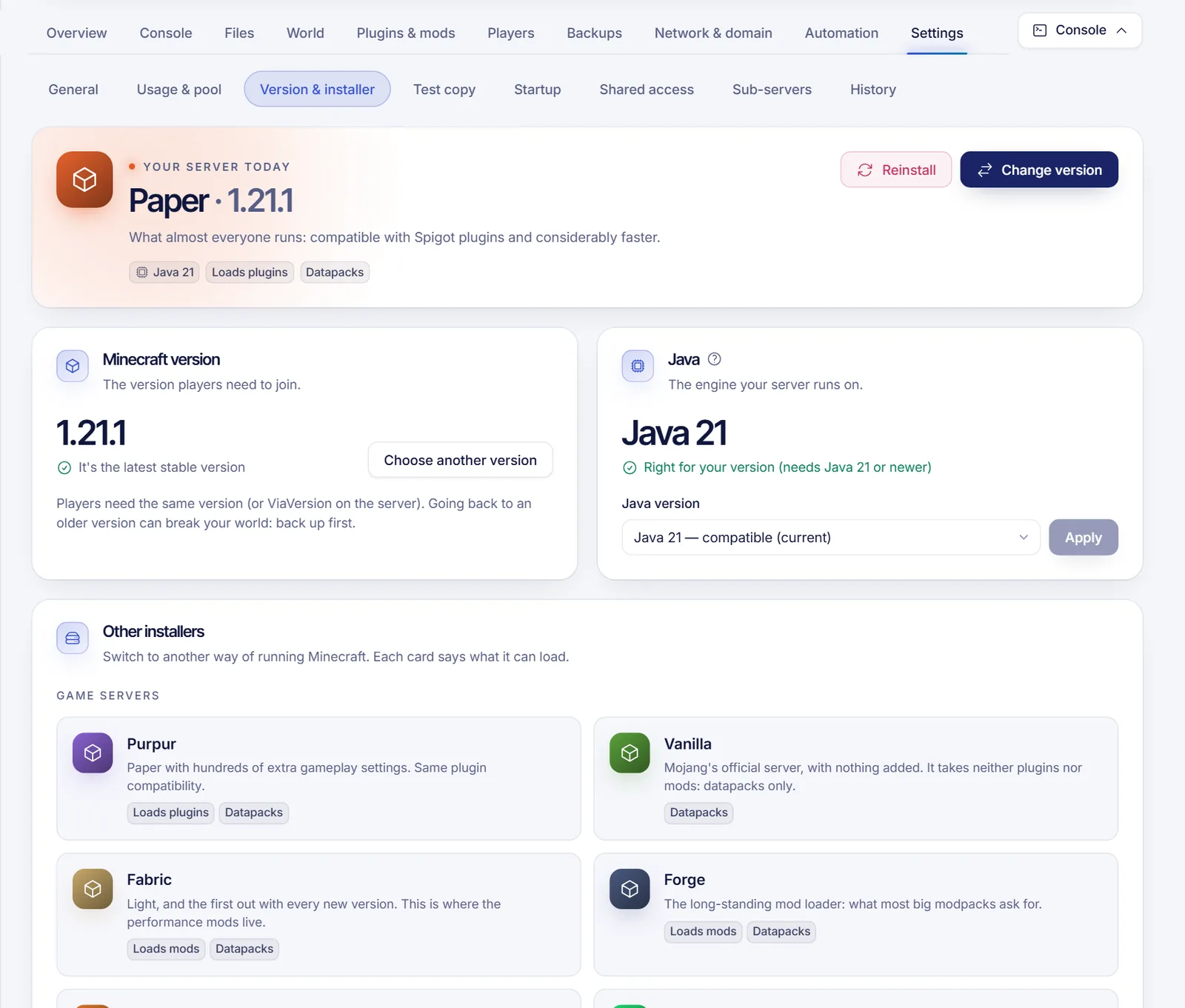
If the panel cannot tell which Minecraft version you run, it shows "We can't tell if it fits your version". Then pick the Java that your Minecraft version needs from the table above.
If you picked a Java that does not match, the panel warns you before you apply. You can still do it, and if the server then does not start, switch back to the previous one.
Check that it worked
- Start the server and open the Console tab.
- In the details card on the right, Environment shows the ready-made system the server starts with, for example Java 21.
- Read the startup lines. If the server starts normally and prints "Done", Java is right.
Fix the "unsupported class file version" error
If the console says something like UnsupportedClassVersionError or "has been compiled by a more recent version of the Java Runtime", the server's Java is too old. The number in the message tells you which Java you need:
| Class file version in the error | You need |
|---|---|
| 52 | Java 8 |
| 55 | Java 11 |
| 61 | Java 17 |
| 65 | Java 21 |
Choose that Java (or a newer one that the panel marks as compatible), apply it and restart.
Troubleshooting
- The server will not start after changing Java. Switch back to the previous one, restart, and check the Minecraft version. Then read what to do when a Minecraft server will not start.
- The Java list has only one option. The options come from your server software. Some installers ship with a single Java.
- The change does not apply. Make sure you restarted after pressing Apply. Changing Java does not apply to a running server.
- A mod fails on a very new Java. Older mod loaders are tested only up to a certain Java. Choose the highest version that the panel marks as compatible.
- The buttons are disabled. You need the permission to edit the startup settings. Ask the owner. A server that is suspended or installing is locked.
- Optimized flags do not work. The ZGC startup profile (listed as "Pausas mínimas (ZGC)") needs Java 21 or newer. See RAM and Java flags.
FAQ
Which Java version does my Minecraft server need?
Java 21 for Minecraft 1.20.5 and newer, Java 17 for 1.18 to 1.20.4, Java 16 for 1.17 and Java 8 for older versions. The Java card shows if your choice fits.
Do I need to reinstall the server to change Java?
No. Choose the Java, click Apply and restart. Reinstalling is only needed when you change the Minecraft version or the server type.
Can I run an old modpack on Java 8?
Yes, if the panel offers Java 8 for your installer. Old modpacks for 1.12 and older need it.
Does a newer Java make the server faster?
Not by itself. Use the version your Minecraft release recommends, and tune the memory flags separately.
Related articles
- Change your Minecraft server version or type
- Set RAM and Java flags on your Minecraft server
- What to do when a Minecraft server will not start
- Install plugins and mods on your Minecraft server
Looking for a server where you can pick your own Java? Take a look at our Minecraft server plans.