Game Server Console: How to Use It and Useful Commands
Use your game server console from the panel: send commands, watch the live log, download it and learn the most useful Minecraft commands for admins.
The console in your panel is the live text window of your game server. Open the Console tab, wait for the Live indicator, type a command at the bottom and press Enter. It is the same console you would see if you ran the server on your own computer, so you can send admin commands, read errors as they happen and download the log.
Open the console
- Sign in to the SolumeCore panel and open your server.
- Click the Console tab, then Live console. The status next to it changes from Connecting... to Live when it is ready.
- Start the server with the power buttons at the top if it is off. While it is off, the console shows a notice saying that the server is off.
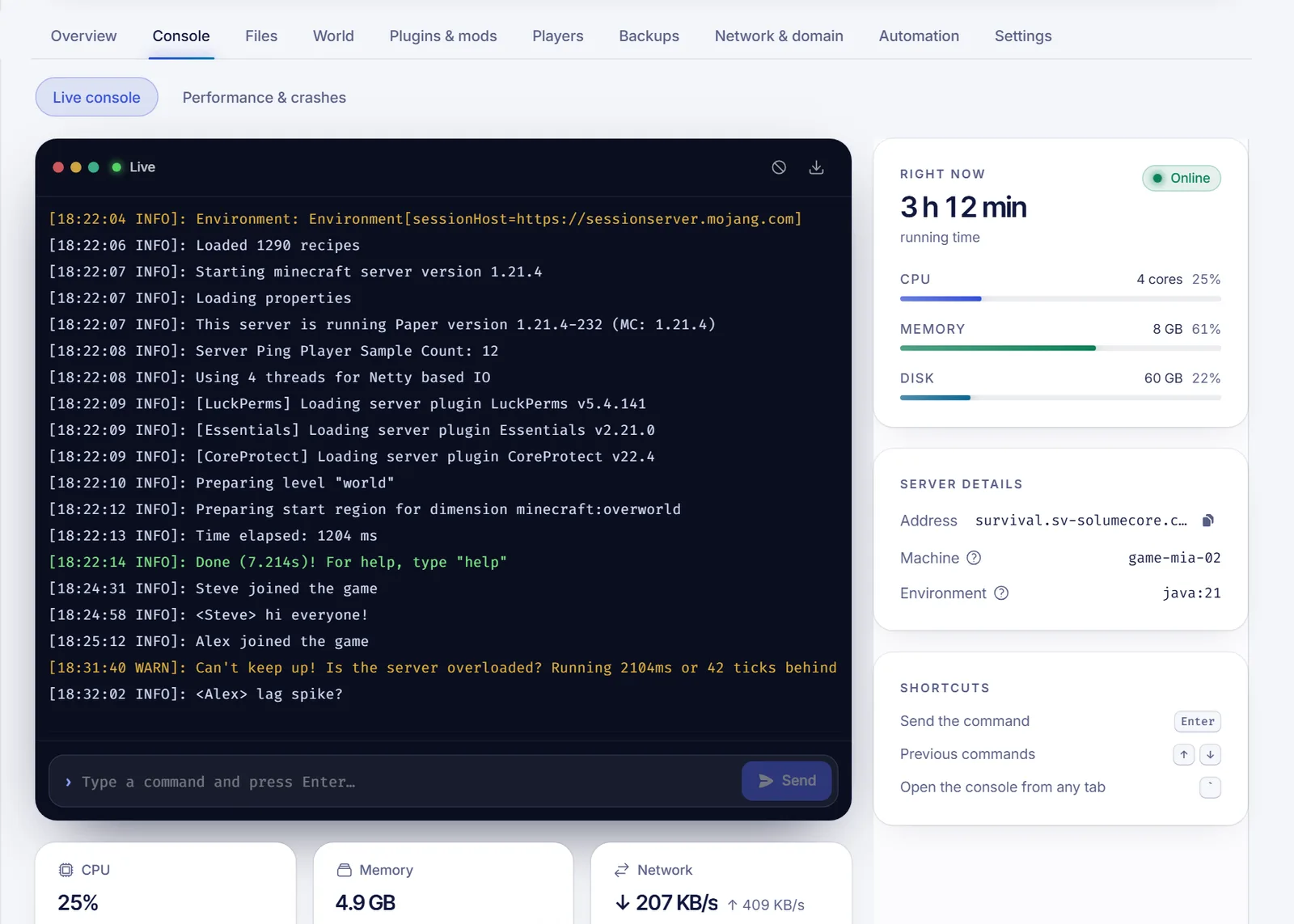
You do not have to leave the page you are on. On any other tab, press the backtick key (`) when you are not typing in a field to open or close a console drawer, so you can watch the server while you edit files or settings.
Send a command
- Click the command box at the bottom, which invites you to type a command and press Enter.
- Type the command and press Enter. The command appears in the log in cyan, followed by the server's answer.
- Press the Up and Down arrows to go through the commands you sent before. A list of Recent commands keeps them, and you can clear it with Clear.
Commands in the console are written without the slash. In the game chat you type /op Steve, and in the console you type op Steve.
The console is read only while the server is busy installing or suspended. If a guest can see the console but not send commands, the owner has to give them the permission to send commands.
Useful Minecraft commands
| What you want | Command |
|---|---|
| See who is online | list |
| Say something to everyone | say Restart in 5 minutes |
| Message one player | tell Steve Hello |
| Make a player an operator | op Steve |
| Remove operator | deop Steve |
| Turn the whitelist on or off | whitelist on / whitelist off |
| Add to the whitelist | whitelist add Steve |
| Kick a player | kick Steve Reason |
| Ban and unban | ban Steve Reason / pardon Steve |
| Change the game mode | gamemode creative Steve |
| Change the difficulty | difficulty hard |
| Set the time or weather | time set day / weather clear |
| Keep inventory on death | gamerule keepInventory true |
| Move the world border | worldborder set 5000 |
| Teleport a player | tp Steve Alex |
| Save the world now | save-all |
| Show the world seed | seed |
| Check performance (Paper and forks) | tps |
| List the plugins (Paper, Spigot) | plugins |
| Show the server version | version |
| Stop the server | stop |
Prefer the Stop and Restart buttons at the top over typing stop, and avoid the reload command to refresh plugins. A full restart is safer, because reloading plugins can leave them half broken.
Several panel features are built on the console, such as the player lists (see whitelist and operators) and the game rules in World > Game settings. For commands every day, you can also schedule them with the panel's scheduled tasks.
Read and save the log
- The log scrolls on its own. Colors from the game are kept.
- Click Clear screen to empty the window. It does not delete anything on the server.
- Click Download log to save what you see as a
.logfile. It is useful to attach to a support ticket. Colors are removed, so it reads well in any editor. - Old logs and crash reports live in the
logsandcrash-reportsfolders in Files.
The cards on the right show CPU, memory, network and disk in real time, the server address, and the environment it runs on. If memory is almost full all the time, read how to fix lag.
Troubleshooting
- "Waiting for the connection..." does not go away. Reload the page. If it says your console access expired and could not be renewed, a reload gets a new one.
- "Lost the connection to the server." The panel reconnects by itself. If the server just restarted, wait a moment.
- "The server is printing too much output, so some of it was skipped." A plugin or mod is flooding the log. Find it in the Download log file or reduce its logging.
- My command does nothing. Check that you wrote it without the slash, that the server is online, and that the name is exact. Some commands exist only on certain software, such as
tpson Paper. - The server stops right after starting. Minecraft needs you to accept its EULA. The panel shows a dialog to accept the Minecraft EULA. Read the terms and click Accept and start.
FAQ
How do I run commands on my Minecraft server?
Open the Console tab, click the command box, type the command without the slash and press Enter.
How do I see the server log?
It is the console itself. For older logs, open the logs folder in the Files tab, or use Download log to save the current output.
Can I use the console while the server is off?
You can open it, but it only shows a notice. Commands go to the running server, so start it first.
Do other games use the same console?
Yes, every game server has the same console window. The commands are different for each game, so check that game's own command list.
Related articles
- Whitelist, operators and bans on your Minecraft server
- Edit server.properties in Minecraft
- Schedule tasks on your game server
- What to do when a Minecraft server will not start
Need a server you can control from anywhere? See our Minecraft server hosting.