Create a MySQL Database for Your Minecraft Server
Create a MySQL database for your game server, copy the connection details and use it in plugins like LuckPerms. Includes examples and error fixes.
To create a MySQL database for your game server, open your server, go to Files → Databases and press Create database. The panel creates the database and its own user, and you copy the connection details (server, port, database, username and password) into the config file of the plugin that asked for MySQL. It takes about a second.
When you need a database
Many Minecraft plugins can store their data in MySQL instead of local files: permissions (LuckPerms), block logging (CoreProtect), economies, ranks or shops. A database is useful when several servers must share the same data, or when a plugin's own storage becomes slow or large. If a plugin works fine without it, you do not need one.
Before you start
- Open dashboard.solumecore.com, go to Game servers and open your server.
- Databases are in the Files tab, in the Databases section ("MySQL databases for your server").
- Your plan includes a number of databases. The page shows it as "databases used" and how many you can still create. If the page says databases are not available on your server yet, press Talk to support and we will set it up.
- You need the Create databases permission, and View a database's password to see the password.
Create a database
- Open Files → Databases and press Create database.
- In Name, type something that reminds you what it is for, such as
survivaloreconomy. The panel adds your server code in front. - Leave Allow connections from as
%unless you know the exact IP address that will connect.%means "from anywhere", which is what you want almost every time. - Press Create database. You will see Database created.
Get the connection details
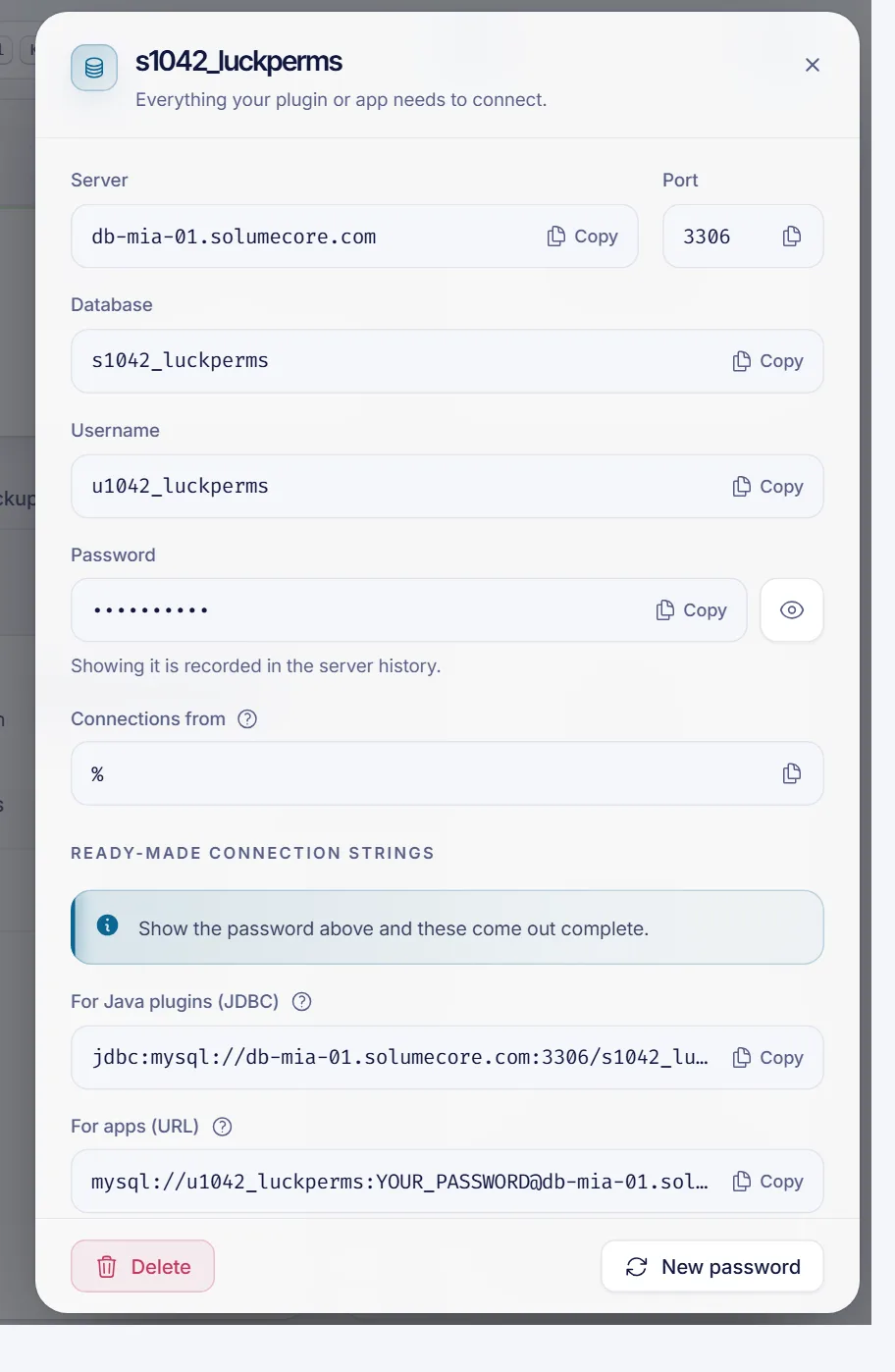
- In the list, press Details next to your database.
- Copy the Server, Port, Database and Username with the copy buttons.
- Reveal the Password and copy it. Showing it is recorded in the server's history.
- If your plugin or app asks for a single connection string, the same window has ready-made ones: For Java plugins (JDBC), the format most Minecraft plugins ask for, and For apps (URL), used by Node, Python and most frameworks (usually in
DATABASE_URL). They come out complete after you reveal the password.
Use it in a plugin
Open the plugin's config file from Files, paste the details and restart the server. For example, LuckPerms keeps its storage settings in config.yml:
storage-method: MySQL
data:
  address: SERVER:PORT
  database: DATABASE
  username: USERNAME
  password: 'PASSWORD'
Replace each value with what you copied. Other plugins use similar fields with their own names, so follow the plugin's own documentation. A MySQL client such as HeidiSQL or DBeaver can use the same details if you want to look inside the database.
Make a backup before connecting a plugin to a database for the first time, and keep the password safe. Anyone with it can read and change the data.
Change the password or delete a database
- New password. Open the database's Details and press New password. The current password stops working immediately, so update it in your plugin or app right after.
- Delete. Open Details and press Delete. The database, its user and all its data are deleted. There is no copy and it cannot be undone, so export what you need first.
Troubleshooting
- The plugin cannot connect. Check the server, port, database name and username letter by letter. Copy and paste them instead of typing. Make sure the password is current.
- "Access denied". The password is wrong or was changed. Press New password, copy it and update the plugin.
- "You've reached the limit of databases". Delete one you do not use, or upgrade your plan. See upgrade your game server plan.
- I restarted and nothing changed. Some plugins only read the config at startup: stop and start the server again, then check the console for errors.
FAQ
What database does my game server use?
MySQL. The panel creates the database and a dedicated user that only has access to that database.
How do I see my database password?
Open the database's Details and reveal the Password. If you lost it, press New password to create another.
Can I connect from my own computer?
Yes, with a MySQL client, as long as Allow connections from includes your IP. The default % allows any address.
How many databases can I create?
It depends on your plan. The page shows how many you have used and how many are left.
Related articles
- Install Minecraft plugins and mods
- Game server backups
- Invite subusers to your game server
- Connect to your game server over SFTP
Planning a bigger community? See our Minecraft hosting plans.