Move Your Server to SolumeCore from Another Host
Bring your game server, website or VPS from another host with the dashboard's move assistant: supported sources, step-by-step instructions and limits.
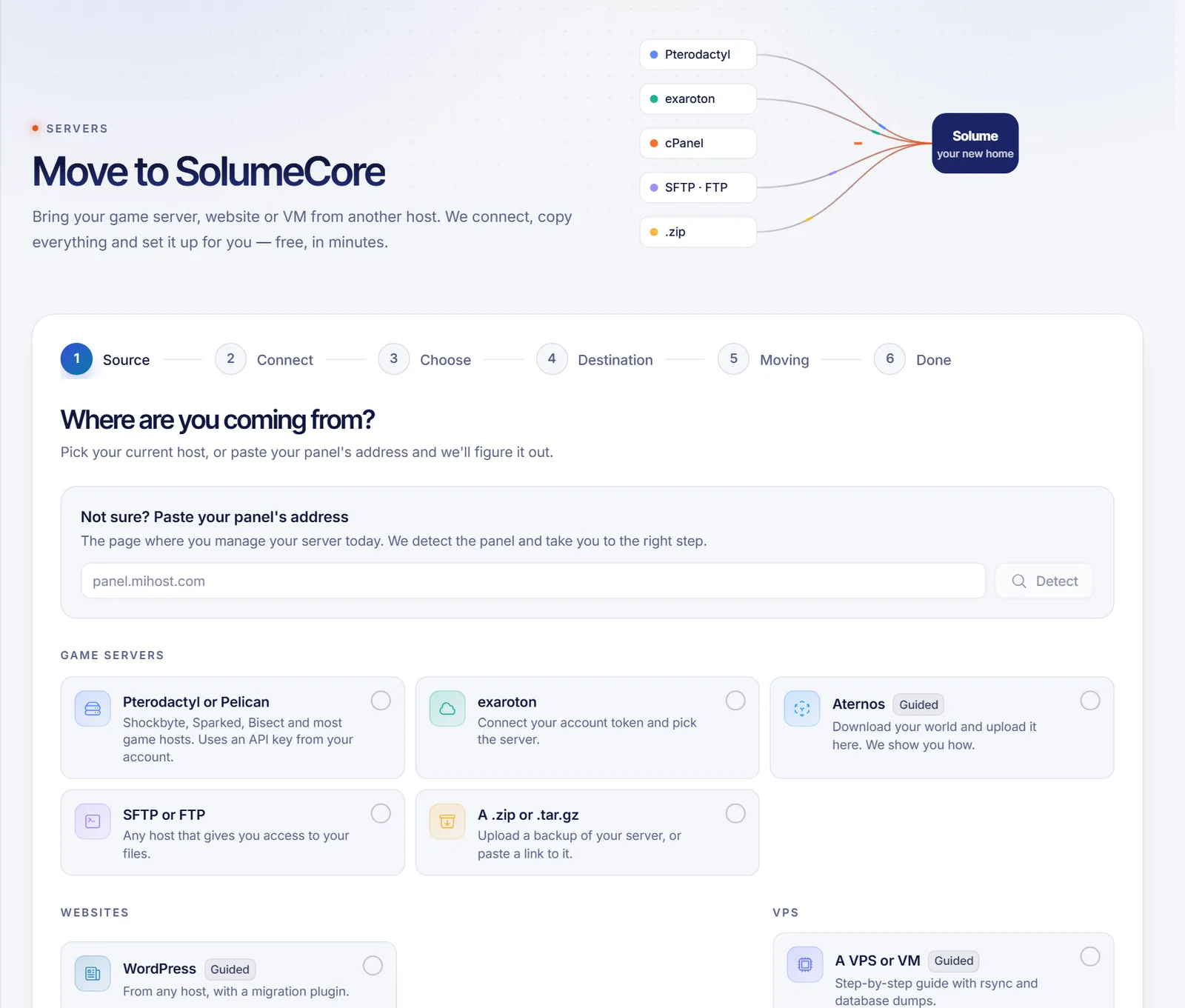
To move a server to SolumeCore from another host, open Bring from another host in the dashboard (under Servers). The move assistant connects to your old host, copies your files and settings to a SolumeCore server and sets everything up. According to the page, the move is free and your old server stays as it was, because the assistant only reads from it.
What you can bring
The assistant groups the sources into game servers, websites and VPS:
| Source | What it does | Type |
|---|---|---|
| A game host that gives you an API key | Reads your servers with a client API key from your account | Automatic |
| exaroton | Connects with the token of your account and lets you pick the server | Automatic |
| Aternos | You download your world and upload it here | Guided |
| SFTP or FTP | Any host that gives you access to your files | Automatic |
| A .zip or .tar.gz | You upload a backup of the server folder, or paste a link to it | Automatic |
| Another cPanel | Copies a website account: site, email, databases and DNS | Automatic, if enabled |
| WordPress | From any host, with a migration plugin | Guided |
| A VPS or VM | Step-by-step guide with rsync and database dumps | Guided |
The cPanel option and the disk-image option for a VPS depend on what is enabled in your account. If you do not see Another cPanel, it is not available for you. For a VPS without the image option, the assistant shows the rsync guide instead.
Before you start
- You need a SolumeCore service to receive the move: a game server, a web hosting or a VPS. If you do not have one, the assistant suggests a plan based on what you bring, and the move starts on its own once your server is ready.
- Have the data of your old host at hand: panel address and key, SFTP details, or the backup file.
- For game servers, stop the server at your old host first when the source asks for it, because copying a world while it runs can corrupt it.
Start the move
- Sign in to the SolumeCore dashboard and open Bring from another host under Servers. The page is called Move to SolumeCore.
- In Source (Where are you coming from?), pick your current host. If you are not sure, paste the address of the panel you use today in Not sure? Paste your panel's address and click Detect.
- Follow the steps the page shows: Connect, Choose, Destination, Moving and Done. Guided sources have a single Guide step.
Game server with an API key
- In your old panel, open Account, then API Credentials, and create a key with any description. Leave Allowed IPs empty.
- Copy the key (it is shown once). A client key starts with
ptlc_orpacc_. An admin key is rejected: create a client key from your own account. - In the assistant, type the Panel address (for example
panel.yourhost.com) and the Client API key, then click Connect. - In Choose, select the server. The assistant shows the detected game, its size and whether backups are available, and whether the server is suspended or still installing at your old host.
If your host does not let you create API keys, choose Use SFTP instead.
exaroton
On exaroton, open Account, then API, and create a token. Stop your server there first. Paste the token in the assistant and pick the server.
SFTP or FTP
Type the Server, Port, Username, Password and Folder (leave . to bring everything your user can see), then click Test connection. Only turn on Accept the certificate even if it cannot be verified if you trust that server.
A .zip or .tar.gz
Choose From my computer or From a link. The file can be a backup of your whole server folder, up to 40 GB. Large files go faster from a link. The upload goes straight to your server's node.
Aternos
Aternos does not let other hosts export your server, so the assistant guides you: download your world as a .zip from the Worlds page of your server, choose the destination server and click Upload my world. Plugins and mods are not included in the world: install them afterwards from the content tab of your server.
Another cPanel (if available)
- Type the old cPanel address, the username and either the password or an API token, then click Analyze account.
- The assistant shows the domains, disk, databases and mailboxes it found. Files, databases, email accounts, DNS zones and SSL travel together.
- Choose one of your hostings as the destination. It has to be new (empty).
The cPanel account that your destination hosting has today is deleted and created again with what is brought from the old account. Everything inside it (site, email and databases) is lost. For safety, someone on our team reviews every cPanel move before it starts; if it is not approved within 7 days, your password is deleted and the move is cancelled.
WordPress and VPS
The guides explain the process. For WordPress, you export your site with a migration plugin such as All-in-One WP Migration or Duplicator and import it on a WordPress installed in your SolumeCore hosting. For a VPS, you create the new server with the same system and copy data and databases with rsync from the old one.
Choose the destination and watch the move
- In Destination, use the suggested plan or choose a server you already have. For a game server the assistant warns that files with the same name will be replaced and that the server is stopped while copying.
- Click Start the move.
- In Moving you follow the phases live: reading your old server, downloading, unpacking, copying files, detecting the game and version. You can close the page: it keeps going on our side.
- When it ends, Done shows the address to join, or the records to point your domain to the new site. Click Go to my server.
You can cancel while it runs; it stops after the current step and the files already copied stay on your server. At the bottom of the page, Your moves keeps the history, with the source, destination, status and start date.
Move statuses
Waiting for your new server, Waiting for our team's approval, Queued, Preparing, Downloading, Copying, Unpacking, Finishing up, Needs your SFTP password, Done, Failed and Cancelled.
Is it safe?
- Your keys are stored encrypted only while the move runs and are deleted as soon as it ends. You can also revoke them at your old host afterwards.
- Nothing from the old host runs on SolumeCore: files and settings are copied and the start command is always ours.
- If a backup is created at the old host to copy faster, it is deleted afterwards.
Troubleshooting
"We couldn't connect"
Check the panel address, the key or the SFTP details. If the host blocks API keys, use SFTP instead.
"No servers on that account"
The key works but cannot see a server. Make sure you created it with the account that owns the server.
The move failed
Click Try again or Ask for help. The page states that if anything gets stuck, a person on our team finishes the move for you, free: open a ticket and mention the move.
It says it is waiting for my new server
The move starts by itself when your server finishes installing. If you have not paid yet, use Finish my order.
FAQ
Does moving cost anything?
The page says the move is free. You only need the SolumeCore service that will receive it.
Will my old server be affected?
No. The assistant only reads from it. At most it creates a backup there to copy faster, and deletes it afterwards.
Can I move a Minecraft world only?
Yes. Use the .zip option, or upload just the world. See Upload a Minecraft world.
How long does a move take?
It depends on the size and the speed of your old host. You can leave the page and come back to see the result.
Related articles
- Upload a Minecraft world to your server
- Connect to your game server with SFTP
- Upload your website to web hosting
- Point a domain to your web hosting
Need a server to move to? See the SolumeCore plans.