Set RAM and Java Flags on Your Minecraft Server
See how much RAM your Minecraft server needs and pick the right Java flags profile (Aikar, ZGC) from the panel to cut stutters, GC pauses and lag.
The RAM of your Minecraft server comes from your plan, and the panel gives it to Java automatically, so you raise it by upgrading the plan. What you can tune yourself is how Java uses that memory: open Settings > Startup, choose a profile in Java performance and restart. The right profile removes the half-second freezes that busy servers get when Java cleans up memory.
How much RAM does your server need?
There is no single number, because it depends on what the server runs. As a guide:
- A small survival server with a few friends and no plugins needs little.
- Plugins, more players, bigger view distance and bigger worlds all add up.
- Modpacks need far more than plain Paper or Vanilla.
The panel estimates it for you. Go to Console > Performance & crashes and find the Memory (RAM) card:
- Your plan shows your RAM, In use now shows what the server is using, and What it needs is an estimate based on your plugins or mods, the world size and the players you usually have.
- The verdict is one of Needs more, Fine or Plenty left, with a Recommended amount.
- If it says Needs more, click Upgrade plan. See how to upgrade your game server plan.
Java keeps the memory it has claimed, so a healthy server often looks full in the live graph. Judge by lag and by the verdict on the card, not only by the usage bar.
If you are installing a modpack, the installer also compares the pack's recommended RAM (an estimate for 10 players) against your plan before you confirm.
Why you cannot type the memory flags yourself
The start command of your server contains the memory settings, for example Java's maximum memory, and the panel fills them from your plan. The command is shown in read-only mode, because one wrong character stops the server from starting. You change how it starts with a profile and with the variables, never by editing the command.
Choose a Java flags profile
- Sign in to the SolumeCore panel, open your server and go to Settings.
- Open Startup. At the top you see the Start command with the variables highlighted.
- In Java performance, pick a profile. The current one shows Current, and the best one for your memory shows Recommended.
- Click Save changes. The panel confirms "Startup saved".
- Restart the server to apply it.
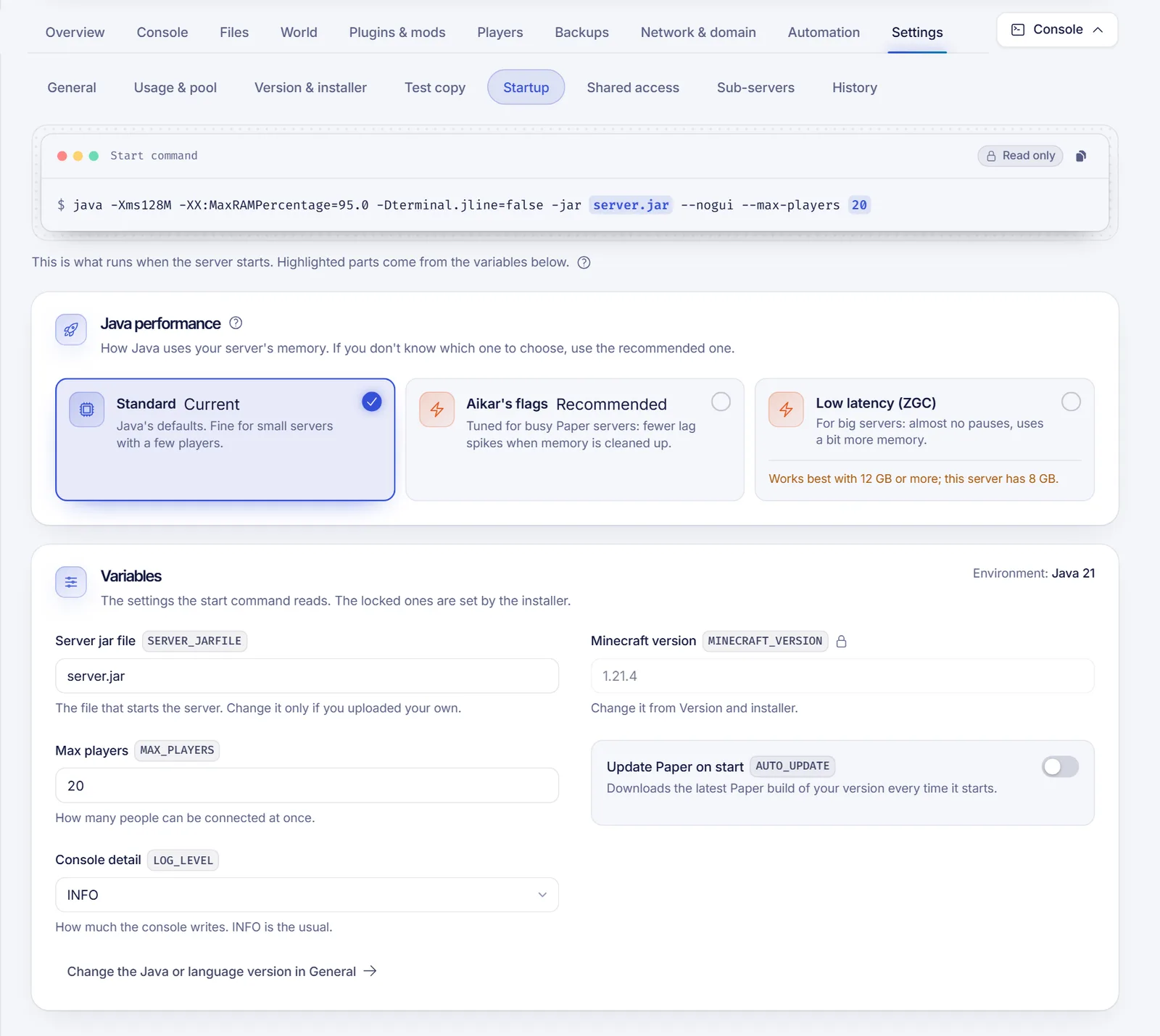
The profiles are:
| Profile | Best for |
|---|---|
| Normal | Small servers and tests. It uses Java's defaults |
| Optimizado (Aikar) | Most servers from 1 GB up to 12 GB. They are the community standard "Aikar flags" and reduce stutter when players are online |
| Optimizado para mucha RAM (Aikar 12 GB+) | 12 GB or more. Aikar's own variant for large memory |
| Pausas mínimas (ZGC) | Large servers (8 GB or more) with spare CPU cores and Java 21 or newer. Pauses nearly disappear, at the price of more CPU |
| Memoria ajustada | 1 GB or less. A lighter garbage collector that uses less memory of its own, though it pauses more |
The panel shows these names as written above. If your memory does not suit a profile, a warning appears under it, and you can still choose it.
If you are not sure which one to pick, use the one marked Recommended. It is chosen from the memory of your plan.
Profiles do not apply to every server
Profiles change the Java part of the command, so they only apply when the server starts through Java in the usual way. If your server does not (for example, a non-Java server), the panel shows a note and the profile cards are disabled. For Forge and NeoForge, the panel writes the flags to the user_jvm_args.txt file for you. If you edit that file by hand, the next profile change overwrites it.
Custom flags
The profile list does not take free text. If you need a specific set of flags that none of the profiles covers, open a ticket from the panel and tell us which ones, and our support team will take a look. A start command written by our staff shows as A medida, and the panel will not change it.
Check the result
- After the restart, watch the server for a while with players online.
- Use
tpsin the console on Paper and similar software to see the ticks per second. 20 is perfect. - If lag remains, the cause is often not Java but plugins, chunks or entities. Read how to fix lag and low TPS.
Troubleshooting
- The server does not start after changing the profile. Go back to Normal and restart. If you chose Pausas mínimas (ZGC), make sure your Java is 21 or newer in Java version.
- The profile cards are greyed out. Your account may lack permission to edit startup, the server may be suspended, or the server does not start with Java in the usual way.
- I changed it but nothing improved. Flags help with pauses, not with a server that lacks RAM or CPU. Check the Memory (RAM) verdict.
- The server uses all the memory at startup. Some profiles ask Java to claim its memory up front. That is expected.
FAQ
How much RAM do I need for a Minecraft server?
It depends on players, plugins, mods and world size. Open Console > Performance & crashes and read the Memory (RAM) card for an estimate based on your own server.
What are Aikar's flags?
A set of Java settings published by a well-known Paper developer and used across the community. They make Java clean up memory in short, frequent steps, so players notice fewer freezes. In the panel they are the Optimizado (Aikar) profile.
Can I set -Xmx and -Xms myself?
Not from the panel. The maximum memory comes from your plan automatically. If you need more, upgrade the plan.
Do more flags make the server faster?
No. Use one profile that matches your memory. Mixing flags by hand tends to make things worse.
Related articles
- Change the Java version of your Minecraft server
- Fix lag and low TPS on your Minecraft server
- Upgrade your game server plan
- Edit server.properties in Minecraft
Need more memory for a growing community? Compare our Minecraft server plans.