Extract ZIP, RAR and 7z Files on Your Game Server
Unzip ZIP, RAR, 7z and tar.gz archives right on your game server from the panel, without downloading them to your PC, and fix the usual errors.
To extract a ZIP, RAR or 7z file on your game server, upload it in the Files tab, open the archive's menu and choose Extract here. The server unpacks it for you, so you do not have to unzip it on your computer and upload thousands of small files one by one.
Which formats you can extract
The Extract here option appears on files that end in .zip, .tar, .tgz, .gz, .xz, .bz2, .rar or .7z.
| Format | Notes |
|---|---|
.zip |
The safest choice. Almost every world, modpack and plugin download uses it |
.tar.gz / .tgz / .tar |
The format the panel itself creates when you compress |
.rar and .7z |
Offered too. If a particular file fails, repack it as a ZIP on your computer |
.xz, .bz2, .gz |
Supported compressed formats |
Password-protected archives and archives split into several parts (.part1.rar, .z01) usually cannot be extracted on the server. Open them on your computer first, then repack or upload the folder.
Extract an archive step by step
- Sign in to the SolumeCore panel, open your server and go to the Files tab.
- Upload the archive to Home, the top folder of your server. Click Upload, drag the file onto the list, or use New > Download from a link if the archive is on the internet.
- Right-click the archive (or open its actions menu) and choose Extract here.
- Wait for the notice Extracting... to turn into Extracted. Big archives take longer.
- Open the new files and folders to confirm they are where you expect.
- Delete the archive once you are done, so it does not use your disk space.
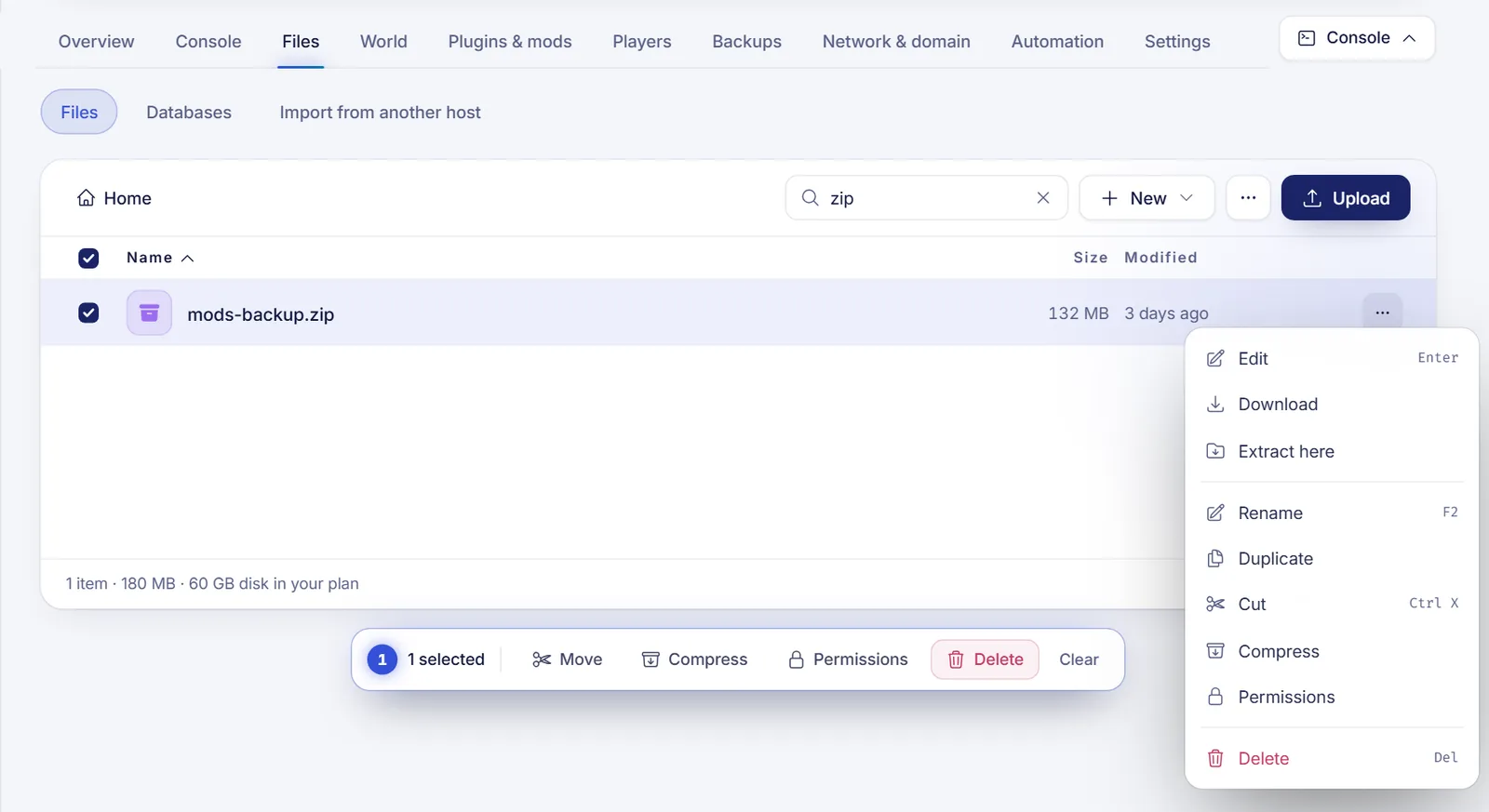
Most server packs and world downloads are built to be unpacked at the top level of the server, which is why Home is the most predictable place for the archive. If you ever see files in an unexpected folder, select them, choose Cut, open the right folder and click Paste here.
Free the disk space afterwards
The extracted files take space on top of the archive. When you delete the archive, it goes to the Trash and still counts against your disk for 7 days. To free the space right away, tick Delete for good, skipping the trash in the delete dialog.
The footer of the file manager shows the disk included in your plan. Extraction can fail if there is not enough free space for the unpacked contents.
Extract a world
If the archive is a Minecraft world, you do not need to extract it by hand. The world uploader accepts .zip, .tar.gz, .tar, .rar and .7z, finds the folder that contains level.dat even if it is inside other folders, and puts it in the right place. Read how to upload a Minecraft world.
Create an archive
You can also go the other way. Select one or more files or folders, choose Compress, and the panel creates a .tar.gz file. Use it to download a whole folder in one go or to keep a quick copy. macOS and Linux open .tar.gz natively, and the free 7-Zip program handles it on Windows.
Troubleshooting
- There is no Extract here option. The panel recognizes archives by extension. Check the file name, and make sure your account has permission to compress and extract files.
- It says Extracting but nothing appears. Large archives take a while. Click Refresh in the ⋯ menu after a minute. If it still fails, upload the file again, since a corrupted upload is the most common cause.
- The extraction fails with a RAR or 7z. Extract it on your computer and upload the result with New > Upload a whole folder, or repack it as a ZIP.
- The files landed in the wrong place. Use Cut and Paste here to move them, or delete them and extract again from Home.
- Not enough space. Delete files you no longer need, and remember to skip the trash.
FAQ
Can I unzip a file on my Minecraft server without downloading it?
Yes. Upload the archive, or paste its link with New > Download from a link, then choose Extract here. Nothing has to pass through your computer once the file is on the server.
Does the server extract RAR and 7z files?
The panel offers it for both. ZIP and tar.gz are the most reliable, so if a RAR or 7z fails, repack it as a ZIP.
How do I extract a modpack on my server?
Download the server pack of the modpack as a ZIP, extract it in Home, and check that its startup files are in the top folder. For many modpacks the panel can also install them for you, see how to install plugins and mods.
Why did my disk fill up after extracting?
The archive and its contents are both on disk, and the deleted archive stays in the trash for 7 days. Delete it for good to recover the space.
Related articles
- Use the game server file manager
- Connect to your game server with SFTP
- Upload a Minecraft world to your server
- Install plugins and mods on your Minecraft server
Want a server with room for big modpacks? Compare our Minecraft server plans.