Game Server File Manager: Upload, Edit and Move Files
Upload, edit, move, compress and download your game server files from the browser, with a built-in editor, a trash folder and search inside files.
The Files tab of your server is a file manager that runs in the browser. You can upload and download files, edit configuration files with a built-in code editor, move and rename things, compress folders and recover deleted files from a trash folder, all without installing anything.
Open the file manager
- Sign in to the SolumeCore panel and open your game server.
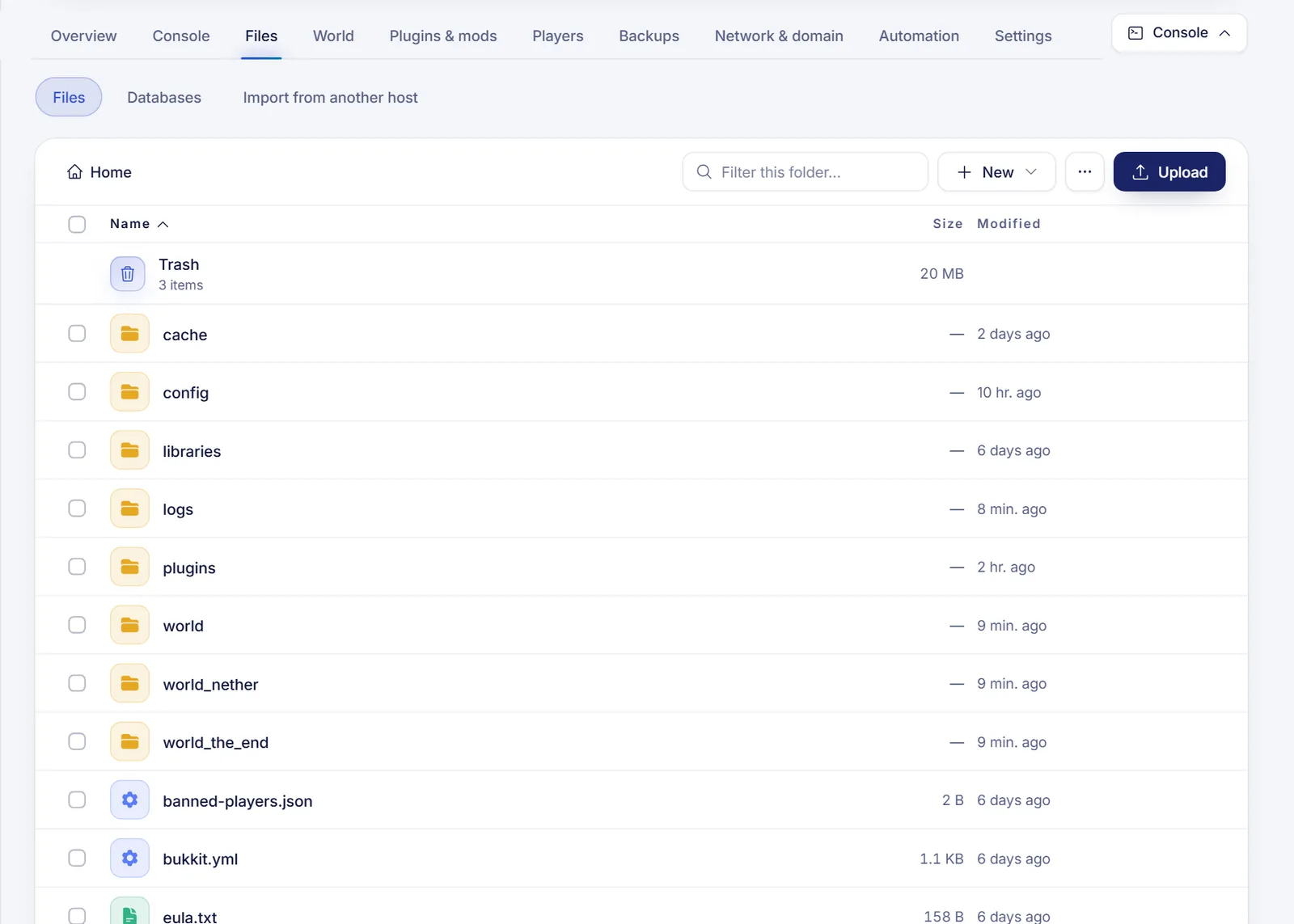
- Click the Files tab. You start in Home, the top folder of your server. The path above the list (the breadcrumb) shows where you are, and you can click any part of it to jump back.
- The footer of the list shows how many items the folder has, its size and the disk space included in your plan. A keyboard shortcut reference is available there too.
Actions are disabled while the server is suspended or being installed. If you were invited to the server, you only see the tabs and actions your permissions allow.
The toolbar
| Control | What it does |
|---|---|
| Filter box | Filters the names in the current folder as you type |
| New | New folder, New file, Upload a whole folder and Download from a link |
| ⋯ (More options) | Search inside files, Connect with FileZilla (SFTP), Trash and Refresh |
| Upload | Opens your computer's file picker to upload files |
Upload files
You have three ways to upload:
- Click Upload and pick files from your computer.
- Drag files from your computer straight onto the list. The panel shows a drop notice with the destination folder.
- Click New > Upload a whole folder to send a folder with its structure intact.
A progress counter shows how many files are done. For very large files, such as a full world or a big modpack, SFTP is more reliable than the browser.
Download a file from a link
If the file is on the internet, you do not need to download it to your computer first. Click New > Download from a link, paste a direct https:// link (for example, a plugin's download button), and optionally type a name in Save as. The server downloads it in the background and the file shows up in the folder when it finishes.
Create, rename and organize
- New > New folder creates an empty folder inside the current one.
- New > New file asks for a name with its extension (
.yml,.json,.txt) and opens the editor. The file is created when you save. - Right-click a file, or open its actions menu, to Rename, Duplicate, Cut, Compress, Permissions or delete it.
- To move things, select them, choose Cut, open the destination folder and click Paste here. You can also drag files onto a folder.
- Select several items with Ctrl + click, a range with Shift + click, or everything with Ctrl + A.
Keyboard shortcuts: Enter opens, F2 renames, Ctrl + X cuts, Ctrl + V pastes and Del deletes.
Changing a file extension when you rename can make the game stop reading the file. Keep .yml as .yml, .jar as .jar, and so on.
Edit files in the browser
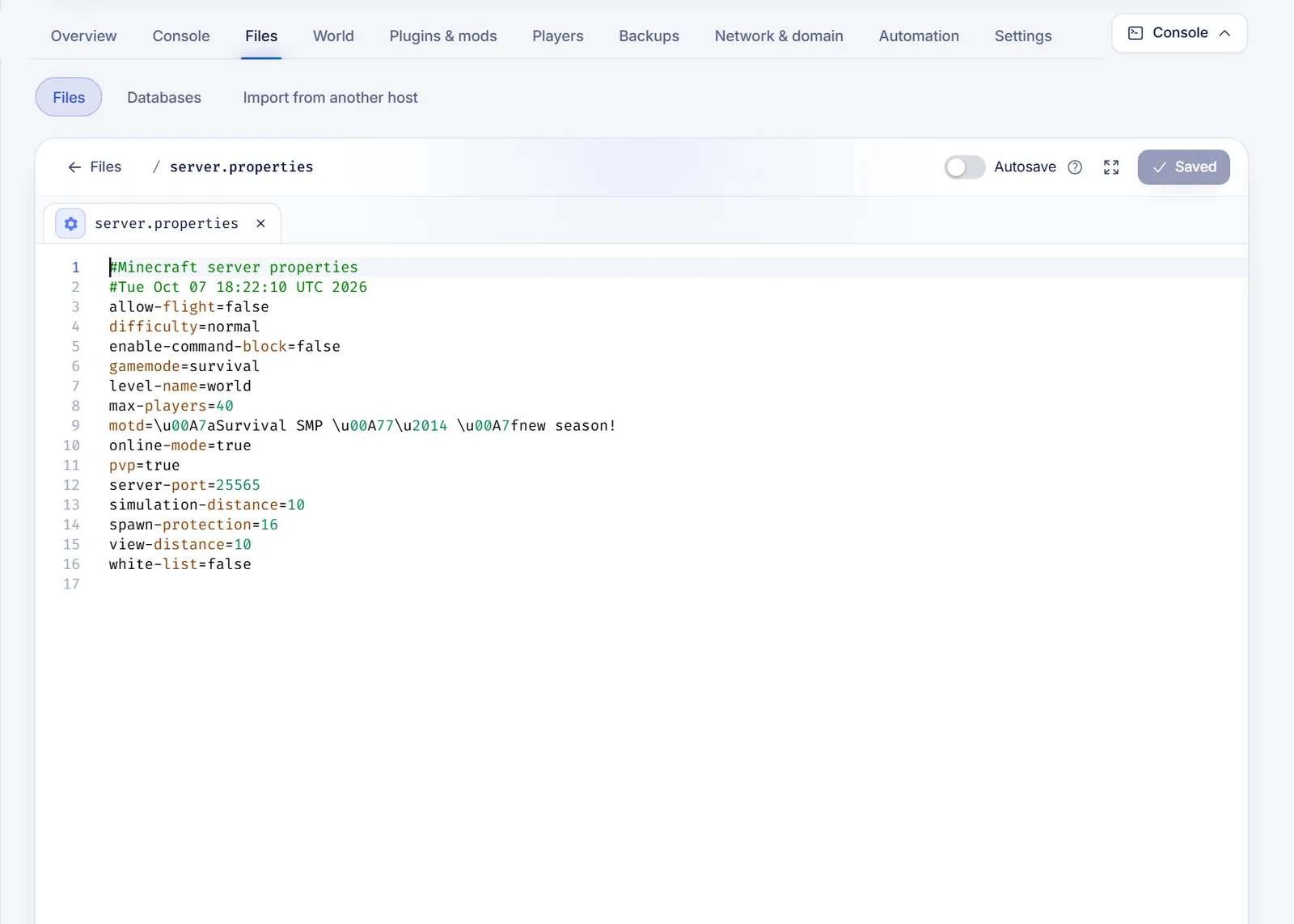
Click a text file (or choose Edit) to open it in the editor. It supports the usual formats for game servers: .properties, .yml, .yaml, .json, .toml, .cfg, .conf, .txt, .log and many more.
- Ctrl + S saves and Ctrl + F searches inside the file. Ctrl + H finds and replaces.
- When you click Save, the panel first shows a comparison of your changes: the current server version on the left and your new version on the right. Click Save changes to confirm.
- Turn on Autosave if you prefer the file to save itself shortly after you stop typing, without the preview.
- Several files can stay open as tabs while you browse other folders. Use Back to the editor to return.
- Full screen gives you more room for long files.
Files larger than 4 MB do not open in the editor, and binary files such as .jar cannot be edited as text. For those the panel offers Download.
Most games read their configuration only when they start. After you save a change, restart the server so it takes effect.
Search inside files
Need to find the file that holds a setting? Click ⋯ > Search inside files, type the text (for example spawn-protection), and optionally tick Match upper and lower case. The results list each file and line, and Open in the editor jumps straight to it. The search skips files over 1 MB, binary files and the trash, and it looks in the current folder and all its subfolders.
Compress, extract and download
- Compress packs the selected files into a
.tar.gzarchive. - Extract here appears on archives and unpacks them. See how to extract ZIP, RAR and 7z files.
- Download saves a file to your computer. Folders are easier to download as a compressed archive.
Permissions
Permissions opens a small dialog with checkboxes for who can read, write and run the file, or a number field. You rarely need it. If something will not start because of file permissions, 755 usually fixes it. 644 is a normal file and 600 is private.
The trash
When you delete something, it goes to Trash and stays there for 7 days. Open ⋯ > Trash to see it. From there you can:
- Restore an item to where it was.
- Delete for good to remove it right away.
- Empty trash to clear everything.
If you need the disk space back immediately, tick Delete for good, skipping the trash when you delete. The trash still uses part of your disk until it is emptied or the 7 days pass.
Items deleted for good cannot be recovered. If it is a world or a database, make a backup first.
Troubleshooting
- "This file is too big to edit here." The editor limit is 4 MB. Download the file, edit it on your computer and upload it again.
- "This kind of file can't be edited as text." The file is binary. Replace it by uploading a new version.
- A button is greyed out. The server may be installing or suspended, or your account lacks that permission. Ask the owner.
- An upload is rejected. Check your remaining disk space and try again, or upload with SFTP.
FAQ
How do I upload files to my game server?
Open the Files tab and click Upload, or drag the files onto the list. For huge files, use SFTP.
How do I edit server.properties or a plugin config?
Open the Files tab, click the file and edit it in the editor. For Minecraft you can also use the form in World > Game settings, which explains each option.
Where did the file I deleted go?
To the trash, for 7 days. Open ⋯ > Trash and choose Restore.
Can I move a folder to another folder?
Yes. Select it, click Cut, open the destination folder and click Paste here, or drag it onto the destination.
Related articles
- Connect to your game server with SFTP
- Extract ZIP, RAR and 7z files on your game server
- Edit server.properties in Minecraft
- Back up and restore your game server
Looking for a place to run your own server? See our Minecraft server hosting.