Schedule Automatic Restarts and Backups on Your Game Server
Set up automatic restarts, nightly backups and console commands on your Minecraft or other game server from the panel. No cron knowledge needed.
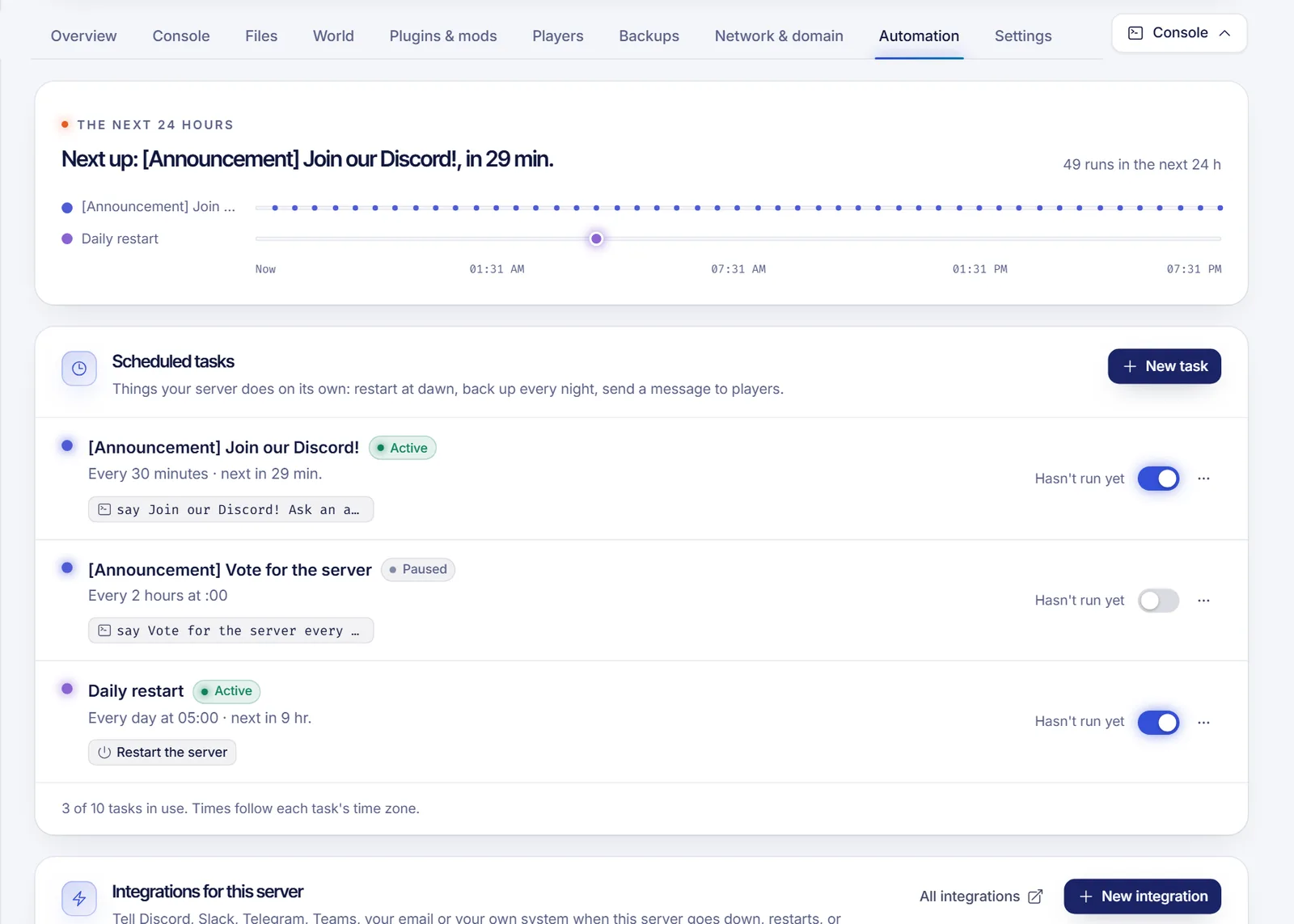
To schedule tasks on your game server, open the Automation tab of your panel, press New task and choose what it should do and when: restart every day, back up every night, run a console command or turn the server off at night. The task then runs on its own at the time you pick, so you never depend on remembering.
Before you start
- Open dashboard.solumecore.com, go to Game servers and open your server.
- Scheduled tasks live in the Automation tab, in Scheduled tasks.
- You can have up to 20 tasks, each with up to 10 steps.
- If you share the server with other people, they need the permissions View scheduled tasks, Create tasks, Edit and run tasks or Delete tasks to use this page.
Create a task from a template
The first time, the page offers ready-made templates under Start with:
| Template | What it does |
|---|---|
| Restart every day, with a warning (Minecraft) | Sends a message to the chat, waits one minute and restarts. Marked as popular. |
| Restart every day | Restarts the server at a fixed time. |
| Back up every night | Makes a backup you can go back to. |
| Run a command | Sends any console command on a schedule. |
| Turn off at night | Stops the server at the time you choose. |
| From scratch | You pick the time and then add the steps yourself. |
- Press New task and pick a template.
- In What to do, fill in what the template asks for. For the restart with a warning, write the Message for players; for a command, type the Command without the slash, for example
save-allorsay Hello!. Give it a Name so you can tell it apart from other tasks. - In When, choose how often it runs: Every day, Some days, Every few hours or Every few minutes. Set the time and check the Time zone, which is filled in with yours.
- In Review, read the summary and the Next times it will run to make sure it reads right. Press Create task.
The templates suggest sensible times, such as 05:00 for restarts and 04:00 for backups. Pick the hour when the fewest players are online.
Only if the server is on
The wizard has an option called Only if the server is on. When it is enabled and the server is off at that time, the task is skipped instead of turning the server on. It is enabled by default for the command and the restart-with-warning templates.
Add, edit or reorder steps
A task is a list of steps that run in order.
- Open the task with Open and edit.
- Press Add step and choose What should it do?: Send a command, Start or stop (start, stop, restart or force stop) or Make a backup.
- Set Wait after the previous step, in seconds. For example, a command that says "The server restarts in 1 minute", then a 60-second wait before the restart step.
- Leave Keep going if it fails off if the next steps should not run when this one fails.
A task with no steps does nothing, and the panel warns you. The longest wait you can set is 900 seconds.
Run, pause or delete a task
Each task in the list has a switch to pause it or turn it on again. A paused task shows Paused and does not run until you switch it back on. In the task's menu (More options) you can use Run now to run it right away, Open and edit to change it, or Delete task. Press Run now after creating a task to check that it works.
Troubleshooting
- The task did not run. Check that it is Active, that the time zone is right and that Only if the server is on is not skipping it because the server was off.
- "You've reached the limit of tasks". Delete tasks you no longer use. The limit is 20 tasks.
- Backups stop working. The task makes a backup with your usual settings. If you are at your plan's limit, it replaces the oldest backup that is not locked, so lock the ones you want to keep. See game server backups.
- My plan has no backups. The panel says Your plan doesn't include backups and the backup template is not available.
- The command does nothing. Type it exactly as in the console, without the slash. Test it first in the console.
FAQ
How do I restart my Minecraft server automatically every day?
Go to Automation, press New task, choose Restart every day, with a warning, write your message, set the time and press Create task. A daily restart helps keep the server fast. See fix Minecraft lag.
How do I schedule a backup every night?
Choose the Back up every night template, pick the hour and create the task. Remember that your plan has a limited number of backups.
Can I run a console command on a schedule?
Yes. Use the Run a command template, or add a Send a command step to any task. Write the command without the slash.
What time zone do the tasks use?
Each task has its own time zone, filled in with your browser's when you create it. You can change it in the When step.
Related articles
- Game server backups
- Console commands for your game server
- Fix Minecraft lag and low TPS
- Game server hibernation
If you want a server that restarts, backs up and runs by itself, see our Minecraft hosting.