How to Add an Admin or Friend to Your Game Server
Invite a friend or your team to manage your game server with their own account and only the permissions you choose. No need to share your password.
To add a friend or a staff member as an admin of your game server, open your server, go to Settings → Shared access, press Invite someone, type the email of their SolumeCore account and choose what they can do. They get an email with a link, accept it, and the server appears in their own panel. You never share your password and you can change or remove their access at any time.
Before you start
- As the owner you can always give access. People with the Give access to other people permission can too, so give that one only to someone you fully trust.
- The person needs a SolumeCore account, and the invitation has to go to the email of that account. If they do not have one yet, ask them to create an account with that email first.
- A server can have up to 25 people, counting pending invitations.
Invite someone to your server
- Sign in at dashboard.solumecore.com, open Game servers and select your server.
- Open the Settings tab and choose Shared access ("Invite people to help you").
- Press Invite someone.
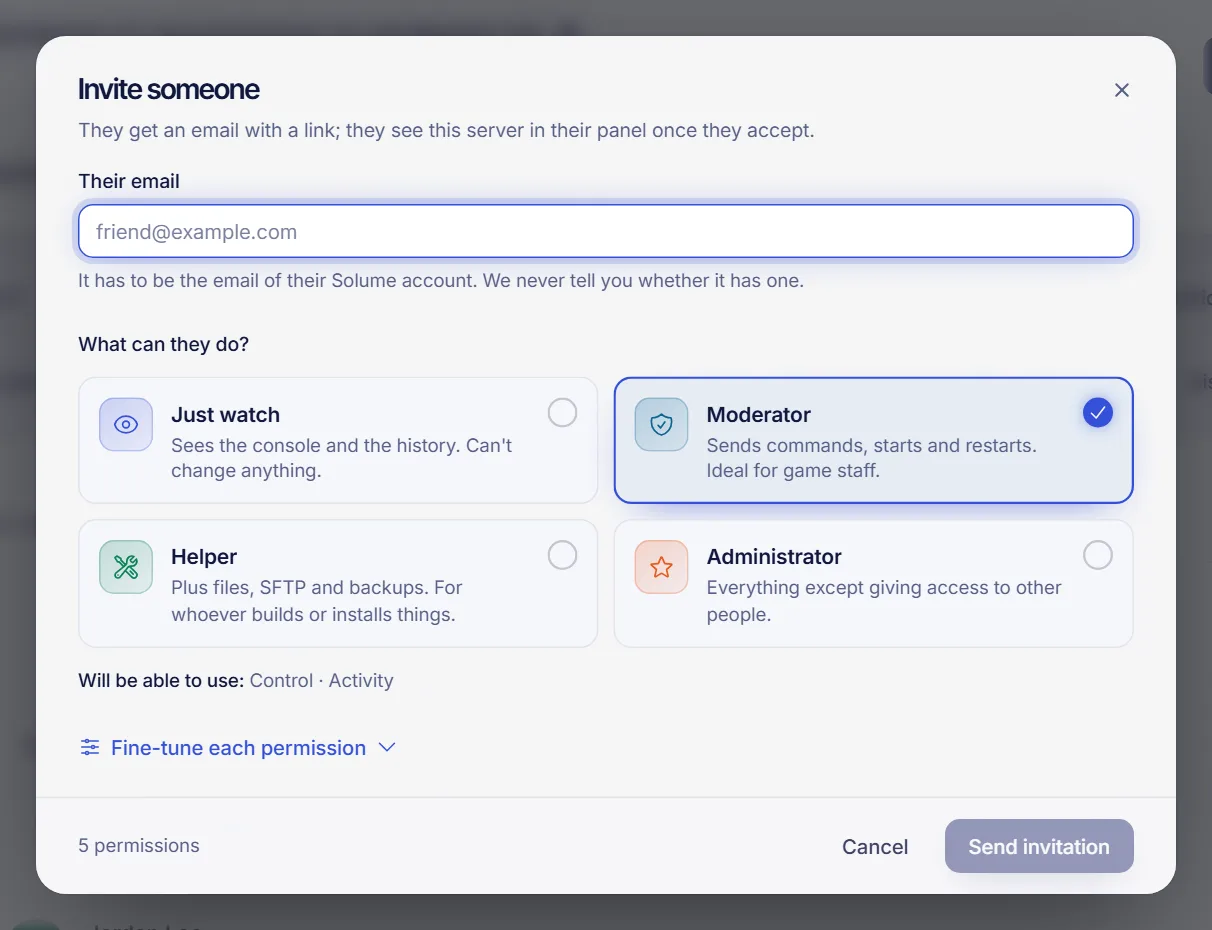
- In Their email, type the email of their SolumeCore account.
- Under What can they do?, pick a role (see the table below). You can fine-tune each permission afterward with Fine-tune each permission.
- Press Send invitation.
The panel shows Invitation sent. For privacy it does not tell you whether that email has an account: if it does, the person receives an email with a link to accept. The invitation expires after 7 days. Until it is accepted, the person has no access. It appears in the list marked Pending, and you can use Cancel invitation to withdraw it.
Choose the right role
| Role | What the person can do |
|---|---|
| Just watch | Sees the console and the history. Cannot change anything. |
| Moderator | Sends commands, starts and restarts the server. Ideal for game staff. |
| Helper | Everything a moderator does, plus files, SFTP and backups. For whoever builds or installs things. |
| Administrator | Everything except giving access to other people (and except paying invoices). |
If you change individual permissions so they no longer match a role, the panel shows it as Custom. The permissions are grouped by area: Control, Files, Backups, Tasks, Databases, Network, Startup, Settings, Activity, Minecraft, Integrations, Billing and Users. For a Minecraft moderator, console, commands and restart are usually enough; give Manage worlds or Delete files only to people who really need them.
Give access to other people lets a person invite others, and Pay this server's invoices lets them pay with their own payment method. Both are marked as sensitive. Do not hand them out to someone you do not know well.
What the other person has to do
- Open the email they received and press the link.
- Sign in to SolumeCore with the same email the invitation was sent to. The email must be verified.
- Review What you will be able to do and press Accept invitation.
- Press Go to my panel. The server now appears in their list.
Change permissions or remove access
- To change permissions, open Shared access, find the person, open More options and choose Edit permissions. Press Save permissions.
- To remove them, choose Remove access. They stop seeing the server right away and any console they have open is cut off. Their account is not deleted and you can invite them again.
The Settings tab also has a History section where you can review who did what on the server.
Troubleshooting
- "This invitation is not available". It may have expired, been used or cancelled, or was sent to a different email. Check that the person is signed in with the invited email and that it is verified, then send a new invitation. Inviting the same email again renews the link.
- The email did not arrive. Ask them to check their spam folder and confirm that the email you typed matches their account. For privacy, the panel does not say whether an account exists.
- "You've reached the limit of people". Remove someone or cancel a pending invitation.
- I cannot find Shared access. You need the permission See who else has access to see the section.
FAQ
How do I add a friend as an admin on my Minecraft server?
Go to Settings → Shared access, invite their SolumeCore email and choose Administrator. They can then manage almost everything, but they cannot invite other people. For in-game operator status, see Minecraft whitelist and operators.
Does my friend need to pay anything?
No. They just need a free SolumeCore account. Access does not give them any billing details of yours.
Can I limit what a person can touch?
Yes. Start from a role and use Fine-tune each permission. For example, a moderator who can use the console but cannot delete files or backups.
Is it safe to share my server this way?
Yes, because nobody shares your password. Each person signs in with their own account and you can remove their access whenever you want.
Related articles
- Minecraft whitelist and operators
- Connect to your game server over SFTP
- Game server backups
- Console commands for your game server
Want to run a community with a team? Start with a Minecraft server from SolumeCore.