SolumeCore Status Page: Check Outages and Get Alerts
Check whether SolumeCore has an incident, what affects your own servers, how to read the 90-day bars and how to turn on email alerts for outages.
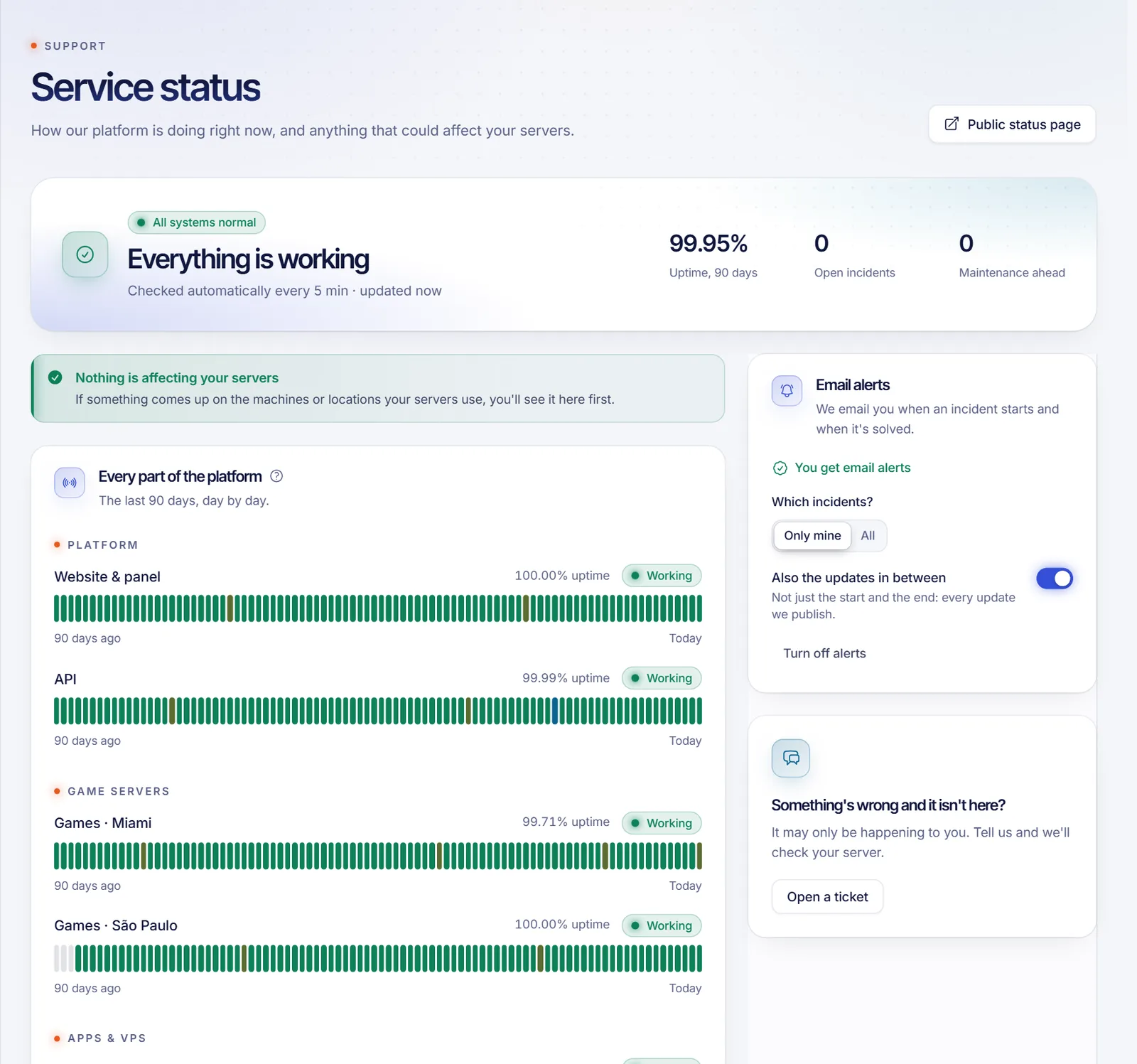
To check whether SolumeCore has a problem right now, open the public status page, or Service status in the Support section of your dashboard. Both show the same data: the overall state of the platform, every component with its last 90 days, open incidents, scheduled maintenance and past incidents. The dashboard version adds what affects your own servers and lets you turn on email alerts.
Two places, the same information
- Public status page at solumecore.com/status. It needs no account, so you can check it even when you cannot sign in.
- Service status in the dashboard. In the left menu, under Support, open Service status. A Public status page button at the top takes you to the public one.
The components are checked automatically every few minutes (every 5 minutes by default), and the page refreshes by itself.
Read the status page
The headline
At the top, the page says in one sentence how everything is going:
| Badge | Headline |
|---|---|
| All systems normal | Everything is working |
| Partial issue | Some parts are having problems |
| Outage | There's an outage. We're on it |
| Maintenance | Scheduled maintenance in progress |
Next to it you see the average Uptime, 90 days, the number of Open incidents and the Maintenance ahead.
What affects your servers
In the dashboard, the card Nothing is affecting your servers turns into What affects your servers when an incident or a maintenance touches the machines or locations where your servers run. Each affected server appears as a chip marked same machine or same location, and Affects everyone marks general incidents. Click a chip to open that server.
Incidents
Each open incident has a title, a severity (Minor, Major or Critical) and a timeline of updates. A progress line shows the stage it is in:
- Investigating: we are looking for the cause.
- Cause found: we know what is wrong and are working on it.
- Watching: the fix is in place and we are monitoring it.
- Resolved: it is over.
Past incidents are kept under Past incidents, with the date they were resolved and how long they lasted.
Scheduled maintenance
Scheduled maintenance lists planned work in the next 30 days, with its time range. The page says we let you know by email before it starts. The time of a maintenance does not count as downtime in the bars.
Every part of the platform
Under Every part of the platform, each component has a row of bars, one per day for the last 90 days. Hover or tap a bar to see that day. The legend at the bottom explains the colors:
| Legend | Meaning |
|---|---|
| No problems | The component was not down that day |
| Short blip | Up to 30 minutes of downtime that day |
| Partial issue | Between 30 minutes and 3 hours of downtime that day |
| Down | More than 3 hours of downtime that day |
| Maintenance | Planned work, which does not count as downtime |
| No data | There is no record for that day |
Get email alerts
In the dashboard, the Email alerts card on the right lets you know about incidents without checking the page.
- Open Service status and click Turn on email alerts. It is free and you can turn it off at any time.
- In Which incidents? choose Only mine for incidents that affect your servers, or All.
- Optionally turn on Also the updates in between, to get every update we publish and not only the start and the end.
- To stop, click Turn off alerts.
You receive an email when an incident starts and when it is resolved.
What to do if something is wrong and the page shows nothing
If your server is failing but the page says everything is working, the problem may only affect you. Try the basics for your service, then open a ticket: use Open a ticket in the card Something's wrong and it isn't here?, or follow Open a support ticket. Mention your server and what you see.
Troubleshooting
The page says "We couldn't check the status"
On the public page this means the status service did not answer for a moment. Reload after a minute. It does not necessarily mean your service is down.
The dashboard shows an incident but my server works
The incident may affect a machine or location you share, with different symptoms. Keep an eye on the updates, and turn on alerts so you do not need to check.
I don't receive the emails
Check the spam folder and make sure the alerts show as You get email alerts in the card. Also check the email address of your account.
FAQ
Is there a status page for SolumeCore?
Yes. It is public at solumecore.com/status and also inside the dashboard under Support.
How often is the status updated?
Components are checked automatically every few minutes, 5 minutes by default, and the page shows when it was last updated.
Will I be warned before a maintenance?
The page says that planned maintenance is announced by email before it starts. Turn on Email alerts to be sure you receive the updates.
Does the status page say anything about my own VPS or game server?
The dashboard version does: What affects your servers lists incidents and maintenance on the machine or location where your servers run. For problems inside your own server, such as a stopped process, check the server itself.
Related articles
- Open a support ticket
- Dashboard overview for beginners
- Server locations
- Firewall and DDoS protection
Choosing where to host? Compare locations and plans on the SolumeCore plans page.