Firewall and DDoS Protection for Game Servers and VPS
Learn how DDoS protection works in your SolumeCore dashboard: pick a protection mode, block IPs or countries, read attack reports and use the game rules.
The Firewall page of the SolumeCore dashboard shows the DDoS protection of each of your servers and lets you decide who gets in. Protection is always on: you open the page to see the attacks that were stopped, choose how strict the shield is, and open ports, block addresses or countries when you need to. For most servers the default setup needs no changes.
The Firewall section depends on what is enabled for your account and service. If you do not see it, or the page does not show your server, open a ticket and we will check what is available for your service.
Where to find it
- Sign in to the SolumeCore dashboard.
- In the left menu, under Servers, open Firewall.
- If you have more than one server, pick one in Choose a server. The list shows each server's IP address.
Your servers are listed in the selector, but the firewall works on a dedicated IP address, so a server without one appears greyed out and labeled No dedicated IP yet. The dashboard states that game and app servers are protected automatically at the network edge, so there is nothing to configure for them.
Depending on where your server runs, you will see one of two panels, named in the server selector:
- SolumeCore Shield, with the tabs Overview, Rules, Lists, Attacks and Templates.
- Game firewall, with the tabs Overview, Rules, Attacks and Query cache.
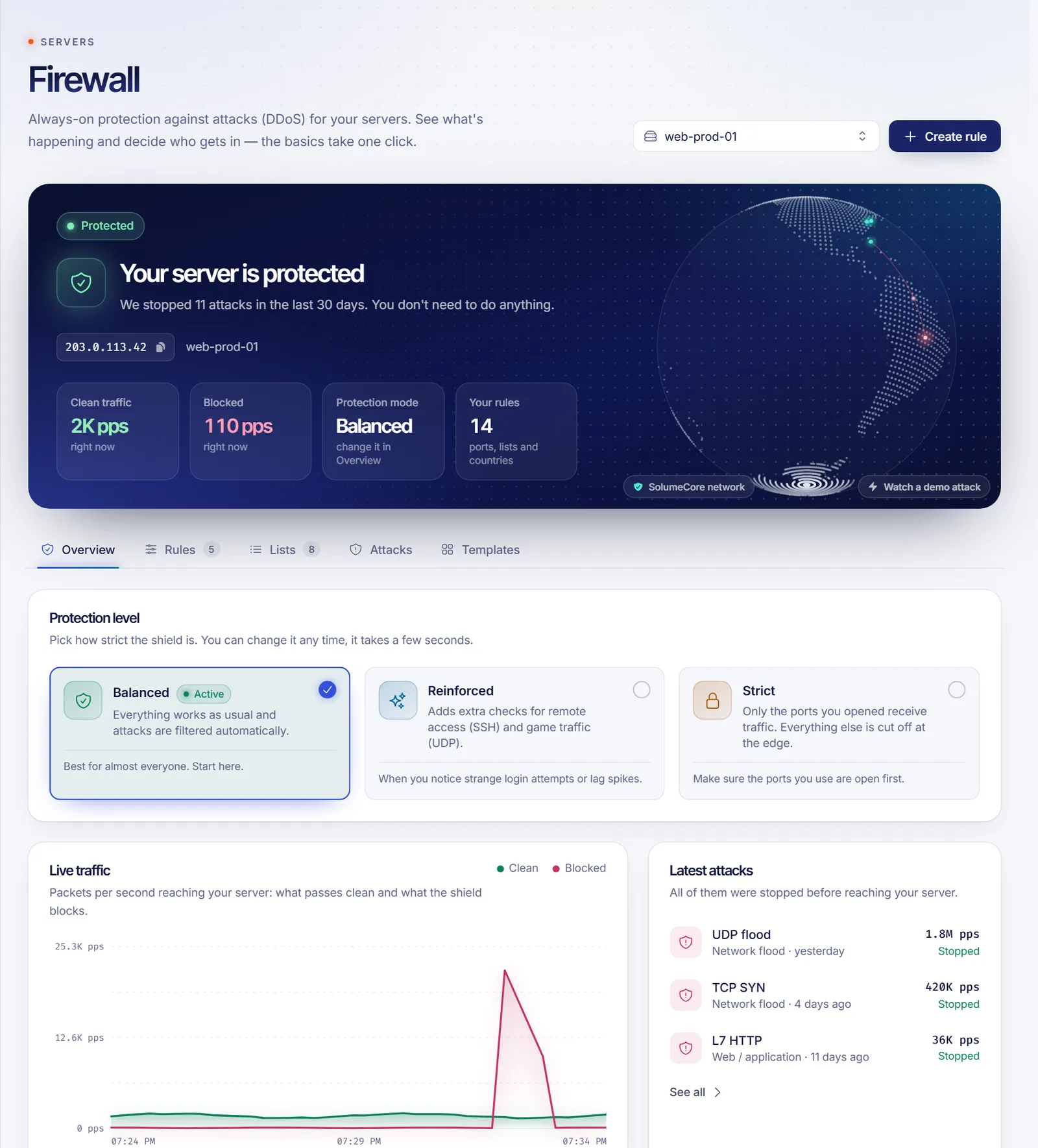
SolumeCore Shield
Choose a protection mode
In Overview, under Protection level, pick how strict the shield is. You can change it at any time and it takes a few seconds.
| Mode | What it does | Use it when |
|---|---|---|
| Balanced (recommended) | Everything works as usual and attacks are filtered automatically. | Almost always. Start here. |
| Reinforced | Adds extra checks for remote access (SSH) and game traffic (UDP). | You see strange login attempts or lag spikes. |
| Strict | Only the ports you opened receive traffic. Everything else is cut off at the edge. | You know exactly which ports your server uses. |
If you changed protections by hand so that none of the three matches, the level shows as Custom.
In Strict mode, anything that uses a port you have not opened stops working, and with no ports opened nothing reaches your server. Before switching, open the ports you use, such as 22 for SSH, 80 and 443 for a website or 25565 for Minecraft Java. The dashboard asks you to confirm and lists the ports that will stay open.
Below the level you will find Automatic protections, extra filters you can turn on for the services you use: SSH guard, Remote Desktop guard, Strict UDP and FiveM quick answers.
Open ports and set limits (Rules)
The Rules tab has Open ports, the doors your server uses to receive players or visitors. In Balanced and Reinforced modes every port answers anyway, but listing yours lets the shield inspect them better, and the list is what counts in Strict mode. Use Open a port to add one. The steps are in Open a port in the VPS firewall.
The same tab has Limits by country, to cap how many packets per second can come from a country without blocking it, and Where your services listen, where you tell the firewall if you moved SSH, Remote Desktop or FiveM to a non-standard port.
Allow or block addresses (Lists)
The Lists tab holds four lists:
- Always allowed: addresses that skip every filter, such as your home or office. Add your own IP with Add my current IP so you are never blocked by mistake. You can use a single IP or a range such as
1.2.3.0/24. - Blocked: addresses that can never reach your server. The shield also adds attackers here on its own, marked Automatic; the ones you add are marked By you.
- Countries: choose Block these to cut off traffic from the countries on the list, or Only allow these to let in only the listed countries. The second one blocks the rest of the world, including you if you travel.
- Blocked networks: block a whole provider or data center by its network number (ASN), useful against attacks that keep changing IP.
Create a rule with the wizard
The Create rule button at the top opens a wizard with three steps (What, Details, Where). You can open a port, block or always allow someone, block or limit a country, block a network or turn on the connection guard. In Apply to you can create the same rule on several servers at once.
Read the attacks
The Attacks tab lists every attack the shield stopped, with its type (Network flood, Web / application or Volume attack), when it happened, its peak and its result, normally Stopped. Click one for the detail. Who attacked you shows the addresses, countries and networks behind the attacks with a Block button next to each. In this tab a report also covers the last 30 days across all your servers, and in Overview you see the live traffic chart and the latest attacks.
Use a template
Templates are ready-made sets of rules for common cases, such as a web server or allowing SSH only from your IP. Click Apply..., review what it does and choose one or several servers.
Game firewall
If your server shows Game firewall, the logic is a list of rules checked from top to bottom, where the first one that matches decides.
- In Overview, find Protect a game in one click, pick your game and click Protect. It adds the right rules for the game's ports, with a special filter when there is one.
- In Rules, use Create rule for custom needs. Each rule can Allow, Block, Limit speed or apply a Special filter for a game or protocol. Use the ... menu to move a rule up or down, edit it or duplicate it.
- In Query cache, add the port of your game so the firewall answers the server-list queries for you, and a flood of fake queries never reaches the game. Changes can take up to a minute to show in server lists.
Troubleshooting
Players cannot connect after I changed the protection level
You probably switched to Strict without opening the port your game uses. Go back to Balanced in Overview, or open the port in Rules.
I blocked myself
If you can still sign in to the dashboard, remove your IP from Blocked or add it to Always allowed. If a country list blocks your own country, switch it to Block these or remove the country.
The page shows "We couldn't load the firewall"
Your server is still protected; only the page failed. Click Try again, and open a ticket if it continues.
I cannot select my server
If it appears greyed out as No dedicated IP yet, it has no dedicated IP address, and the firewall cannot be managed for it. The dashboard states that game and app servers without one are protected at the network edge. If your server does not appear at all or the page does not load, open a ticket.
FAQ
Is DDoS protection included with my server?
The dashboard states that every SolumeCore server comes with DDoS protection included. You do not need to turn it on; this page is where you see it working and tune it.
Do I need to do anything during an attack?
No. When an attack is in progress, the page shows that it is being stopped and your server keeps working. You can block the sources afterwards if you want.
Which protection mode should I use?
Balanced for almost everyone. Move to Reinforced if you notice strange login attempts or lag spikes, and to Strict only when you have opened all the ports you use.
Can I block a whole country?
Yes, in Lists, under Countries. Block only countries where you have no players or visitors, because real users behind those networks will also be cut off.
Related articles
Want to see how the protection looks before you buy? Read about it on the SolumeCore firewall page, or pick a server on the plans page.