How to Point a Domain to Web Hosting (Nameservers & DNS)
Point your domain to your hosting by changing nameservers or adding DNS records. Step-by-step guide with a live check, from the SolumeCore dashboard.
To point a domain to your web hosting, you either replace the domain's nameservers with the two that your dashboard shows, or you keep your current DNS provider and add a few records there. The nameserver method is the recommended one: you change two values at your registrar and the rest (website, email and SSL) is handled for you.
Before you start
- You need a domain you already own, bought at any registrar. A new hosting starts on a temporary address, and you can connect your own domain at any time.
- Have access to the place where the domain is managed: your registrar, or your DNS provider such as Cloudflare.
- Connecting your own domain from the temporary address is something you do once from the dashboard. It becomes the main domain of the hosting and the temporary address stops working. If you use WordPress, you will also need to update its address afterwards.
Step 1: Connect your domain in the dashboard
- Sign in to the SolumeCore dashboard, open Web hosting (under Servers) and select your hosting.
- Go to Domain & DNS, in the Connection section.
- Click Connect my domain. A three-step wizard opens.
- In Your domain, type your domain without
wwworhttps, for examplemybakery.com, and continue. - In Point it, choose how you want to do it (see the two methods below).
- In Connect, confirm that the domain becomes the main domain of the hosting, then click Connect domain.
If your DNS is not pointing here yet when you confirm, your site will be offline at the new address until the change propagates. That is normal.
You can also start from the Domains menu of the dashboard, with Connect a domain, and choose the web hosting option: it takes you to the same place.
Step 2: Point the domain
Method A: use our nameservers (recommended)
- In the wizard, choose Use our nameservers. The two nameservers appear, each with a copy button.
- Sign in to the company where you bought the domain and open the nameserver or DNS settings of that domain.
- Replace the current nameservers with the two from the wizard. Remove the old ones, so only these two remain.
- Save the changes.
Changes usually show up in under an hour, but they can take up to 24 hours. You can keep working meanwhile.
Method B: keep your DNS where it is
Choose Keep your DNS where it is when you use Cloudflare or another DNS service that you do not want to leave.
- Choose that option in the wizard. A table lists the records to create, with a copy button for every value:
| Type | Name | Points to |
|---|---|---|
| A | @ |
The IP address of your hosting |
| A | www |
The IP address of your hosting |
| A | cpanel |
The IP address of your hosting |
| A | webmail |
The IP address of your hosting |
| A | mail |
The IP address of your hosting |
| MX | @ |
Your domain, priority 0 |
| TXT | @ |
The SPF value shown in the table |
- Create each record at your DNS provider, or click Download zone file and import it in one go (most providers can; in Cloudflare it is under DNS, then Import and export).
- If you use Cloudflare, set every record to DNS only (grey cloud). With the orange cloud on, email and SSL do not work.
Let the dashboard do it for you
If your DNS provider supports Domain Connect, the wizard shows a Set up with button with the provider name. You approve the changes on the provider's page and all the records are created for you.
Step 3: Check that it works
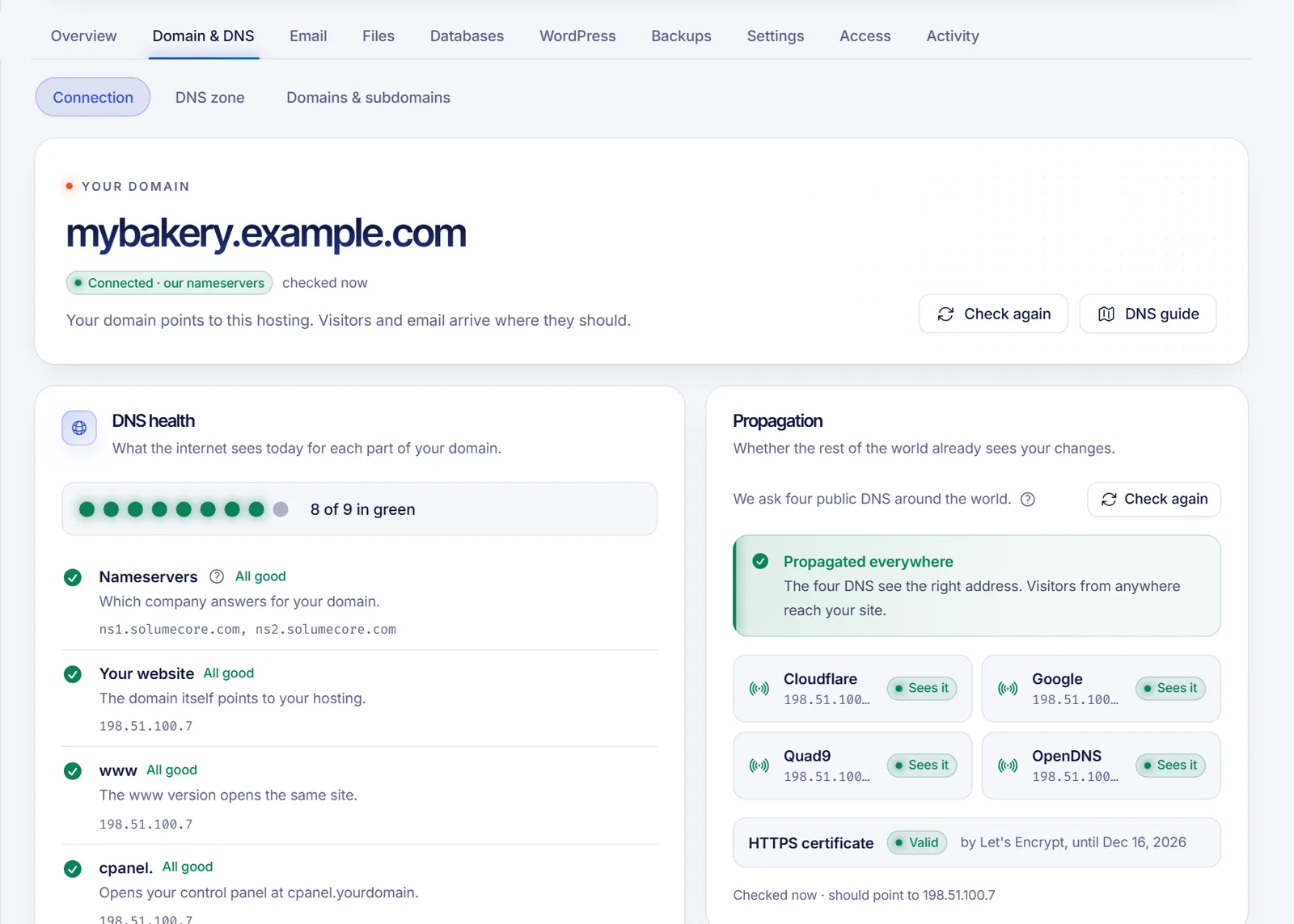
- In Domain & DNS, click Check again. The DNS health section shows nameservers, your website,
www,cpanel.,webmail., email receiving (MX) and the sender checks. - In Propagation, click Check propagation. The dashboard asks four public DNS servers around the world and tells you how many already see the new address.
- When everything is green, open your domain in a browser. Your HTTPS certificate is issued automatically within a few minutes of the domain pointing here. See Install an SSL certificate on web hosting.
Change the main domain later
Once your own domain is connected, you change it from Domain & DNS, then Domains & subdomains, with Change main domain. The new domain must already point to this hosting. Mailboxes on the old domain move to the new one, the SSL certificate is issued automatically, and by default you need to wait 24 hours between one change and the next, so double-check the domain. To host an extra site, add it as an addon domain instead.
Troubleshooting
My domain still shows the old site or an error
The change is probably still propagating. Wait a bit and use Check propagation again. Browsers and your own network may keep the old address for a while; try another device or a private window.
The check says the nameservers are not ours
The registrar has not saved or applied the change yet. Open the domain's nameserver settings again and confirm that only the two new nameservers are listed.
The site loads but shows "not secure"
The certificate is issued after the domain points to the hosting. Wait a few minutes. If it still shows a warning, ask for a new check from the Overview tab, in the HTTPS certificate card, with Check now.
Email does not arrive
Check that the MX and SPF checks are green in DNS health, and that no old records from a previous email provider remain in your zone.
FAQ
How long does it take for a domain to point to my hosting?
Usually less than an hour, and up to 24 hours in the worst case. It depends on your registrar and on how long other networks keep the old DNS data.
Should I use nameservers or DNS records?
Use the nameservers unless you rely on another DNS service such as Cloudflare for other things. With nameservers you also get the DNS zone editor in the dashboard.
Do I have to point both the domain and www?
Yes, both need to resolve. With nameservers, they are already covered. With records, the wizard lists both the @ and www A records for you to create.
Will my old temporary address keep working?
No. When you connect your own domain, the temporary address stops working, so update links or bookmarks that use it.
Related articles
- Upload your website to web hosting
- Install an SSL certificate on web hosting
- Create an email account in cPanel
- Check DNS propagation
- Log in to cPanel
Need hosting for your domain? Take a look at SolumeCore web hosting.