How to Open a Support Ticket With SolumeCore
Open a ticket from your dashboard in three steps: pick a topic, describe the problem and attach screenshots, so a real person can help you quickly.
To open a support ticket, sign in to your SolumeCore dashboard, go to Tickets and click New ticket. A short wizard asks what the problem is about, what happens, and how urgent it is, and then sends it to our team. You follow the whole conversation on the same page, like a chat.
You need to be signed in with your SolumeCore account. Tickets are the way to contact our support team, and you can open one even if a service of yours is suspended.
Open a new ticket
- In the left menu, click Tickets (under Support). You can also press
Gand thenT, click Talk to support on Home, or pressCtrl+Kand choose Open a support ticket. - Click New ticket.
The wizard has three steps, plus an optional fourth one described below.
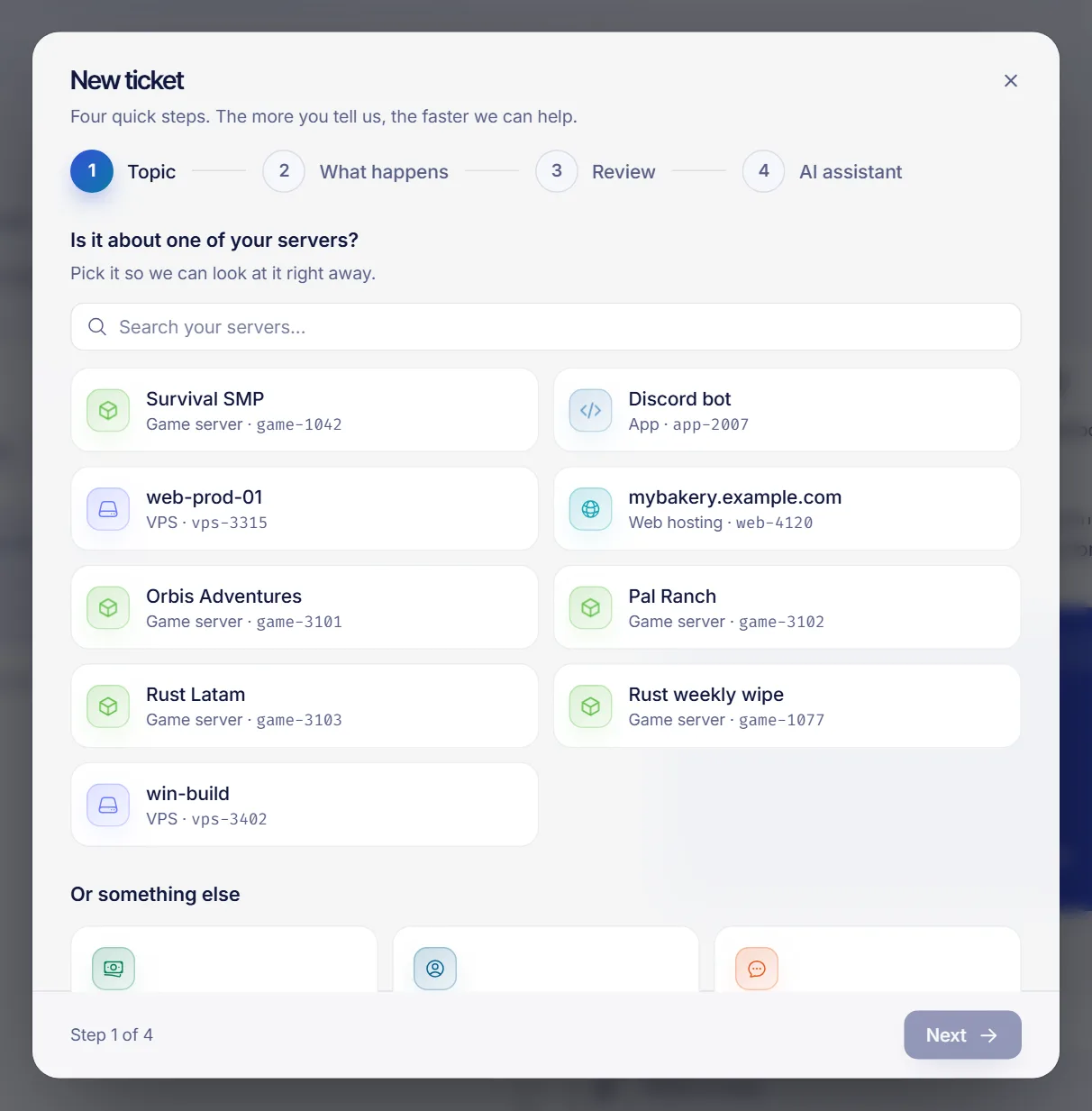
Step 1: Topic
Pick what the ticket is about:
- One of your servers. Choose it from the list so our team can look at it right away. This is the best option for anything technical.
- Billing & payments. Invoices, charges, refunds or credit.
- My account. Signing in, security or your details.
- Something else. Questions before buying or anything that does not fit above.
Step 2: What happens
Fill in:
- Subject. One line, like the title of an email. For example: "My server shuts down by itself". It must be between 3 and 200 characters.
- Description. What you did, what you expected, what happened instead, and since when. Copy the exact error message if there is one.
- Screenshots (optional). Drag images into the box or click to choose them. You can attach up to 5 images of up to 10 MB each, in PNG, JPG, WebP or GIF format.
While you type, a panel on the right suggests help center articles that look like your problem. Many questions are answered there, so it is worth a quick look before you send.
Step 3: Review
- How urgent is it? Choose Low (a question or an idea), Normal (something is not right but keeps working), High (something important does not work) or Urgent (everything is down or you are losing money). We answer every ticket; this only helps us decide what to look at first.
- Team. We pick the right team from your topic. Change it if it does not fit.
- Attach an automatic diagnosis. Shown when the ticket is about a server. It adds the status of the server, its plan and location, recent actions such as start or restart, this month's usage and any open incident, so we do not have to ask. It never includes passwords or your files.
Click Send ticket. You will see a confirmation with your ticket number.
Optional: the AI assistant step
If the AI assistant is turned on for your account, a fourth step appears after Review. The assistant reads the help center and the status of your service and tries to solve the problem first. It cannot see passwords or change anything. If it solved it, click This solved it and no ticket is opened. If not, click Talk to a person and the ticket is created with that conversation attached, so you do not repeat yourself.
What happens after you send it
- The ticket appears in your list with the status Received.
- You get an automatic welcome message signed by SolumeCore.
- If nobody on the team has answered after 5 minutes (the default), an automatic message apologizes for the delay. It does not replace a real answer.
- When the team replies, you see a notification in the bell, and you normally get an email too. Open the ticket from Tickets to answer.
To learn what each status means, read ticket statuses explained.
Tips for a faster answer
- Say what changed right before the problem started.
- Include exact error messages and the time it happened.
- Add a screenshot: it saves a lot of back and forth.
- Never paste passwords into the conversation. Use the private data option described in how to share a password with support safely.
Troubleshooting
The ticket was sent but my images were not uploaded
The ticket is created first and the images are uploaded right after. If that second step fails, you see a message. Open the ticket and attach the images in the conversation with the paperclip button.
I cannot send the ticket
Make sure the subject and the description have at least 3 characters each. If you see a message saying your account cannot create new tickets, use the contact form on the contact page instead.
FAQ
How do I contact SolumeCore support?
Open a ticket from the dashboard. If you are not a customer yet, or you cannot sign in, use the contact page.
How long does a reply take?
We do not promise a fixed time. A higher urgency helps us look at the ticket sooner, and you can see in the ticket who is handling it.
Can I open a ticket about a server I do not own?
Tickets are tied to your account. If the owner of a service gave you the support permission on it, you can open a ticket about that service. Otherwise, ask the owner to open it.
Can I open a ticket if my service is suspended?
Yes. You can always open tickets, even when a service or your account is suspended.
Related articles
- Ticket statuses explained
- How to share a password with support safely
- Contact SolumeCore support: every way to reach us
- Notifications and alert sounds
Have a question before you buy? Our team is happy to help you choose the right plan.