How to Change the Language and Dark Mode of Your Panel
Switch the SolumeCore dashboard between English and Spanish and pick light, dark or your device's mode. See where each option lives and what it saves.
To change the language of your SolumeCore dashboard, click the circle with your initial in the top right corner and choose English or Español under Language. In the same menu, Appearance switches between Light, Dark and Match my device. The change applies right away, with no need to reload.
The dashboard speaks English by default. The language is saved in your account, so it follows you on any device, while the theme is remembered in each browser.
Change the language
- Sign in at dashboard.solumecore.com.
- Click your account menu, the circle with your initial in the top bar.
- Under Language, choose English or Español.
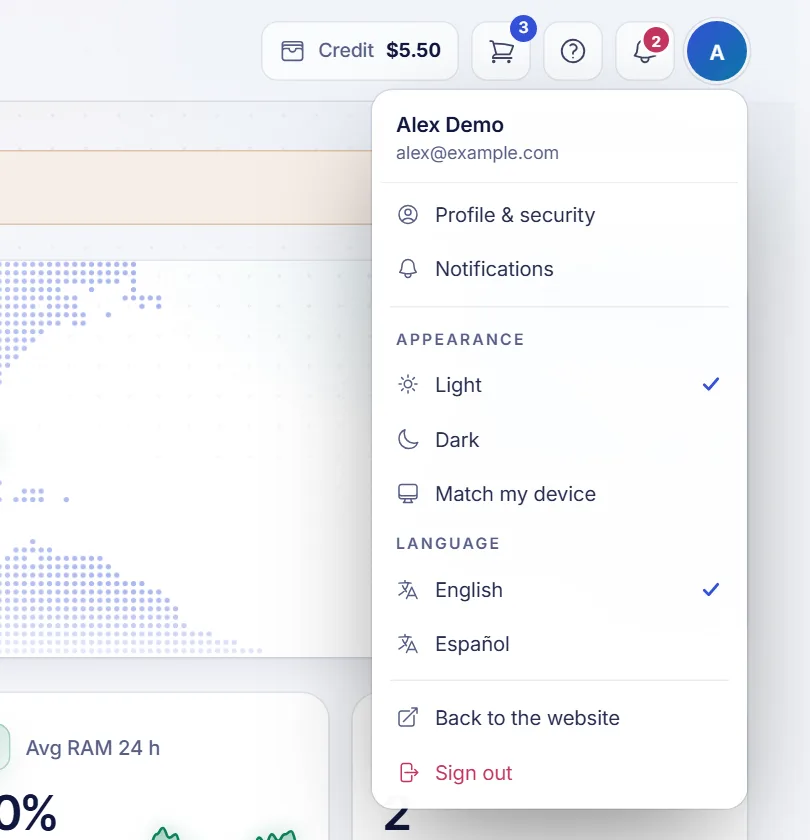
The whole dashboard changes language. The language is saved in your account and is also the one we use for the emails we send you, including the automatic welcome message on your support tickets.
Another way: from your profile
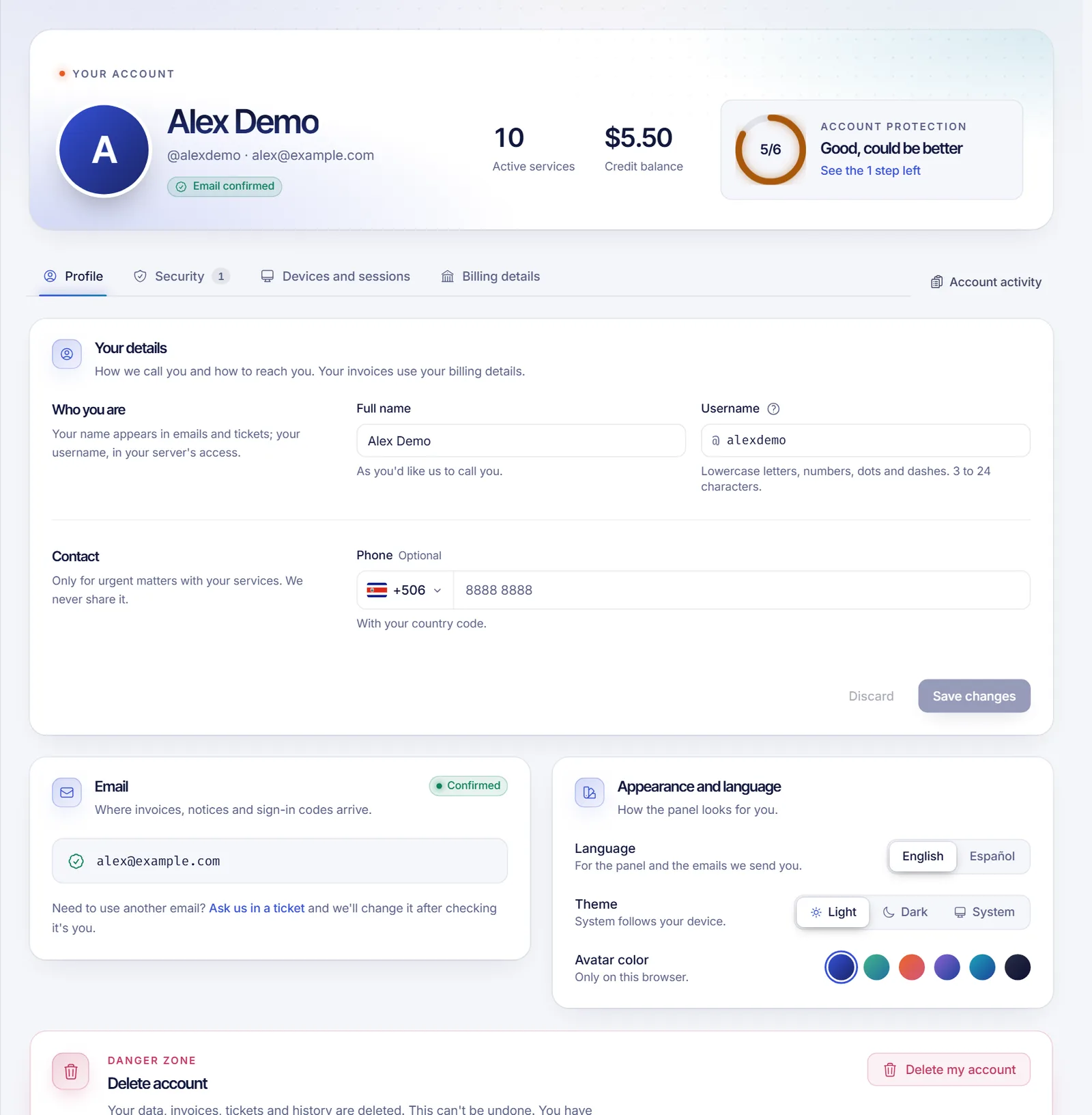
You can also set it from Profile & security in the left menu. On the Profile tab, the Appearance and language card has a Language switch with the same two options.
Another way: from the search box
Press Ctrl + K, type "language" and choose Switch to English or Cambiar a español. It toggles to the other language.
Switch between light and dark mode
- Open your account menu.
- Under Appearance, choose:
- Light
- Dark
- Match my device, which follows the setting of your computer or phone and changes by itself, for example at night.
The Appearance and language card in Profile & security has the same choice, named Light, Dark and System. With Ctrl + K you can also run Switch to dark mode or Switch to light mode.
The theme is saved in your browser, not in your account. If you use the dashboard on another computer or phone, choose it there too. Until you pick one, the dashboard follows your device.
On the sign-in screen
Before you sign in, the login page has its own switches: three icons for the theme (light, dark, same as my device) and an EN / ES switch for the language of that screen. Once you are in, the language saved in your account applies.
On the SolumeCore website
The public website, solumecore.com, has its own language and theme controls, separate from the dashboard:
- Language. The globe button in the header, with Español and English. English pages use the
/enaddress, so you can bookmark or share a page in the language you want. - Theme. The sun and moon button in the header switches between light and dark. On a phone, both options are in the header menu.
Changing the website does not change your dashboard, and the other way around.
Troubleshooting
The language did not change
If you see a message that the language could not be changed, check your connection and try again. Remember that the language of the dashboard and of the website are separate settings.
The theme went back to the old one on another device
The theme is saved per browser. Set it once on each device. If you want it to always match your computer, choose Match my device.
Some text is still in the other language
A few pieces of content, such as names you or the team typed, are not translated. Everything else follows your language. If you find a screen that does not, tell us in a support ticket.
FAQ
How do I change the dashboard to Spanish?
Open your account menu in the top bar and choose Español under Language.
How do I turn on dark mode?
Open your account menu and choose Dark under Appearance, or press Ctrl + K and run Switch to dark mode.
Does dark mode save battery on my phone?
It can on screens that light each pixel, such as OLED displays, but the effect depends on your device. Pick whichever is easier on your eyes.
Does changing the language also change my emails?
Yes. The language you choose in the dashboard is also the language of the emails we send you.
Related articles
- Dashboard overview and getting started
- Notifications and alert sounds
- Keyboard shortcuts and quick search in the dashboard
Hosting for your game server, app or website, in the language you prefer: see the SolumeCore plans.