How to Upload a Website to Web Hosting (public_html)
Upload your site to public_html with the cPanel file manager: zip it, upload it, extract it and check it loads. A step-by-step guide from your dashboard.
To upload a website to your hosting, put its files inside the public_html folder of your account: whatever is in that folder is what visitors see. The easiest way is to zip your site, upload the zip with the cPanel file manager and extract it there.
Before you start
- Your site needs an entry file in its root folder, usually
index.htmlorindex.php. Without it, visitors see an error or an empty folder listing. - Keep the folder structure as it is on your computer. Links like
css/style.cssonly work if the folder is uploaded in the same place. - If you want WordPress, you do not need to upload anything: use the WordPress tab instead, as explained in Install WordPress on web hosting.
- If you have a lot of files or a very large site, uploading with FTP is usually more comfortable. See Connect to web hosting with FTP.
Where your files go
Open your hosting in the dashboard (menu Web hosting, under Servers) and go to the Files tab. The Your files card shows the main folders of your account:
| Folder | What it is for |
|---|---|
public_html/ |
Your website goes here |
mail/ |
Your mailboxes |
ssl/ |
Certificates |
logs/ |
Access logs |
tmp/ |
Temporary files |
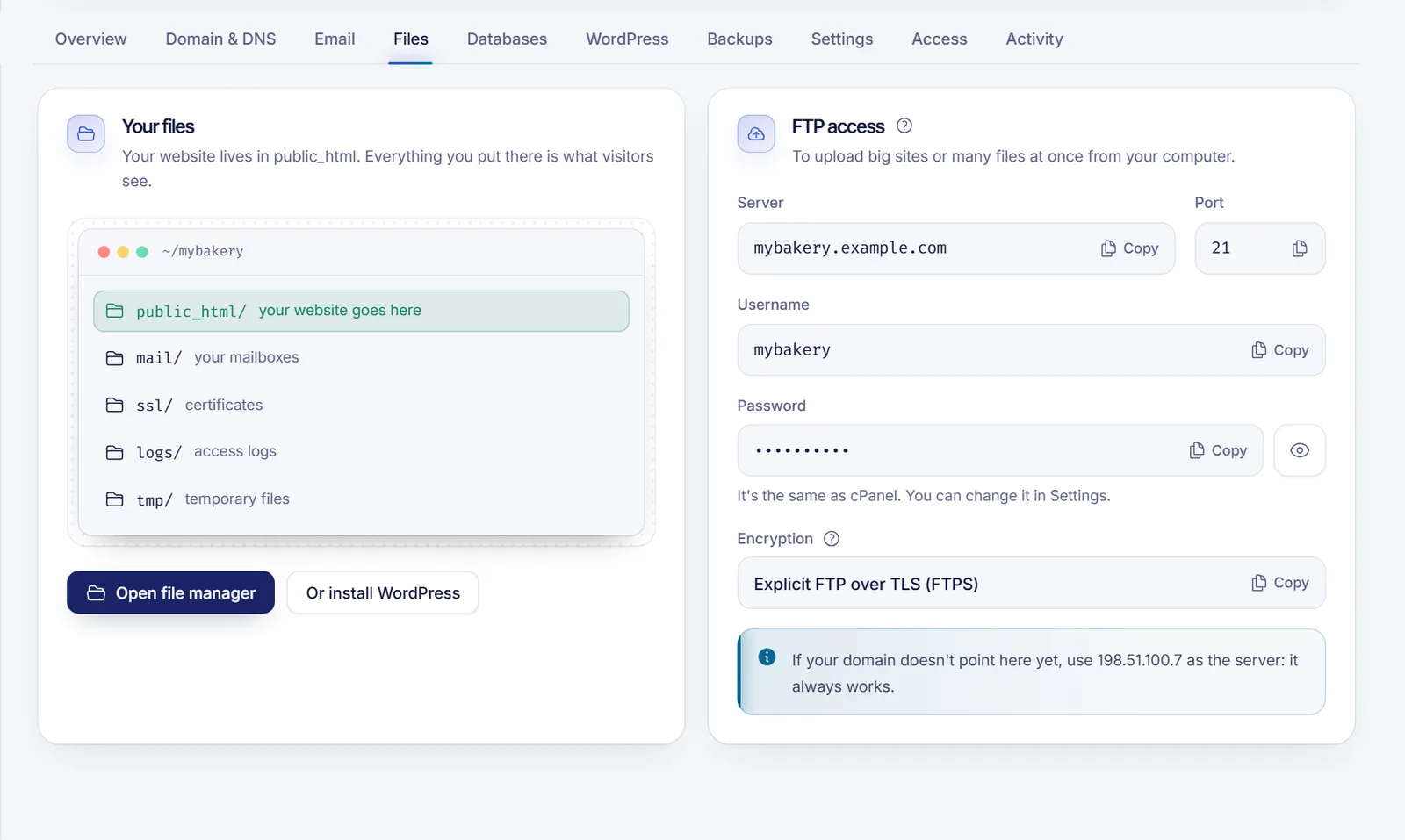
Only public_html is public. The main domain of your hosting loads from that folder. Addon domains and subdomains get their own folder, usually inside public_html; you can see which one in Domain & DNS, then Domains & subdomains, in the Folder column.
Upload your site with the file manager
- Compress your site into a single
.zipfile on your computer. Select the contents of the site folder (not the folder itself) so thatindex.htmlends up at the top level of the zip. - In the Files tab, click Open file manager. The cPanel file manager opens in a new tab, already signed in.
- In the left tree, click
public_html. - If the folder already contains a placeholder page, delete it or plan to overwrite it, so it does not hide your own
indexfile. - Click Upload in the top bar, then drag your
.zipfile into the window or choose it from your computer. Wait until the progress bar reaches 100%. - Go back to the file manager, select the zip file and click Extract. Confirm the destination (
public_html, or the subfolder you want) and extract. - Check that
index.htmlorindex.phpsits directly insidepublic_htmland not inside an extra subfolder. If it ended up inpublic_html/mysite/, select all the files in that subfolder, move them up one level, and delete the empty subfolder. - Delete the
.zipfile to free disk space.
Hidden files such as .htaccess are not shown by default. In the file manager, click Settings (top right) and tick Show Hidden Files (dotfiles) to see and edit them.
Check that your site loads
Open your domain in a browser. If you have not connected your own domain yet, your site works on the temporary address shown in the Overview tab, and you can connect your own domain whenever you are ready. See Point a domain to web hosting. A new domain can take up to 24 hours to propagate, although it often takes less than an hour.
Troubleshooting
I see a 403 or 404 error
The most common causes are a missing or misnamed entry file (index.html, index.php; names are case sensitive), or the files sitting inside an extra subfolder. Open public_html in the file manager and compare it with the structure on your computer.
The page loads without images or styles
The paths in your code probably do not match the uploaded folders. Remember that file names are case sensitive on the server: Logo.png and logo.png are different files.
The upload stops or fails
Large files can fail on slow connections. Upload several smaller zips, or use FTP. Also check your disk usage in the Overview tab: if your plan's disk is full, new files will not fit.
My domain shows an old page or a "not secure" warning
Your DNS may still be propagating, or the HTTPS certificate has not been issued yet. See Install an SSL certificate on web hosting.
FAQ
Which folder do I upload my website to?
Upload it to public_html. That is the document root of your main domain. Addon domains and subdomains use the folder shown for each one in Domains & subdomains.
Can I upload a whole folder at once?
The file manager uploader is built for individual files, so the simplest way is to upload a zip and extract it. With an FTP client such as FileZilla you can drag whole folders.
How do I replace my site with a new version?
Upload the new files over the old ones, or delete the old files first and then extract the new zip. Keep a backup before large changes; see Back up and restore web hosting.
Do I need to upload anything for WordPress?
No. The WordPress tab installs it for you, including the database. Upload files manually only if you are moving an existing site or building your own.
Related articles
- Log in to cPanel
- Connect to web hosting with FTP
- Point a domain to web hosting
- Install WordPress on web hosting
Ready to publish? See the web hosting plans from SolumeCore.