Notifications and Alert Sounds in the SolumeCore Dashboard
Choose which notices you get and where (dashboard, email, Discord), turn on alert sounds and desktop pop-ups, and fix it when the sound does not play.
The SolumeCore dashboard tells you about replies from support, payments, server events and security notices in a notification bell, and optionally by email or in a Discord channel. You choose what you hear about and where on the Notifications page, and you can turn on a sound and desktop pop-ups so you notice new alerts even when the dashboard is in another tab.
The notification bell
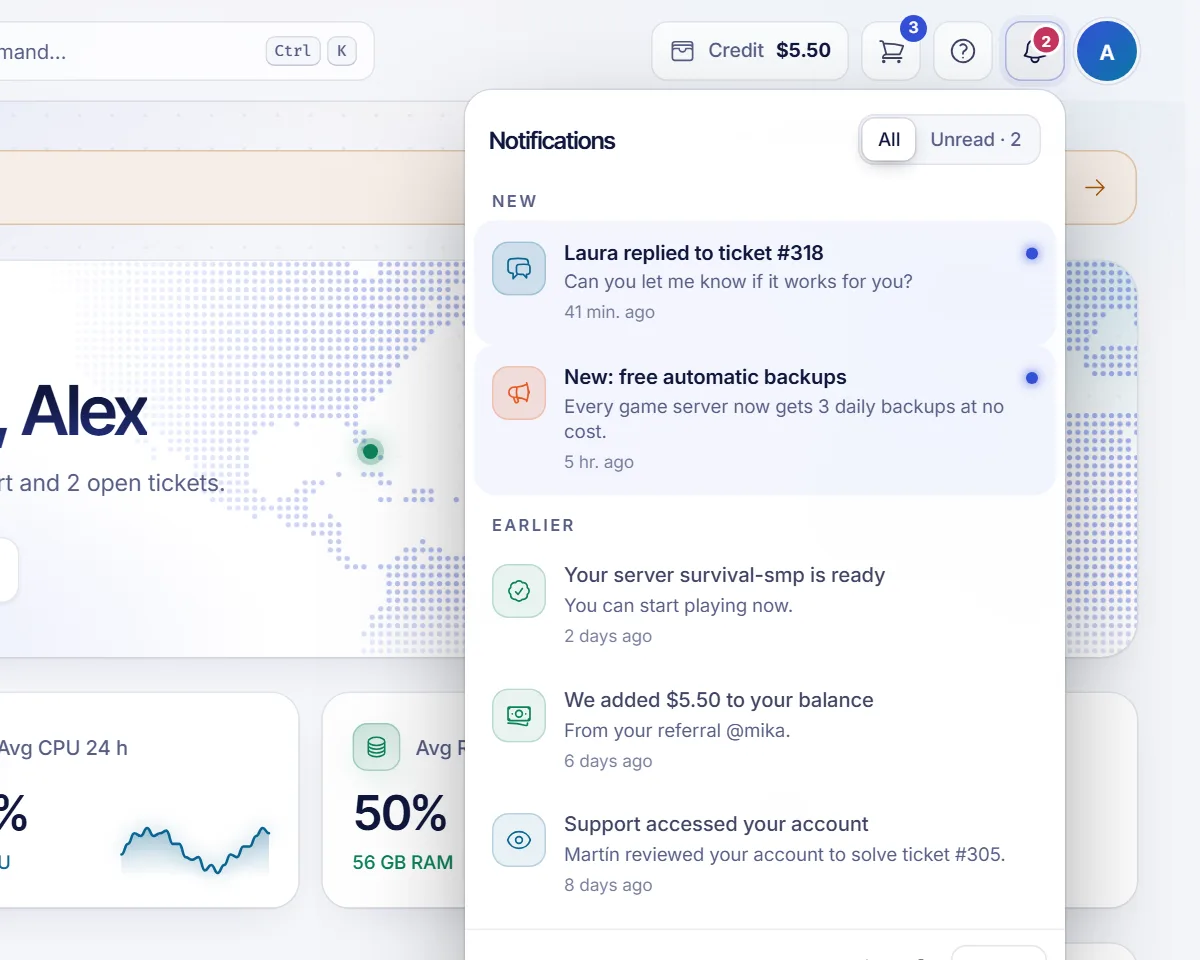
The bell is in the top bar of the dashboard. A number on it shows how many notices you have not read.
- Click it to see your latest notices, split into New and Earlier.
- Click a notice to go straight to what it is about, for example a ticket.
- Mark all as read clears the counter.
- The speaker button turns the alert sound on or off.
- The gear (Notification settings) opens the full page, and See all shows the whole list.
The Notifications page
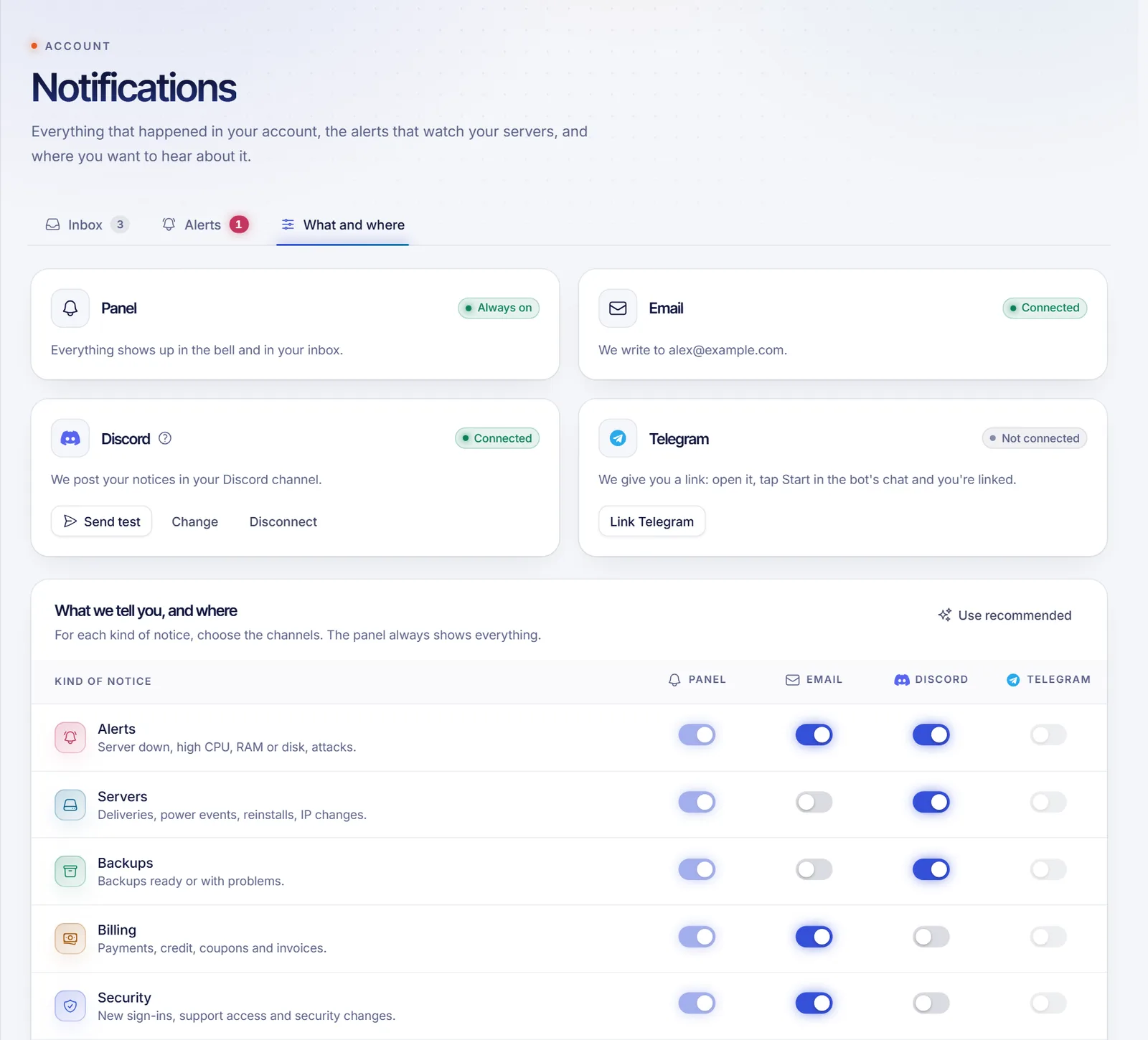
Open it from Notifications in the left menu, under Account. It has three tabs:
- Inbox. Everything that happened in your account. Filter by All or Unread, by category (Alerts, Servers, Backups, Billing, Security, Support, Referrals, Announcements, Other), or search. You can mark notices as read or unread and delete them. Deleted notices cannot be recovered.
- Alerts. Rules that watch your servers, such as one that warns you if a server goes down. See how to set up alerts.
- What and where. Pick the channels for each kind of notice, and set up sounds and desktop pop-ups.
Choose what you get and where
Go to the What and where tab. The table has one row per kind of notice and one column per channel:
| Channel | What it does |
|---|---|
| Panel | Everything shows up in the bell and your inbox. It is always on. |
| Sends the notice to the email address of your account. | |
| Discord | Posts it in a channel of your Discord server. You need to connect it first. |
| Telegram | Sends it to a Telegram chat, if it is available for your account. |
Turn the switches you want on and click Save in the bar that appears at the bottom. Use recommended applies our suggestion in one click.
If you never change anything, you get every notice in the panel; email only for Alerts and Security; and, once you connect Discord or Telegram, the notices about Alerts, Servers and Backups there. Some emails, such as a reply on your ticket, are sent separately from these settings.
Connect a Discord channel
- In Discord, open the settings of the channel where you want the notices (the gear), then Integrations and Webhooks.
- Create a New webhook, name it (for example SolumeCore) and copy its URL.
- In the dashboard, in the Discord channel card, click Connect, paste the Webhook URL and confirm. We send a test message.
A webhook URL lets anyone who has it post in that channel. Do not share it. The URL must start with https://discord.com/api/webhooks/.
To stop, click Disconnect on the same card. If you want your Discord community to control a game server, that is a different feature: see connect the SolumeCore Discord bot.
Turn on alert sounds
Below the table, Live alerts has the sound and pop-up settings:
- Turn on Play a sound. It is on by default.
- Adjust the Volume and choose a Tone: Soft, Bright or Bell.
- Click Test sound to hear it, and Test urgent alert to hear the insistent version.
Ticket replies play a short rising melody, and urgent alerts such as outages or security notices play a more insistent one, both in the tone you chose.
Under What to alert, choose which kinds of notices make a sound or pop-up: tickets and messages, payments, purchases and services, urgent alerts, and everything else. Everything still appears in the bell.
These settings are saved in your browser, not in your account, so each computer or phone has its own.
Turn on desktop notifications
- In Live alerts, click Enable desktop notifications.
- Allow notifications when your browser asks.
- Click Send a test notification to check.
Desktop pop-ups only show while the dashboard tab is in the background or minimized. Clicking one takes you to the notice.
Troubleshooting
I hear no sound
Browsers block sound until you interact with the page. Click anywhere in the dashboard and press Test sound again. Also check that the tab is not muted, that the sound is on in the bell, and that the kind of notice is enabled under What to alert.
The browser says notifications are blocked
Click the lock icon next to the address bar, set Notifications to Allow and reload the page. On Windows, also check that your browser is allowed in Settings, System, Notifications and that Focus assist is not hiding it.
I do not get emails
Look in your spam folder and confirm that Email is switched on for that kind of notice. The address used is the one shown on the card, which is your account email.
FAQ
How do I turn off notification sounds?
Click the speaker button in the bell, or turn off Play a sound in Live alerts.
Can I get notifications on Discord?
Yes. Connect a Discord webhook in the What and where tab and switch on the kinds of notices you want there.
Do the sound settings follow me to another device?
No. They are saved per browser, so set them up on each device you use.
Can I delete notifications?
Yes, from the Inbox tab. Deleted notifications cannot be recovered.
Related articles
- Set up alerts for your servers
- Connect the SolumeCore Discord bot
- Dashboard overview and getting started
- Ticket statuses explained
Want to be warned before your players notice a problem? Start with a game server plan and set up an alert in a minute.