SolumeCore Dashboard Overview and Getting Started Guide
A quick tour of the SolumeCore dashboard: the menu, top bar, your servers, invoices and support. Learn where everything is and get started fast.
The SolumeCore dashboard is the single place where you manage your servers, pay invoices, talk to support and change your account settings. You open it at dashboard.solumecore.com, and it always has the same layout: a menu on the left, a top bar, and the page you are on in the middle.
This guide walks through each part so you know where to find things on day one.
What you see on Home
Home is the first page after you sign in. It is built to answer one question: is everything fine, and what needs me?
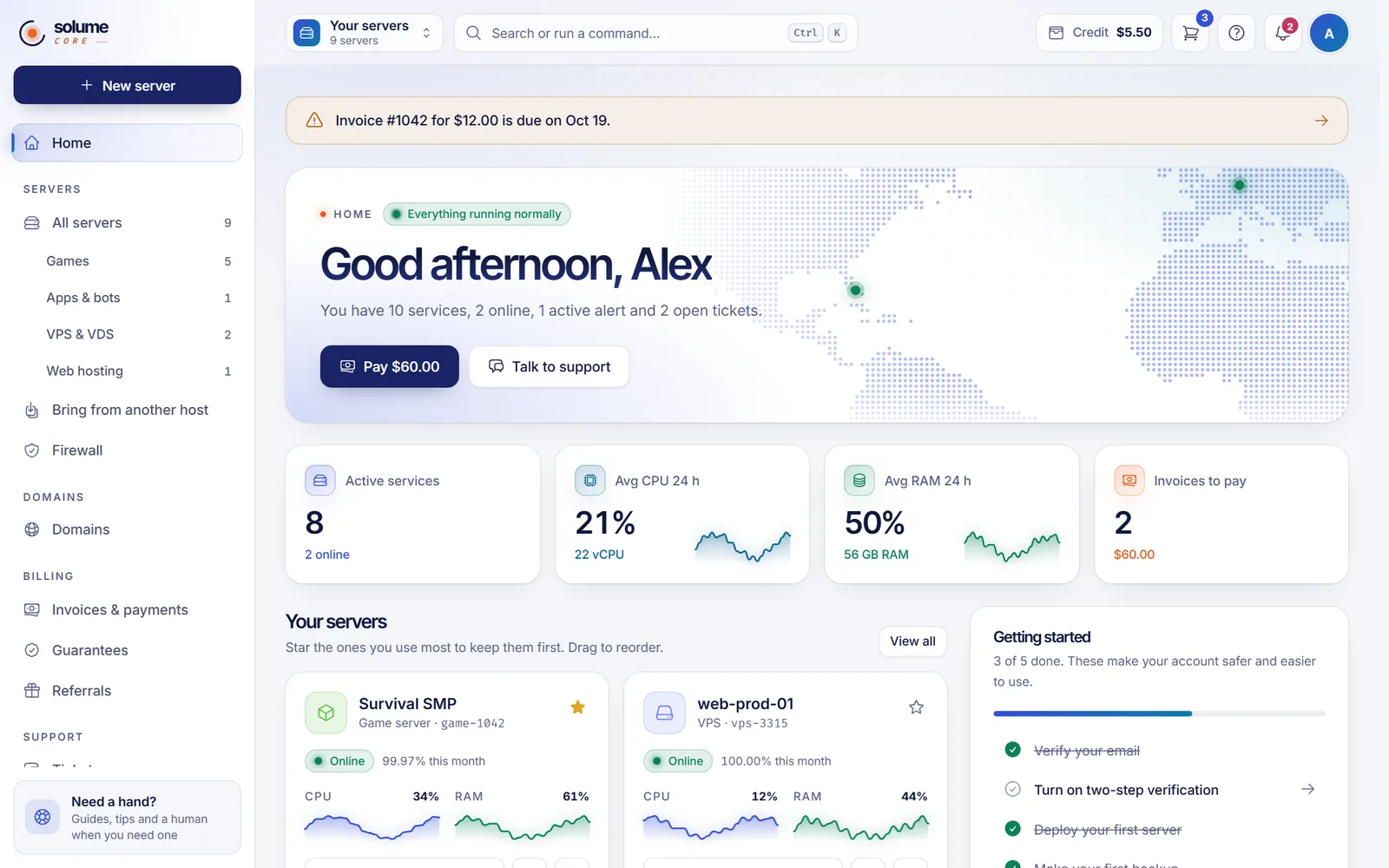
- Greeting and status. A small label tells you whether everything is running normally or some services have issues.
- Alerts on top. If a server is down, a disk, CPU or RAM is running high, a DDoS attack is in progress, a service is suspended or an invoice is due, a banner appears above everything else.
- Main button. If you have invoices to pay, the big button reads Pay followed by the total. If not, it reads New server. Next to it, Talk to support opens the tickets page.
- Summary cards. Active services, average CPU and RAM over the last 24 hours, and Invoices to pay.
- Your servers. One card per service, with quick Start, Stop and Restart buttons. Pin the ones you use most so they stay first, and drag the cards to reorder them.
- Side column. The Getting started list, your billing summary and upcoming renewals, your open tickets, and What's new. If you have protected IP addresses, a DDoS protection card shows whether an attack is in progress.
The menu on the left
The menu is the same everywhere in the dashboard. Opening a server does not change it; the sections of a server live in the tabs at the top of that server's page.
| Group | What is inside |
|---|---|
| Home | Your overview |
| Servers | All servers, plus Games, Apps & bots, VPS & VDS and Web hosting (each one only appears if you have that kind of service), Bring from another host and Firewall |
| Domains | Domains |
| Billing | Invoices & payments, Guarantees (only when it applies to you) and Referrals |
| Support | Tickets, Service status, Security cases and Help center |
| Account | Profile & security, Notifications, Account activity, API & webhooks, Integrations, AI & copilot and Discord bot |
At the top of the menu, New server takes you to the plans page. At the bottom, the Need a hand? card opens the help panel.
The top bar
From left to right:
- Server switcher. Jump straight to any of your servers, with a search box if you have many.
- Search or run a command. Opens the command palette. Press
Ctrl+K(or/) from anywhere. - Credit. Your account balance, if credit is available in your account. It sits next to the cart button.
- Help. Opens a side panel with help articles that match the page you are on, a search box, a link to the help center and a shortcut to open a ticket. The
?key opens it too. - Notifications bell. Shows how many notices you have not read.
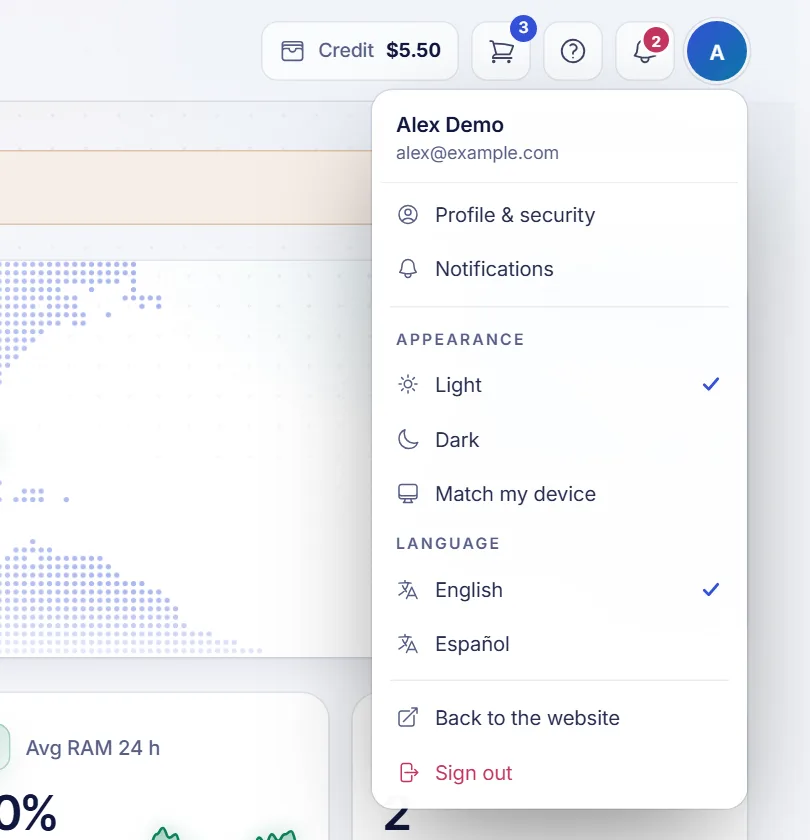
- Your account menu (the circle with your initial). Profile, notifications, Appearance (theme), Language, Back to the website and Sign out.
Do these first
The Getting started card on Home lists five things that make your account safer and easier to use:
- Verify your email.
- Turn on two-step verification.
- Deploy your first server.
- Make your first backup.
- Connect Discord to get notices.
You can hide the card with Hide once you are done with it.
Using the dashboard on a phone
On small screens the menu becomes a drawer, opened from the top bar or from More in the bar at the bottom. That bottom bar keeps the most used pages one tap away: Home, Servers, Billing and Support.
Keyboard shortcuts
Press ? to see them all. The most useful are Ctrl + K to search, and G followed by I, S, F, T, D or C to jump to Home, Servers, Billing, Tickets, Domains or your account.
FAQ
Where are my servers?
Click All servers in the menu, or use the server switcher in the top bar. Your most used servers are also on Home as cards.
Why do I not see Games, VPS or Web hosting in the menu?
Those entries only show up once you have at least one service of that kind. All servers is always there.
How do I go back to the SolumeCore website?
Open your account menu in the top bar and choose Back to the website.
Can I use the dashboard in Spanish or in dark mode?
Yes. See how to change the language and theme.
Related articles
- How to open a support ticket
- Notifications and alert sounds
- How to change the language and theme
- Keyboard shortcuts and quick search in the dashboard
Ready to launch your first service? Pick a game server, app, VPS or web hosting from the SolumeCore plans and it will show up on your Home page.