How to Pay a SolumeCore Invoice (Card, PayPal, Crypto)
Pay a pending invoice from your panel with card, PayPal, account credit or crypto. Step-by-step guide plus what to do if a payment does not go through.
You pay a SolumeCore invoice from your panel: open Invoices & payments, click Pay on the pending invoice, choose card, PayPal, account credit or crypto, and confirm. The invoice switches to Paid as soon as the payment is confirmed, usually within seconds.
The payment methods you see depend on what is available on your account. If a method is missing from the list, it is simply not available for that invoice right now.
Before you start
- Sign in at dashboard.solumecore.com.
- Have your card, your PayPal account or your crypto wallet ready, depending on how you want to pay.
- If you want to pay with account credit, the credit has to cover the whole invoice. See account balance and credits.
Pay an invoice step by step
- In the panel menu, open Invoices & payments (inside the Billing group). The Invoices tab opens first.
- The To pay now card at the top tells you how many invoices are waiting and whether any is overdue. Use the To pay filter to see only those.
- Click Pay on the invoice you want to settle. You can also open the invoice and click Pay there, or use the link in the invoice email.
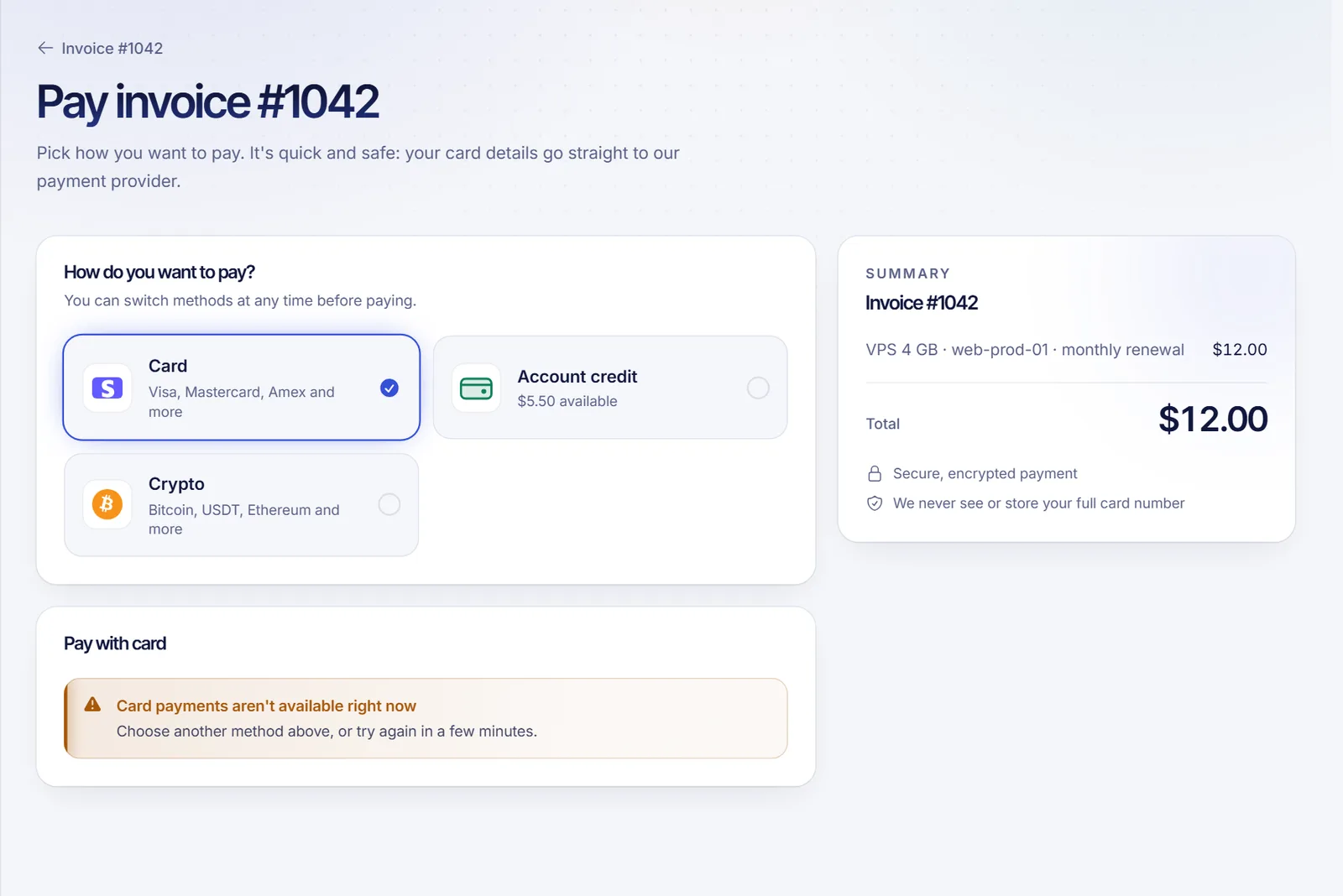
- On the payment screen, pick a method under How do you want to pay?. You can switch methods any time before you pay.
- Follow the steps for your method (below) and confirm.
Pay with a card
- Choose Card.
- Wait a second while the secure card form loads, then enter your card details.
- Click Pay with the amount shown on the button.
- If your bank asks you to confirm the payment (3-D Secure), approve it in your banking app or with the code they send you. The screen says it is checking the payment with your bank.
Your card number goes straight to our payment provider. SolumeCore never sees or stores it, only the brand and the last four digits when you save a card.
Pay with PayPal
- Choose PayPal.
- Click the PayPal button. A PayPal window opens.
- Sign in, confirm the payment and you come back to the invoice, already paid.
If the PayPal window does not load, check that your browser is not blocking pop-ups, or pick another method.
Pay with account credit
- Choose Account credit. The screen shows your credit, the invoice amount and what is left after paying.
- Click Pay with credit.
Credit pays whole invoices only. If you are short, the screen tells you how much is missing. You can add credit when top-ups are available, or pay with another method.
Pay with crypto
Choose Crypto, pick a coin and send the exact amount to the address shown. The invoice is paid by itself once the network confirms the transfer. The full walkthrough is in how to pay with crypto.
After you pay
- The invoice page says We're confirming your payment. It usually takes a few seconds and the page updates by itself, so there is no need to pay again.
- When it is confirmed you see Payment received, thank you! and the invoice shows Paid. You also get a confirmation by email.
- Your services keep running as usual. If a service was suspended for non-payment, paying the renewal invoice brings it back on its own.
- You can download the receipt any time. See download invoices and set your billing details.
If the page says it is confirming your payment, wait. Do not pay again: the page updates by itself.
Pay several invoices at once
When the option is available on your account, a checkbox appears next to each pending invoice. Tick the ones you want, click Pay selected and pay them all in one go. Each invoice still gets its own receipt. More details in volume discounts, cart and paying several invoices.
Troubleshooting
- "The payment wasn't completed." The bank declined it or the confirmation step was not finished. Try again, use another card or switch to another method. See card payment declined or failed.
- "Card payments aren't available right now." Pick another method on the same screen, or try again in a few minutes.
- "This invoice can't be paid." The invoice is cancelled or under review. Open a support ticket from the panel and we will check it.
- "We can't take this payment yet." Your order is saved, but there is no room to deliver the service right now. You will be able to pay as soon as space frees up.
- "This invoice is already paid." There is nothing left to do. Open the invoice to see the payment and download the PDF.
- No payment method is shown. Open a ticket and we will help you pay.
FAQ
Can I pay an invoice after the due date?
Yes. A pending or overdue invoice can be paid at any time. Pay it as soon as you can, because an unpaid renewal can lead to a suspension. The default timeline is explained in what happens if you don't pay.
Which currency is the invoice in?
Invoices are issued in the currency of the plan. Your credit stays in the currency it came in, so it pays invoices in that same currency.
Do I get a receipt?
Yes. You receive a confirmation by email and the invoice stays in your account with a Download PDF button.
Can I make renewals pay themselves?
Yes. Save a card and leave auto-renew on, or use account credit. See automatic renewals and billing cycle and how to add or change your payment card.
Can I get a discount for paying with a specific method?
Sometimes. If an invoice carries a method-based discount, the payment screen shows it, for example "Pay with card and save a percentage". With any other method the invoice is charged in full. See how to use a coupon or discount code.
Related articles
- How to add or change your payment card
- How to pay with crypto
- Account balance and credits
- What happens if you don't pay
Need a server to put those invoices to work? Take a look at our hosting plans.