How to Pay with Crypto (Bitcoin, USDT and More)
Pay an invoice with crypto: pick a coin, send the exact amount on the right network, and learn what happens with partial or expired payments.
To pay with crypto, choose Crypto on the payment screen, pick the coin you want to use, then send the exact amount shown to the address on screen, on the network shown. The invoice is marked as paid on its own once the network confirms the transfer. You do not need to tell us anything.
Crypto is an optional payment method: if you do not see Crypto on your payment screen, it is not available on your account at the moment. Hosting with Bitcoin, USDT, Ethereum and many other coins is supported when it is on.
Before you start
- Have a wallet or exchange account with enough funds to cover the amount plus the network fee your wallet charges.
- Know which network you will send on (for example, USDT can travel on different networks). The screen tells you which one to use.
- Keep the payment screen open or note down the address, the amount and, if shown, the memo.
Send only the coin and the network shown on the payment screen. A transfer on the wrong network, or in another coin, is lost and usually cannot be recovered.
Pay an invoice with crypto
- Open Invoices & payments from the Billing group and click Pay on the invoice. (You can also choose crypto when you check out a new service or add credit.)
- Select Crypto.
- Pick the coin you will pay with. You can search by coin or network, or use the button that shows all the coins.
- SolumeCore creates the payment and shows a screen with a QR code, the exact amount to send, the address, the network and a countdown (Expires in).
- In your wallet or exchange, send exactly that amount to that address, on that network. Scan the QR code if your wallet supports it.
- Stay on the page. The progress bar moves through Send, Confirming, Confirmed and Paid. When it says Payment confirmed! the invoice is paid, and we email you as well.
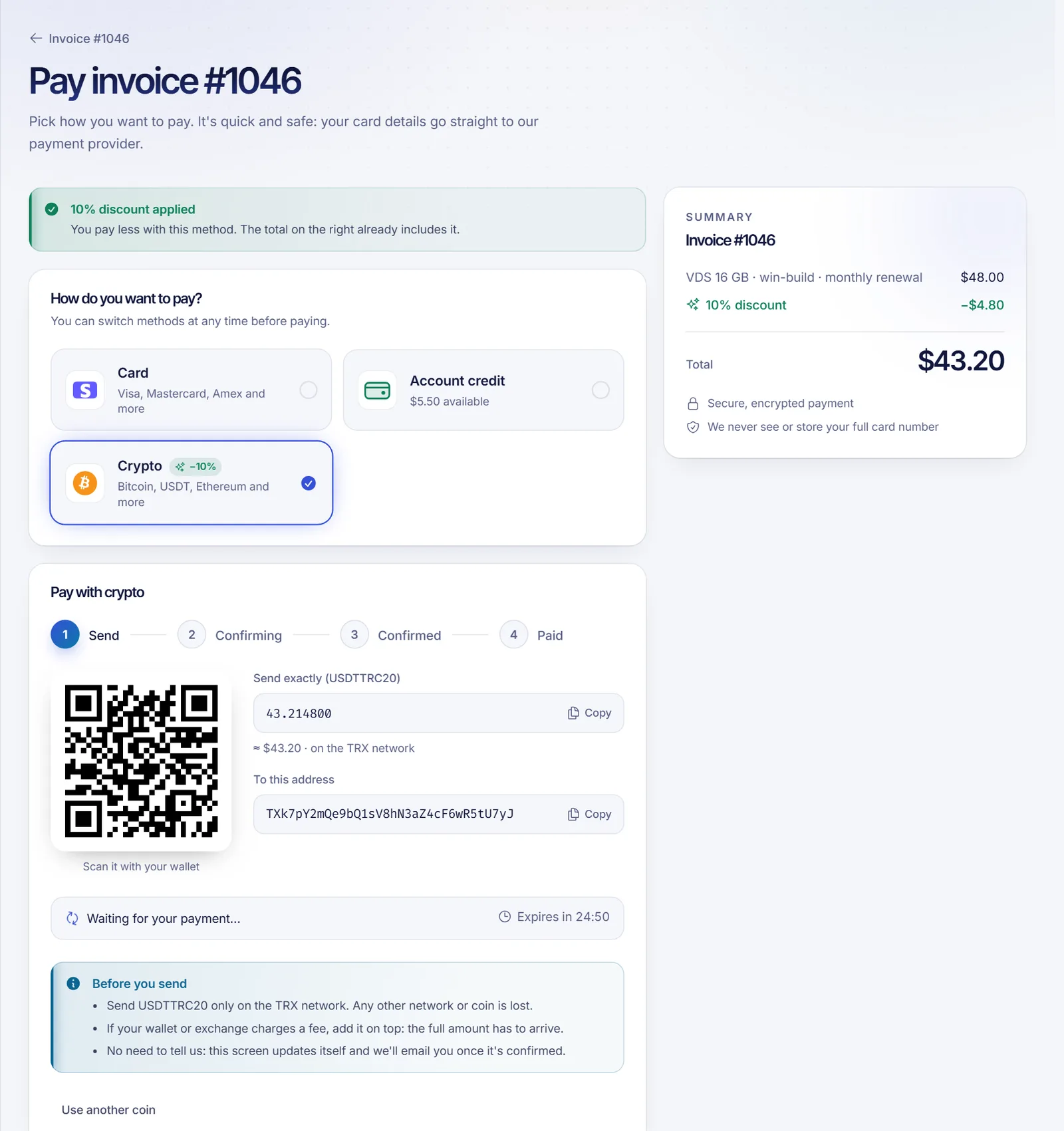
Confirmation speed depends on the network. Some coins confirm in a couple of minutes, others take longer when the network is busy.
Rules that save you money
- Send on the network shown. The same coin can exist on several networks. A transfer sent on another network, or in another coin, is lost.
- Add the fee on top. If your wallet or exchange takes a fee, it must not come out of the amount. The full amount has to arrive, otherwise the payment is incomplete.
- Include the memo or tag when one is shown. Without it we cannot tell the payment is yours.
- Do not reuse an old address. Each payment has its own address and amount. If the countdown ends, start a new payment.
Partial payments
If less than the full amount arrives, we credit the value we received to your account balance and notify you. You can then pay the rest with a new crypto payment or finish with account credit plus another method. See account balance and credits.
Troubleshooting
- A message says the amount is below the minimum for that coin. Every coin has a minimum transfer. Pick another coin, or pay with a different method.
- The payment expired. If nothing arrived, pick a coin again to create a new payment. If you did send funds and it still shows as expired, a late transfer may still be applied once it arrives. If nothing happens, open a ticket with the transaction ID.
- The payment failed. Pick a coin to create a new one. If you sent funds, contact support with the transaction ID.
- I paid and the invoice is still pending. Wait for the network confirmations: the status says Confirming until they arrive. If it stays stuck for a long time, open a ticket with the transaction ID, the coin and the network.
- The invoice was paid by another method in the meantime. The crypto you sent is not lost: it is added to your account balance.
- I sent the wrong coin or network. Open a ticket right away. We cannot promise a recovery, but we will check what arrived.
FAQ
Which cryptocurrencies can I use?
When crypto is available, the coin picker lists many coins, including Bitcoin, Ethereum and USDT. The exact list is shown on the payment screen and can change.
How long does a crypto payment take to confirm?
It depends on the coin and how busy the network is. The page updates by itself and shows each stage, so you do not need to refresh.
What happens if I send too little?
The received amount is added to your balance as credit and the invoice stays pending. You can use that credit toward the invoice.
Can I use crypto for renewals?
Yes, but crypto is chosen when you pay each invoice. It cannot be saved for automatic charges, so renewals paid with crypto are paid by hand. Automatic renewals use a saved card or your credit.
Can I use crypto to add credit to my account?
If top-ups are available, yes: you create a top-up invoice and pay it with crypto like any other invoice.
Related articles
- How to pay a SolumeCore invoice
- Account balance and credits
- Automatic renewals and billing cycle
- What happens if you don't pay
Want a game server or VPS you can pay for with crypto when it is enabled? Browse our plans.