How to Set a Monthly Spending Cap on Your Account
Set a monthly limit, get warnings at 50%, 80% and 100%, and choose whether new purchases are blocked. Renewals are never blocked by the cap.
A spending cap is a monthly limit you set on your own account. In Invoices & payments > Guarantees, click Set a cap, enter your monthly limit and choose whether new purchases should be blocked once you reach it. SolumeCore warns you when you hit 50%, 80% and 100% of the cap. Renewals are never blocked, so your running services are not affected.
The spending cap is an optional feature. If you do not see the Guarantees tab or the cap card, it is not enabled on your account at the moment.
What counts toward the cap
The cap counts everything invoiced to you during the calendar month, in the currency you choose for the cap. It does not count:
- credit top-ups, because that is your own money added to the account;
- gift cards.
Invoices that were cancelled are not counted either.
Renewals are never blocked by the cap, so a running server does not go offline because of it.
Set a cap
- Sign in at dashboard.solumecore.com.
- Open Invoices & payments from the Billing group and go to the Guarantees tab.
- In the Monthly spending cap card, click Set a cap. The card also shows how much you have spent this month.
- In Your monthly cap, fill in:
- Monthly limit: an amount between 1 and 1,000,000.
- Currency: the currency the cap is measured in.
- Block new purchases when I reach it: turn this on if you want purchases to stop at the limit. Leave it off if you only want warnings.
- Click Save cap.
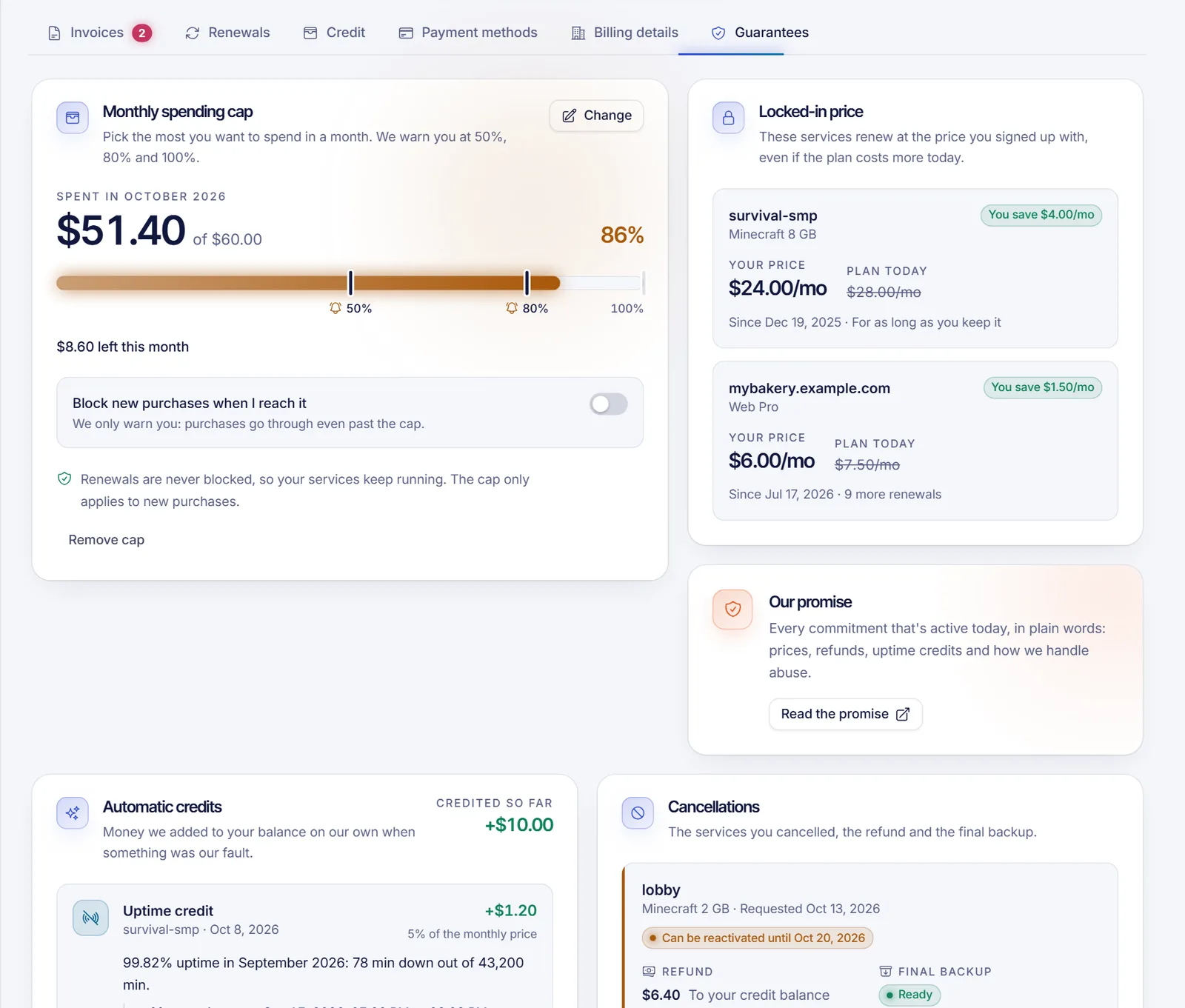
The bar shows your progress and marks 50%, 80% and 100%. The text under it tells you whether new purchases are blocked at the cap (New purchases are blocked once you reach the cap) or you are only warned (We only warn you: purchases go through even past the cap).
What happens when you reach the cap
- At 50%, 80% and 100% of the limit, SolumeCore warns you.
- With Block new purchases when I reach it on, a new order that would take you over the limit is refused. You can raise the cap or wait for the next month.
- Renewals are never blocked. The cap only applies to new purchases, so your services keep running.
Change or remove the cap
- In the same card, click Change to edit the limit, the currency or the blocking option.
- To remove it, click Remove cap and confirm. You will no longer receive warnings and new purchases will not be blocked.
Raising or removing your cap is a sensitive action, so you may be asked to confirm that it is you with your password, 2FA, a passkey or an emailed code. That keeps someone else who gets into an open session from lifting your limit.
Tips for choosing a limit
- Add up what your services renew for each month, then leave some margin for a new server or an extra.
- Use the forecast in the Renewals tab to see what is coming in the next 30 days.
- If you only want to be informed, keep the blocking option off.
Pay-as-you-go servers
If you run a pay-as-you-go server (when that kind of plan is offered), it has its own monthly cap on the server's usage page, so the month never costs more than the fixed plan. That is separate from your account spending cap.
Troubleshooting
- I can't find the Guarantees tab. The tab appears when at least one guarantee is enabled for your account. If you want a spending cap and cannot see it, ask us in a ticket.
- "We couldn't save the cap." Check the amount is between 1 and 1,000,000 and try again.
- A purchase was refused. Your cap blocks new purchases once reached. Raise the cap, turn blocking off, or wait for next month.
- I don't get warnings. Warnings go out as you cross the 50%, 80% and 100% marks. Check your notifications and spam folder.
FAQ
Does the cap stop my services from renewing?
No. Renewals are never blocked, so a cap cannot take a running server offline.
When does the counter reset?
Every calendar month. The card shows the month you are looking at.
Can I set the cap in a different currency?
Yes. You choose the currency when you create the cap. It counts invoices in that currency.
Does adding credit count toward my spending?
No. Top-ups and gift cards are not counted as spending.
Related articles
- Automatic renewals and billing cycle
- Account balance and credits
- Volume discounts, cart and paying several invoices
- How to cancel a service
Want to compare plans before you set a budget? See our plans.