How to Back Up and Restore Your Web Hosting Account
Make a full backup of your hosting, download it from cPanel and, where available, restore your account to a previous day. A guide with the key warnings.
To back up your web hosting, open the Backups tab in the SolumeCore dashboard and click Make a full backup: it copies your files, databases and email, and we email you when it is ready. You then download it from cPanel and keep it on your computer. If your hosting offers automatic server backups, the same tab lets you restore your account to a previous day.
Before you start
- A full backup is saved inside your account, so it uses your plan's disk. Download it and delete it from cPanel when you no longer need it.
- Make one before big changes: a new theme, a major update, a PHP change or a redesign.
- Only one full backup can be made at a time.
Make a full backup
- Sign in to the SolumeCore dashboard, open Web hosting (under Servers) and select your hosting.
- Open the Backups tab.
- Click Make a full backup.
- A message says "We're making the backup". A progress bar shows Making the backup…. You can leave the page: we send an email to the account owner when it finishes. How long it takes depends on the size of your site.
Download a backup
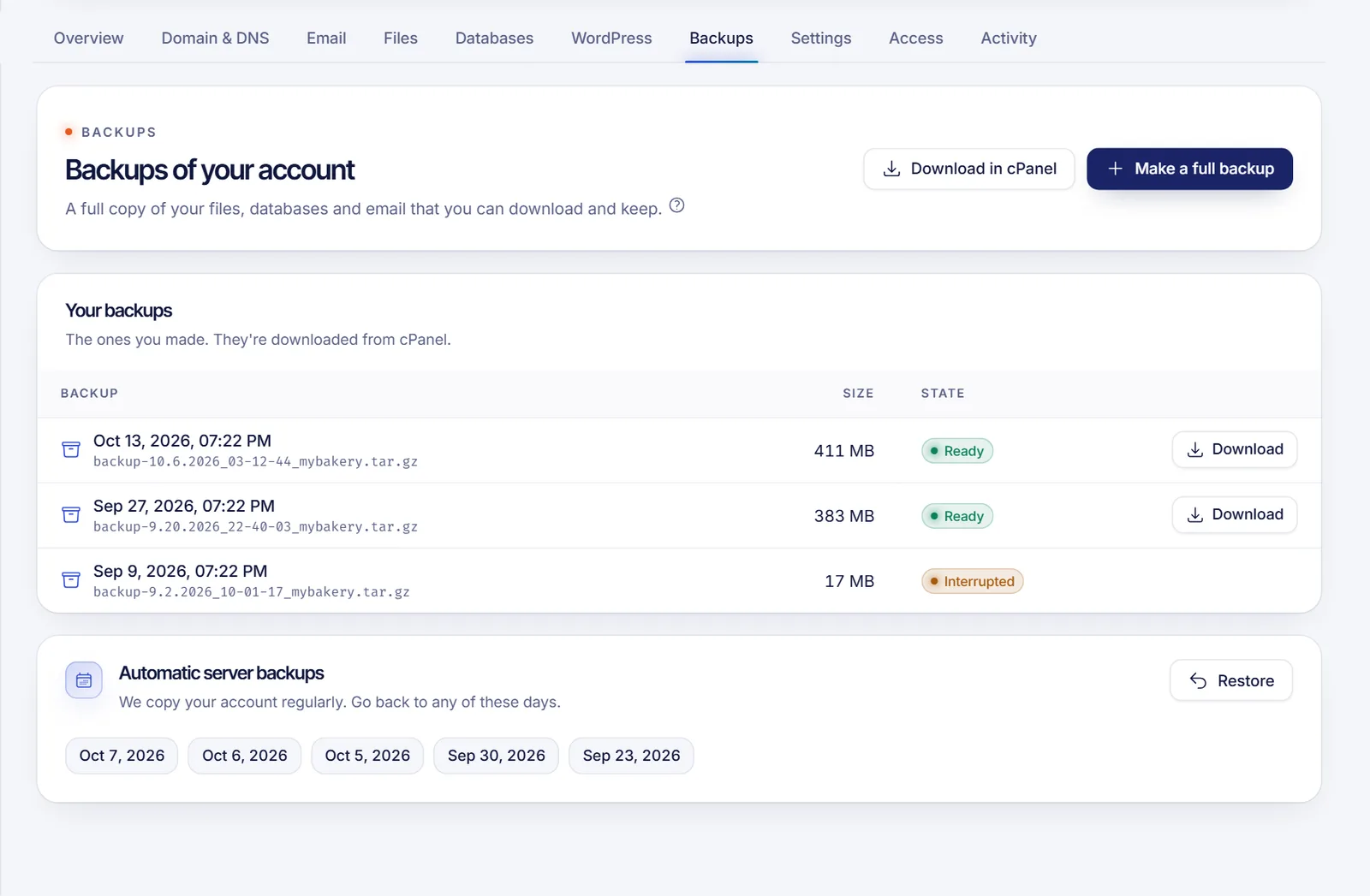
- When the backup is ready, its state in the Your backups list is Ready. The other states are In progress and Interrupted.
- Click Download on that row, or Download in cPanel at the top. cPanel opens in a new tab, in its backups tool, already signed in.
- Click the backup file name to download it to your computer.
If your server does not list backups in the dashboard, you will see a message saying so. In that case, find them in cPanel with the download button.
Keep a copy outside your hosting, on your computer or in another storage service. A backup that only lives in the same account does not protect you if the account has a problem.
Quick manual backup of a site
For a smaller, targeted copy, you can also:
- Download your site files from the cPanel file manager (compress
public_htmland download the zip) or with FTP. See Connect to web hosting with FTP. - Export each database from phpMyAdmin, in the Databases tab, as an
.sqlfile. See Create a MySQL database on web hosting.
Restore your account to a previous day
Where it is available for your hosting, the Backups tab shows an Automatic server backups section. It lists the days you can go back to.
- Click Restore.
- In Date, choose the day. The newest one is marked Latest.
- In What happens, read the warnings: files, databases and email are replaced by that day's copy; anything you created or changed after that day is lost, including posts, orders and emails; the site may be unavailable for a few minutes. We recommend making a full backup first.
- In Confirm, type your domain to confirm and click Restore account.
- The dashboard shows "Restoring to" the chosen date, and a notice stays on the page while the restore runs. It can take several minutes depending on the size. We notify you when it finishes.
Restoring replaces your files, databases and email with the copy from the chosen day. It cannot be combined with your current data, so everything newer is lost. Make a full backup first if you may need it.
If you do not see Automatic server backups, or the Restore button is disabled, restoring from the dashboard is not available for your hosting at the moment, or there are no restore points yet. Open a ticket from the dashboard and tell us the date you need.
Restore a file or a database by hand
If you only need one thing back, restore just that:
- A file or folder: upload it again with the file manager or FTP.
- A database: open phpMyAdmin, select the database and use Import with your
.sqlfile.
Troubleshooting
The backup stays in progress for a long time
Large sites take longer. You can leave the page; we email you when it is done. If it never finishes or shows Interrupted, make a new one, and open a ticket if it happens again.
I did not receive the email
The email goes to the account owner. Check the spam folder, and look at the Your backups list: the backup may already be Ready.
I cannot make a new backup
A backup may still be in progress, or your hosting may be suspended or under maintenance. Also check that your plan's disk is not full, since the backup is saved in your account.
FAQ
What does the full backup include?
Your files, databases and email.
Where is my backup stored?
Inside your hosting account, which uses the disk of your plan. Download it and delete it from cPanel when you no longer need it.
Can I restore a backup I downloaded?
You can restore individual files and databases by hand, as described above. For a full account restore from a backup file, open a ticket and we will help.
How often should I make a backup?
Before any big change, and regularly for sites that change a lot, such as shops or blogs. Keep at least one recent copy on your computer.
Related articles
- Upload your website to web hosting
- Install WordPress on web hosting
- Change the PHP version on web hosting
- Log in to cPanel
Want a hosting plan with cPanel and backups in your dashboard? See SolumeCore web hosting.