How to Log In to cPanel: One-Click or Manual Login
Open cPanel in one click from your SolumeCore dashboard with no password, or log in manually with your cPanel address, username and password. Step by step.
The fastest way to log in to cPanel is the Open cPanel button in your SolumeCore dashboard: one click and you are inside, already signed in, with no password to type. If you prefer to log in by hand, or you need to use cPanel from a different browser, you can also sign in with your cPanel address, username and password.
Before you start
- You need an active web hosting service. While the hosting is still being set up, the button stays disabled until it is ready.
- If someone shared the hosting with you, the Open cPanel button and the password only appear when the owner gave you that permission.
Log in to cPanel in one click
- Sign in to the SolumeCore dashboard.
- In the menu, open Web hosting (under Servers) and select your hosting.
- Click Open cPanel, at the top right of the page.
- cPanel opens in a new browser tab, already signed in.
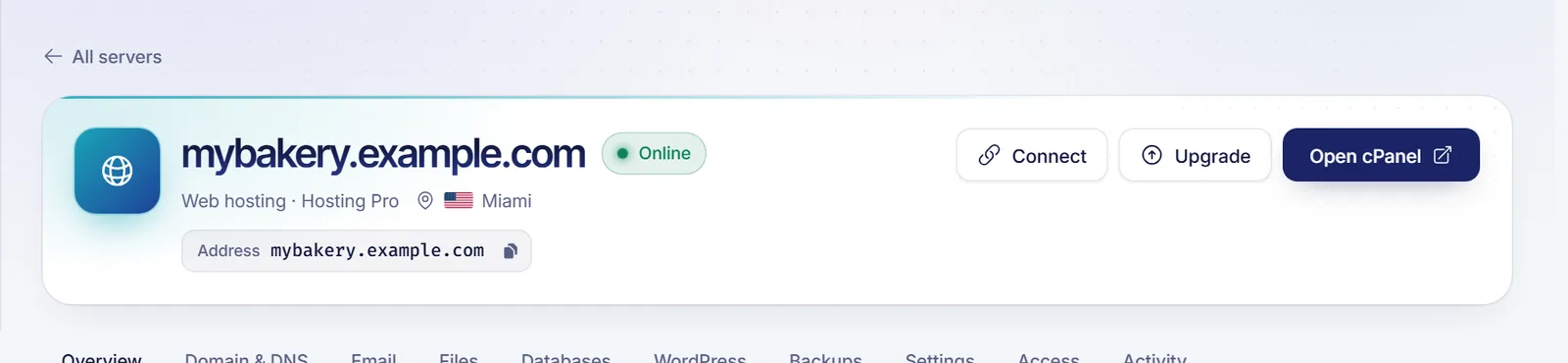
The link that opens cPanel is generated the moment you click and works only once, so there is nothing to save or bookmark. If you wait a long time without doing anything, cPanel signs you out; just click Open cPanel again.
On the Overview tab, the Your cPanel tools section has shortcuts that open cPanel directly in a specific tool, such as the file manager, email, phpMyAdmin or backups. They use the same one-click login.
Log in to cPanel manually
Use this when you want to sign in from another browser or device, or when someone on your team needs their own session.
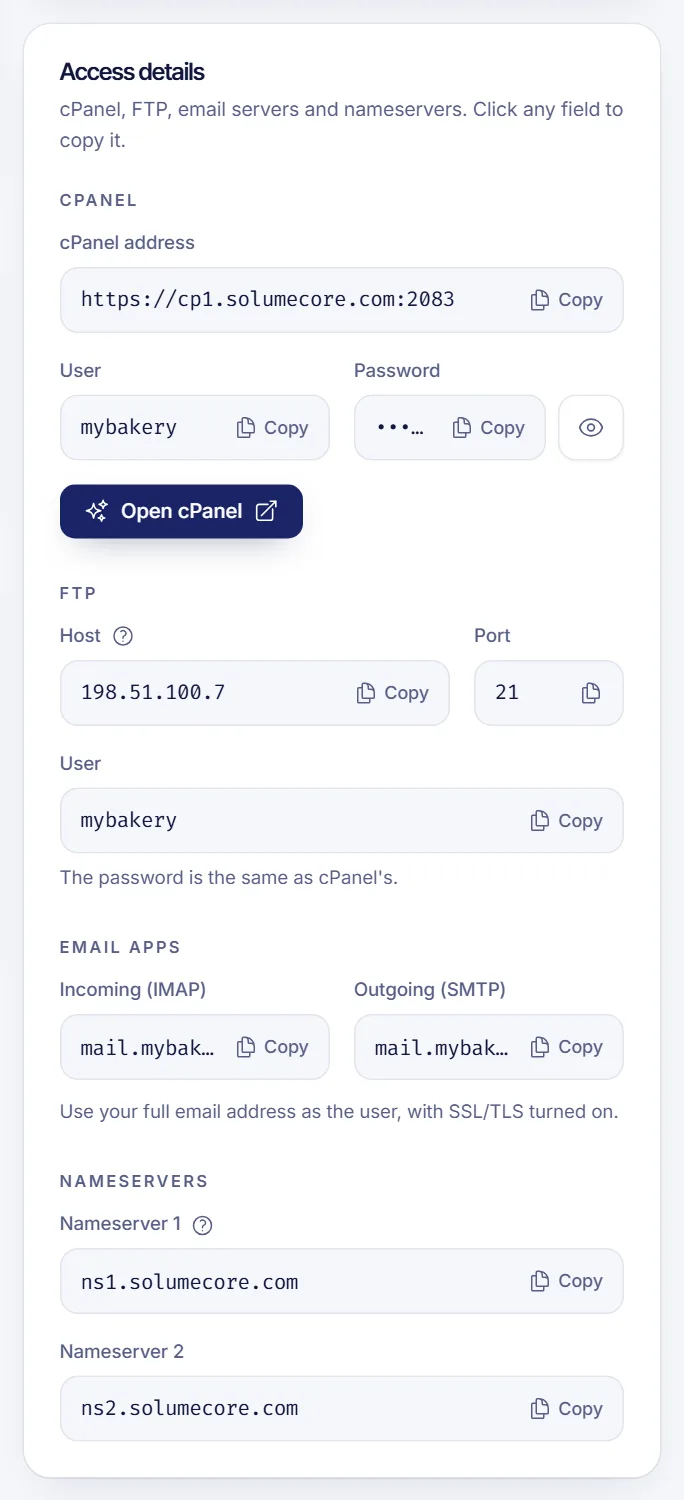
- In your hosting page, click Connect. The How to connect panel opens.
- In the cPanel block, copy the cPanel address, the User and the Password. To see the password, use the reveal button next to it.
- Paste the address into your browser, then enter the username and password.
Once your own domain points to the hosting, you can also open cPanel at cpanel.yourdomain.com, and webmail at webmail.yourdomain.com. If those names do not load yet, your DNS is still catching up: use the cPanel address from the panel instead. In the Domain & DNS tab, the DNS health checks show whether the cpanel. and webmail. names already work.
The cPanel password gives full control of your site, files and email. Do not share it. If you need to give someone access, use the sharing options of your service instead, so you can revoke them later.
Change your cPanel password
The same password works for cPanel and FTP.
- Open your hosting and go to the Settings tab.
- In Security, next to cPanel and FTP password, click Change password.
- Enter the new password and click Change password. It needs at least 8 characters, with uppercase and lowercase letters, a number and a symbol.
Update the password in your FTP client if you saved it there. Mailboxes and databases keep their own passwords.
Troubleshooting
The Open cPanel button is disabled
The button only works while the service is active. If the hosting is suspended because of a pending invoice, pay it and everything comes back on its own within minutes. If the hosting is still being set up, wait a few minutes.
Nothing opens, or you see "We couldn't open cPanel right now"
Check that your browser is not blocking pop-ups for the dashboard, because cPanel opens in a new tab. Then try again in a moment. If the server is under maintenance, a notice appears at the top of the hosting page and some actions wait until it ends. If the error keeps happening, open a ticket from the dashboard and we will help.
The username or password is rejected
Copy them again from the How to connect panel instead of typing them. If you changed the password recently, use the new one. If you tried several times, wait a few minutes, or skip the password altogether and use Open cPanel from the dashboard.
FAQ
What is my cPanel username?
It is shown in the User field of the How to connect panel, next to your password. It is not your SolumeCore account email.
Is the cPanel password the same as my SolumeCore account password?
No. The cPanel password belongs to your hosting account only. You can see it or change it from the hosting page, and it is separate from the password you use to sign in to the dashboard.
Can I log in to cPanel without a password?
Yes. Open cPanel signs you in with a one-time link, so you never need to type the password. You only need the password for manual logins and for FTP.
Why does cPanel sign me out?
cPanel closes the session after a period of inactivity for security. Open it again from the dashboard whenever you need it.
Related articles
- Upload your website to web hosting
- Connect to web hosting with FTP
- Create an email account in cPanel
- Change your cPanel password
Need a place to host your site with cPanel included? Take a look at SolumeCore web hosting.