How to Connect to Web Hosting with FTP (FileZilla)
Connect to your web hosting over FTP with FileZilla, WinSCP or Cyberduck: server, port 21, username, password and TLS encryption. Upload to public_html.
To connect to your web hosting with FTP, open an FTP client such as FileZilla and enter the server, port 21, your cPanel username and your cPanel password, using explicit FTP over TLS. All four values are shown in your SolumeCore dashboard, so you can copy them with one click.
What you need
- An FTP client. FileZilla, WinSCP and Cyberduck are popular free options.
- The connection details of your hosting: server, port, username and password.
Find your FTP details
- Sign in to the SolumeCore dashboard, open Web hosting (under Servers) and select your hosting.
- Go to the Files tab. The FTP access card shows everything you need.
| Field | What to enter |
|---|---|
| Server | The host shown in the card (your domain, or the IP address if your domain does not point to the hosting yet) |
| Port | 21 |
| Username | Your cPanel username |
| Password | Your cPanel password (use the reveal button to see it) |
| Encryption | Explicit FTP over TLS (FTPS) |
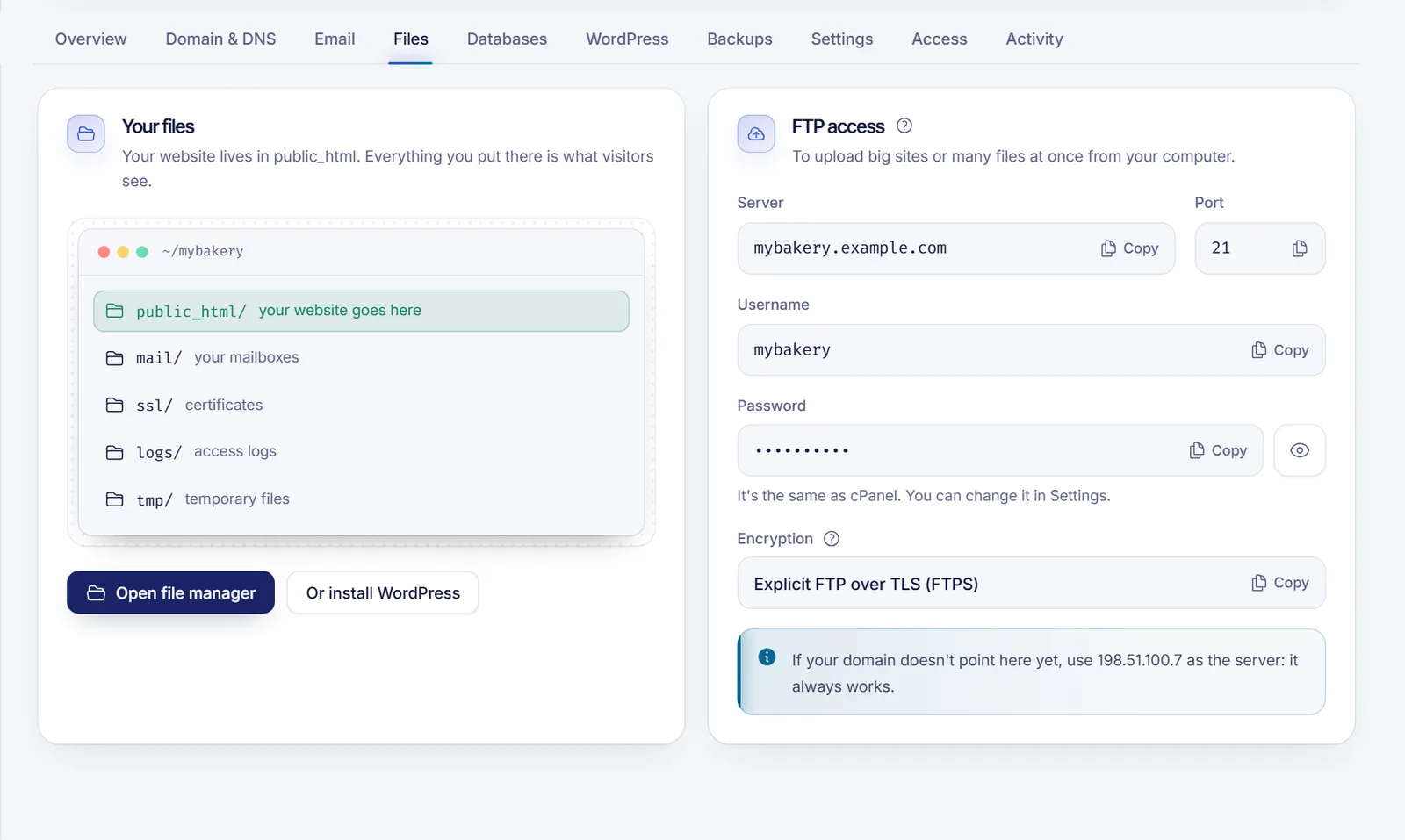
The FTP password is the same as your cPanel password. If you changed it, or you want to change it, go to Settings, then Security, and click Change password. You can also find the same data, plus your email and nameserver details, by clicking Connect at the top of the hosting page.
If your domain does not point to the hosting yet, use the IP address that appears in the card's tip as the server. It always works, even before your DNS is ready.
Connect with FileZilla
- Open FileZilla and go to File, then Site Manager, then New site.
- Set Protocol to FTP - File Transfer Protocol.
- In Host, paste the server. In Port, enter
21. - Set Encryption to Require explicit FTP over TLS.
- Set Logon Type to Normal, then paste your username and password.
- Click Connect. The first time, FileZilla may show a certificate window. If you are connecting to the server shown in your dashboard, check Always trust this certificate and accept. A certificate warning is more likely when you connect by IP address, because certificates are issued for names.
Once connected, you see your computer on the left and your hosting on the right.
Upload your website
- On the right side (the remote site), open the
public_htmlfolder. That is where your website lives. - On the left side, browse to the folder with your site on your computer.
- Drag the files and folders from left to right. The transfer queue at the bottom shows the progress.
If you need more detail about where each file goes, see Upload your website to web hosting.
Other FTP clients
- WinSCP: choose FTP as the file protocol, TLS/SSL Explicit encryption as the encryption, the server, port
21, then your username and password. - Cyberduck: choose FTP-SSL (Explicit AUTH TLS) from the connection type list, then enter the server, port
21, username and password.
Troubleshooting
"530 Login incorrect" or "Authentication failed"
The username or password is wrong. Copy them again from the dashboard instead of typing them, and make sure you did not leave a space at the end. If you changed your cPanel password recently, update the one saved in your FTP client.
The connection times out
If your domain does not point to the hosting yet, it will not resolve to the right place. Use the IP address from the Files tab as the server. Also check that your computer's firewall or antivirus is not blocking your FTP client.
The client warns that the connection is not encrypted
Make sure the encryption is set to explicit FTP over TLS. Do not choose plain FTP, because it sends your password without protection.
"Failed to retrieve directory listing"
Try again, and in your FTP client check that the transfer mode is set to passive, which is the default in FileZilla. If it keeps failing, open a ticket from the dashboard and tell us the exact message.
FAQ
What are my FTP host, username and password?
They are in the Files tab of your hosting, in the FTP access card. The username and password are the same as your cPanel account.
Which port does FTP use?
Port 21, with explicit FTP over TLS so your password and files are protected on the way.
Can I use SFTP?
The details shown in the dashboard are for FTP over TLS on port 21, so that is the method to configure in your client.
Can I upload files without an FTP client?
Yes. Use the cPanel file manager from the Files tab. It is enough for a few files or a zip you extract on the server.
Related articles
Want a hosting account with cPanel and FTP ready from day one? Check out SolumeCore web hosting.