How to Create an Email Account in cPanel (IMAP/SMTP)
Create email addresses with your own domain, open webmail and set them up in Outlook or your phone with the IMAP and SMTP servers and ports. Step by step.
To create an email account with your own domain, open the Email tab of your hosting in the SolumeCore dashboard, click Create mailbox, choose the address and a password, and it is ready to send and receive right away. You can read it in webmail with one click or add it to Outlook, Apple Mail, Thunderbird or your phone using IMAP and SMTP.
Before you start
- For email to reach your mailboxes from the internet, your domain must point to the hosting. If you have not done it yet, follow Point a domain to web hosting. You can create mailboxes before that, but mail sent to the domain arrives only once it points here.
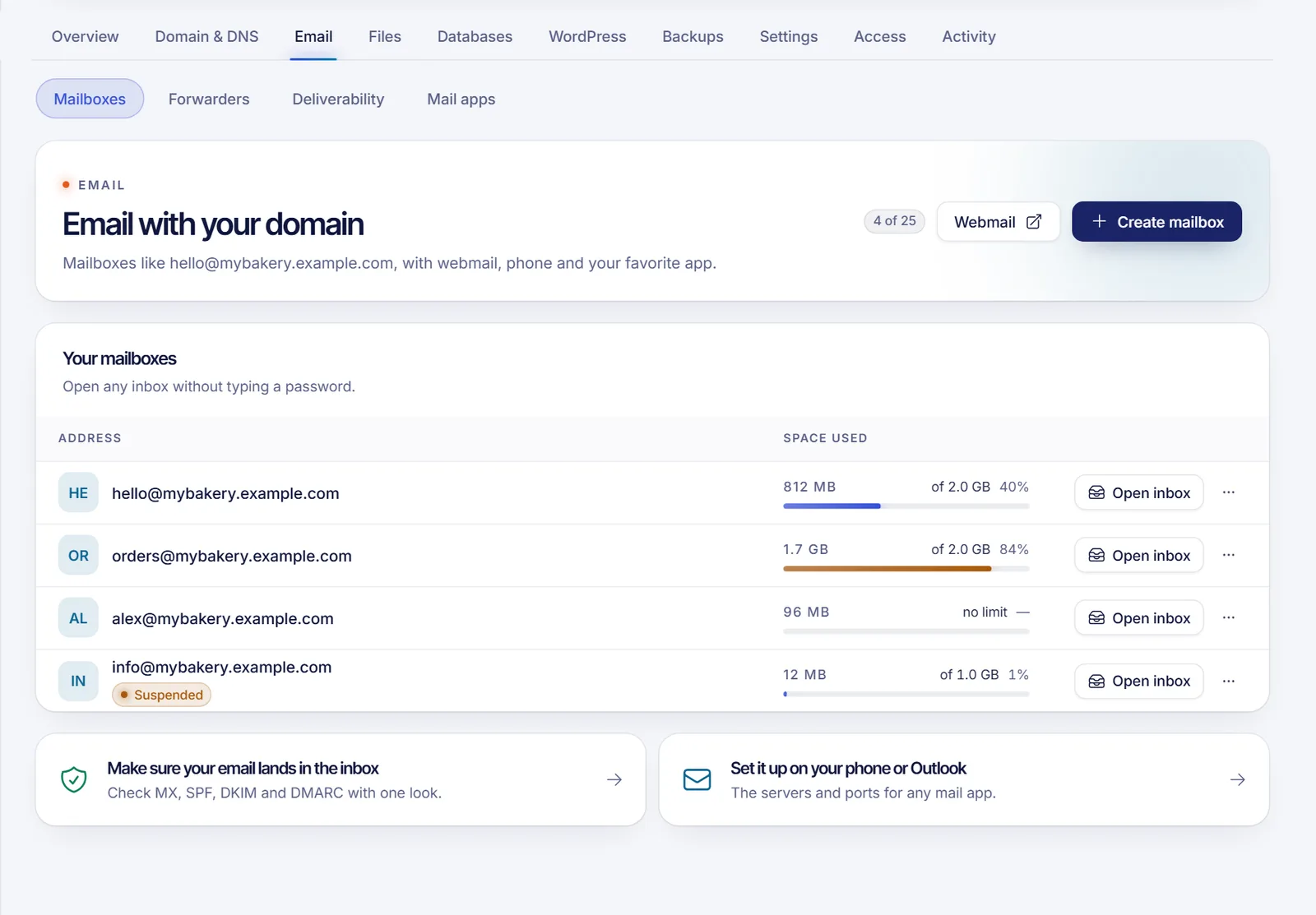
- Your plan sets how many mailboxes you can have. The Mailboxes screen shows the count, for example "3 of 25".
Create a mailbox
- Sign in to the SolumeCore dashboard, open Web hosting (under Servers) and select your hosting.
- Open the Email tab. The Mailboxes section is selected by default.
- Click Create mailbox.
- In Address, type the part before the
@(for examplehelloorinfo) and pick the domain from the list. - Set a Password. Use the generate button for a strong one, and copy it. It needs at least 12 characters mixing at least three of these: lowercase letters, uppercase letters, numbers and symbols.
- Choose the space. By default a mailbox gets 1024 MB (1 GB). Turn on Unlimited space to let it use your plan's disk as needed, or enter the amount in MB.
- Click Create mailbox. You will see that the address is ready.
The part before the @ can use lowercase letters, numbers and the symbols ., _, + and -, without starting or ending with a dot. A few names are reserved and cannot be used, such as cpanel, root, nobody and mailer-daemon.
When a mailbox fills up its space, new email bounces. Raise the space, or delete old messages, before that happens.
Read your email in webmail
- In the Mailboxes list, click Open inbox next to an address. Webmail opens already signed in, with no password.
- You can also use the Webmail button at the top of the section, or go to
webmail.yourdomain.comonce your domain points to the hosting, and sign in with the full address and the mailbox password.
Set up Outlook, Apple Mail, Thunderbird or your phone
Open Email, then Mail apps. It shows the servers and ports for your domain, each with a copy button.
| Server | Port | Security | |
|---|---|---|---|
| Incoming (IMAP), recommended | mail.yourdomain.com |
993 | SSL/TLS |
| Incoming (POP3) | mail.yourdomain.com |
995 | SSL/TLS |
| Outgoing (SMTP) | mail.yourdomain.com |
465 | SSL/TLS |
- Add a new account in your mail app and choose a manual or advanced setup.
- As username, use the full email address (for example
[email protected]), not justhello. - Enter the mailbox password.
- Use the IMAP server for incoming mail and the SMTP server for outgoing mail, with the ports and SSL/TLS from the table.
Use IMAP unless you know you need POP3. IMAP keeps your messages on the server, so you see the same inbox on your phone, laptop and webmail. POP3 downloads the messages to one device and removes them from the server. SMTP always needs your username and password. Most apps detect these settings on their own when you type the address and password.
Manage a mailbox
In the Mailboxes list, open the actions menu of an address:
- Change password: update it in your phone and mail apps afterwards.
- Change space: raise or lower the limit, or set it to unlimited.
- Delete: removes the mailbox and all its email. This cannot be undone.
For forwarding an address to another inbox without a mailbox, use the Forwarders section.
Make sure your email lands in the inbox
In the Deliverability section, check that MX, SPF, DKIM and DMARC are green. That is what Gmail and Outlook look at before trusting your messages.
Troubleshooting
I cannot send or receive email
Check the username (the full address), the password, the server and the ports. If you do not receive email, check in Domain & DNS that the domain points to the hosting and that Receiving email (MX) is green.
The Create mailbox button is disabled
Either you have reached the mailbox limit of your plan (the counter shows it), or the hosting is not active. Delete a mailbox you no longer use or upgrade your plan.
My messages go to spam
Check Deliverability and fix the items that are not green. Then send a test to an address of a different provider.
The mail app says the certificate is not valid
Make sure the server is mail.yourdomain.com with your real domain and that your domain points to the hosting. A new certificate takes a few minutes after the DNS is right.
FAQ
How many email accounts can I create?
It depends on your plan. The counter in the Mailboxes section shows how many you have used and how many your plan allows.
What are the IMAP and SMTP settings?
Server mail.yourdomain.com, IMAP port 993 and SMTP port 465, both with SSL/TLS, and the full email address as the username.
Can I use Gmail or Outlook with my domain email?
Yes. Add the account as an IMAP account with the settings above, or open webmail from the dashboard.
Do mailboxes use my hosting disk?
Yes, the email stored in a mailbox counts toward your plan's disk space.
Related articles
Want professional email on your own domain? See SolumeCore web hosting.