How to Change the PHP Version on Your Web Hosting
Switch the PHP version of each domain from Settings in the SolumeCore dashboard, check your site still works and roll back quickly if something breaks.
You can change the PHP version of your hosting from the Settings tab of the SolumeCore dashboard: find your domain in the PHP version card, pick a version from the list and it applies right away. Each domain can use its own version, so you can update one site without touching the others.
Why change the PHP version
PHP is the language that WordPress and most websites are written in. A newer version is usually faster and safer, but old plugins, themes or scripts may only work on an older one. Change it when:
- A plugin, theme or app asks for a minimum PHP version.
- You want better performance and security for a site that is already compatible.
- After an update, a site breaks and you want to go back to the previous version.
Before you start
- Make a backup. See Back up and restore web hosting.
- Check which PHP versions your plugins, theme or app support. In WordPress, the plugin page or its documentation tells you.
- If you can, test first on a subdomain or a staging copy, and avoid big jumps (for example, several major versions at once) on a live shop.
Change the PHP version of a domain
- Sign in to the SolumeCore dashboard, open Web hosting (under Servers) and select your hosting.
- Open the Settings tab and scroll to PHP version.
- In the table, find the domain in the Domain column. Your main domain is marked Main.
- In the Version column, open the drop-down and choose a version. The list shows Server default and the versions installed on your server.
- A message confirms that the domain now uses that version.
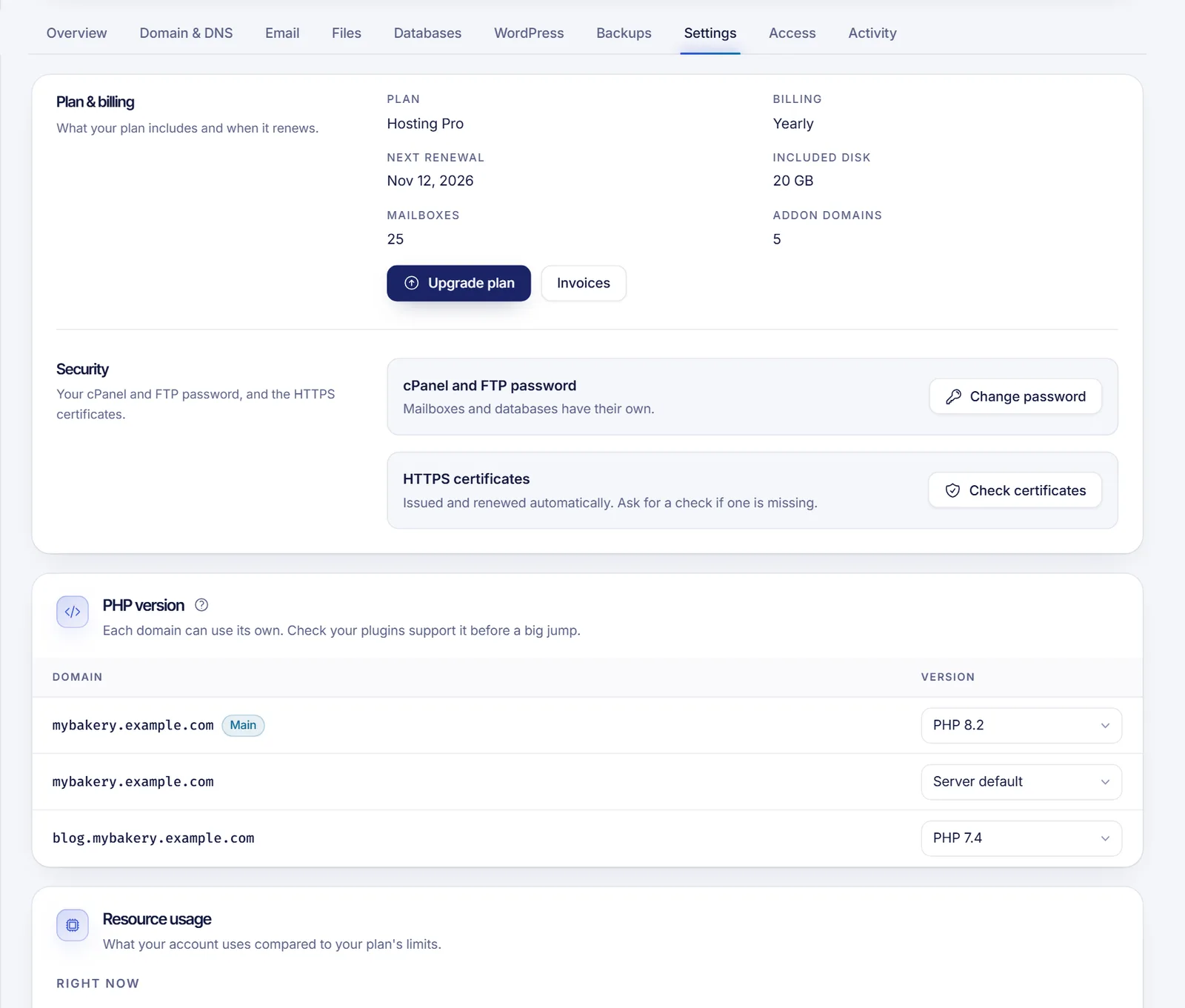
The change is saved as soon as you select the version; there is no separate save button. If the control is disabled, your hosting is not active or the panel is paused for maintenance; a banner at the top of the page tells you which.
Server default means the domain follows the version that the server uses by default. If you want your site to stay on a specific version, choose it explicitly.
Check that your site works
- Open your site in a browser, in a private window, and browse the main pages. Test forms, checkout and the admin area.
- In WordPress, go to Tools, then Site Health, then Info to see the PHP version in use and any warnings.
- To see the exact version in any PHP site, create a file called
phpinfo.phpin the domain folder with this content, open it in the browser, and delete it right afterwards because it exposes details of your server:
<?php phpinfo();Roll back if something breaks
If your site shows a blank page or a PHP error after the change, go back to Settings, PHP version and select the previous version for that domain. The site comes back as soon as the change is applied. Then update or replace the plugin that failed before trying again.
Use cPanel's PHP tool
The Overview tab has a PHP versions shortcut under Your cPanel tools (described as "Pick the PHP of each domain"). It opens the full tool in cPanel, already signed in. For a normal change, the card in Settings is enough.
Troubleshooting
The version I need is not in the list
The list shows only the versions installed on your server. If you need another one, open a ticket from the dashboard and tell us which one and why.
My site shows a white screen or a 500 error
It is usually an incompatible plugin or theme. Roll back to the previous version, then update the plugin or theme and try again. Enabling the debug log in WordPress shows which one fails.
The change does not seem to apply
Clear your site's cache (plugin cache, CDN or browser) and reload. Check in Settings that the right domain has the version you selected. Remember that an addon domain or subdomain has its own entry in the table.
FAQ
Can I use different PHP versions for different sites?
Yes. Every domain in the table has its own Version selector.
Which PHP version should I use?
The newest version that all your plugins, theme or app support. If you are unsure, check their documentation, make a backup and test.
Will changing the PHP version delete my files or databases?
No. It only changes how the server runs your PHP code. Your files and databases stay as they are.
Do I need to restart anything?
No. The change applies as soon as you select the version.
Related articles
- Install WordPress on web hosting
- Back up and restore web hosting
- Create a MySQL database on web hosting
- Log in to cPanel
Hosting a PHP site or WordPress? Take a look at SolumeCore web hosting.