VPS vs VDS: Differences, Resources and Panel Features
Compare VPS and VDS hosting: shared or reserved cores, who each one suits, and what the control panel offers, from power and console to reinstall.
A VPS and a VDS are the same kind of product: a virtual server with full root access, its own dedicated IPv4 address and the same control panel. The difference is how the processor is shared. A VPS shares the cores of its node with other customers, so it can use extra capacity when the neighbors are quiet, but its performance can vary. A VDS has its cores and RAM reserved for you, on nodes configured without overselling, so what you pay for does not depend on what other customers do.
In short: choose a VPS for websites, bots, APIs and staging environments that do not use the CPU flat out all day. Choose a VDS for sustained loads such as large databases, busy game servers or builds. Both are KVM virtual machines, both are delivered automatically after payment, and both are managed from the same panel.
Important: "reserved" describes how SolumeCore configures and fills its nodes. It is not a promise of an exact performance figure, and our Terms do not guarantee a specific availability percentage. You can follow the state of the platform on the status page.
VPS vs VDS at a glance
| VPS | VDS | |
|---|---|---|
| CPU cores | Shared with other customers on the node | Reserved for you |
| RAM | Part of the plan, on nodes that can be configured with overselling | Reserved for you |
| Overselling | Configurable per node | None on VDS nodes |
| Performance | Can burst above the plan when there is headroom; can vary if the node fills up | Steady, not dependent on neighbors |
| Typical use | Websites, bots, APIs, staging, small apps | Databases, busy game servers, builds, sustained workloads |
| Cost | Lower per vCPU and RAM | Higher than an equivalent VPS |
| Virtualization | KVM | KVM |
| Root access, dedicated IPv4 | Yes | Yes |
| Panel, network and firewall | Same | Same |
| Delivery after payment | Automatic | Automatic |
The cost row is relative on purpose. Real prices depend on the plan and location, so check the plans page, VPS or VDS.
Who each one is for
Choose a VPS if...
- You run a website, a Discord or Telegram bot, an API or a test environment.
- Your CPU usage is spiky: busy for a while, then idle.
- You want the lowest price per vCPU and GB of RAM and you can live with some variation when the node is busy.
Choose a VDS if...
- Your application keeps the processor busy for hours: a large database, a build server, a crowded game server.
- You need predictable behavior and do not want it to depend on other customers.
- You prefer to size the plan by sustained load, not by peak.
If you are unsure, start with the smaller option and measure. The Performance tab (below) shows CPU, memory, disk and network history, and you can move up later.
Can I switch from a VPS to a VDS?
Not from the panel. Plan changes are only allowed within the same product type and the same location, and only upwards. Moving from a VPS to a VDS is a new purchase: you order the VDS, migrate your data and cancel the old service when you are done.
What both include
- Full root access, over SSH with your key or password, or from the web console.
- A dedicated IPv4 address. Extra IPs can be added where the panel offers it.
- DDoS protection. Every plan goes through Solume Shield, which filters at layers 3, 4 and 7 at the network edge. You can add your own rules from the firewall; see also DDoS protection and firewall.
- Automatic delivery. After the payment is confirmed the template is cloned, the network and your SSH key are configured and the machine starts. On average this takes under a minute.
- A reseller-style REST API for listing, power actions and reinstall: see the client API.
What the management panel includes
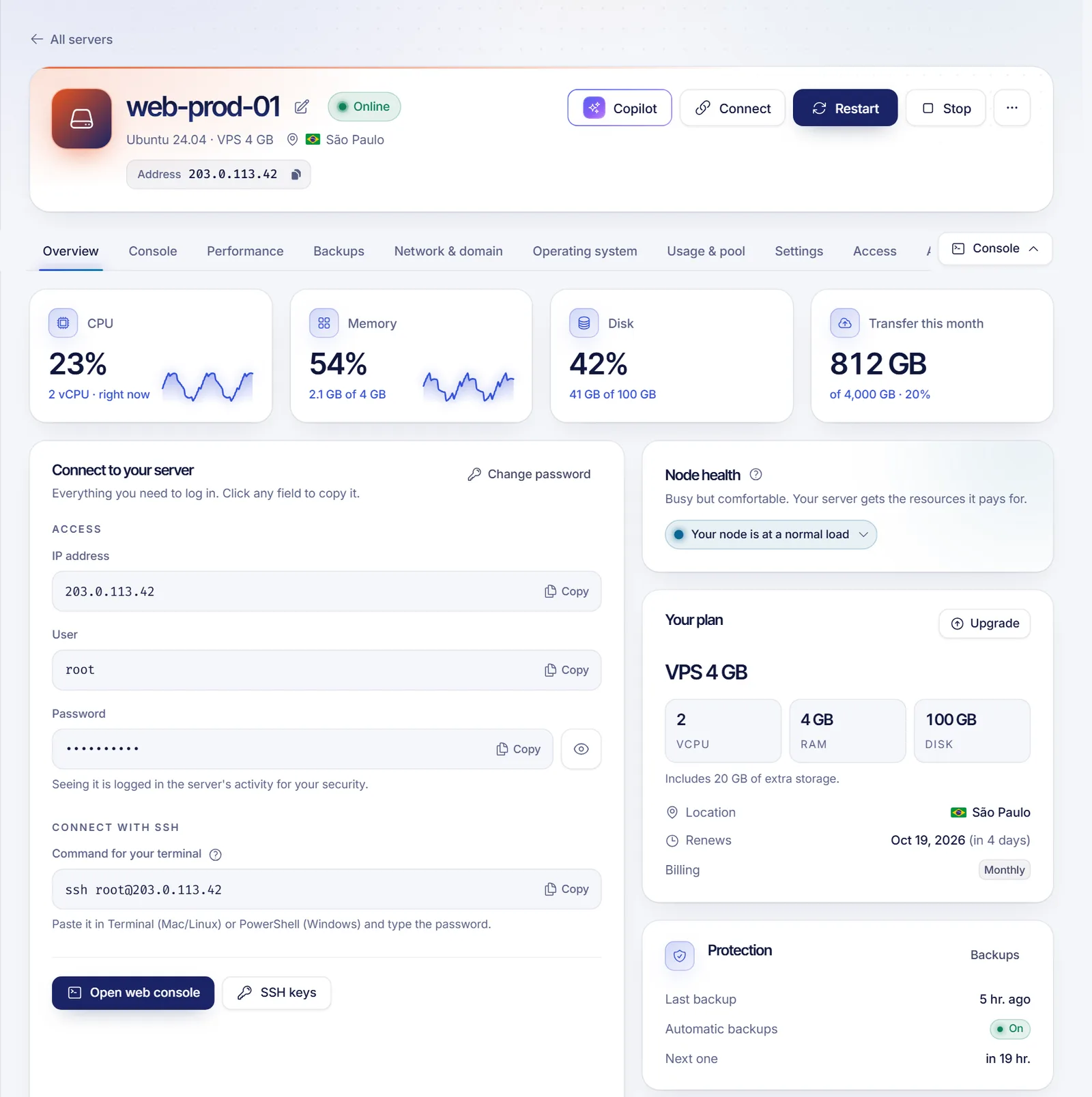
Open the server from the list in the client panel (dashboard.solumecore.com). The header shows its state, address and location, plus the power buttons. The tabs are:
| Tab | What you can do |
|---|---|
| Overview | State, CPU, memory, disk and transfer this month, connection details, shortcuts and a three-step welcome guide |
| Console | A web terminal over SSH ("Terminal (SSH)") and a graphical "Screen" like a monitor plugged into the machine |
| Performance | History of CPU, memory, disk activity and network over 1 hour, 24 hours, 7 days or 30 days, plus disk space used and uptime |
| Backups | "Backups", "Snapshots" and "Rescue mode", when enabled for your service |
| Network & domain | IP addresses, reverse DNS, firewall templates, monthly traffic |
| Operating system | Reinstall or change system, one-click apps, system name (hostname) |
| Settings | Name in the panel, access password, SSH keys, Discord alerts, plan and billing, cancel |
| Access | People you have invited to help manage the server |
| Activity | Who did what and when |
Power control
The power bar offers Start, Restart and Stop (an orderly shutdown). Under "More power options" there are Force stop and Hard reset, which behave like pulling the plug and ask for confirmation first, because unsaved data can be lost.
Console
The web terminal opens a real SSH session from your browser. You choose which user, port and credential it uses: a saved password, a key the panel creates for this server, or "ask me every time". The Screen option is a graphical console that works even when the network is down or the system does not boot. A Linux server gets both; a Windows server is reached with Remote Desktop (user Administrator) and uses the Screen for emergencies.
Reinstall and one-click apps
Operating system → Reinstall or change system opens a wizard: system, app, access and confirmation. It takes 1 to 2 minutes. Read the warning first: the disk is erased, so files, databases and settings are deleted. Backups are kept, snapshots are lost, and a new password is generated and shown under "Connect". You must type the server name to confirm.
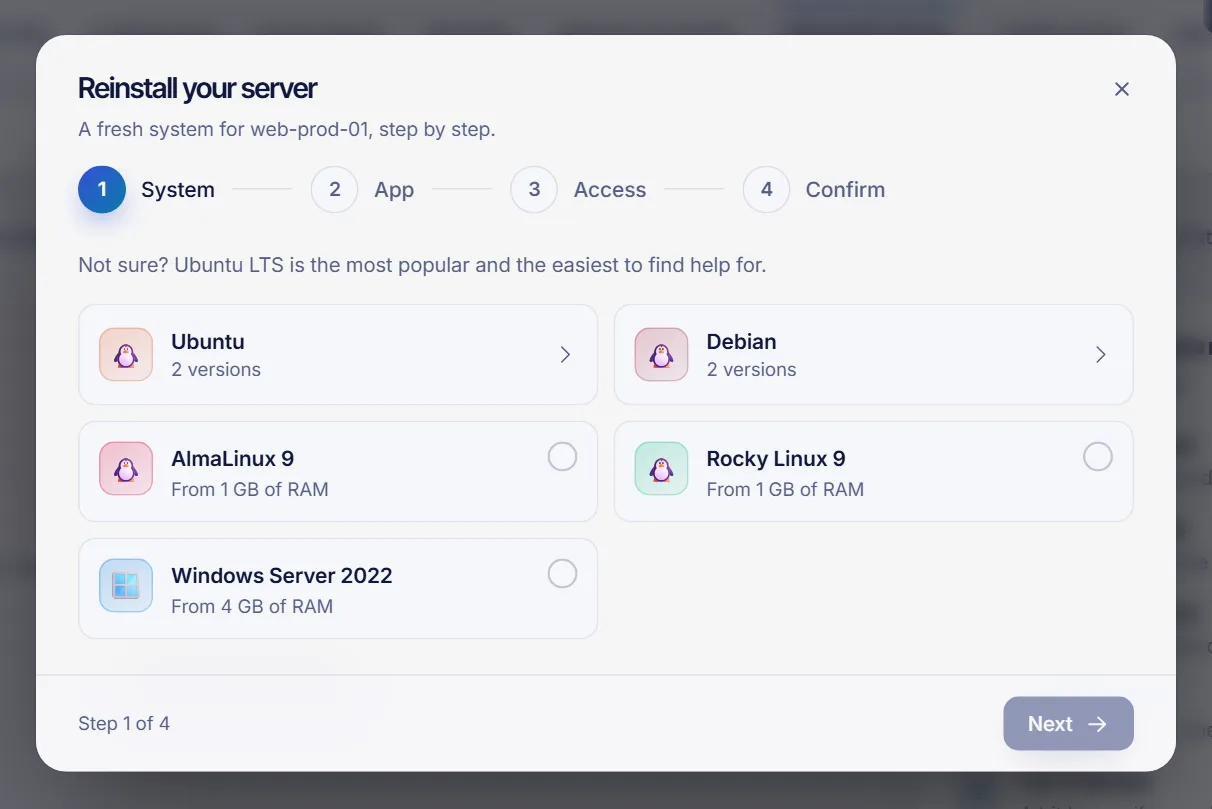
On Linux systems you can also pick an app that installs itself on first boot. The catalog includes, for example, Docker with Portainer, Coolify, n8n, Nextcloud, WordPress, WireGuard, Uptime Kuma, Gitea, Plausible and a Minecraft Java server. This depends on how your service is set up, so if you do not see "One-click apps" in the wizard, it is not enabled for you.
Network and firewall
The Network tab lists your IP addresses and gives you ready-made firewall templates for what you run on the server. DDoS protection is always on; Open firewall takes you to the full rule editor. You can request a reverse DNS (PTR) name for an IP, which matters mostly for sending email, and see traffic per day or hour against the transfer included in your plan.
Performance
Charts come from the machine that runs your server. Disk space is read from inside the server using the QEMU guest agent, so Linux servers may need the qemu-guest-agent package installed for the real number to show.
Plan changes
From Settings you can upgrade to a bigger plan (you pay only the difference for the days left in the cycle and the change is applied to the same machine, with your IP and files kept), add disk, or schedule a smaller plan for the next renewal. The disk never shrinks.
What depends on your service
Some features are controlled by SolumeCore and may not be active on every service or location. If a section is missing from your panel, that is why:
- Backups, snapshots, automatic backups and rescue mode.
- Extra IPs and extra disk bought from the panel, scheduled downgrades, and reverse DNS requests.
- One-click apps in the reinstall wizard.
The graphical console, power control, reinstall, SSH keys and firewall are part of the standard panel. For backups in general, see backups and retention.
Related documents
- Client API for VPS and VDS
- Delegated access and subusers
- DDoS protection and firewall
- Backups and retention
- Locations and data centers
FAQ
What is the difference between a VPS and a VDS?
A VPS shares the node's cores with other customers and can burst above what you pay for when neighbors are idle. A VDS has its cores and RAM reserved for you on nodes without overselling. Panel, network and firewall are the same.
Is a VDS a dedicated physical server?
No. Both are KVM virtual machines. The VDS is called "dedicated" because its resources are reserved for you on nodes that are not oversold, not because you get a whole physical machine.
Do I get root access on a VPS and a VDS?
Yes, full root access on Linux, by SSH or from the web terminal in the panel. On Windows you use Remote Desktop as Administrator.
Can I change the operating system later?
Yes. In the Operating system tab you pick another template and the machine reinstalls itself. The disk is erased, so make sure you have a copy of anything you need.
Can I upgrade my plan without losing data?
Yes, to a bigger plan of the same type and location, from the panel. The change is applied to the same machine, keeping your IP and files, and you pay only the difference until the next renewal.
Is there an uptime guarantee on a VDS?
No. A VDS reserves resources, but availability is an objective we work toward, not an SLA. Our Terms of Service do not promise a specific percentage unless it is agreed in writing for a particular plan.