DDoS Protection and Firewall: How the Shield Works
What SolumeCore Shield stops and how to use the panel firewall: protection modes, ports, allow and block lists, countries, templates and attack history.
SolumeCore servers come with DDoS mitigation switched on at the edge of the network, and the client panel gives you a firewall page to see attacks and decide who gets in. This document explains what is protected, how the three protection modes differ and how to use ports, lists, country rules and templates without locking yourself out.
Mitigation reduces the chance that an attack takes your server offline; it is not a guarantee of immunity. A very large or unusual attack can still cause disruption, and anything running inside your server (an outdated plugin, a weak password) is still your responsibility.
What is protected and where
The public Firewall page describes protection at three layers:
| Layer | What it targets | Examples of what gets filtered |
|---|---|---|
| L3, network | Volumetric floods | ICMP and IP floods, spoofed addresses, reflection attacks |
| L4, transport | TCP and UDP floods | SYN floods, UDP amplification, connection limits |
| L7, application | Bots and HTTP abuse | HTTP floods, slow-connection attacks, protocol filters for games |
How you manage it depends on the product:
- VPS and VDS (servers with their own dedicated IP) get the full firewall page, called SolumeCore Shield in the panel.
- Game servers and app servers are protected automatically at the network edge. Where the location uses the game firewall, the same Firewall page shows a Game firewall view for game servers, with rules checked in order, a "Protect a game in one click" shortcut and a query cache.
If a server has no dedicated IP, the Firewall page says so and points you to your server list instead.
The Firewall page (VPS and VDS)
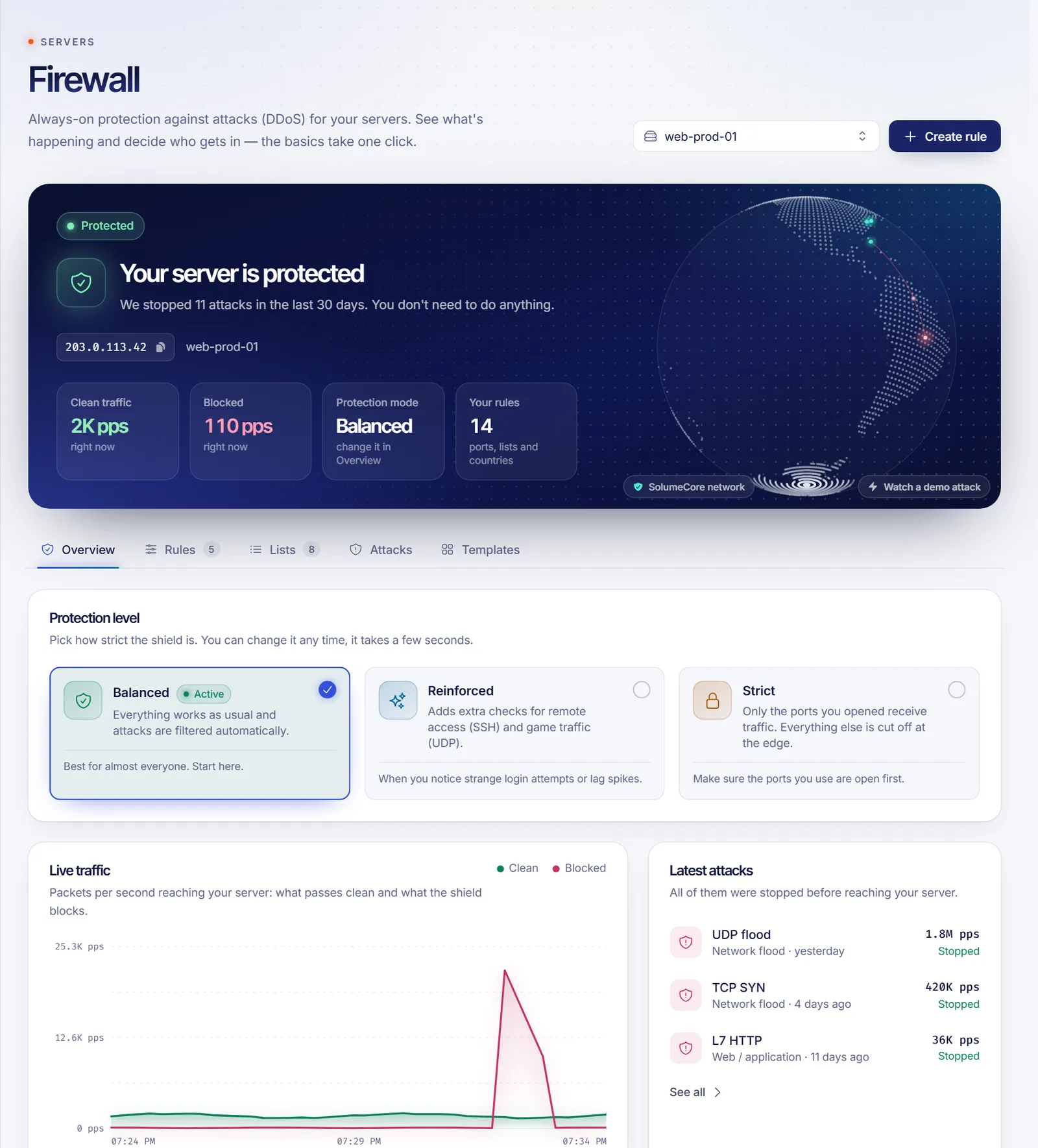
Open Firewall in the panel, pick a server and you will see a status banner ("Protected" or "Stopping an attack"), the number of attacks stopped in the last 30 days and live traffic split into clean and blocked packets per second. The tabs are Overview, Rules, Lists, Attacks and Templates.
Protection modes
| Mode | What it does | When to use it |
|---|---|---|
| Balanced | Everything works as usual and attacks are filtered automatically. | Best for almost everyone. Start here. |
| Reinforced | Adds extra checks for remote access (SSH) and game traffic (UDP). | When you see strange login attempts or lag spikes. |
| Strict | Only the ports you have opened receive traffic; everything else is cut at the edge. | Only after listing every port you use. |
Important: in Strict mode, a server with no open ports receives nothing at all. The panel warns you and lists the ports that will stay open before you confirm. Open at least your SSH or Remote Desktop port first.
If you toggle individual protections by hand, the mode shows as "Custom"; pick one of the three to return to a known setup.
Automatic protections
These are optional filters you can turn on in Overview:
- SSH guard: drops bots that try many passwords on your SSH port.
- Remote Desktop guard: the same for Windows servers using RDP.
- Strict UDP: only lets UDP through when it answers something your server started. It may add a few milliseconds to the first packet.
- FiveM quick answers: the firewall replies to FiveM server-list queries so floods of fake queries never reach your server.
If you moved SSH, Remote Desktop or FiveM to a non-standard port, tell the firewall in Rules → Where your services listen so it keeps protecting them.
Rules: open ports and country limits
Under Rules → Open ports you list the ports your server uses (25565 for Minecraft Java, 80 and 443 for a website, 22 for SSH and so on). In Balanced and Reinforced modes every port still answers, but listing yours lets the shield inspect them better, and the list is mandatory for Strict mode. Each port has a connection guard switch for TCP: it protects the handshake against scans and SYN floods at the price of a tiny delay on the very first connection.
Limits by country cap the packets per second accepted from a country instead of blocking it entirely, which is useful when you have real players there and attackers too.
Lists
- Always allowed: addresses (single IPs or ranges such as
1.2.3.0/24) that skip every filter. Add your own IP so you can never be blocked by mistake; there is an "Add my current IP" button. - Blocked: addresses that can never reach your server. Entries marked "By you" are yours; "Automatic" ones were added by the shield when it caught an attacker.
- Countries: either "Block these" (the usual choice) or "Only allow these" (for local servers: everyone outside the list is blocked, including you if you travel).
Attacks and the 30-day report
The Attacks tab lists each attack the shield stopped, with its type (network flood, web or application, volume attack), start time, peak packets per second and volume, and the main sources by address, country and network. You can block a source in one click. A 30-day report summarises everything across all your servers. The history only starts from when the feature was enabled.
Templates
Templates apply a ready-made set of rules to one or several servers at once: Web server, Minecraft, SSH only from my IP and Remote Desktop (Windows). Some use your current IP, which the panel detects and lets you correct. You can review or delete each rule afterwards.
Game firewall for game servers
When a game server is covered by the game firewall, the Firewall page shows Overview, Rules, Attacks and Query cache tabs for it. Availability depends on the location. Rules are evaluated from top to bottom and the first match decides, so order matters; use the options menu to move a rule up or down. "Protect a game in one click" adds the right rules for that game's ports, including its special filter when one exists. The query cache answers the constant "are you online, how many players?" requests from game launchers at the edge, so they do not load your server.
Controlling the firewall by API
For VPS and VDS you can read and change firewall rules (country blocks, source allowlist, ASN blocks, ports and blacklist) with the Client API. See the Client API reference and account API keys. Remember that an API key only works from IP addresses authorized for it.
Good practice
- Keep Balanced mode unless you have a reason to change it.
- Add your own IP to "Always allowed" before experimenting.
- Before enabling Strict mode, list every port you use, including SSH.
- Review the Attacks tab after an incident to see which sources to block.
- Keep your software updated: the firewall cannot fix a vulnerable application.
Related documents
- VPS vs VDS
- Game server panel guide
- Account security
- Acceptable use and abuse measures
- DDoS protection overview
FAQ
Is DDoS protection included or an add-on?
The panel states that every SolumeCore server comes with DDoS protection included. Check plans for anything specific to a product.
Will the firewall slow down my server?
Filtering happens at the network edge, but some optional features add a small delay: the connection guard adds a tiny delay to the very first connection and Strict UDP can add a few milliseconds to the first packet. Balanced mode is designed for normal use.
Can I block a whole country?
Yes, from Lists → Countries with "Block these", or cap traffic from a country with Limits by country. Choose carefully: legitimate visitors and players from there will be blocked as well.
I turned on Strict mode and lost access. What now?
Strict mode only lets listed ports through. Switch back to Balanced from the Overview tab of the Firewall page, which is part of the panel and does not depend on your server's own ports. If it is still unreachable, open a ticket. Next time, open your SSH or Remote Desktop port before enabling it.
Can an attack still take my server down?
Mitigation is designed to stop common volumetric, transport and application attacks before they reach you, but no provider can promise that nothing will ever get through. Check the service status page during an incident and open a ticket if your server is affected.