cPanel Web Hosting: DNS, SSL, Email and WordPress
How cPanel web hosting works at SolumeCore: one-click cPanel login, DNS zone editor, automatic SSL, email, MySQL, WordPress, backups and plan limits.
SolumeCore web hosting gives you a cPanel account on a server we manage: you upload your site, create mailboxes and databases, and we take care of the machine. The account is created automatically once the payment is confirmed, usually in under a minute, and you get your access details by email. HTTPS comes from AutoSSL, which issues and renews certificates on its own at no extra cost.
You can work in two places. The web hosting page in the client panel (dashboard.solumecore.com) puts the everyday jobs in plain language: connect a domain, edit DNS, create mailboxes, manage databases, install WordPress and make backups. For anything else, Open cPanel signs you in to the full cPanel with one click and no password. This guide covers both, plus the limits that come with your plan.
Important: the hosting is not a server you control as root. If you need root access, your own software stack or a long-running process, look at a VPS or VDS or at app and bot hosting.
Getting in: the panel and cPanel
Open your hosting from the server list. The Overview tab shows your plan usage (disk, traffic this month, mailboxes, addon domains, databases and subdomains), the state of your HTTPS certificate, your access details and a three-step guide: connect your domain, create your email, publish your site.
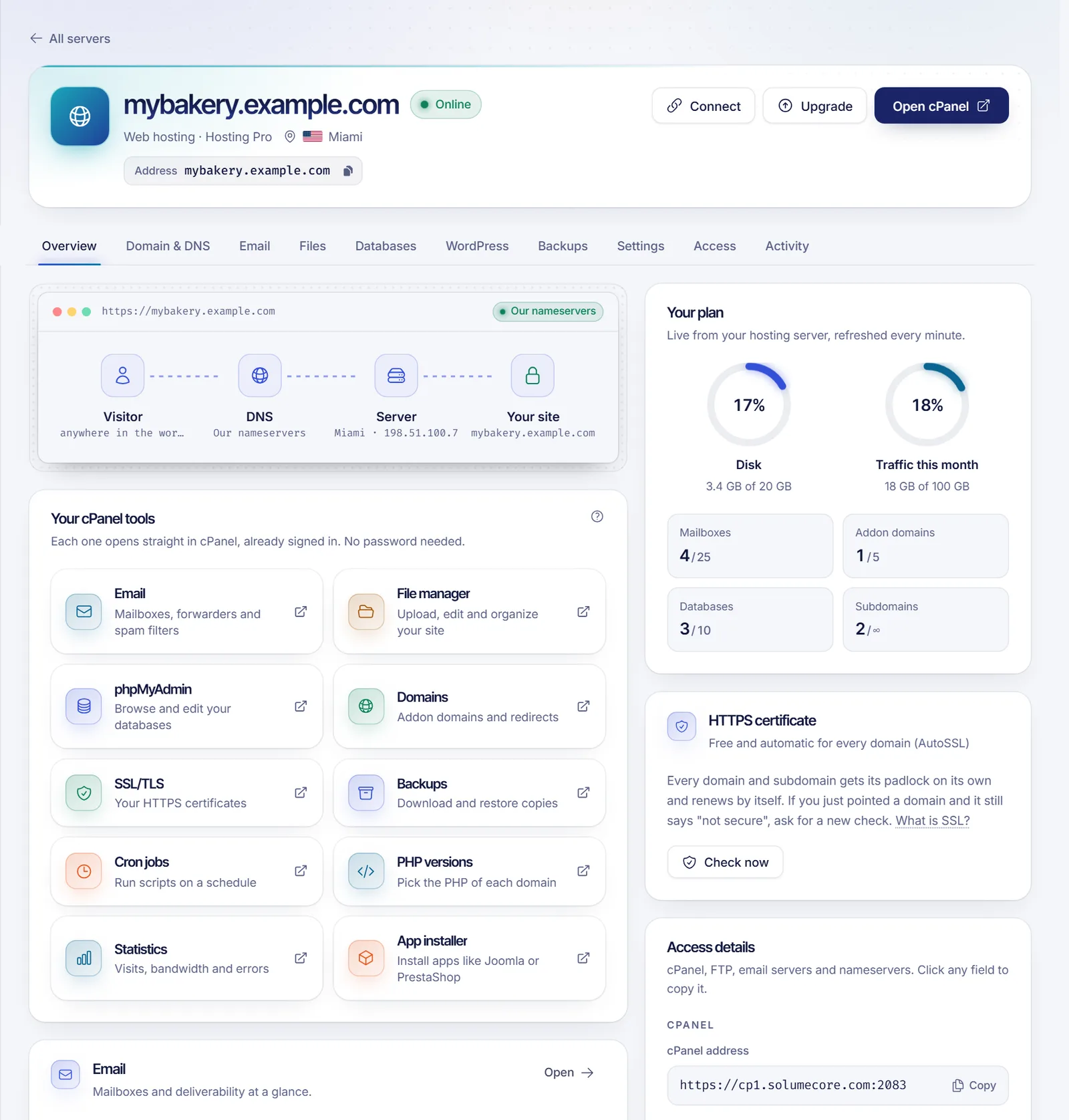
Press Open cPanel (or one of the shortcut tiles under "Your cPanel tools") to enter cPanel already signed in. The link is created at that moment, works once and is not stored, so you never type the cPanel password. The tiles open email, the file manager, phpMyAdmin, domains, SSL/TLS, backups, cron jobs, PHP versions, statistics and the app installer directly. It only works while the service is active: if the hosting is suspended, the panel tells you to pay the pending invoice first.
Your account still has a cPanel and FTP password, which you can change under Settings → Security (at least 8 characters with upper and lower case, a number and a symbol). Mailboxes and databases have their own passwords.
Domains: temporary address, your own domain and subdomains
You do not need a domain to start. You can pick one of our subdomains at checkout and your site goes live with HTTPS right away. When you buy your own domain, connect it from Domain & DNS → Connection. The wizard offers two ways:
- Use our nameservers (recommended). You replace the nameservers at your registrar with the two shown. We then manage the DNS for your site, email and SSL.
- Keep your DNS where it is. You create a few records at your DNS provider instead (A records for the site, cpanel and webmail, MX, SPF, DKIM and DMARC for email). You can download a zone file that most providers can import. If you use Cloudflare, set every record to "DNS only" (grey cloud), or email and SSL will not work.
Changes usually show up in under an hour but can take up to 24 hours. If your DNS provider supports it, a "Set up with ..." button can create all the records for you in one click. That button only appears for providers that support our template; see domains and DNS.
Good to know before connecting: the domain becomes the main domain of the hosting, you can do this once from the wizard, the temporary address stops working and, if you use WordPress, you will need to update its site address. There is a waiting period between main-domain changes (24 hours by default).
Under Domain & DNS → Domains & subdomains you can add addon domains (another site with its own folder and certificate), create subdomains such as shop.yourdomain.com and change the main domain. By default an addon domain can only be added once it already points to the hosting, which is how we know it is yours.
The DNS zone editor
If your domain uses our nameservers, Domain & DNS → DNS zone lets you edit its records. You can add, edit and delete records of type A, AAAA, CNAME, MX, TXT, SRV and CAA, with a TTL between 60 seconds and one week.
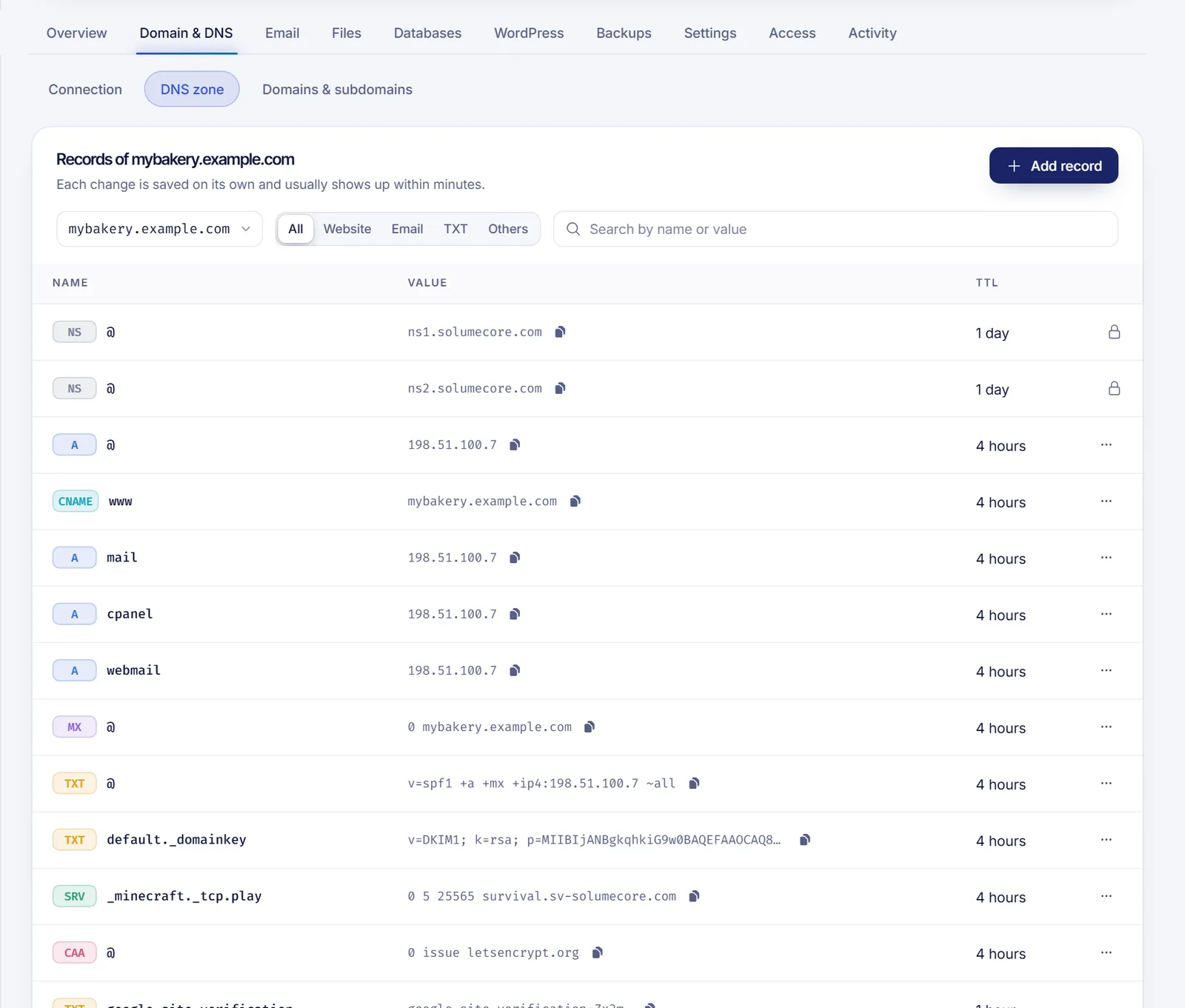
A few rules the editor enforces:
@means the domain itself; forshop.yourdomain.comtypeshop.- A CNAME cannot be placed on the bare domain (it would break email); use an A record.
- An SRV record is named
_service._protocol, for example_minecraft._tcp. - Records marked "Managed by cPanel" are locked.
Quick templates apply the records a service asks for in one click, showing exactly what will be added and removed first: Google Workspace and Zoho Mail (they move your email and replace the MX and SPF records) and Vercel (points the domain and www to your Vercel project; email stays here). If your domain uses other nameservers, the editor warns you that edits are not seen on the internet until you switch.
The same tab includes a DNS health check for nameservers, website, www, cpanel, webmail, MX, SPF, DKIM and DMARC, and a propagation check that asks four public DNS resolvers whether they already see your change.
SSL certificates
Every domain and subdomain gets a free HTTPS certificate through AutoSSL, and it renews by itself. If you just pointed a domain and the browser still says "not secure", press Check now on the Overview tab (or Check certificates under Settings) to request a fresh check. The certificate is issued for the names that resolve at that moment, so records added later may need another check.
The Email tab has four sections: Mailboxes, Forwarders, Deliverability and Mail apps.
- Mailboxes. Create addresses like
[email protected]with a password and either a quota or unlimited space (up to your plan's disk). You can open the webmail inbox without typing a password, change a password, change the quota or delete a mailbox. Deleting removes all its messages. - Forwarders. Pass everything sent to one address of your domain on to another inbox, even outside your domain, without creating a mailbox.
- Deliverability. Gmail and Outlook look at SPF, DKIM, DMARC and MX before trusting a message. The page shows each check in green, amber or red. You can turn DKIM on and publish a DMARC policy ("Just report", "Send to spam" or "Reject"); start with "Just report" for a couple of weeks. With external DNS you get the exact TXT record to copy.
- Mail apps. The server names, ports and security for IMAP, POP3 and SMTP. Your username is the full email address. IMAP keeps mail on the server and is the recommended choice.
If you move your email to another provider (Google, Zoho), apply the matching template so the server knows your mailboxes are no longer local.
Files, FTP and databases
The Files tab opens the cPanel file manager. Your site lives in public_html. For large uploads it also shows FTP details: explicit FTP over TLS (FTPS), with the same username and password as cPanel. If your domain does not point to the hosting yet, use the server IP shown there as the host.
In Databases you can create a MySQL database and, in the same step, a user with all privileges. Copy the name, user and password into your site's configuration (wp-config.php, .env); the host is localhost from your own hosting. You can add users, grant or remove access to a database, change passwords and open phpMyAdmin. We do not store the passwords, so save them when they are shown.
WordPress
The WordPress tab installs WordPress at the root of a domain (which must be empty), creating the database and the administrator for you, and shows progress. It lists your WordPress sites with a health indicator, lets you open each dashboard without a password and shows when an update is needed. One-click install depends on what your hosting server offers: if it says it is not available, use the app installer in cPanel or open a ticket.
Backups
Backups → Make a full backup creates a copy of your files, databases and email inside your account (it uses your plan's disk, so download it and delete it from cPanel when you no longer need it). We email you when it is ready. A list of server-made automatic backups may also appear; restoring one replaces files, databases and email with the chosen day and requires typing your domain to confirm. Restoring from automatic backups is enabled by SolumeCore, so you may not see the Restore button on every account. See backups and retention.
Settings, PHP and resource usage
Under Settings you can pick a PHP version for each domain (newer is faster and safer, but older plugins may need an older version), see how much of your plan's limits the account uses, upgrade your plan, see invoices and cancel the hosting (by default it stays active until the end of the period you paid). If the server reports CPU and process usage, you will see it there; when your site reaches its limits the panel suggests upgrading.
Limits that come with your plan
Each plan sets these values, and "no limit" appears when a limit is not set: disk, monthly transfer, mailboxes, addon domains, subdomains, databases and FTP accounts. The panel shows your use against each one. Compare plans on the web hosting page and see limits and quotas by product.
Sharing access
You can invite a teammate or developer to the hosting with specific permissions: signing in to cPanel, domains, DNS, SSL, email, databases, PHP, WordPress and backups. Billing, upgrades and cancellation never leave the owner. See delegated access and subusers.
Related documents
- Domains and DNS
- Delegated access and subusers
- VPS vs VDS
- Service suspension for non-payment
- Limits and quotas by product
FAQ
How do I log in to cPanel?
Open your hosting in the client panel and press Open cPanel. You are signed in without a password through a one-time link. If you need the password for FTP, you can set a new one under Settings → Security.
Do I need a domain to buy web hosting?
No. You can start on one of our subdomains with HTTPS and connect your own domain later from Domain & DNS.
Is the SSL certificate really free?
Yes. AutoSSL issues and renews it for your domains and subdomains, so there is nothing to buy or install by hand. If a new domain still shows "not secure", request a certificate check.
How do I point my domain to the hosting?
Use the connection wizard under Domain & DNS: either change the nameservers at your registrar to ours, or create the listed records at your current DNS provider. Then use the propagation check.
Why is my email going to spam?
Check the Deliverability section: SPF, DKIM and DMARC should all be green. Turn on DKIM, publish a DMARC policy and make sure your DNS records are in place.
What is the difference between web hosting and a VPS?
With web hosting we manage the server and you only look after your site from cPanel. With a VPS you get root access and control everything, but you are also responsible for updating and securing it.
Can I install WordPress?
Yes, from the WordPress tab, in one click when your server supports it, or with the app installer in cPanel.