Game Server Panel: Console, Files, Backups and Tasks
How the SolumeCore game server panel works: live console, file manager, backups, scheduled tasks, shared access, databases, network and startup settings.
The SolumeCore game server panel is the page where you run a hosted game server: start and stop it, watch the live console, edit files in the browser, take backups, schedule restarts, share access with friends and open extra ports. It lives inside the same client panel as the rest of your services, so there is nothing extra to install and no separate login.
Open the client panel at dashboard.solumecore.com, pick your server from the list and you land on its page. Every server has the same frame: a header with the name, status, address and power buttons, and a row of tabs below it. This guide walks through each tab, using the exact names you see on screen. Some sections only show up for Minecraft, and some only for people with the right permission.
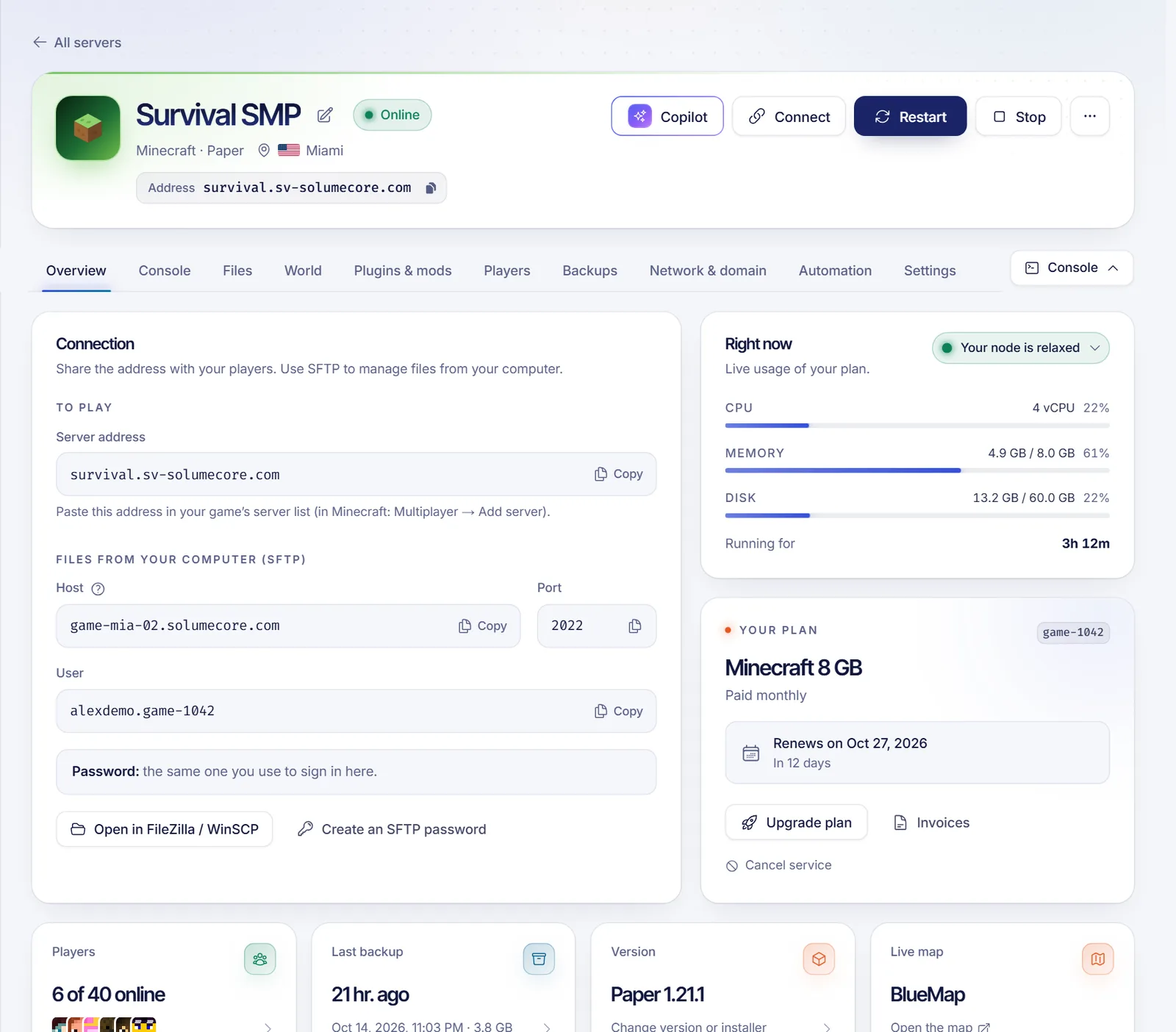
The server page at a glance
The header is always visible, whichever tab you are on:
- Status. One of Online, Starting, Stopping, Offline, Installing, Suspended, Sleeping or Waking up.
- Power buttons. Start, Restart and Stop. Under "More power options" there is Force stop, which kills the process without letting the game save. Use it only when Stop does not respond. If the server is hibernating, the Start button becomes Wake up.
- Address. The address your players type, with a copy button. See Game server networking and subdomains for how it is built.
- Connect. A panel with the game address and your SFTP details (host, port, user and password) for uploading files from your computer.
- Console shortcut. Press the backtick key (`) on any tab to open or close a mini console without leaving the page.
Tabs and sections
A tab with more than one section shows a row of pills to switch between them. The tabs below are those of a game server; an app has a few different ones (see Apps and bots hosting).
| Tab | Sections | What it is for |
|---|---|---|
| Overview | Overview | Live CPU, memory and disk use, connection details, shortcuts and the plan card (upgrade, renewal, cancellation). |
| Console | Live console, Performance & crashes | Output and commands. Minecraft also gets TPS, crash diagnosis and logs. |
| Files | Files, Databases, Import from another host | File manager, MySQL databases and migration. |
| World | Worlds & map, Restore area, Game settings | Minecraft worlds, live map, pre-generation, MOTD and rules. Other games only get Game settings. |
| Plugins & mods | Plugins & mods, Player pack | One-click installs from catalogs. Player pack appears on servers that load mods. |
| Players | Players, Community | Who is online, kick, ban, operators, whitelist and activity statistics. |
| Backups | Backups | Copies of the whole server you can restore. |
| Network & domain | Ports & domain, Add-ons | Address, extra ports, your own domain, map, crossplay and voice chat. |
| Automation | Scheduled tasks | Timed restarts, commands and backups, plus alerts to Discord and similar. |
| Settings | General, Version & installer, Test copy, Startup, Shared access, Sub-servers, History | Everything you configure once and rarely touch. |
You only see the tabs your account may use. An owner sees everything that applies to the game; a person you invited with "Just watch" sees little more than the console. The permission list is in Game server permissions.
Console
Console → Live console shows what the server prints, as it happens, and has a box to send commands ("Type a command and press Enter"). Next to the terminal you get live CPU, memory, network and disk figures, the running time, and the machine and environment your server uses. The browser connects straight to the machine where your server runs, which is why the console feels immediate.
Useful details:
- Recent commands are kept so you can repeat one with a click.
- Clear screen wipes the terminal view and Download log saves the output as a file.
- While the server is installing or suspended, the console is read-only.
- On a new Minecraft server the panel detects that the EULA is not accepted and offers Accept and start. Accepting writes
eula=trueand is recorded in your server history; the agreement is between you and Mojang.
Performance, crashes and logs (Minecraft)
Console → Performance & crashes measures TPS and MSPT, shows start times, and can analyse lag with spark. When the server stops by itself, the Crashes view tells you why and, when it can, offers a one-click fix (install a missing dependency, switch Java version, disable a faulty file or accept the EULA). You can also tell the panel to restart the server automatically after a crash, with a maximum number of retries. Monitoring is on by default, but it is a platform setting that staff can turn off.
Files
Files → Files is a full file manager in the browser. You can:
- create folders and files, upload files, upload a whole folder, or download a file from a link straight onto the server;
- open, edit, rename, duplicate, cut and move, compress to a
.tar.gz, extract, download and change permissions; - search inside files, and drag and drop to upload.
The editor opens files in tabs, colours the syntax, can autosave, has a full-screen mode and shows a side-by-side comparison of your changes before saving. Files that are too big or are not text must be downloaded instead.
Deleted items go to the Trash and stay there for 7 days, so you can restore them. The trash still uses disk space; tick "Delete for good, skipping the trash" when what you need is room. Browser uploads have a size cap (the plugin and mod uploader says 100 MB); for larger worlds or modpacks use SFTP. The full details are in SFTP connection reference.
Files → Databases creates MySQL databases for plugins that store data. Each one gets its own user, and the panel shows host, port, database, user, password and a ready-made JDBC string. You can generate a new password or delete the database (there is no copy of a deleted database). Whether databases are available, and how many, depends on your plan and on a database server being assigned to your service.
Files → Import from another host moves a server over from a previous provider: enter its SFTP details, press "Test connection" to see what is there, then start the copy. It is owner-only, works in one direction only (into your server), you can close the page while it runs, and the other host's password is stored encrypted and deleted when the copy finishes. Files with the same name are replaced, so stop the server and make a backup first.
Backups
Backups → Backups lists your copies with name, size and date. Press "Create backup" to start one: it takes a few minutes and you can keep using the panel. Per backup you can:
- Lock it so it is never deleted, by hand or by rotation;
- leave files out using ignore patterns, or choose "World only" on Minecraft for a smaller, faster copy;
- Restore the whole server or only some files, with the option to delete what is there first;
- Download, rename or delete it.
How many backups your plan includes appears as "x of y used". Backups are stored on the machine that hosts your server (external storage is not available yet), so download the ones you cannot afford to lose. If your plan has none, the tab says so. Automatic backups are created with a scheduled task; when you reach the limit, a scheduled backup replaces the oldest unlocked one. Depending on platform settings you may also see a retention policy (keep daily, weekly and monthly copies) and a "Go back to the last backup" button for emergencies. On Minecraft, World → Restore area puts back only a marked part of the map from a backup, which is handy against griefing.
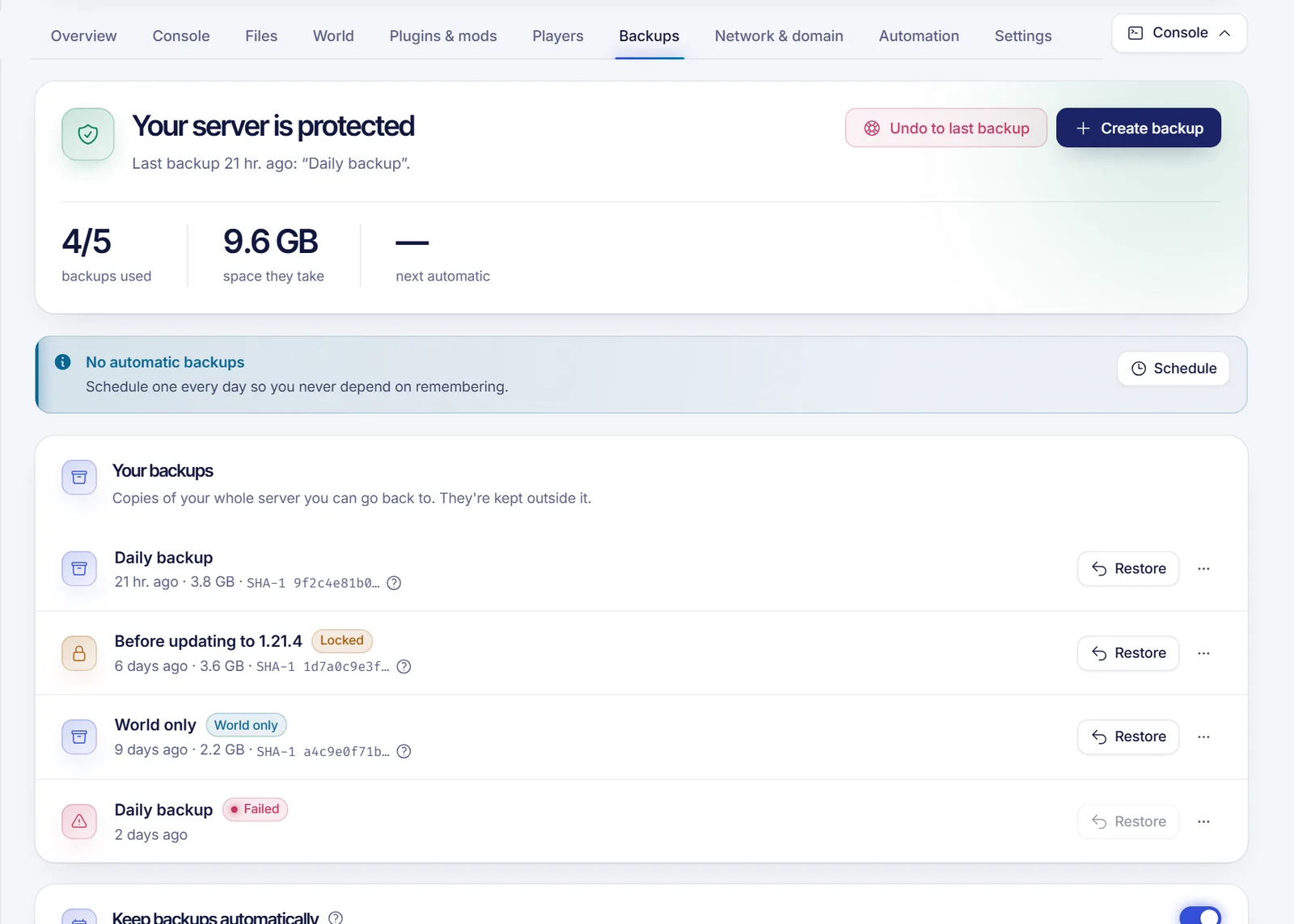
See also Backups and retention.
Scheduled tasks
Automation → Scheduled tasks runs things for you. A task has a schedule (every day, some days, every few hours, every few minutes, or an advanced cron expression), a time zone, and ordered steps. A step can send a console command, start/stop/restart/force stop the server, or take a backup, each with an optional wait of up to 15 minutes. You can create up to 20 tasks with up to 10 steps each, pause them, run them on demand and set them to run only while the server is online.
Presets help you start, such as a daily restart with a warning to players or a nightly backup. The same tab also holds this server's integrations (Discord, Slack, Telegram, Teams, email and HTTP alerts), visible to the owner and to people allowed to manage integrations.
Settings
- General. Rename the server (this changes the label in your panel, not the service code or your invoices), edit the description, pick the Java or language version, upgrade your plan, cancel the service, or Reinstall it. Reinstalling runs the installer again and can overwrite files, so you must type the server name to confirm; make a backup first. If your plan includes hibernation, its card is here too: the server sleeps when nobody plays and wakes when someone joins.
- Version & installer. Switch between versions or loaders of the same game, for example Paper to Fabric. The change is applied by reinstalling, and the panel warns when the new loader will not load what you already installed.
- Startup. The start command is read-only. You change how the server starts through variables and, on Java games, a memory profile, and the change applies on the next restart.
- Test copy. A temporary clone of a Minecraft server to try an update before applying it. This is an optional feature that is off by default and only the owner can use it.
- Shared access. Invite other people with their own account and choose what they can do. See Game server permissions.
- Sub-servers. Split a plan into several servers that share its RAM, disk and ports. It needs a plan with more than one port and is owner-only.
- History. Who did what and when: power actions, console commands, file changes over SFTP, backups, access changes and actions by support. It keeps the last 90 days and can be exported as CSV.
Minecraft extras
Plugins & mods installs from Modrinth, Hangar, SpigotMC and CurseForge (where authors allow it) and filters by your version. Players lets you op, kick, ban and manage the whitelist from buttons. Other games in the catalog get their own Game settings editor.
FAQ
Do I need to install anything to manage my game server?
No. Everything runs in the browser at the client panel. You only need a desktop program if you want SFTP, such as FileZilla or WinSCP.
Can I restart my Minecraft server automatically if it crashes?
Yes. Under Console → Performance & crashes you can enable automatic restart with a retry limit, and you can also schedule regular restarts in Automation → Scheduled tasks.
Where do I change the Minecraft version?
In Settings → Version & installer to pick the loader or version, and in World → Game settings → Version & Java to check that your Java version matches. Reinstall to apply it, and make a backup first.
Why can I not see some tabs?
Tabs depend on the game and on your permissions. A Rust server has no World or Plugins tab, and an invited person only sees what the owner allowed.
Are backups stored outside my server?
They are stored on the same machine that runs your server, outside its file folder, because external storage is not available yet. Download critical backups.