Game Server Permissions: Full List, Roles and Rules
All 45 permissions you can give subusers on a SolumeCore game server: roles, how to invite and remove people, delegation rules and what is never shared.
You can give friends, moderators or your dev team access to your game server without sharing your password. Each person signs in with their own SolumeCore account, and you choose exactly what they can do from a list of 45 permissions in 13 groups. This page is the complete reference for that list, and it also explains how to invite, edit and remove people and which things can never be delegated.
If you are setting up a Minecraft server permissions panel for your staff, the short version is: invite them from Settings → Shared access, start with the Moderator role, and only add file, backup or startup permissions when someone really needs them.
How sharing works
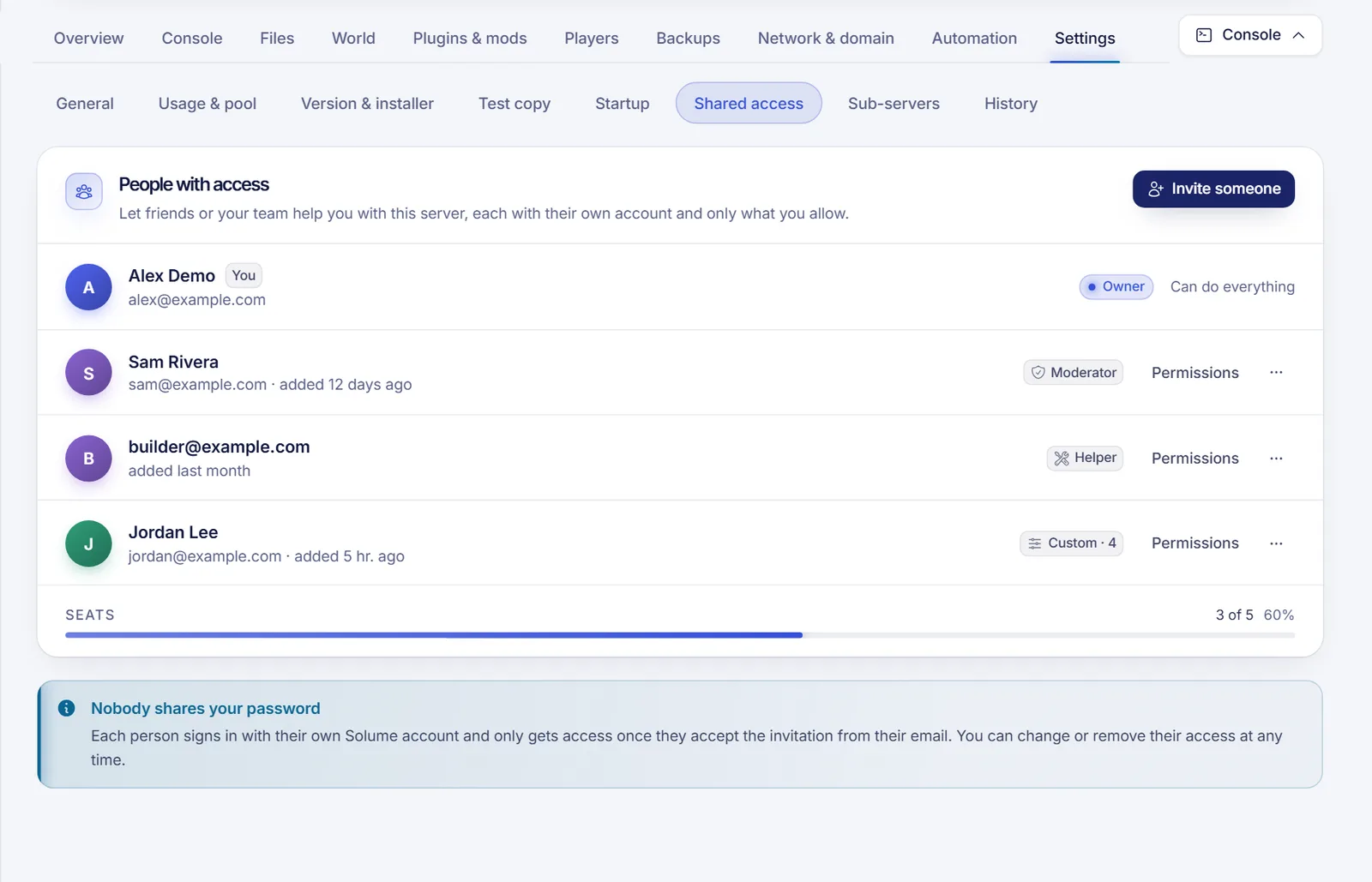
Open your server in the client panel, go to Settings → Shared access ("People with access") and press Invite someone.
- Type the email of their SolumeCore account. They need an account; if they have none yet, ask them to sign up with that email and verify it.
- Under "What can they do?" pick a role (see below). The panel suggests Moderator.
- Optionally open Fine-tune each permission to tick individual boxes. Each group has a switch to select all of it.
- Press Send invitation.
The panel never tells you whether that email has an account: the confirmation message is the same either way. If the account exists and is active, it receives an email with a link; the person opens it signed in with that account and accepts. Until they accept, they have no access, and the invitation expires after 7 days. Pending invitations are listed with a Cancel invitation button, and inviting the same email again renews the link.
You can share a server with up to 25 people, counting pending invitations.
Roles
Roles are shortcuts that tick a set of permissions. After choosing one you can still adjust boxes; the row then shows "Custom".
| Role | What it includes |
|---|---|
| Just watch | View the console and the activity log. Cannot change anything. |
| Moderator | The above, plus send console commands, start and restart. Ideal for game staff. |
| Helper | The Moderator set plus stop, all file permissions including SFTP, view and create backups. For people who install things. |
| Administrator | Everything except the Users group and the Billing group. |
Editing and removing access
- Edit permissions changes what a person can do. Saving cuts any console they had open, so their next connection uses the new permissions.
- Remove access takes the server out of their panel immediately, cuts their console and SFTP sessions and deletes the SSH keys they registered for this server. Their account is not touched, and you can invite them again.
Rules that protect you
These rules are enforced by the platform, not just hidden in the interface:
- The owner is not a permission row. The owner of the service has every permission by definition and cannot be locked out, whatever anyone edits.
- You can only give what you have. A person with the permission to invite others can only hand out permissions they hold themselves.
- Nobody edits themselves. You cannot change your own permissions.
- No touching someone above you. A guest cannot edit or remove another person who holds permissions the guest lacks. Only the owner can.
- Invitations are re-checked. If the person who invited loses the right to invite, or loses any permission they offered, the invitation stops working.
- Everything is logged. Invitations, edits and removals appear in Settings → History.
Important: the permission "Give access to other people" (
user.create) is the most sensitive of the list. The panel warns you when you tick it, because the person can then invite others with anything they hold.
Complete permission reference
Each permission has a key (the value used internally and in some integrations) and a label in the panel. The sections of the panel that need a permission are hidden for people who lack it. Where a permission is the one that opens a tab, it is noted.
Control
| Key | In the panel | What it allows |
|---|---|---|
control.console |
View the console | See live console output. Also opens the Console tab, Performance & crashes, Players and Community. |
control.command |
Send console commands | Type commands in the console. |
control.start |
Start | Start the server and wake it from hibernation. |
control.stop |
Stop | Stop the server. Force stop uses this same permission. |
control.restart |
Restart | Restart the server. |
Files
| Key | In the panel | What it allows |
|---|---|---|
file.read |
See which files exist | List folders. Opens the Files, Worlds & map, Game settings, Plugins & mods and Player pack sections. |
file.read-content |
Open and read files | Open files, download them and search inside files. |
file.create |
Create and upload files | Create files and folders, upload, duplicate, download from a link and restore from the trash. |
file.update |
Edit and rename files | Save edits, rename, move and change file permissions. |
file.delete |
Delete files | Delete files and folders, and empty the trash. |
file.archive |
Compress and extract | Make .tar.gz archives and extract them. |
file.sftp |
Connect over SFTP | See SFTP details and connect with an SFTP client. See SFTP connection reference. |
Backups
| Key | In the panel | What it allows |
|---|---|---|
backup.read |
View backups | See the backup list. Opens the Backups tab. |
backup.create |
Create backups | Create backups and rename them. |
backup.delete |
Delete backups | Delete backups, and lock or unlock them. |
backup.download |
Download backups | Download a backup file. |
backup.restore |
Restore backups | Restore a backup, or part of one. Also opens Restore area on Minecraft. |
Tasks
| Key | In the panel | What it allows |
|---|---|---|
schedule.read |
View scheduled tasks | See tasks. Opens the Automation tab. |
schedule.create |
Create tasks | Create new tasks. |
schedule.update |
Edit and run tasks | Edit tasks and steps, pause them and run them on demand. |
schedule.delete |
Delete tasks | Delete tasks. |
Databases
| Key | In the panel | What it allows |
|---|---|---|
database.read |
View databases | See the list of databases. |
database.create |
Create databases | Create a database. |
database.update |
Change a database's password | Generate a new password for a database. |
database.delete |
Delete databases | Delete a database and its data. |
database.view_password |
View a database's password | Reveal the password. It is separate so someone can know a database exists without being able to connect to it. |
Network
| Key | In the panel | What it allows |
|---|---|---|
allocation.read |
See the address and ports | View the address, ports and domains. Opens Network & domain. |
allocation.create |
Add ports | Add an extra port, within what your plan includes. |
allocation.update |
Edit notes and the primary port | Edit port notes, change the primary port, rename the free subdomain and connect your own domain. |
allocation.delete |
Remove ports | Remove ports and disconnect domains. |
Startup
| Key | In the panel | What it allows |
|---|---|---|
startup.read |
View startup settings | See the start command and variables. Opens Startup and Version & installer. |
startup.update |
Change startup settings | Change variables, the memory profile, the runtime and the game version or loader. |
Settings
| Key | In the panel | What it allows |
|---|---|---|
settings.rename |
Rename the server | Change the name shown in the panel, not the service code or the invoice. Opens Settings → General. |
settings.reinstall |
Reinstall the server | Run the installer again. Files the installer recreates can be lost, so it is one of the most destructive permissions. Applying a version change by reinstalling needs this plus startup.update. |
Activity
| Key | In the panel | What it allows |
|---|---|---|
activity.read |
View the activity log | Read Settings → History. Guests do not see IP addresses there, nor other people's full emails. |
Minecraft
| Key | In the panel | What it allows |
|---|---|---|
minecraft.world |
Manage worlds (switch, upload, reset, pre-generate, border) | Switch the active world, upload, reset and regenerate worlds, pre-generate and set the world border. |
minecraft.addons |
Install map, crossplay, voice, Votifier and spark | Install and remove add-ons that open ports. |
minecraft.monitor |
Auto-restart, TPS logging, crash fixes and public page | Configure automatic restart, TPS logging, apply crash fixes and manage the public server page. |
These three are separate from the file permissions on purpose: resetting a world is more than editing a file, and a moderator should not be able to do it by accident. Some world actions also need a file permission on top: resetting a world needs the permission to delete files, and importing one needs the permission to create files.
Integrations
| Key | In the panel | What it allows |
|---|---|---|
integration.manage |
Shown under the "Integrations" group | See and create this server's integrations (alerts to Discord, Slack, webhooks and so on). It is separate because an integration sends server data, such as who edited which file, to a destination chosen by its creator. |
Billing
| Key | In the panel | What it allows |
|---|---|---|
billing.view |
See whether this server is paid up | Intended to show whether a server has an invoice waiting, never the owner's billing details. |
billing.pay |
Pay this server's invoices | Intended to let a person pay this server's invoices with their own details and payment method. Marked "Sensitive" in the panel. |
Both can be assigned today, but check in your panel whether paying on someone's behalf is available for your service before relying on it. Neither gives access to the owner's billing data, and the Administrator role never includes them.
Users
| Key | In the panel | What it allows |
|---|---|---|
user.read |
See who else has access | View the Shared access list. |
user.create |
Give access to other people | Invite people, limited to permissions the inviter holds. |
user.update |
Change other people's permissions | Edit others, but never yourself and never someone above you. |
user.delete |
Remove other people's access | Remove people and cancel invitations, with the same limit. |
What can never be delegated
Some things stay with the owner whatever you tick:
- Owner status, plan upgrades, cancellation and the billing data of the account.
- Splitting the plan into Sub-servers and creating a Test copy.
- Hibernation settings, the Usage & pool view and the Import from another host tool.
- Building a Velocity proxy network.
- Seeing IP addresses in the activity log (guests never see them).
If the service is suspended or paused, almost every action is blocked for everyone, including the owner. Only viewing backups, viewing who has access and removing someone's access still work. Downloading backups during a suspension is off by default and depends on a platform setting.
FAQ
What permissions should a Minecraft moderator have?
Start with the Moderator role: view the console, send commands, start and restart. It lets them handle players and fix a stuck server without touching files. The Players tab lists who is online with the view permission, and kick, ban and op go through the console, so it needs the command permission too; the Moderator role has both.
Can I give someone SFTP access only?
Tick file.sftp together with file.read and file.read-content at minimum. Without file.read-content they can connect and see names but cannot download anything. Add create, update and delete only if they must upload or change files.
Can a guest invite more people?
Only if you give them "Give access to other people", and then only with permissions they already hold.
Do invited people have to pay for anything?
No. They use their own free SolumeCore account. The server is billed to its owner.
Why can an invited person see a tab but get a "no permission" message?
The tab appears when they hold the basic permission for it, while individual buttons need their own permission. For example, backup.read shows the Backups tab, but restoring needs backup.restore.
How do I remove access immediately?
Go to Settings → Shared access, open the menu on the person and choose Remove access. Their open console and SFTP sessions are cut, and their keys for this server are deleted.