Subusers and Delegated Access for VPS, VDS and Hosting
Invite teammates to a VPS, VDS or web hosting with specific permissions: roles, the full permission table, how to invite, accept, edit and revoke access.
Delegated access lets you give other people controlled access to one of your VPS, VDS or web hosting services without sharing your password. Each person signs in with their own SolumeCore account, sees the service in their own panel, and can do only the actions you ticked. You can change or remove their access at any time.
Open the service in the client panel (dashboard.solumecore.com), go to the Access tab and press Invite someone. Pick a ready-made role (Just watch, Operator, Technician, Administrator, or Web editor for hosting) or fine-tune each permission. The person receives an email with a link, accepts, and the service appears in their panel marked "Shared with you". Plans, billing, upgrades and cancelling always stay with you.
Important: this system covers VPS, VDS and web hosting. Game servers and app or bot hosting use their own permission system; see game server permissions.
Who can be given access and how many
- Services you can share: VPS, VDS and web hosting. A service that is cancelled cannot be shared.
- The invited person needs a SolumeCore account whose email is verified, and the invitation must go to that same email address.
- Up to 25 people per service, counting pending invitations. The Access tab shows the seats used.
- You cannot invite yourself, and someone who already has access is edited instead of invited again.
Roles
Roles are shortcuts that tick a set of permissions. If you change a permission afterwards, the panel marks the access as "Custom".
For VPS and VDS
| Role | What it allows |
|---|---|
| Just watch | See status, charts, history, backups and network. Cannot change anything. |
| Operator | Also start, stop and restart the machine and rename it. |
| Technician | Also the consoles, creating backups and changing their schedule, rescue mode and reverse DNS. |
| Administrator | Everything except giving access to others and paying. |
For web hosting
| Role | What it allows |
|---|---|
| Just watch | See status, usage, history and backups. Cannot change anything. |
| Web editor | Also domains and subdomains, DNS, SSL checks and PHP settings. |
| Technician | Also email, databases, WordPress and creating backups. |
| Administrator | Everything except giving access to others and paying. |
The "Administrator" role still includes sensitive permissions such as the consoles, the access password and reinstalling. Read the next section before you give it.
Permission reference
Permissions are grouped in the picker. The ones marked Sensitive are almost equivalent to owning the machine, or they move people, and the panel flags them when you tick them.
Common to every service type
| Permission as shown in the panel | Key | Sensitive |
|---|---|---|
| See the service status and technical details | service.view |
|
| See usage charts and uptime | monitoring.read |
|
| See the activity log | activity.read |
|
| Open support tickets about this service | support.tickets |
|
| Rename the service | settings.rename |
|
| See the access password | password.view |
Yes |
| Change the access password | password.change |
Yes |
| See whether this service is paid up | billing.view |
|
| Pay this service's invoices | billing.pay |
Yes |
| See who else has access | access.read |
|
| Give access to other people | access.create |
Yes |
| Change other people's permissions | access.update |
Yes |
| Remove other people's access | access.delete |
Yes |
VPS and VDS only
| Permission as shown in the panel | Key | Sensitive |
|---|---|---|
| Start | power.start |
|
| Stop (including forced) | power.stop |
|
| Restart (including reset) | power.restart |
|
| Use the graphical console | console.vnc |
Yes |
| Use the SSH console | console.ssh |
Yes |
| Reinstall the operating system | settings.reinstall |
Yes |
| Install their own SSH keys on the machine | sshkey.install |
Yes |
| Use rescue mode | recovery.rescue |
Yes |
| See backups | backup.read |
|
| Create backups | backup.create |
|
| Restore backups | backup.restore |
Yes |
| Delete backups | backup.delete |
|
| Change the automatic backup schedule | backup.schedule |
|
| See IP addresses and reverse DNS | network.read |
|
| Change reverse DNS | network.rdns |
Web hosting only
| Permission as shown in the panel | Key | Sensitive |
|---|---|---|
| Sign in to cPanel | cpanel.sso |
Yes |
| Manage domains and subdomains | domain.manage |
|
| Edit the DNS zone | dns.manage |
|
| Re-check the SSL certificate | ssl.manage |
|
| Manage mailboxes and forwarders | email.manage |
|
| Manage databases and users | database.manage |
|
| Change PHP settings | php.manage |
|
| Install WordPress and sign in as administrator | wordpress.manage |
Yes |
| See backups | backup.read |
|
| Create backups | backup.create |
|
| Restore backups | backup.restore |
Yes |
A few of these deserve care. The graphical console is like sitting at the machine, so the person can do anything inside it. The SSH console signs in with the service's saved credentials, which is the same as having root access. "Change the access password" lets the person choose a new password and lock you out of the old one. "Install their own SSH keys" keeps their key valid on the machine until you remove it. "Sign in to cPanel" gives control of almost the whole hosting account.
Note: "Pay this service's invoices" appears in the list, but paying on behalf of the owner is not active at the moment, so granting it does not let the person pay today. Do not rely on it.
If you give someone access.create, they can hand out any permission they themselves have. Give it only to someone you fully trust.
What a new invitation starts with
The invitation form opens on the "Just watch" role, so if you change nothing the person can only look: no consoles, no passwords and no inviting. Move up to another role, or tick individual permissions, only when they need it.
How to invite someone
- Open the service and go to Access, then press Invite someone.
- Type their email. It has to be the email of their SolumeCore account. For privacy, we never tell you whether an address has an account.
- Choose a role under "What can they do?", or use "Fine-tune each permission". The picker shows what they will be able to use.
- Press Send invitation.
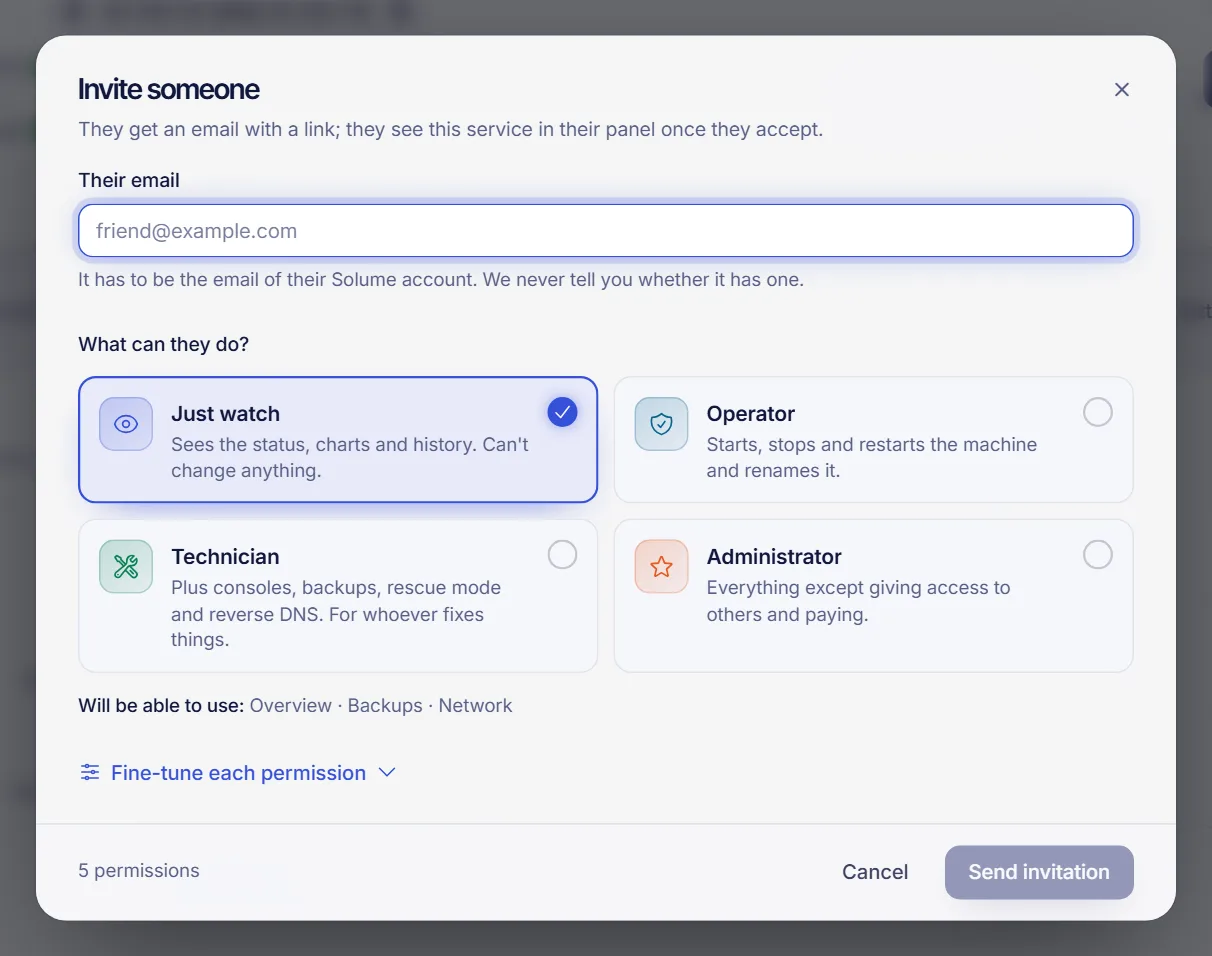
You can only give permissions you have yourself. The owner can give the whole catalog of that service type. Pending invitations appear in the list as "Pending" with their expiry, and you can use Cancel invitation at any time. Inviting the same email again renews the link and the previous one stops working.
How the invited person accepts
- If that email has a SolumeCore account, the person gets a message with a link. It expires after 7 days. Until they accept, they have no access.
- They open the link while signed in to the panel with that same account, with a verified email. The page shows who invited them and "What you will be able to do".
- They press Accept invitation. The service now shows in their panel with a "Shared with you" label and a banner that says what stays with the owner.
If the link says the invitation is not available, it may have expired, been used, been cancelled, or belong to a different account. The same message is used for every case on purpose, so a link never reveals anything to someone who is not the recipient. The invitation is also not honored if the person who sent it no longer has the right to invite, or no longer holds a permission they offered.
Edit permissions
Open the person's row, choose Edit permissions, tick or untick, and save. A few rules apply:
- Nobody can edit their own permissions.
- You cannot grant a permission you do not have, or edit someone who has permissions beyond yours.
- When permissions change, any console that person has open is cut so the next one reflects the new permissions.
Revoke access
Choose Remove access on the person's row. It takes effect immediately:
- They stop seeing the service and any open console is cut off.
- Invitations they had sent and that are still pending are cancelled.
- SSH keys they saved in their own account are removed from the machine and from what gets injected when you reinstall. A key they had already deleted from their account cannot be recognized, so review the keys too.
- Their account is not deleted, and you can invite them again.
If they could see or change the access password, change it now.
What is never delegated
No permission exists for these actions, so an invited person cannot do them even with every permission ticked:
- Cancel the service or withdraw a cancellation.
- Change plan, add disk or resources, or schedule a downgrade.
- Buy extra IPs, extras or boosts, or pause the service.
- Apply coupons.
- Change auto-renewal, invoices or billing details.
- Transfer or delete the service.
Prices and billing data of the owner are not shown on a shared service. If a service is suspended, an invited person can only see the notice, the list of people with access (and remove access, if allowed) and the payment status.
Related documents
FAQ
Can I share my VPS without sharing my password?
Yes. Invite the person's SolumeCore account from the Access tab. They sign in with their own credentials and only get what you tick.
Can an invited user see my billing information or cancel the service?
No. Billing data, plan changes, cancellation, transfer and deletion are never delegated. The invited person only sees whether the service is paid up if you give them that permission.
What is the difference between Technician and Administrator?
Technician covers consoles, backups and rescue mode (VPS and VDS) or email, databases and WordPress (hosting). Administrator is everything except giving access to others and paying, including reinstall and password permissions.
The invitation says it is not available. What now?
Check that the person is signed in with the same email that received it, that the email is verified, and that the link has not been used or expired after 7 days. If in doubt, send a new invitation.
How do I remove someone's access?
Open the Access tab and use Remove access on their row. It applies immediately, cuts their open consoles and removes the SSH keys they had saved in their account from the machine.
Is this the same as game server subusers?
No. Game servers and app hosting have their own permission list. Read game server permissions for that.