Status page: incidents, uptime and maintenance
How to read the SolumeCore status page: components, 90-day history, incidents and maintenance, how to get email alerts, and what to do during an outage.
The SolumeCore status page, at /status on the main website, shows whether the platform is working right now, how each component behaved over the last 90 days, the incidents the team is handling or has resolved, and any maintenance in progress. It refreshes by itself every 20 seconds, and the same data appears inside the client panel under Support, Service status, together with the parts that affect your own servers.
SolumeCore aims for 99.9% availability. That is a target, not a guarantee or an SLA. This guide explains what the page shows, how the numbers are calculated, how to hear about problems without refreshing a page, and what to do when a service is down.
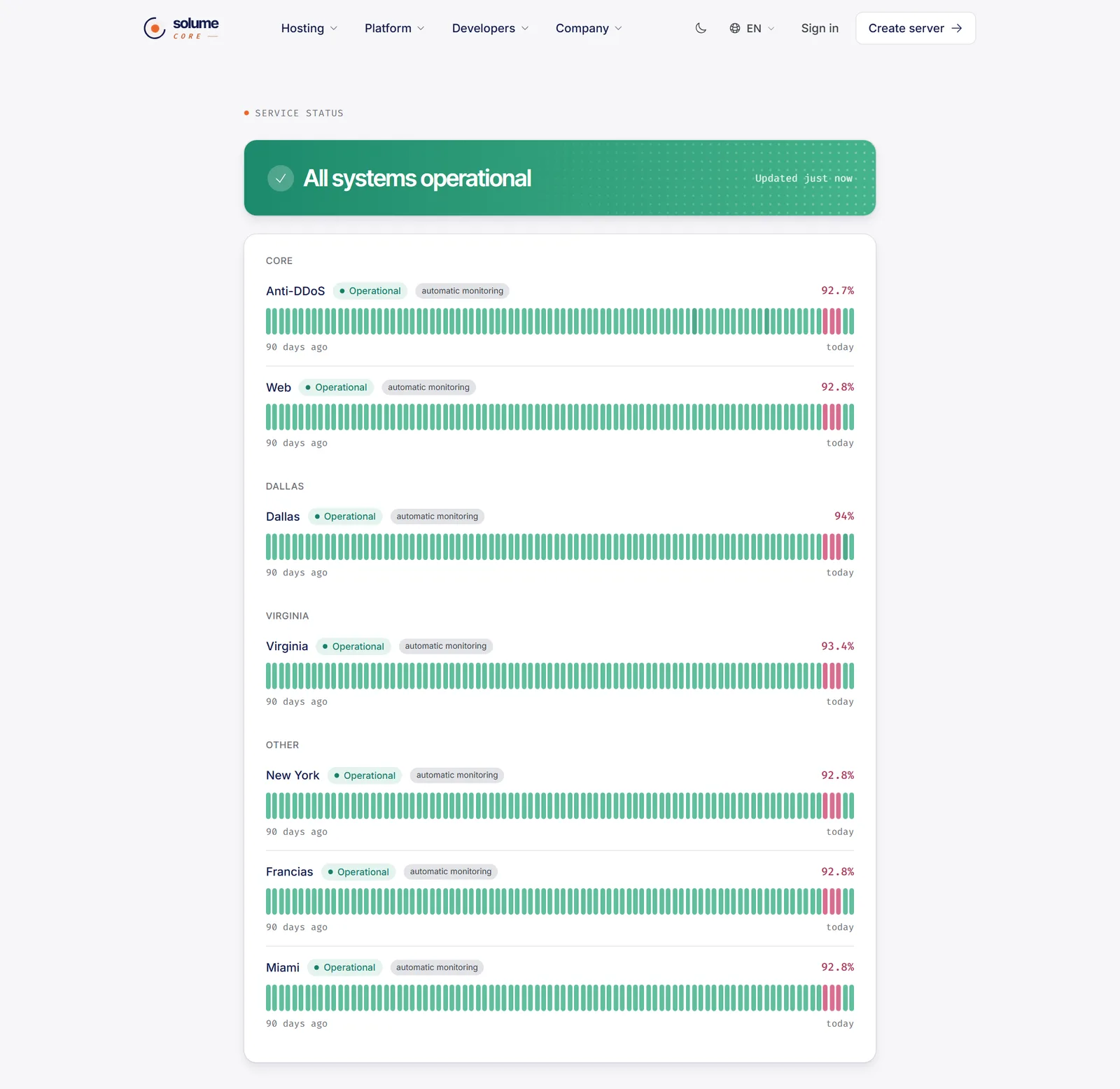
What the public status page shows
The overall banner
The top banner summarizes everything in one line. It reads All systems operational when nothing is wrong, and otherwise Status: followed by the worst state among all components. A small note says when the data was last updated.
| State | Meaning |
|---|---|
| Operational | The component works normally |
| Degraded | A partial problem: it works but not as it should |
| Outage | The component is not working |
| Under maintenance | The team is working on it on purpose. This is informational |
The overall state is the most serious one present, in this order: outage, degraded, maintenance, operational. While any component is under maintenance, a card named Maintenance in progress lists which ones.
Components and the 90-day history
Components are the parts of the platform, such as the website, the API or a data center. They are grouped into sections chosen by the team. For each one you see its state, an optional link to its public address, a tag automatic monitoring when the system checks it on its own, an uptime percentage and a row of 90 bars, one per day. Hover over or tap a bar to see that day.
| Bar color | Meaning |
|---|---|
| Gray | No data for that day |
| Green | No downtime recorded |
| Darker green | A short blip, up to 30 minutes of downtime |
| Amber | A partial issue, between 30 minutes and 3 hours, or a day with maintenance |
| Red | Down for more than 3 hours |
Components without the automatic monitoring tag are updated by the team by hand. The percentage is colored green from 99.5%, amber from 95% and red below that.
Incidents
Active incidents lists everything open, each with its title, when it started and a list of timestamped updates. Past incidents keeps the latest resolved ones. Times appear in your own time zone.
How uptime is calculated
For components with automatic monitoring, the system runs an availability check at a regular interval (5 minutes by default, set by the team) and stores every result. From those results:
- Each failed check counts as one interval of downtime for that day, so a day's downtime is the number of failed checks times the interval.
- Checks made while a component is under maintenance are not counted as downtime.
- The percentage is weighted by check, not by day, over the last 90 days: it is one minus the downtime divided by the time measured, rounded to one decimal. Days with no checks are left out.
- Maintenance time is removed from both sides, so it does not lower the percentage.
As a reference, 99.9% of a 30-day month leaves a little over 43 minutes of downtime.
Important: The page publishes figures measured by SolumeCore itself; they are not an independent audit. A green check also only means the component answers; it does not test your own application, so your service can fail on its own while the page is green. Treat the page as a good guide, not as a guarantee.
Why 99.9% is a target, not a promise
The goal is that each component is available 99.9% of the time, and the history shows how close it actually is. The terms of service, in the section on service availability, say the service is provided "as is" and as available, without a guarantee of a specific availability percentage unless one is agreed in writing for a particular plan. They also allow scheduled maintenance with advance notice where reasonably possible, and emergency maintenance without notice when security or stability require it.
How to find out about a problem
- The public page. Bookmark
/status. It updates every 20 seconds and shows the state of every component. - The panel's Service status page. Under Support, Service status, you get a one-line summary, What affects your servers (incidents and maintenance on the same machine or the same location as your servers, or marked Affects everyone), Open incidents with their stage, Scheduled maintenance planned for the next 30 days, the 90-day bars, and past incidents. Incident stages are Investigating, Cause found, Watching and Resolved, and severities are Minor, Major and Critical.
- Email alerts. On the same page, the Email alerts card has Turn on email alerts. It is free and you can turn it off any time. You choose Only mine (incidents that touch a machine or location where you have a service, or general ones) or All, and you can turn on Also the updates in between, to receive every update and not only the start and the resolution. The emails follow your account language.
- The notification bell. Announcements from the team and alerts such as an active DDoS attack on a service appear in the bell. See the client panel tour.
- Your own alerts. Under Notifications, Alerts, you can create rules such as Server down, High CPU or Disk almost full, and choose where to receive them. If you use the API, account webhooks and integrations can also receive status events.
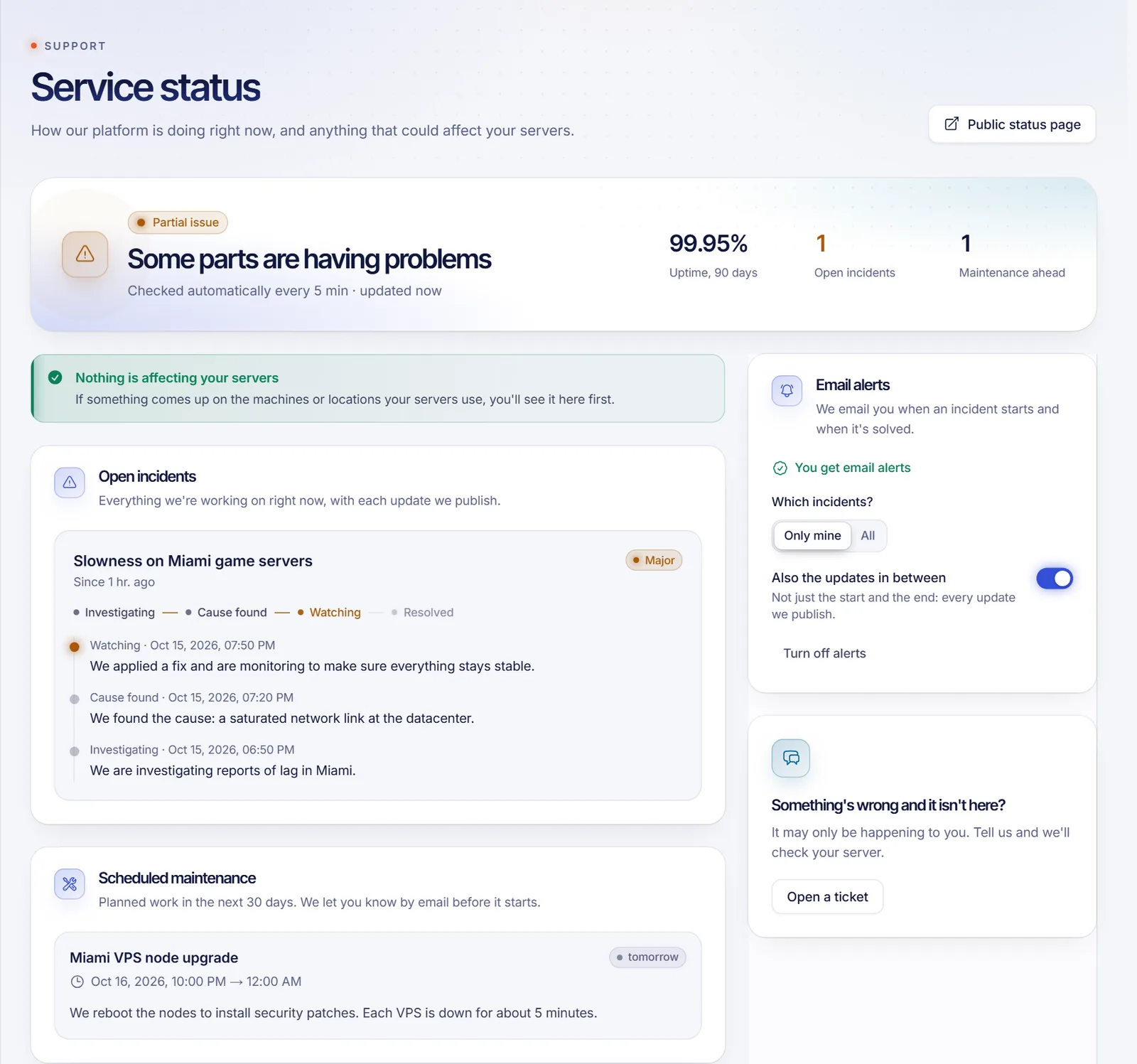
Important: Email alerts cover incidents. They are not a promise to email you before every maintenance window. To see planned maintenance, open Service status in the panel, where it appears for the next 30 days, and watch for announcements in the bell.
What to do during an incident
- Check the page. Open the status page or Service status in the panel. If your machine or location is listed, the problem is probably ours and the team is already on it.
- Wait before drastic actions. Avoid reinstalling, deleting or restoring backups while an incident that affects your server is open; most incidents resolve without anything on your side.
- Verify your own service. In All servers, look at the live state of the server (Online, Down, Unreachable, Off). Open the console or logs and check that your application is running.
- If the page is green but you have a problem, it may only be happening to you. Open a ticket from Tickets, or press Open a ticket on the Service status page, and include the server code, the time it began and what you see.
- After it is resolved, confirm your service is running, restart it if needed, and check that your latest backup exists before changing anything.
For protection against attacks see the firewall section.
Related documents
- What is SolumeCore?
- A tour of the client panel
- Locations and data centers
- Public status page
- Help center
FAQ
Is the 99.9% uptime guaranteed?
No. It is a target the team works toward. The terms of service do not promise a specific availability percentage unless it is agreed in writing for a plan. The 90-day history shows what actually happened.
How often is the status page updated?
The page refreshes itself every 20 seconds. Automatic checks run at an interval set by the team, 5 minutes by default, so a short problem can take a few minutes to show up.
What do the colors of the bars mean?
Gray means no data, green no downtime, darker green a short blip of up to 30 minutes, amber a partial issue or a maintenance day, and red more than 3 hours of downtime. Hover over a bar for the exact minutes.
Does maintenance count as downtime?
No. Maintenance time is removed from both the downtime and the time measured, so it does not lower the uptime percentage. It is shown as maintenance in the history.
How do I get notified of incidents?
Turn on Email alerts under Support, Service status in the client panel, and pick Only mine or All. You can also create alerts for your own servers under Notifications.
The status page is green but my server is down. What now?
Check the server's live state and its console first, then open a ticket with the server code and the time it started. The page tracks platform components, so a problem inside your own service, or one that affects only you, may not appear there.