How to Manage Sessions and Devices on Your Account
See where your SolumeCore account is logged in, sign out sessions you don't recognize, revoke devices and stop trusting browsers for 2FA. Step by step.
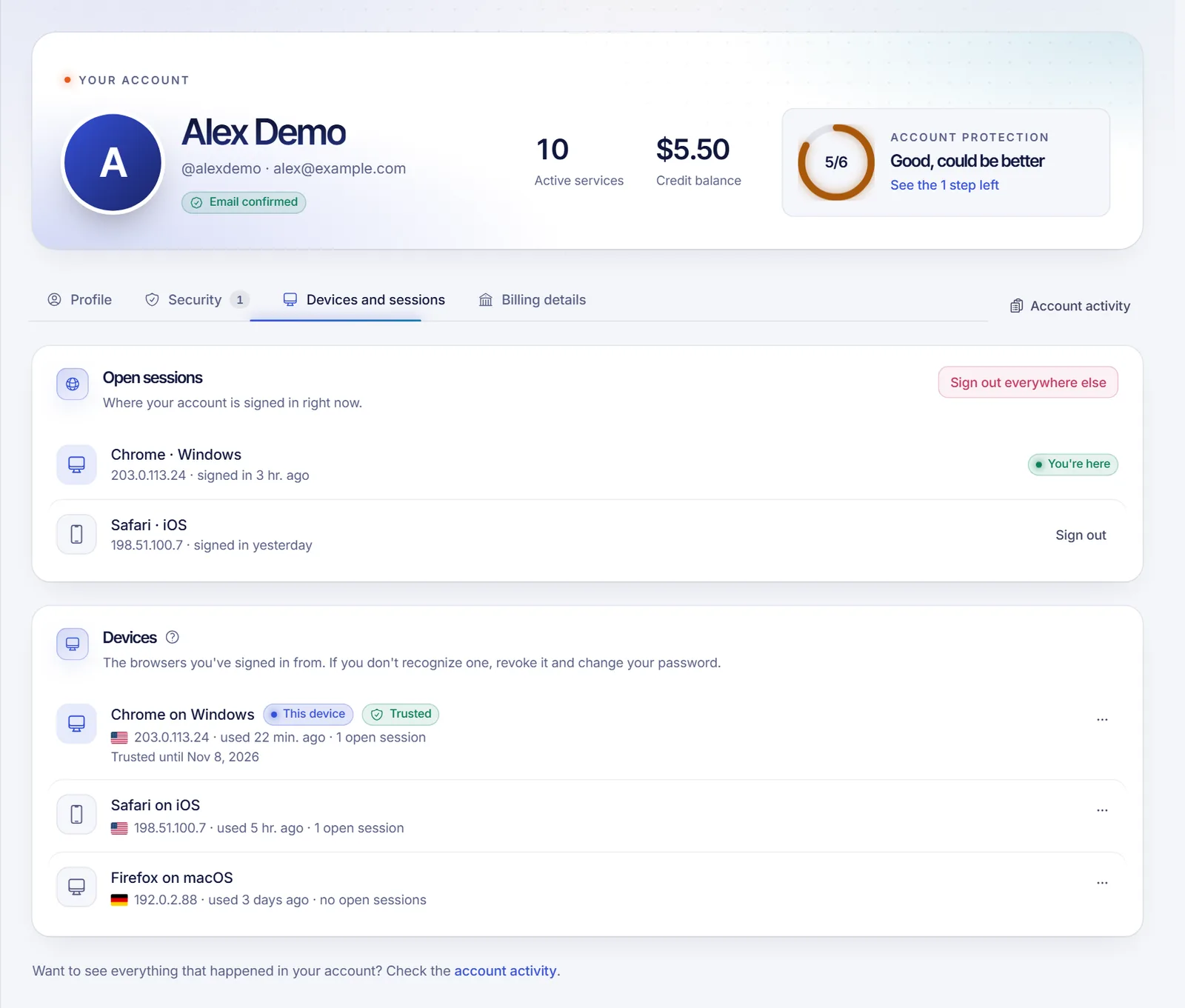
You can see and close every place your SolumeCore account is logged in from Profile & security > Devices and sessions. The Open sessions list shows each browser that is logged in right now, with a button to sign it out, and the Devices list shows every browser you have used, where you can revoke it or stop trusting it for two-step verification.
Open the Devices and sessions tab
- Log in at dashboard.solumecore.com.
- In the menu, under Account, open Profile & security.
- Select the Devices and sessions tab.
Sessions and devices: what is the difference?
- A session is a login that is open right now. Each one shows the browser and system, the IP address and when it started. The one you are using is marked as the current session. By default a session can stay open for up to 30 days.
- A device is a browser that has logged in to your account at some point. It shows its IP, when it was last used, how many sessions it has open and whether it is trusted. A trusted device skips the two-step code for a while.
Sign out a session
- In Open sessions, find the session you don't recognize or don't need.
- Click Sign out. That browser is logged out and has to enter your password again.
To close everything except the browser you are using, click Sign out everywhere else and confirm. This is useful if you logged in on a computer that isn't yours.
Revoke a device
- In Devices, open the options menu (three dots) of the device.
- Choose Revoke and confirm. Its sessions close, and if someone logs in from that browser again we alert you as a new device.
- If it is the device you are using, the option reads Revoke and sign out and you'll have to log in again.
Stop trusting a device
When you log in with 2FA you can tick Trust this device to skip the code on that browser. A trusted device shows a Trusted badge and the date until which it is trusted, 30 days by default.
- Open the options menu of the device.
- Choose Stop trusting. The next login from there asks for the code again.
Turning two-step verification off removes the trust from all devices, see how to turn on two-factor authentication.
If you see something you don't recognize
- Sign out that session or revoke that device.
- Change your password from Profile & security > Security. Changing it signs out your other sessions. See how to change your account email or password.
- Turn on two-step verification if you haven't yet.
- Open Account activity in the menu to see who did what and from which IP. You can filter by account, services, games and sign-ins, and export the list as CSV.
Signing out sessions only closes panel logins. If you think someone had your password, also change it and review your API keys, as explained in how to create and use an API key.
Get notified about new devices
When someone logs in from a browser we don't know, we email you a security notice and show it in your notifications. The first login of an account never triggers one. To check it is on, go to Notifications > What and where and make sure the Security category is enabled for email.
Troubleshooting
I signed out a session but it still shows
Reload the page. The list updates after each action. If the session persists, revoke the whole device.
A session shows an IP I don't recognize
IP addresses can belong to your mobile carrier, a VPN or a shared network. If the browser and the time don't match anything you did, sign it out and change your password.
I keep being asked for the 2FA code
The device is not trusted. Tick Trust this device next time you enter the code, only on computers you own.
FAQ
Does signing out a session sign me out of my servers?
No. Sessions only control access to the panel. Your servers keep running, and SSH or SFTP connections are separate.
How long do I stay logged in?
Up to 30 days by default per session, as long as you don't sign out. Revoking a device or changing your password closes sessions earlier.
Can I sign out all sessions including mine?
Use Sign out everywhere else and then sign out of the current browser from the menu, or revoke this device with Revoke and sign out.
Where can I see my account history?
In Account activity, which lists changes to your account, services, game servers and every login attempt.
Related articles
- How to change your account email or password
- How to turn on two-factor authentication
- How to create and use an API key
- A quick tour of the dashboard
Need more power for your project? Explore our plans.